Tutorial to Access Offline File (OST) to eM Client for Mac

Many times, Mac users receives OST files from a Windows users for many purposeful reasons. And doing this could generate a lot of issues for users using Mac OS. Because OST is a file type that supports Windows platform and can be accessed in Windows Outlook. However, the file extension has been assigned only after gathering the specifications of Windows operating system. So, if a Mac user wants to try to open it, then it will result in an error. Undoubtedly, Outlook also runs on macOS but it different file structure and specifications as compared to Windows Outlook. Therefore, this creates a problem in a situation when a user has to open and modify the received file urgently.

But, now after understanding the user issues deeply, we decided to provide a guidance that will ease the process for users and help them to import OST to eM Client for Mac directly. Without more ado, let us start and know the easy solution to restore OST file to eM Client application on Mac OS. However, first we should learn little bit about OST file and eM Client application.
Overview – OST & eM Client
OST stands for Offline Storage Table and used when the Windows Outlook is connected with Exchange and a user wants to work offline or use default Cached Exchange Mode. This data file type is also used for email accounts that are configured with Outlook Connector for Outlook.com.
eM Client is another popular email application which is designed for both Mac and Windows OS. Similar to other email clients, it is also a personal database manager which help users to manage the user account items properly such as tasks, calendars, emails, contacts and notes.
And, currently plethora of Mac users are using eM Client application and due to this they find hard to access OST to eM Client for Mac.
How to Import OST to eM Client for Mac Instantly?
In the section, we have highlighted two stages of the process –
- Converting OST file to eM Client supported format.
- Importing Resultant File to eM Client email app on Mac.
Stage 1. Convert OST to eM Client Supported File Format
To convert OST to eM Client-supported file format, use all-in-one OST Converter for Mac application. With the help of the tool, users can convert OST files to PST and then import the resultant PST file to eM Client for Mac directly. The software will finish the entire process in minimal time and help you to get the desired result. Moreover, you do not need to take worries about the database because the application will keep the entire email file data and associated properties preserved during the process.

The features of the software are very well-designed as one can use them according to their need. However, you can test each and every option of the tool with the help of free demo edition.
Steps to Convert OST File to eM Client on Mac
Step 1. Run OST Converter for Mac Tool on macOS.
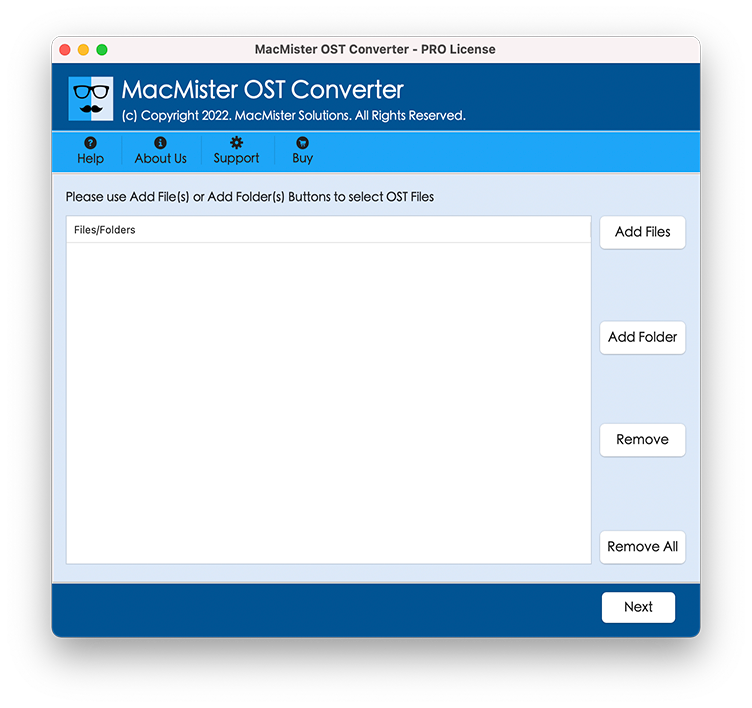
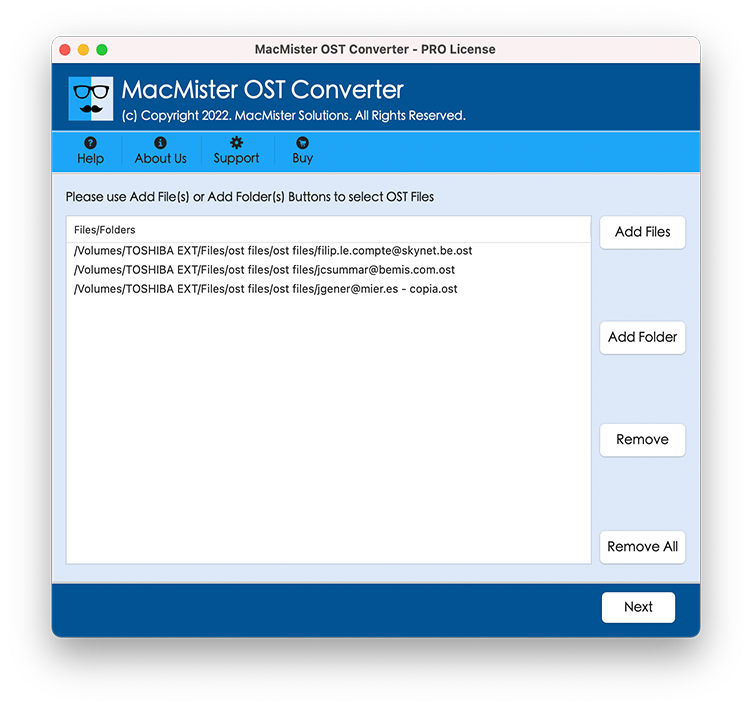
Step 2. Load OST mailboxes by taking help of Add Files and Add Folder. Click Next.
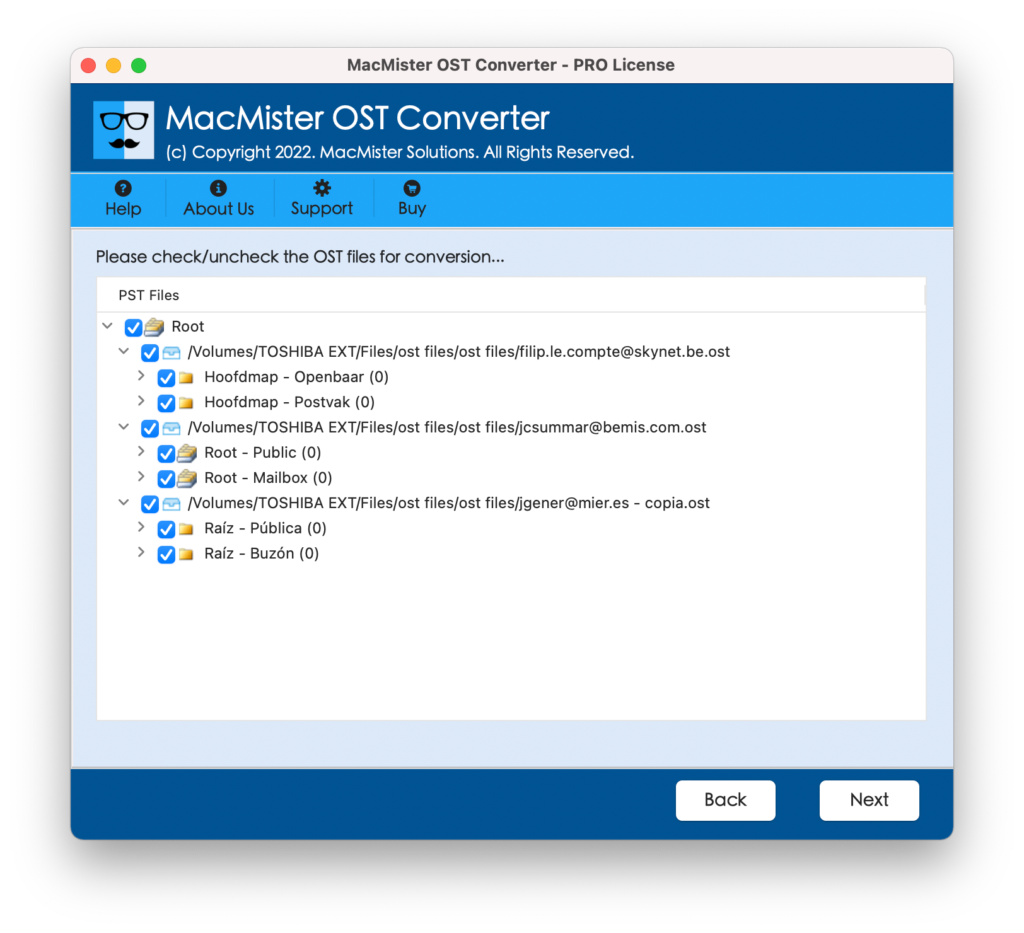
Step 3. OST folder list will appear one by one with checkboxes and by default all will be chosen. You can do the selection as per your choice if you want otherwise click on Next button.
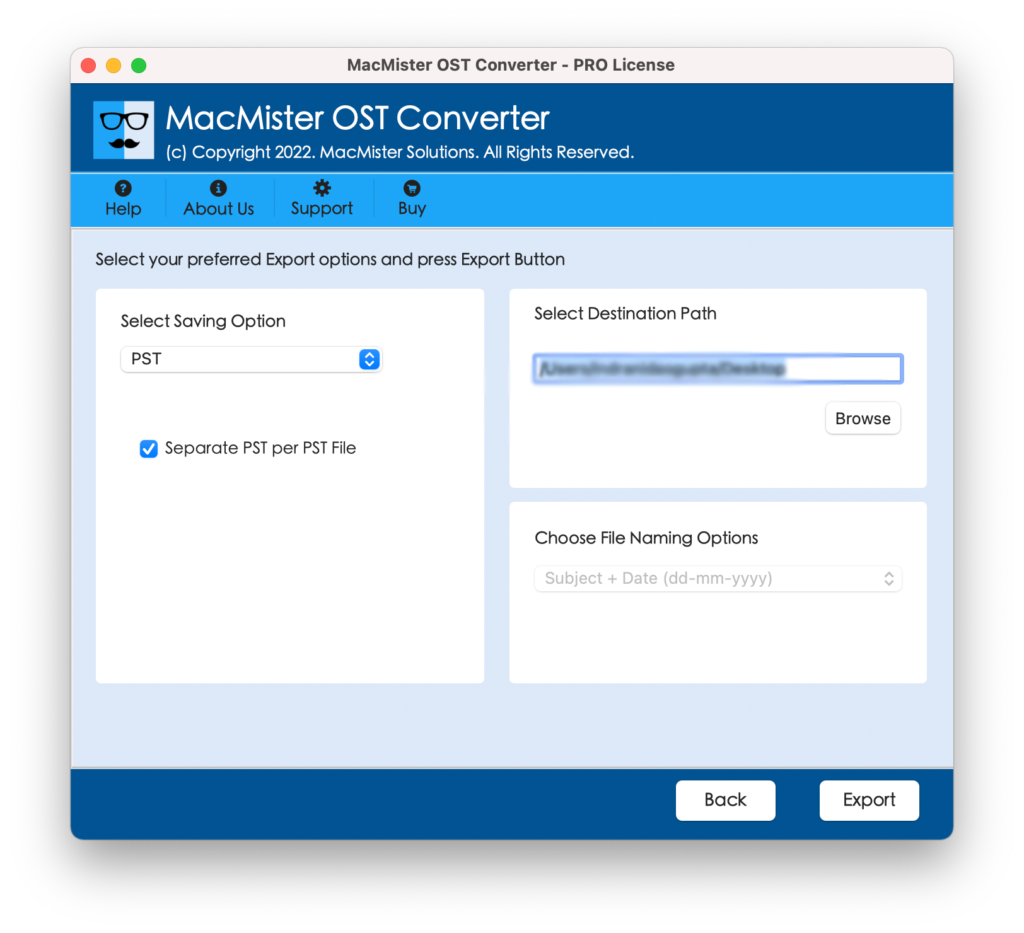
Step 4. Select PST file format by going to Select Saving Option drop-down list.
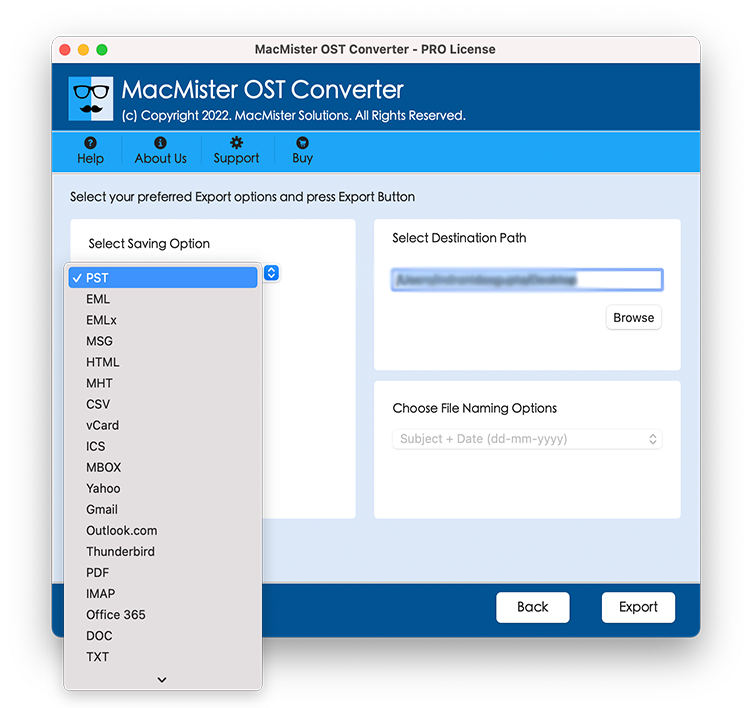
Step 5. Set PST format sub-options as per need and press Export button.
Step 6. Now, track the process through Live Conversion window as shown –
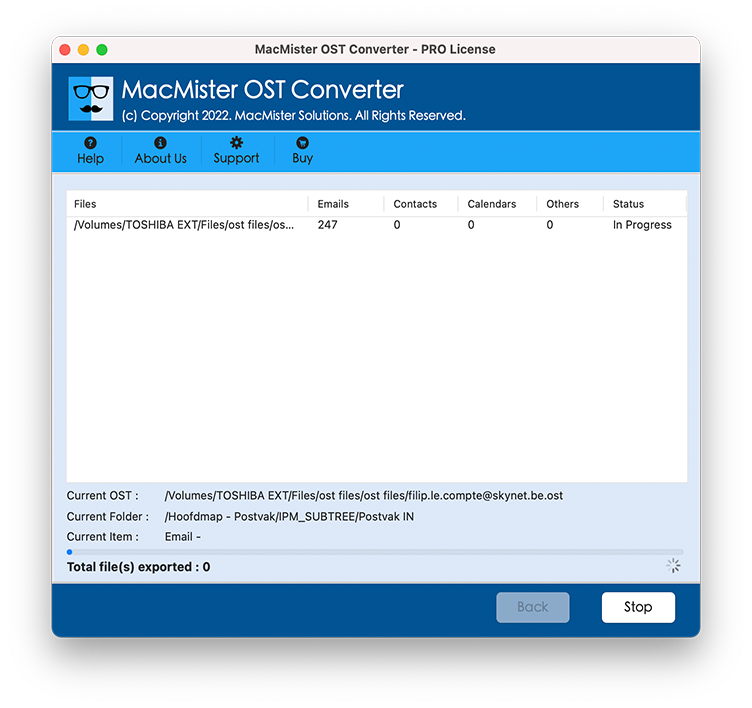
The process will take few seconds and completes with 100% accuracy. You can check the details of conversion through the log report that will generate straightaway after the completion of the process. It will show the saving option, saving path, start and end time of the process etc.
Stage 2. Import Resultant PST File to eM Client for Mac
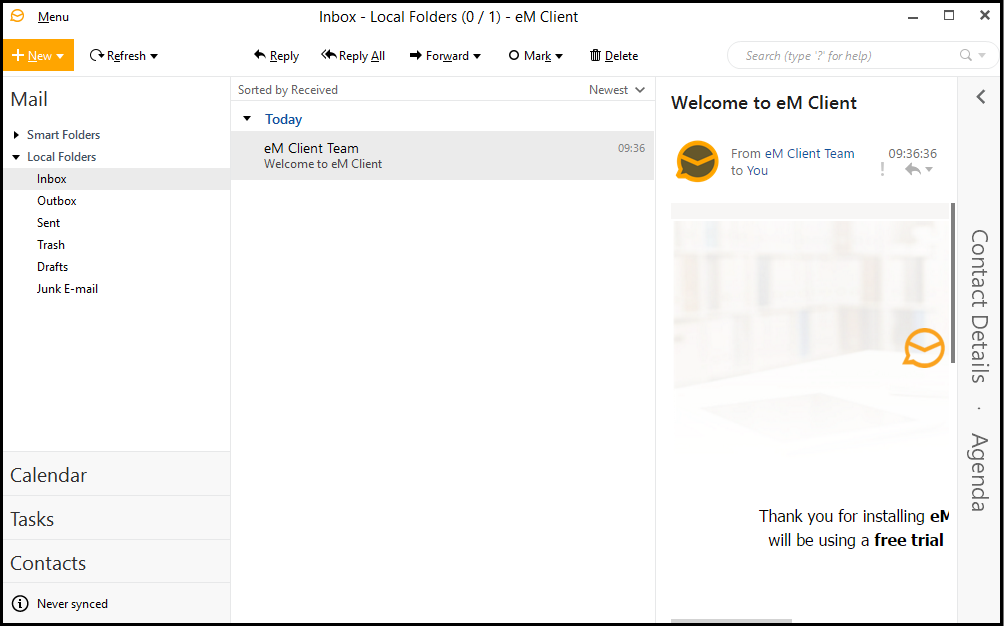
Step 1. Open eM Client for Mac on your system.
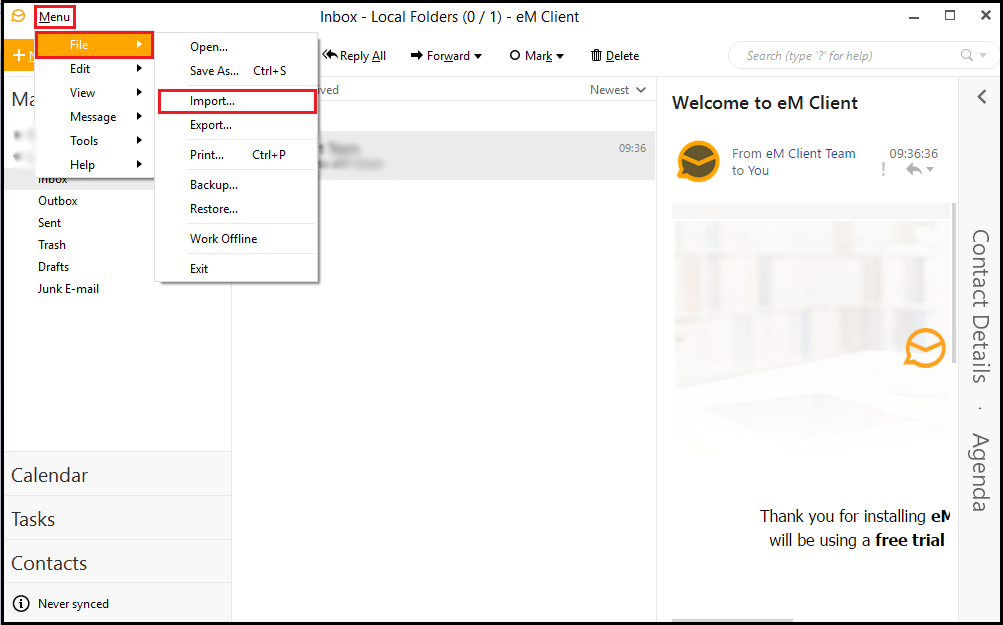
Step 2. Navigate to Menu, click on File and choose Select Import.
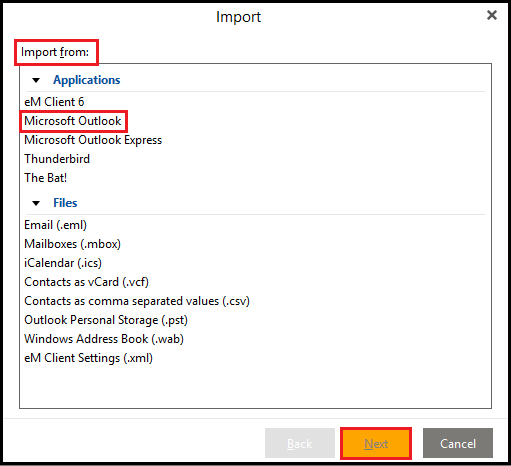
Step 3. New Import window will appear, select “Microsoft Outlook” appearing under Import from and click on Next.
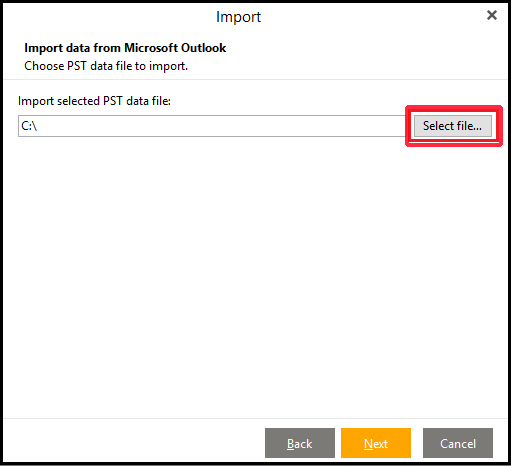
Step 4. Click Select File button.
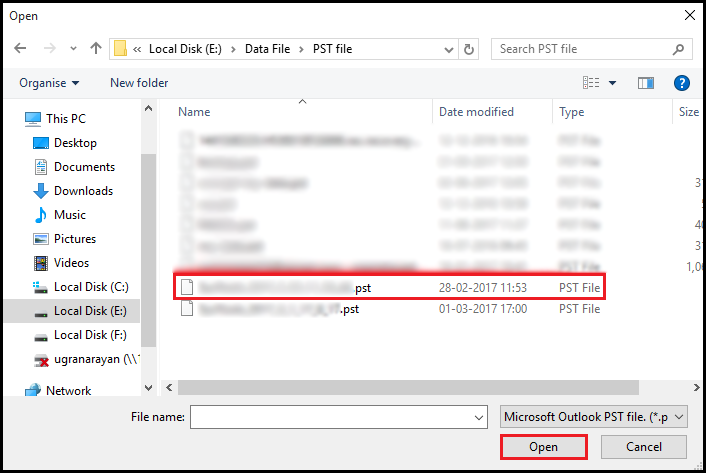
Step 5. Choose PST file location that is created earlier and click on Open.
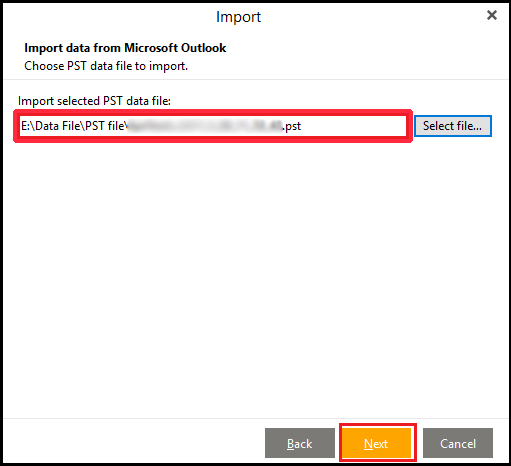
Step 6. When added, press Next button.
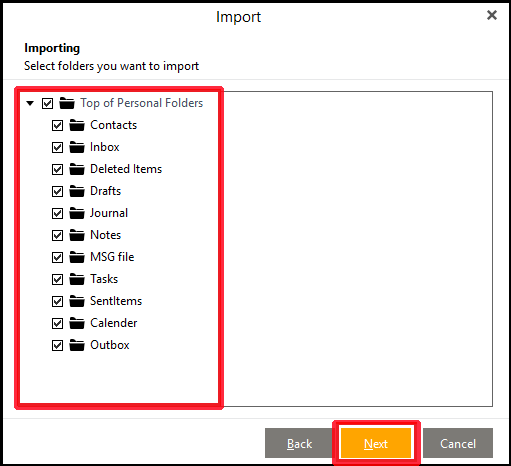
Step 7. Select required folders to import into eM Client for Mac and click Next.
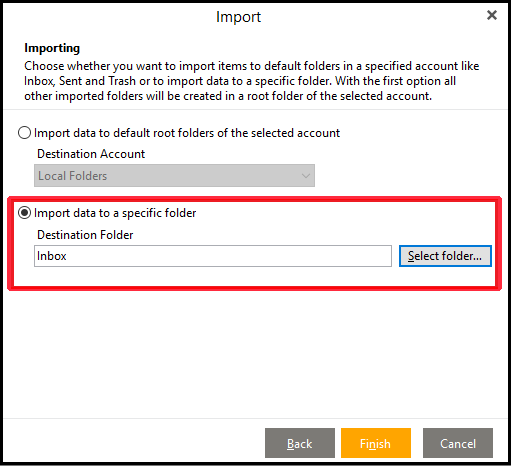
Step 8. Select the option “Import data to a specific folder” and click Select Folder button.
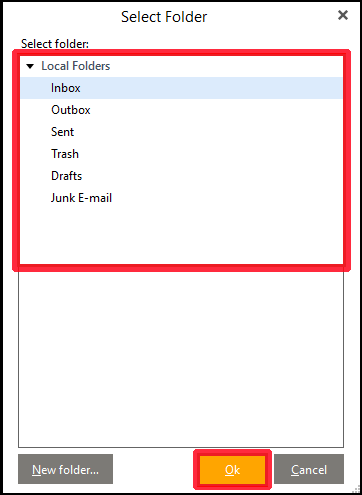
Step 9. Choose INBOX displaying under Local Folders and hit OK Button.
Step 10. You will get Completed message on the screen.

Now, open the file on eM Client application and read the data of OST contacts, mails, calendar etc. without dealing with data loss issues.
Final Words
The main aim of the blog is to deliver advance and simple technique to import OST to eM Client for Mac directly. The entire solution has two stages which can is easy to implement and can be operated by all professional and non-professional users. You can use the free demo edition to experience the complete process and related options of the software. It allows to convert first 25 OST files to eM Client supported format free of cost.