How Do I Add Email to Apple Mail Account? – Quickly Fixed
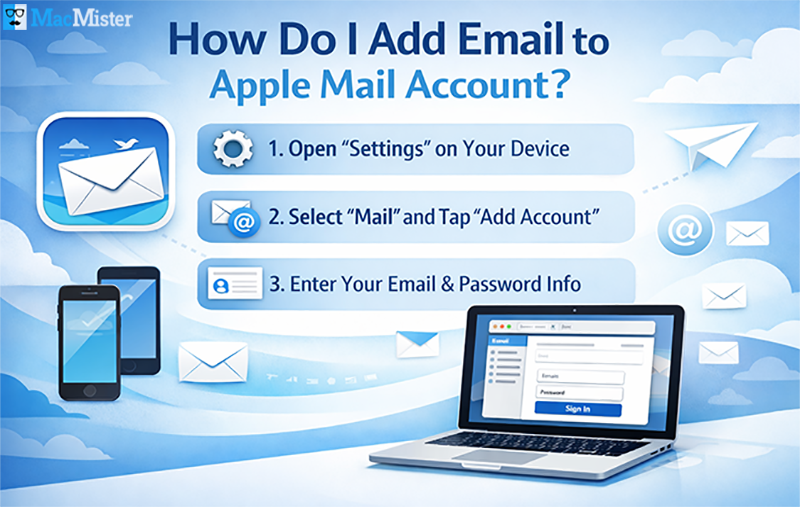
Just got a new Apple device and wondering how to add email to Apple Mail account? Don’t worry, this blog post will help you set up your email in Mac Mail quickly and without any hassle. Apple Mail offers a clean, centralized, and efficient way to manage all your emails and related data compared to other webmail services. Follow this comprehensive guide carefully for the best outcomes.
Why Use Apple Mail? Key Advantages before Adding Your Email
Before you start adding your email to Apple Mail on Mac, it’s important to understand why this platform is beneficial:
- All-in-One Email Management: Apple Mail lets you handle all your emails from a single dashboard, eliminating the need to switch between platforms.
- Improved Productivity: Easily flag important emails, create smart mailboxes, and organize conversations efficiently.
- Access Emails Offline: Since emails and attachments are stored locally, you can view them even without an internet connection.
- Enhanced Security: Built-in system-level security features make Apple Mail a safe choice for managing sensitive data.
- Seamless Sync across Devices: Your email data syncs automatically across all Apple devices, so you can manage and access emails from anywhere.
How Do I Add Email to Apple Mail on Your Mac OS?
Apple Mail allows you to send, receive, and manage all your email accounts in one place. You can easily add existing accounts like Gmail, iCloud, Exchange, and more. Follow these steps to set up your email on Mac:
- Launch the Mail app from your Applications folder.
- Enter your email address, or click “Choose from a list” to select from commonly available accounts.
- Click Continue and follow the on-screen instructions to enter your account login credentials.
- If your email is already linked with other Mac apps like Messages or Contacts, you can use the same account in Mail. Go to Mail > Accounts to open Internet Account settings, then select the account you want to use.
Once added, Apple Mail will sync your emails automatically, allowing you to manage everything efficiently from a single dashboard.
How to Add Additional Email Accounts to Apple Mail on Mac
If you already have one account set up in the Mail app but want to add more, follow these simple steps:
- Open the Mail app on your Mac.
- Click on Mail > Add Account from the menu bar.
- Enter the email address you want to add.
- Click Continue and follow the on-screen instructions to complete the account setup.
How Do I Add Email to Apple Mail Account on iPhone or iPad?
You can set up email accounts in the Mail app on iOS devices either automatically or manually.
Automatic Account Setup
- Go to Settings, then tap Mail.
- Tap Accounts > Add Account.
- Enter your email address.
- Select your email provider from the list (if required).
- Enter your email password and follow any on-screen prompts.
- Tap Next to verify your account.
- Finally, tap Save to complete the setup.
Manual Setup for Less Common Email Providers
- Open Settings, then tap Mail > Accounts > Add Account.
- Enter your email address and tap Next.
- Select Add Other Account > Mail Account.
- Enter your name, email address, password, and a description for the account.
- Tap Next. Mail will try to find the email settings automatically and finish the login process.
What to Do If Mail Cannot Detect Your Account Automatically
If Apple Mail is unable to find your email settings automatically, you can enter the details manually by following these steps:
- Tap Next to continue with manual setup.
- Choose IMAP or POP for your account. (Contact your email provider if you are unsure which one to select.)
- Enter the details for Incoming Mail Server and Outgoing Mail Server, then tap Next. (Reach out to your email provider if you don’t have this information.)
- If the settings are correct, tap Finish or Save. If any details are incorrect, you can easily edit them.
Tips for Adding Email to Mac Mail
- Prefer IMAP over POP for better syncing across devices.
- Keep your device updated regularly for smooth email access.
- Use app-specific passwords for accounts with enhanced security.
- Double-check server settings, especially for custom domains.
- Ensure a stable internet connection while setting up your account.
Still Facing Issues Adding Email to Mac Mail?
If your query about how to add email to Mac Mail across multiple devices is still unresolved, or if you want to migrate email data to another client, MacMister Apple Mail Converter can help. This tool allows safe and reliable conversion of Apple Mail data for backup or migration purposes.
For further assistance, you can contact our Technical Support Team 24/7, who are ready to guide you and resolve any issues.
You May Also, Like: How Do I Add Signature to Apple Mail
FAQs: How to Add Email to Apple Mail?
Q1: Can I add multiple accounts to Apple Mail?
A: Yes, go to Mail > Add Account and follow the instructions for each account.
Q2: Should I use IMAP or POP?
A: IMAP is recommended for syncing emails across all devices; POP downloads emails locally.
Q3: How do I add email on iPhone/iPad?
A: Use Settings > Mail > Accounts > Add Account and follow the prompts automatically or manually.
Q4: What if Apple Mail can’t detect my account?
A: Enter your account manually with IMAP/POP and server details, or contact your email provider.
Q5: How can I backup or migrate Apple Mail data?
A: Use MacMister Mac Mail Converter for safe conversion and migration of your emails into 10+ local file formats as well as cloud apps.