How Do I Add Signature to Apple Mail? – Complete Working Guide
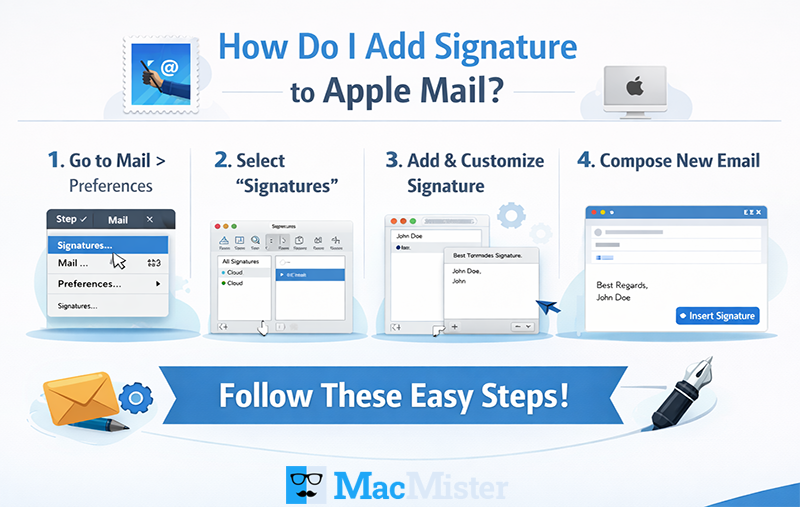
Many users often ask, “how do I add signature to Apple Mail” to make their emails look more professional. A professional email is not just about the message itself, it’s also about how you present it. Adding a signature in Mac Mail helps you leave a lasting impression and gives your emails a polished appearance.
In this post, we will explain the best techniques to add signature to Mac Mail and how it can benefit you. Let’s get started!
Benefits of Adding Signature in Apple Mail
Adding a signature in Mac Mail comes with several advantages. Here are some key benefits:
- A signature gives your emails a professional and polished look, which is especially useful for business communications.
- It automatically appears at the end of your emails, so you don’t have to type it manually every time.
- You can use it to promote your brand or business by including your website, social media links, and other company details.
- Every email you send will consistently display the same contact information you want recipients to see.
- It makes it easy for recipients to access your contact details, address, and other business information without any extra effort.
How Do I Add Signature to Apple Mail on Mac?
You can create a signature in Apple Mail for both work and personal emails. Follow these steps to set up your signature:
1. Open the Mail app on your Mac.
2. Go to Mail > Settings > Signatures.
3. In the last column (account list), select the email account where you want to add the signature.
Tip: If ‘All Signatures’ is selected while creating a signature, drag the new signature to the desired account before using it.
4. Click the “+” button below the middle column (signature list) and give your signature a name.
- This name will appear in the Signature menu when composing an email.
5. In the right column, you can edit your text, format it, or even add an image.
How to Set a Signature to Appear Automatically?
You can also set a signature to be added automatically to all outgoing emails. Here’s how:
- Open the Mail app on your Mac.
- Go to Mail > Settings > Signatures.
- Select the email account in the left column.
- Click the Choose Signature pop-up menu and select the signature you want to appear automatically.
Note: To stop adding a signature automatically, select None from the Choose Signature menu.
How to Add Signature to Mac Mail via iCloud?
You can also add a signature to your iCloud Mail to make your emails look professional. Follow these steps:
- Open icloud.com/mail and sign in with your Apple account if prompted.
- Click on Settings (gear icon).
- Select Composing from the sidebar.
- Scroll down and check the “Add a signature” option.
- Type the text you want to include in your signature.
Once added, your signature will automatically appear in all future emails you send from iCloud Mail.
How to Stop Using or Delete Your iCloud Signature?
There are times when you may want to remove or stop using a signature. Here’s how:
Stop Using a Signature in iCloud Mail
- Go to icloud.com/mail and sign in if needed.
- Click the gear icon at the top of the mailbox list and select Settings.
- Go to Composing in the sidebar.
- Uncheck the “Add a signature” option to stop using it.
Delete a Signature on Mac
- Open the Mail app on your Mac.
- Go to Mail > Settings > Signatures.
- Select the signature you want to remove in the middle column.
- Click the “–” button to delete it.
Note: If you delete a signature from All Signatures, it will be removed from all accounts that use it.
Tips to Keep in Mind While Adding a Signature to Mac Mail
When adding a signature to Apple Mail, keeping a few important points in mind can help you create a professional and effective signature:
- Use a clean and minimal design for a polished look.
- Include only essential details such as your name, job title, phone number, and website.
- Avoid excessive fonts, styles, or colors to maintain a professional appearance.
- If you include images, use small and compressed logos to prevent loading issues.
- Make sure all links are clickable and functional.
- Keep your signature short and simple, avoiding too many links or unnecessary information.
Need Help Adding a Signature in Apple Mail?
We hope this guide has helped you understand how do I add signature to Apple Mail, whether on your Mac or iCloud.
If Apple Mail is not allowing you to add a signature for any reason, you can use MacMister Apple Mail Converter for Mac. This tool allows you to convert and migrate your Apple Mail data to another email client or local file formats, making it easier to set up and use signatures.
For further assistance, you can also reach out to our MacMister Support Team, available 24/7, to guide you through any technical issues and ensure a smooth email experience.