Apple Mail Mailbox Greyed Out Not Working! – [Solution 2026]
Apple Mail is a desktop-based email client application introduced by Apple itself. Many times, Mac Mail unable to function properly or greyed out without any reason. This is due to restrictions applied on Apple Mail device. Additionally, there are other two reasons which cause greyed out in Apple Mail; one is the mail service in which user has made changes to the settings and update of the settings is needed or the Mail Preference file is corrupt or outdated. Other reason will be the incorrect file permission associated with it. Let us understand the error in detail and prevent Apple Mail mailbox greyed out error with the help of the scenarios discussed further.
Scenario 1.
I am using Apple Mail since few years but suddenly I am facing issues while sending emails as my Mac Mail account is greyed out and not working. Also, I am not able access the settings. So, can anyone tell me how to prevent my Apple Mail account greyed out error?
Scenario 2.
Few days back, I have updated Apple Mail and that made my account greyed out. Now, I am encountering challenges while using Mac Mail account. So, is there anyone who can help me to restore my Apple Mail account again? And it will be great if someone can provide me instant solution as there are some crucial mailboxes stored in my Mac Mail account.
Reasons for Apple Mail Greyed Out and Not Working
Below are some important reasons discussed behind Apple Mail greyed out error –
Mail Settings – There are situations when mail service will make modifications to Mail server. This encompass the server is accountable for Outgoing Mail. Such servers are highly victimized by malware intended to convert them into spam servers specifically due to the frequent updates that mail services implement on the server software. As a result, this causes Apple Mail account not to respond.
File not Updating – Another main reason why Mac emails are unable to be accessed is that Apple Mail user encounter issues while writing data to its preference file. The issue prevent users to save updates to mail settings. The mail server asks for alterations to the user’s account settings. These changes remain same until the user closes the mail application. The next time the mail is opened, the send button is dimmed due to wrong outgoing mail settings.
Mail Preference File – At times the Mail Preference file become corrupt. Due to this, the mail will stop working or it will limit some important features such as sending mail. In such a case, backup is needed while enhancing Apple Mail, as some essential email information such as account details can be lost.
Virus Attack – Virus attack can be also one of the main causes for Apple Mail greyed out error. Virus or any other malicious attack will create issues in Apple Mail.
Update – Apple Mail at times greyed out after update. And there are chances that the update isn’t performed correctly.
File Extension – Performing changes in the file extension can also prevent users from accessing Apple Mail mailboxes.
Advanced and Powerful Method to Fix Apple Mail Mailbox Greyed Out Error
MacMister MBOX to PST Converter Mac & Windows can resolve Apple Mail greyed out error. The features of the application are –
- Batch export Apple Mail mailboxes into PST at once.
- Protects the data originality during conversion.
- Supports multiple options to load Apple Mail mailboxes.
- Ensure the safety of email metadata properties while saving Apple Mail mailboxes.
- With PST, also includes other saving types such as PDF, MSG, HTML, Gmail, Yahoo, Office 365, and more.
- Handles large Apple Mail mailboxes with ease.
- Available with Mac & Windows OS versions both (supports all editions).
The tool is user-friendly and supports comprehensive environment. Users with technical and non-technical skills can operate the software effortlessly and perform the entire export without any issues. Additionally, the application is programmed with minimal steps which will save the time and efforts of a user.
Working Steps of the Application
Follow the steps below to backup Apple Mail mailboxes on Mac –
Step 1. Download, install, and run the app on Mac OS.
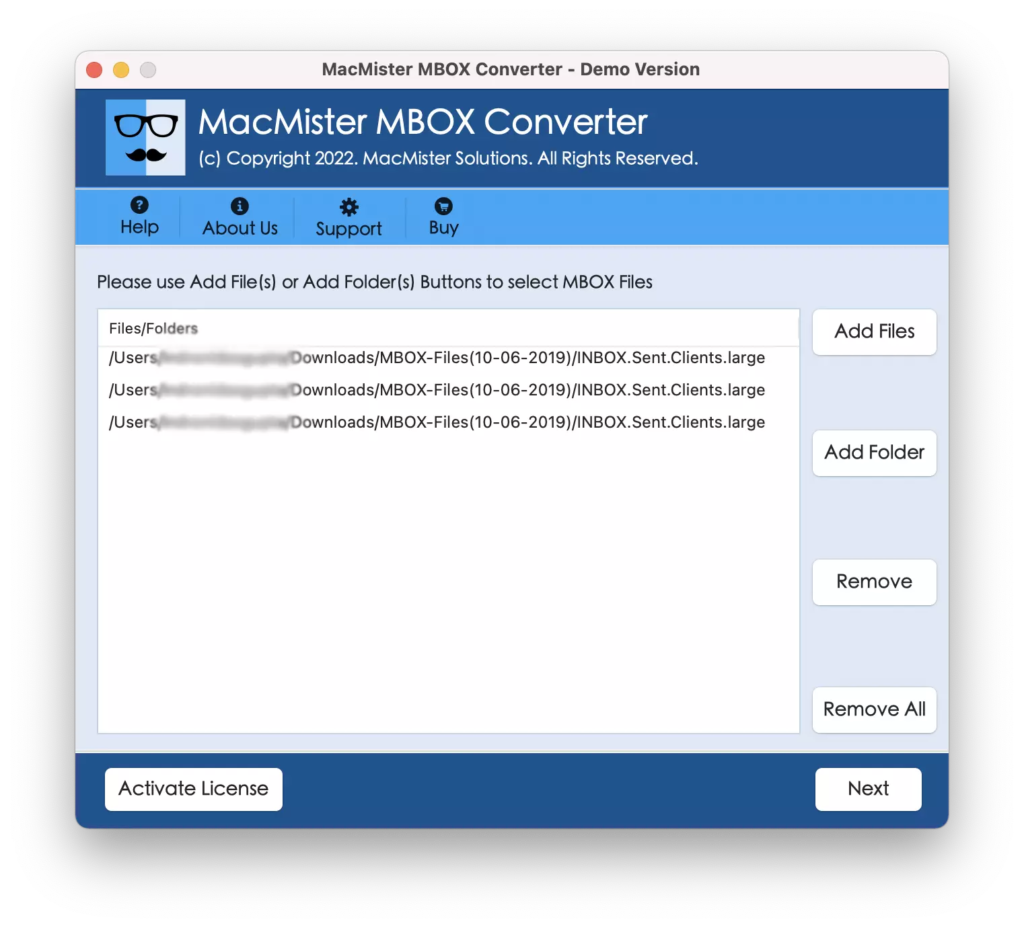
Step 2. Load Apple Mail mailboxes with the help of the options listed. In case you have MBOX files, then use Add File(s)/Add Folder button to upload the same. Click Next to continue.
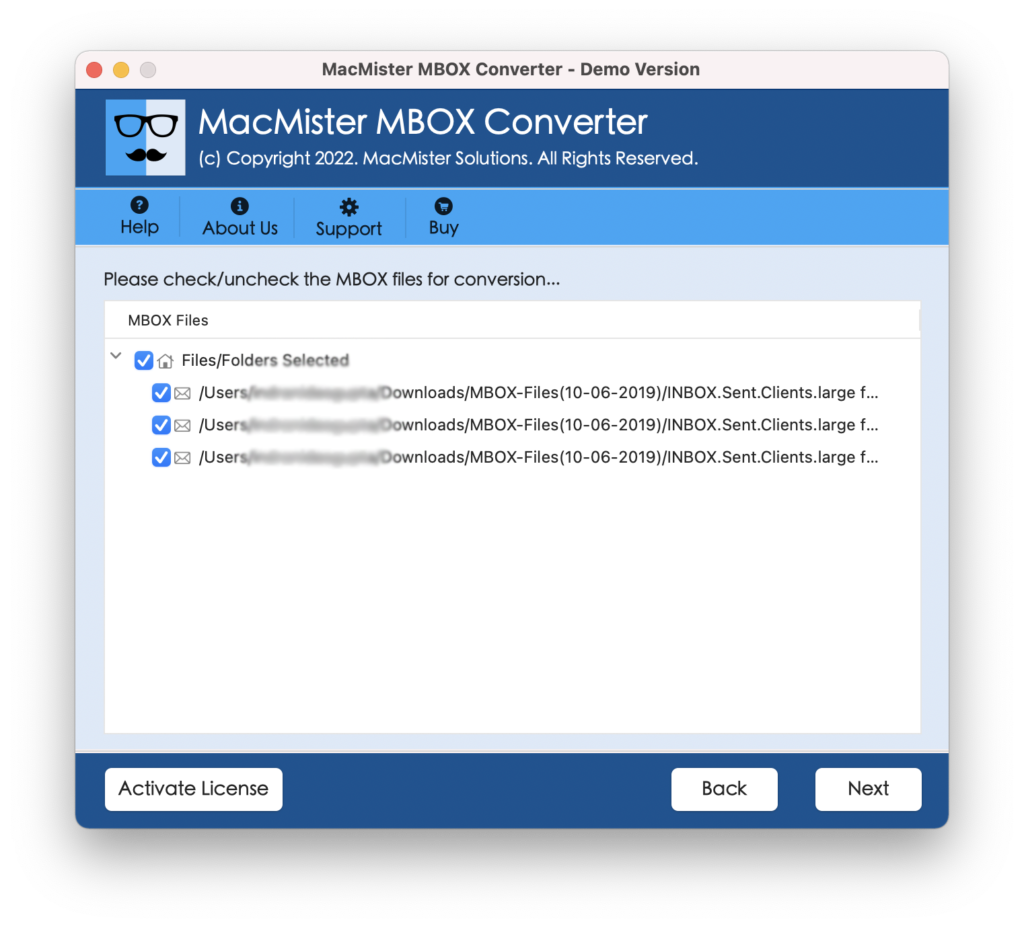
Step 3. Verify the list of files displaying on the screen. Click Next to proceed.
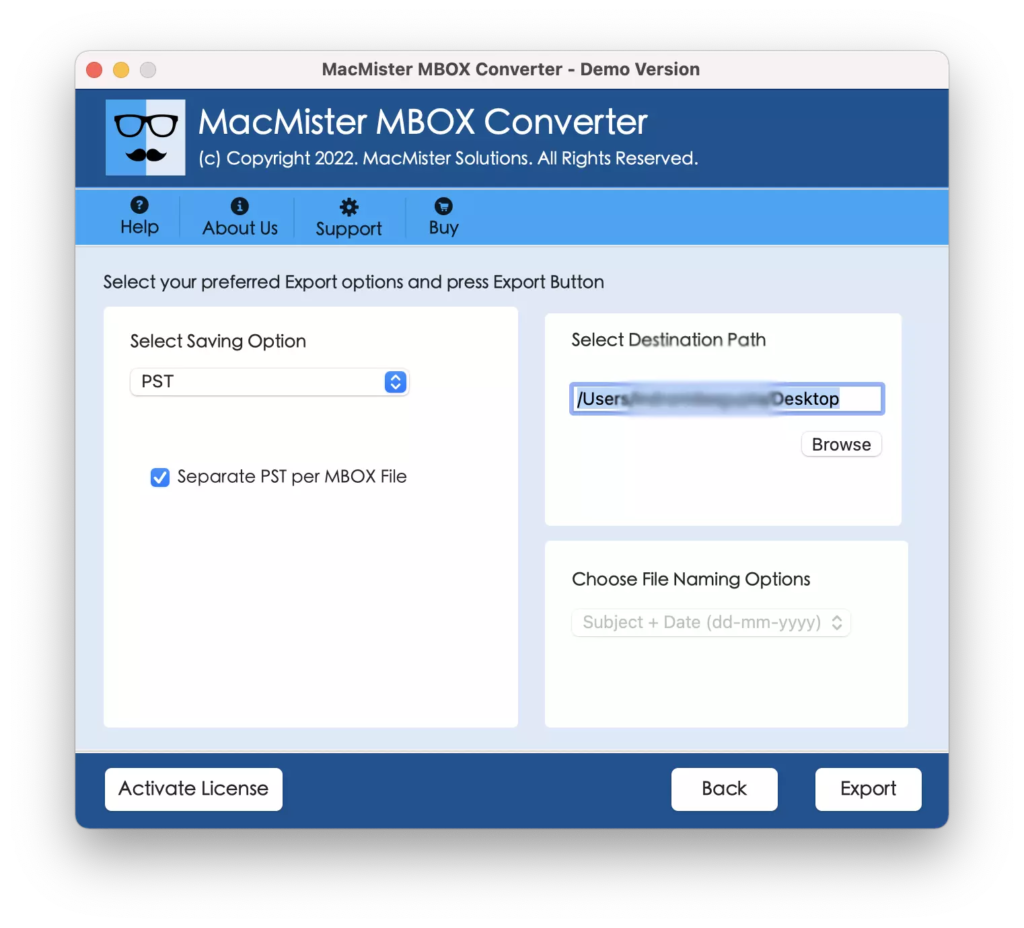
Step 4. Go to Select Saving Options drop-down menu and choose the required saving type from the list.
Step 5. Set the sub-options of a selected saving type as per your needs and tap Export.
Step 6. The Live Conversion Report will open which show the export details to users.
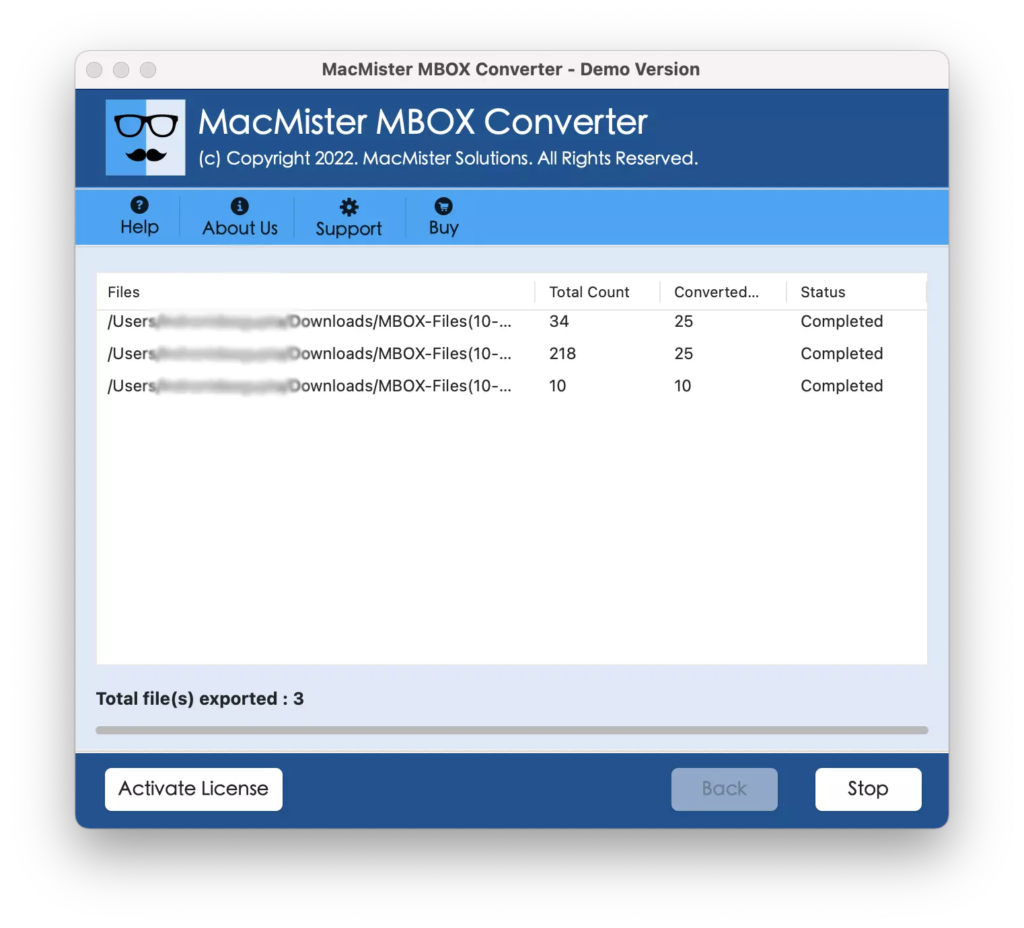
In matter of seconds, the process will complete and “Conversion Completed” message will appear. Click OK and close the message.
Epilogue
Everyone looks for appropriate functioning of mail service irrespective of email application. Similarly how to prevent from Apple Mail greyed out error is discussed in the segment. There are many reasons why users face this problem. Virus attack, problem encountered during update or an issue with file extension. However, there is a third-party tool as well which is used to transform Apple Mail mailboxes into many other file formats. So, the steps are present here highlighting the procedure for converting Apple Mail to PST so that Apple Mail mailboxes can be used in other email clients.
Quick Note. Utilize MacMister MBOX Converter for Mac or Apple Mail Converter directly to export Apple Mail .mbox files or to backup Apple Mail mailboxes directly into 15+ saving options such as PST, EML, DOC, Yahoo Mail, Office 365, and more.