Unique Tactic to Migrate Apple Mail to Spark Mail on Mac
As I was surfing for a content on Google, I came across of a topic where reasons were given to migrate from Apple Mail to Spark email client. However, the scenario is quite new to me, so I researched a lot about it and finally thought to write a content on the same. Because after a lot of exploration I figured out many users are moving to Spark from Mail and finding a technique that could help in transferring their associated files as well. The reasons are mentioned for migration but not the solution. So, I decided to provide the appropriate guidance that could help you in discarding the issues to some extent.

Note. Get a powerful and reliable Mac MBOX Converter to export Apple Mail supported MBOX files directly to Spark Mail. The app offers an IMAP Server option that allows users to perform direct migration without data loss in seconds.
So, let’s get started.
Apple Mail vs. Spark Mail
Apple Mail is a default email client which delivers quick setup with a basic interface. It provides integration with wide range of services such as iCloud, AOL Mail, Gmail, Yahoo! and Exchange. The email client give facility to users to connect with IMAP and POP3 accounts that is supported by S/MIME for end-to-end encryption. With Apple Mail –
- Access mailboxes, folders and accounts directly from sidebar.
- View threaded conversations that are separated with subjects.
- Get the benefit of unified mailboxes that help you to see incoming, sent and draft mail in one list by default.
- In-built smart Mailboxes help in rule-based mail filtering.
Spark is another desktop-supported and decent email application. Supports integration with Yahoo!, Exchange, iCloud and IMAP email accounts. Offers several convenience features such as ability to snooze an email, inbox sorting into different categories such as Notifications, Personal, and Newsletters. Also, includes the follow-up reminders for sent emails to check the schedule with in-built calendar tool. With Spark Mail, you can –
- Comment privately with team members on particular email in small chat box.
- Collaborative composing help to collaborate with other team members to proofread and compose email in real time.
- Create secure links which point to specified threads and messages and help to share the same with team.
- Also works as lightweight CRM solution for small teams and start-ups.
Some Main Reasons to Move from Apple Mail to Spark
Reason 1. Synchronization
Apple Mail is lacking in synchronization process. For e.g. if you have 10 email accounts and you are accessing it from a different location and on a different device such as iPad, then you need to again configure it manually which become time-consuming and even hectic for many users.
But, if we talk about Spark Mail, then it provides the option to synchronize all email accounts across all devices in a single time. So, users do not need to manually configure it when accessing a different device.
Reason 2. Customizations
There are many amazing stuff in Spark Mail which proves why one should switch to Spark from Apple Mail.
Swipe Gestures
The option helps to open/read, delete/archive, tackle it later or create a task. You can customize the options for your emails according to your requirements. It includes –
- Move – To move folders or tags in Google Workspace.
- Snooze – It is a defer option. Remove email for a particular time. Apply a snooze and the email will appear again at specified time.
- Omnifocus – to manage multiple tasks.
- Delete
Reminders
Setting a reminder will help you in managing the daily tasks. It will free your mind so that you can focus on other important things. For e.g. you can set a reminder for sending an email to a particular client. The email client will remind you accordingly and help you to send email automatically to stated schedule. You can set a reminder for your meeting as well. It will save your energy and will help you utilize the same on different tasks.
Snooze
If you apply a snooze option, then it allows to remove a specific email, even if you have not decided about what to do with that particular mail.
You can keep snoozing the email to hide it for a week. And when the other week starts, it will snooze again and then you can do the same for another week as well if you want.
Send Later
The option will help you to schedule a time to send an email. For e.g. if you want to send a particular email on a particular day and time. Then, you can use this option, set the details accordingly and then it will automatically send the same at specified day and time.
Reason 3. Integrations
The Spark Mail is integrated with multiple third party applications. It will help you in managing the crucial tasks really well such as Dropbox, OneDrive, Box, Google Drive, Reminders, Instapaper etc.
How to Migrate Apple Mail to Spark Mail on Mac?
To migrate from Apple Mail to Spark, you can use Apple Mail Converter for Mac software. With the help of the solution, you will be able to move all Apple Mail required mailboxes to Spark directly without data loss. The software has the ability to transfer Apple Mail emails to Spark in just three steps.

The application is built-up with features which help users in achieving the migration process as per need. Also, it is a tested utility. All the details will be protected and remain confidential during the process. You can download the trial edition to check the complete software functioning.
Steps to Move Apple Mail Mailboxes to Spark
Step 1. Run Mac Apple Mail Converter on macOS.
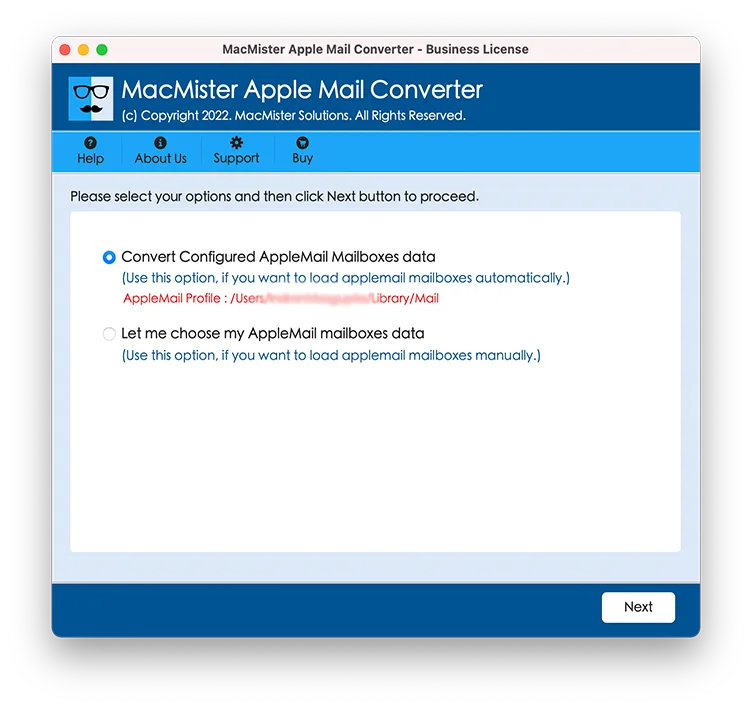
Step 2. Apply desired option and upload Apple Mail mailboxes that needs to be migrated in Spark Mail and click Next.
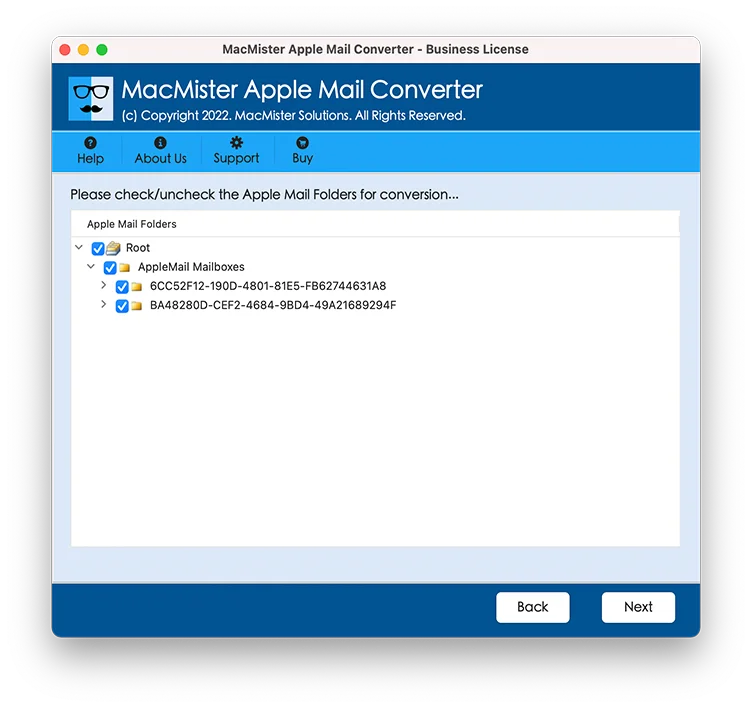
Step 3. All Apple Mail files start uploading on the software pane with checkboxes. The checkbox will help you when you need to do selective migration otherwise go ahead and click Next.
Step 4. Select IMAP Server by clicking Select Saving Option.
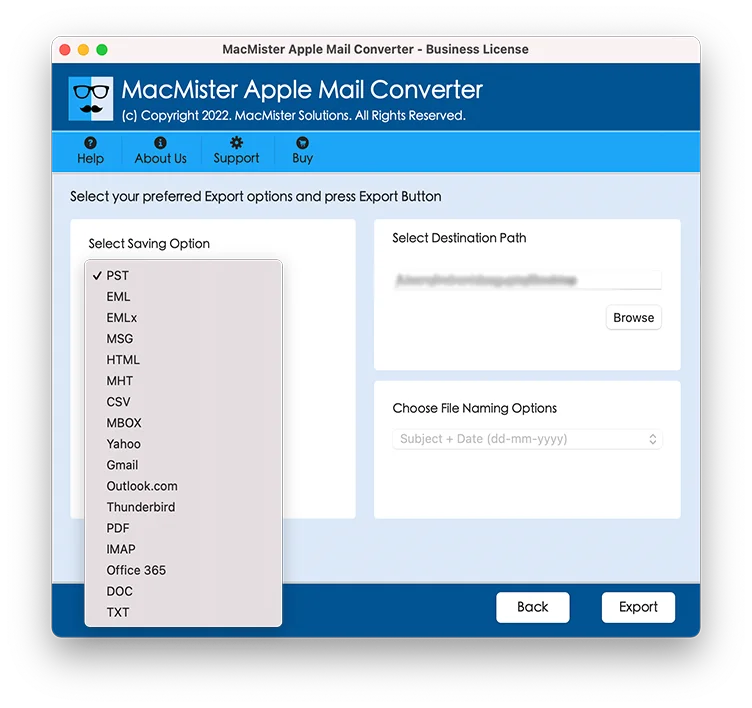
Step 5. Enter Spark details with IMAP Host and Port Number and press Export.
Step 6. Verify the process through Live Migration window that is appearing.
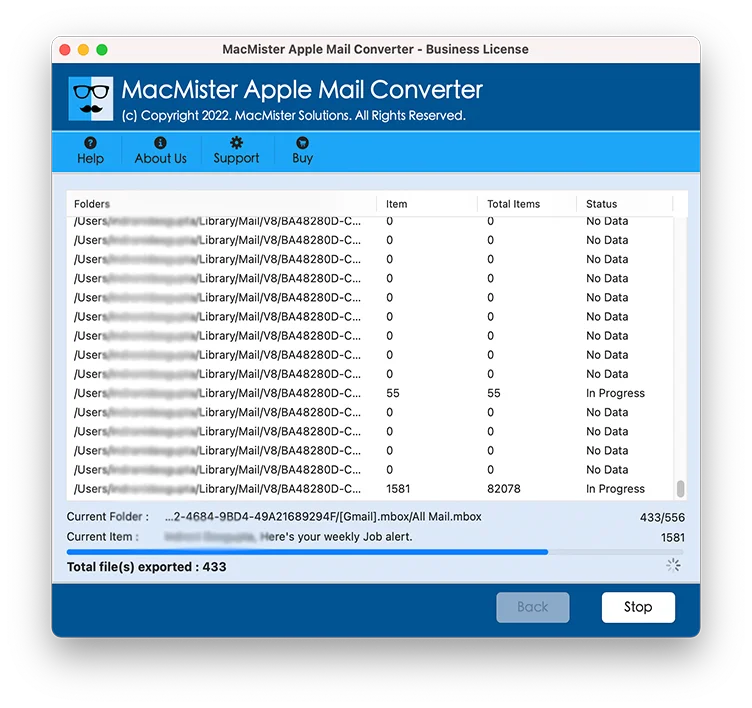
Now, the procedure terminates with a message “Conversion Completed”. The pop-up will appear with OK button. Click on it to close the box.
Go to Spark Mail account and check resultant data. The output will be 100% accurate. Still, if you encounter any issue, you can contact our team immediately.
Last Words
The complete section here provided reasons to migrate from Apple Mail to Spark. Moreover, we discussed the solution to move Apple Mail mailboxes to Spark Mail. No technical skills are necessary to implement the required migration. The app offers free demo version that you can use to test the process. It allows to import 25 Apple Mail emails with attachments free of cost.