How to Backup Gmail Emails to another Gmail Account on Mac & Windows?
Wondering how to backup Gmail emails to another Gmail account on Mac? Looking for a secure approach to perform the necessary process? No worries, read the segment and you will find a solution that will directly backup Gmail emails to another Gmail account on Mac with attachments accurately in few seconds.
Reasons to Backup Gmail Emails to another Gmail Account
The digitalization era has completely spoiled us. Most of our important contacts and data are stored online and we rely on corporations that can provide the platform to manage the same.
But, relying on them entirely can harm us later. Because, online platforms are susceptible of hacking. They will not only seize the account or block the access but also the accounts and data can be compromised if a hacker tries to hack for ransom. Moreover, computer viruses as well as malware can also create a threat to emails.
That is why maintaining the data and email backup timely will save you from many misshapen. Therefore, we decided to provide a write-up that can help to backup Gmail emails to another Gmail account on Mac.
However, many are using automated solutionas it is direct, safe, and easy to use. But apart from this, there are other way outs which you can try to implement the required task.
Different Ways to Backup Gmail Emails to another Gmail Account
We have highlighted three best methods to transfer emails from one Gmail account to another. So, continue reading the article and you will find out the way to backup Gmail emails to another Gmail account.
Method 1. By using POP/IMAP Setting
Method 2. Configuring old Gmail account with new Gmail account
Method 3. Using MacMister Gmail Backup for Mac
Method 1. Transfer Emails from one Gmail Account to Another using POP/IMAP
You can use the Settings of Gmail to transfer emails from one account to another. For e.g. enable the IMAP of a Gmail profile and then import Gmail emails to another Gmail account. Follow the steps to properly set POP/IMAP for the transfer process:
Step 1. Open Chrome or any web browser. Go to https://www.google.com/gmail/about/ and log in to the Gmail account from which you want to transfer emails.
Step 2. Go to Gear icon (settings) appearing on the top-right of the screen and click See all Settings.
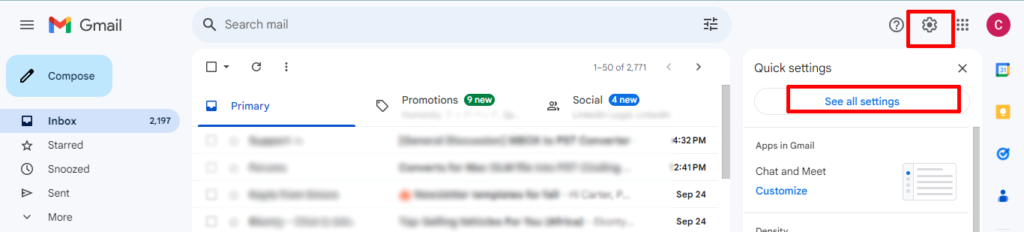
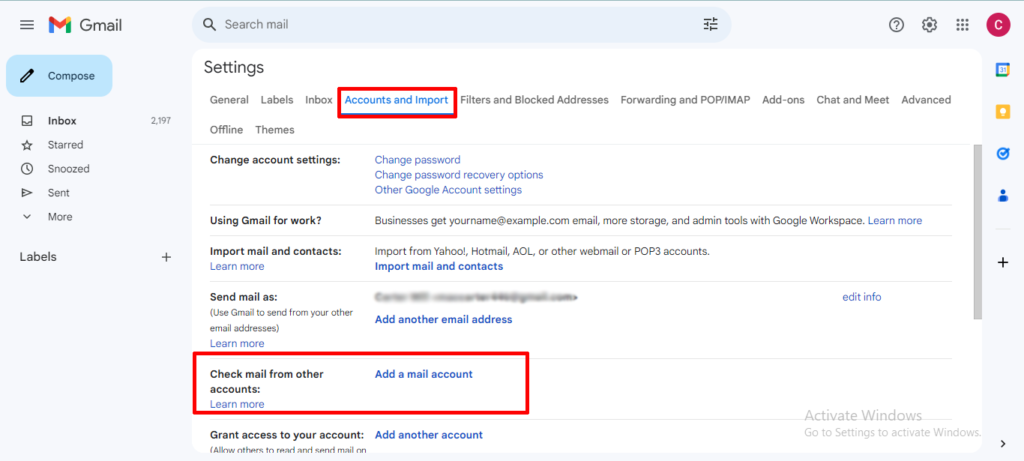
Step 3. Navigate to the Accounts and Import tab and click Add a Mail account.
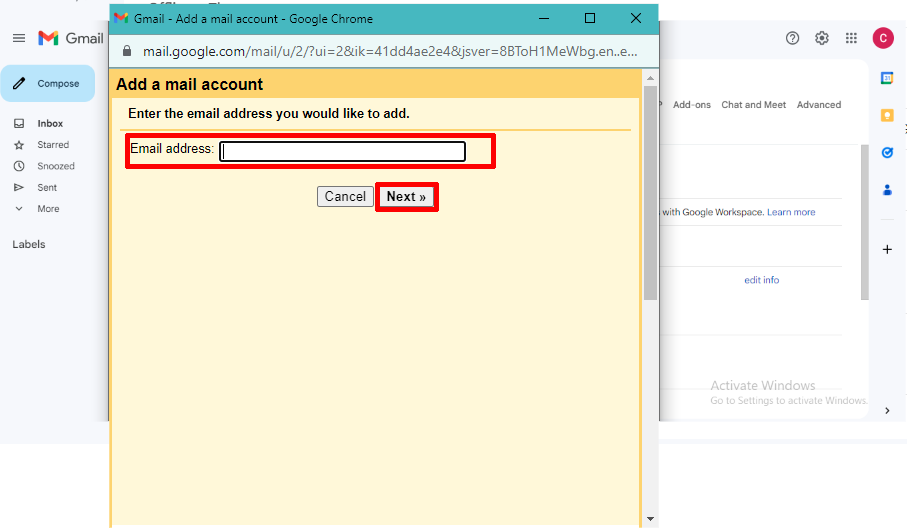
Step 4. Now, enter the email ID in which you want to transfer Gmail emails and click on the Next button.
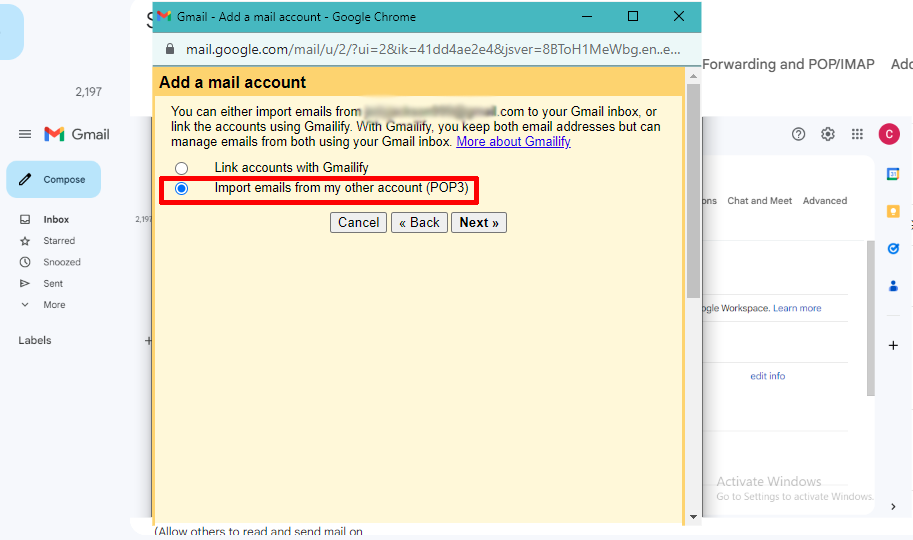
Step 5. Go with the Import emails from my other account (POP3) option and then tap Next.
Step 6. Provide the password and username from which you need to transfer emails.
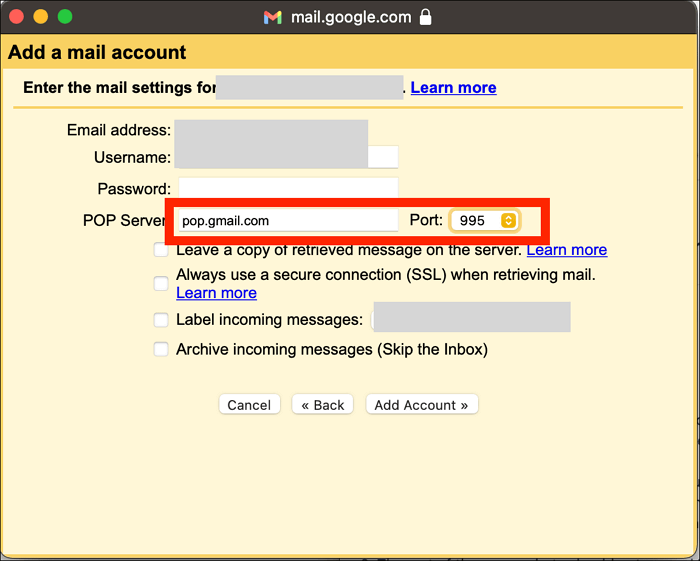
Step 7. Select pop.gmail.com and Port No. 995 and all the other options appear under POP Server and tap Add Account.
Step 8. By implementing the above steps, all the emails from the old Gmail account will now transferred automatically to new email account.
Method 2. Configuring old Gmail Profile with new Gmail Account
Another way of transferring emails from one Gmail account to another is configuring the old Gmail profile with a new account. Follow the steps:
Step 1. Login to Gmail profile and click on Gear icon that represent Settings.
Step 2. Click on See all Settings. Go to Accounts and Import. Click Add a Mail Account.
Step 3. Specify the email address from which you need to transfer your emails and click on the Next button.
Step 4. Proceed with the Import Emails from my Other Account (POP3) option and hit Next.
Step 5. Choose pop.gmail.com and specify port number as 995.
Step 6. Select the option of “Leave a copy of retrieve message…” and “Always use a secure connection…”
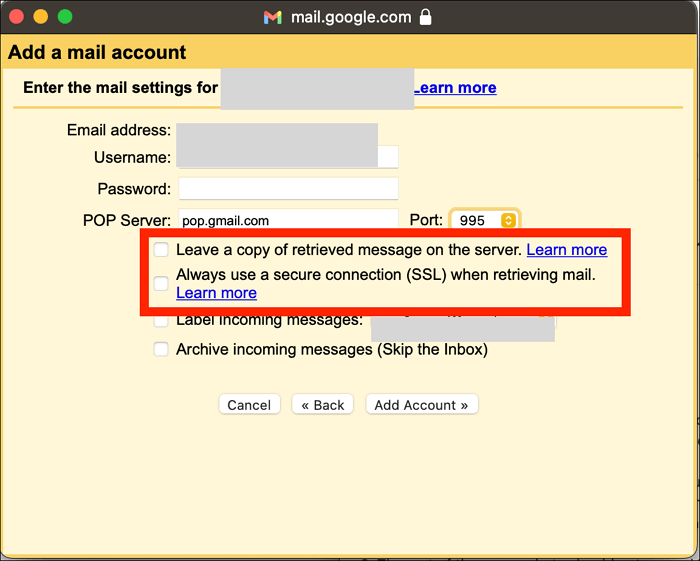
Step 7. Click on the Add Account button and click on Yes.
Step 8. Now, you will see a few prompts for configuration. When all done, all the emails from the old account will sent to new account.
Method 3. Direct and Powerful Approach for Backup
One of the safe and effective techniques to transfer emails from one account to another is MacMister Gmail Backup Tool for Mac and Windows. The software is user-friendly, advanced, and reliable. Its simplified platform is easy to manage. Both professional and non-professional users can operate it and perform the task in minimal time. Even, the steps are not lengthy. They help in finishing the process instantly.
Moreover, the tool is programmed with features with the help of users who can back up emails from one Gmail account to another according to their requirements. Download the trial edition of the application and understand the processing of the software for free.
Steps to backup Gmail emails to another Gmail account on Mac
Step 1. Download and run the software on a macOS.
Step 2. Provide your Gmail email address and app password in the required fields and click the Login button.
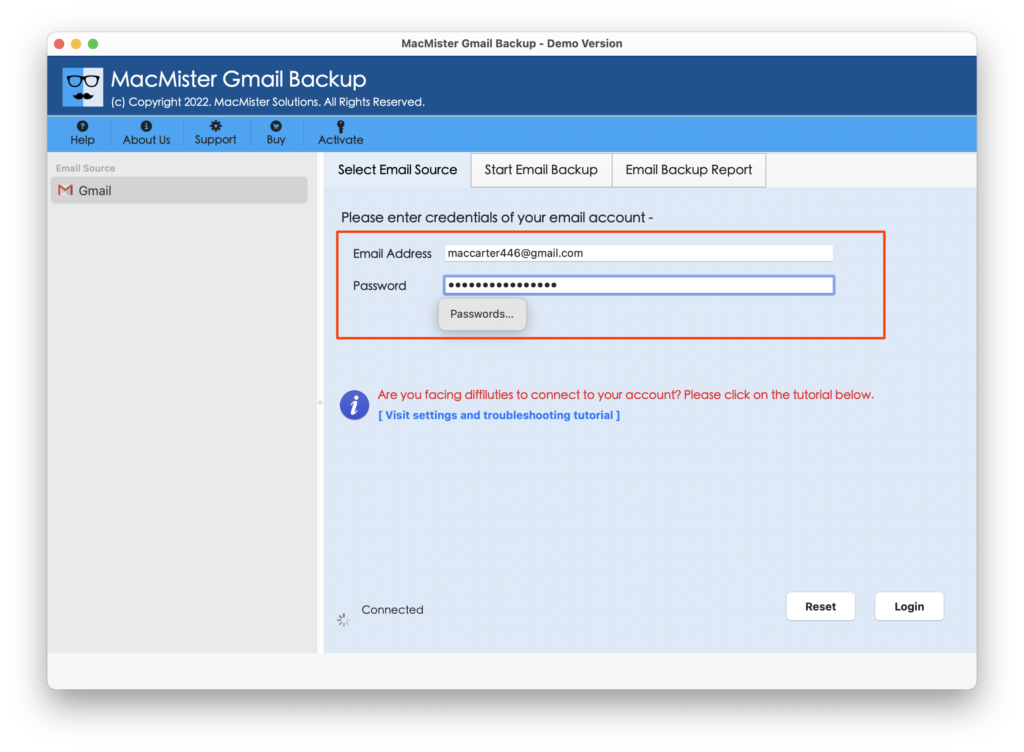
Step 3. The application will connect to a specified account and all its mailbox items will start to appear on the software.
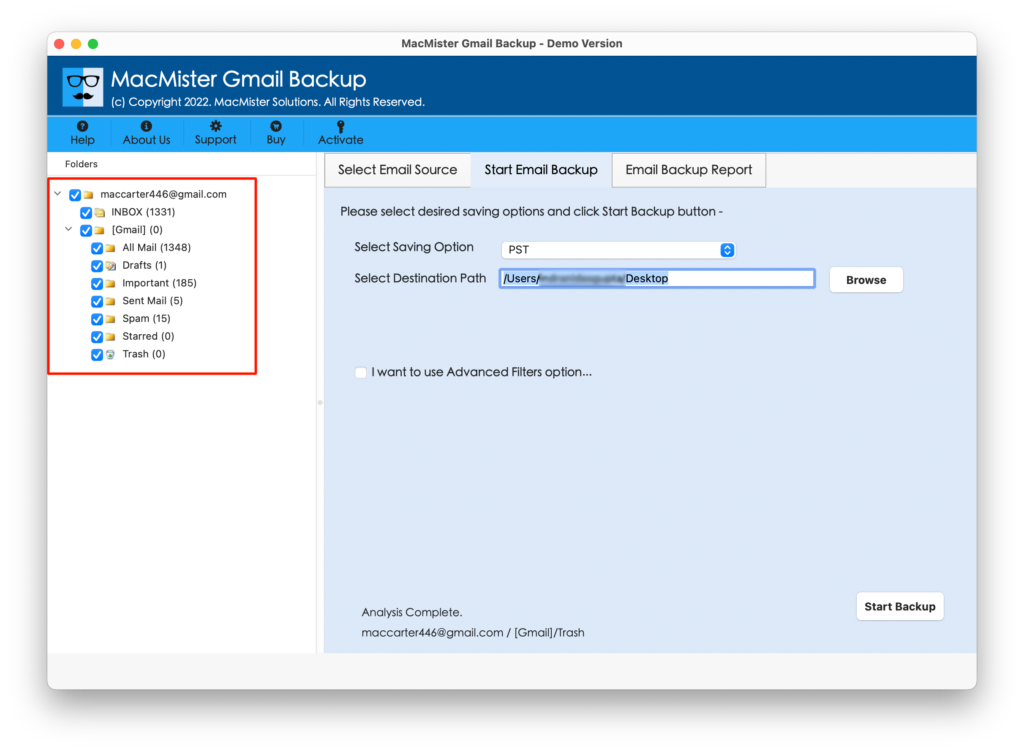
Step 4. Click on the Select Saving Option and select the Gmail option from the menu.
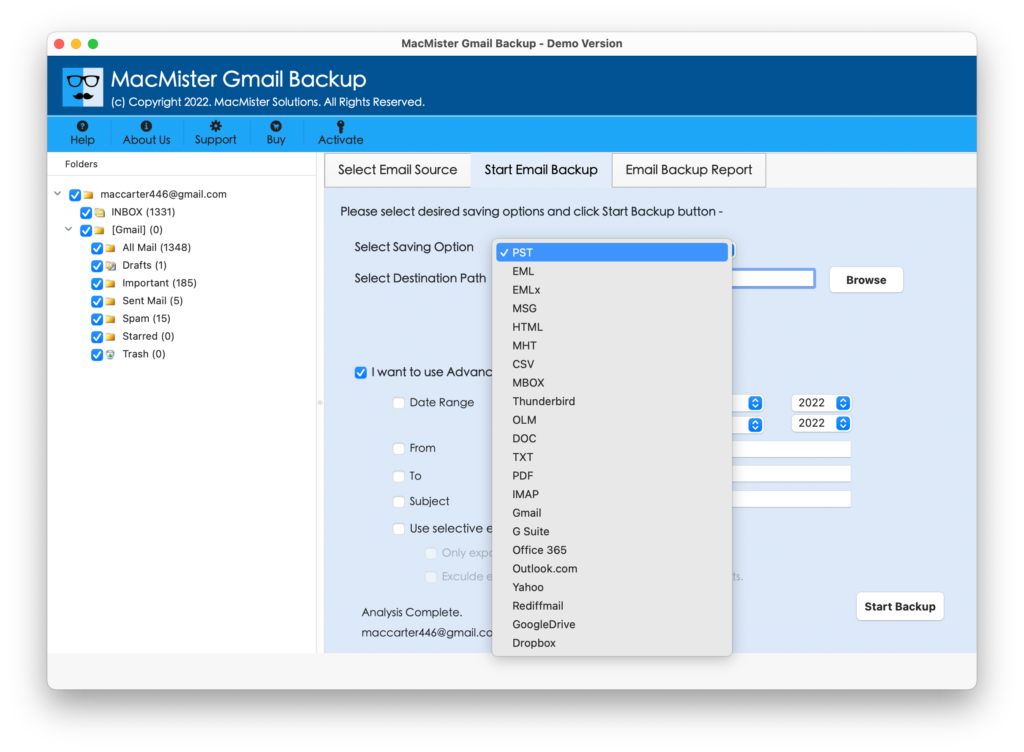
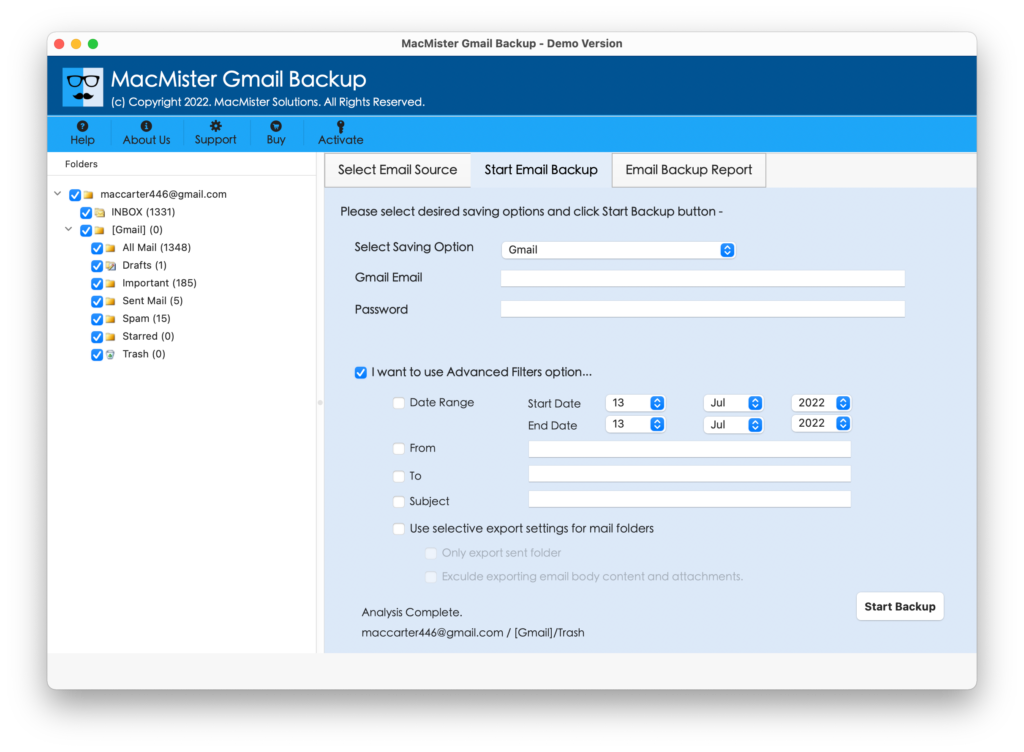
Step 5. Enter your Gmail email address and app password. You can use Filters if you want to backup selective Gmail emails to another Gmail account. And, click on the Start Backup button.
Step 6. The process will start immediately and a Live Conversion Window will appear that shows the ongoing backup status of Gmail emails.
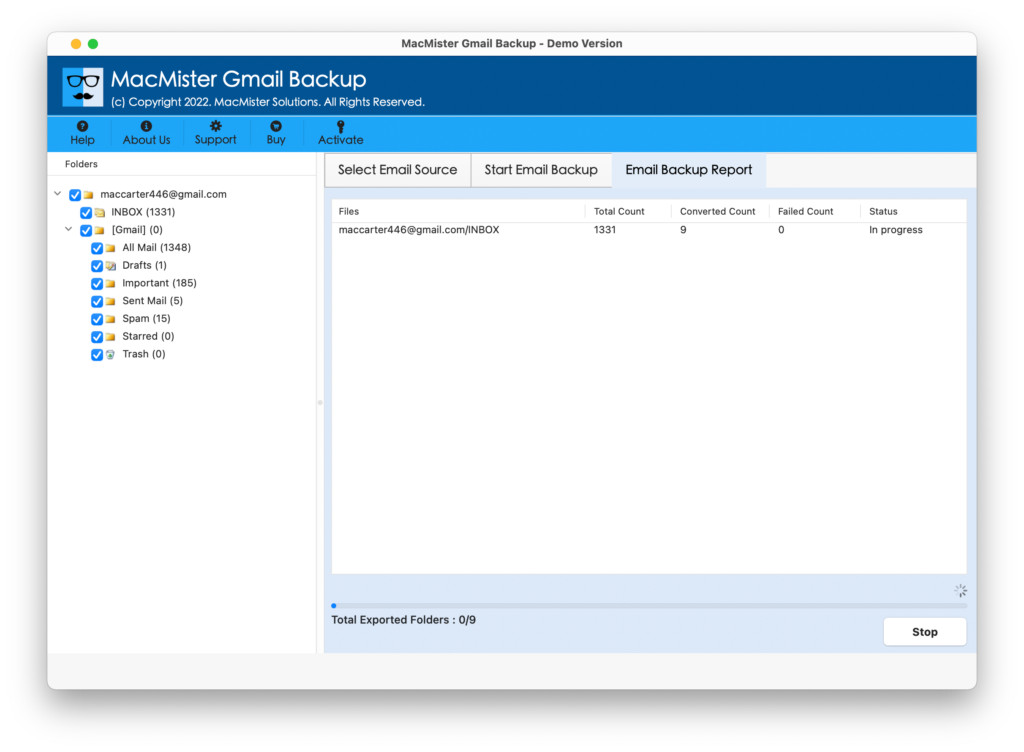
The procedure finishes with a pop-up message “Process Completed”. Click on the OK button and go to the specified Gmail profile to check the result. However, you will see that the resultant email messages are correct and accurate.
Epilogue
In the blog, we have discussed different approaches to backup Gmail emails to another Gmail account with attachments. The first two methods are technical and it is advised to use them with an expert’s assistance. The last approach i.e. MacMister Gmail Email Backup Software Mac is simple and can be independently used by anyone. Anyone can operate it and quickly implement it with 100% accurate results.
Moreover, the freeware version is available that will help in evaluating and analyzing the working steps of the tool for free. Also, one will be able to backup the first 25 Gmail emails to another Gmail account for free.