How to Backup Office 365 Email to Google Drive on Mac?
Do you want to backup Office 365 email to Google Drive on Mac? Looking for a secure solution to implement the same? No worries, continue with the article because here MacMister will provide an approach that is not only verified but also guarantees accurate migration of Office 365 to Google Drive on Mac.
Office 365 is a Microsoft-based app that helps to manage personal information on the cloud. Some of the beneficial features of Office 365 are displayed below:
- Delivers reliable functionality with features to users such as encryption, threat analysis, email, etc.
- Office 365 is accessible from any location and at any time such as through emails, calendars, contacts, and other items. Only internet connectivity with fast speed is needed.
- Provides multiple services like Office 365 Web Apps, Email and Integrated Messaging, Web Conferencing, and Online Portal.
- The upgrade of Office 365 does not require additional cost.
- Includes many support services for customer queries.
Not only this, Office 365 has plenty of features but still sometimes due to unexpected crises, users need to backup Office 365 email to Google Drive to protect their crucial data.
Why to Backup Office 365 to Google Drive?
Google Drive is a widely used cloud-based storage drive that provides the facility to store users’ personal database such as photos, emails, document files, etc. The drive offers 15GB of free storage right away with a free account. It means you can test the drive before thinking about purchasing it for unlimited storage. Google Drive is equipped with many amazing features and some of which are discussed below:
- Easy to Use Interface is the first and foremost powerful feature of Google Drive. When you open it on your system, you will see there are common options displaying on the left i.e. New, My Drive, Computer, Shared with Me, etc. You can use each option as per your need and organize your database. Besides this, the Google Drive screen will show the Quick Access section in which all your recently opened files will appear.
- Google Drive is compatible with Microsoft Office. Users can easily open Microsoft Word or Excel documents in Google Drive and even able to convert Google documents to Microsoft version. One can quickly open these files and use them as per their flexibility without trouble. Moreover, sharing them with colleagues/co-workers will also become an easy task for individuals and organizations.
- Each file in Google Drive has sharing link. By clicking the link, you will be able to share the file with the required users. You can adjust the permission as per your requirements and share your Google Drive file accordingly.
Google Drive has made work easier for both individuals and organizations. It is filled with several benefits due to which more and more companies are making use of it on a daily basis.
How to Backup Office 365 Email to Google Drive on Mac?
Office 365 Backup Tool for Mac is a secure, recommended and powerful application to directly backup Office 365 emails to Google Drive in a bulk on Mac at once. However, attachments are also supported. So, users do not need to worry if the attached documents are migrating or not with respective emails. The GUI of the application is not complicated at all. Users with professional or non-professional users will not require the support of paid experts to backup Office 365 email to Google Drive on Mac with the help of the solution.

Even, the operational steps of the software are trouble-free. Just provide the credentials of an Office 365 account and choose Google Drive as a saving option. Apply the necessary filters and start the migration by clicking the Start Backup button. After this, the tool will successfully move all the crucial email files of Office 365 to Google Drive in a single time on Mac. Moreover, the solution has many features which will help users to backup Office 365 email to Google Drive on Mac as per their own requirements. You can use the trial edition of the tool if you want to test and experience the backup process of Office 365 for free.
Working Steps to Backup Office 365 to Google Drive
Step 1. Download and open Office 365 Email Backup Software Mac.
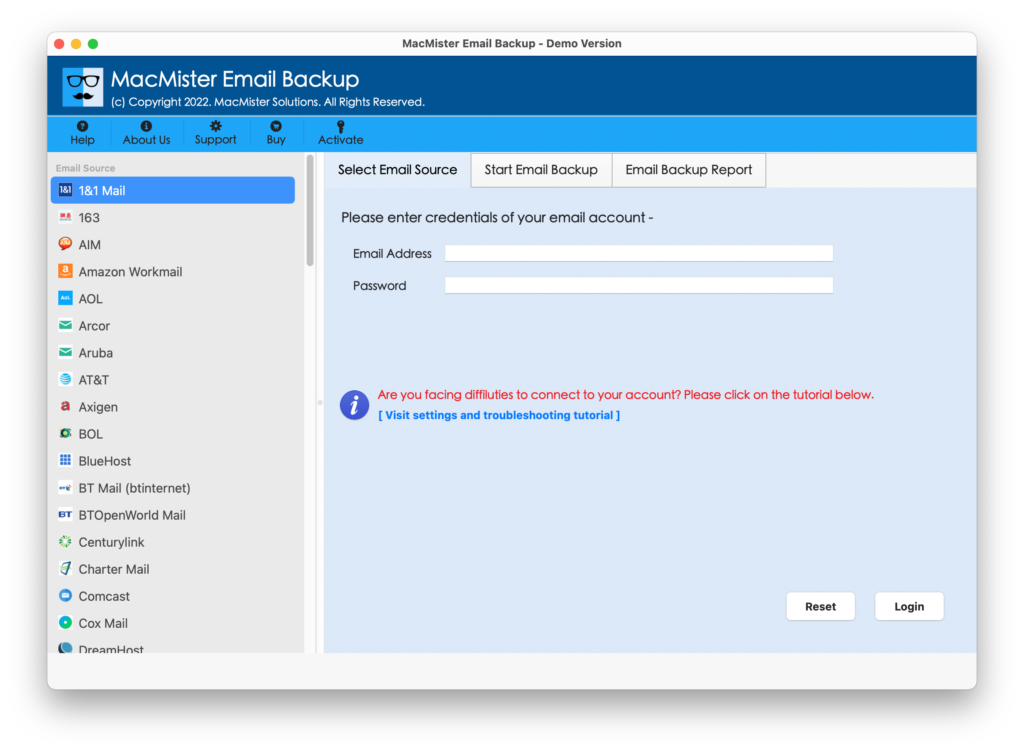
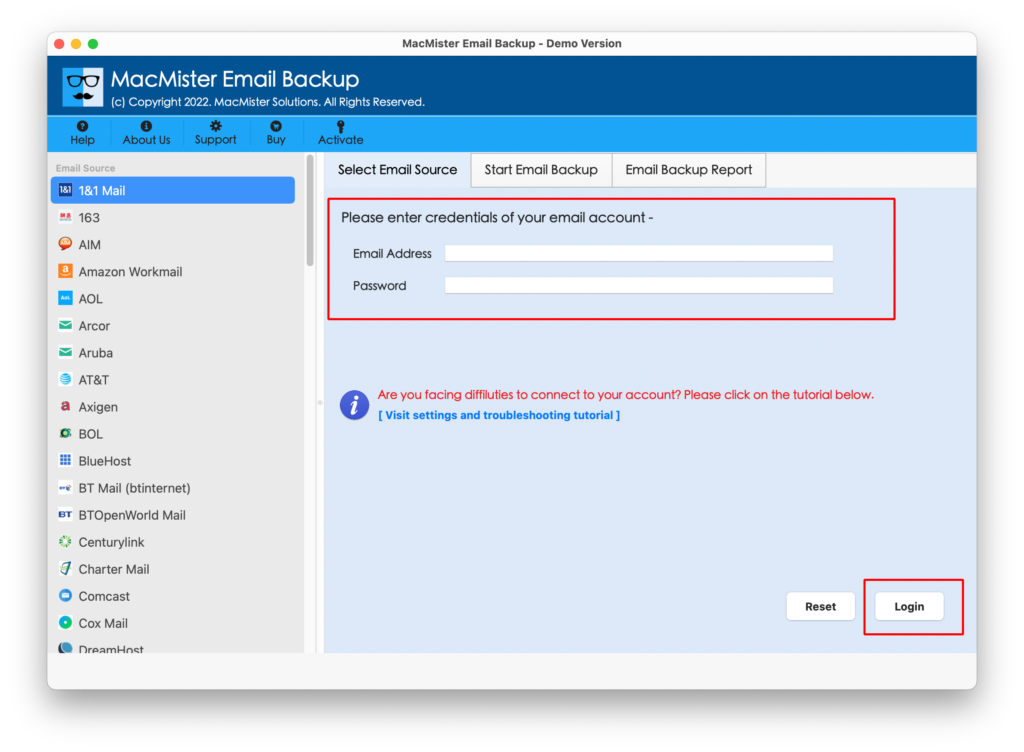
Step 2. Choose Office 365 webmail from the left and enter Office 365 credentials. Click Login.
Step 3. Tool will connect to Office 365 webmail account and start showing the list of its mailboxes on the software pane.
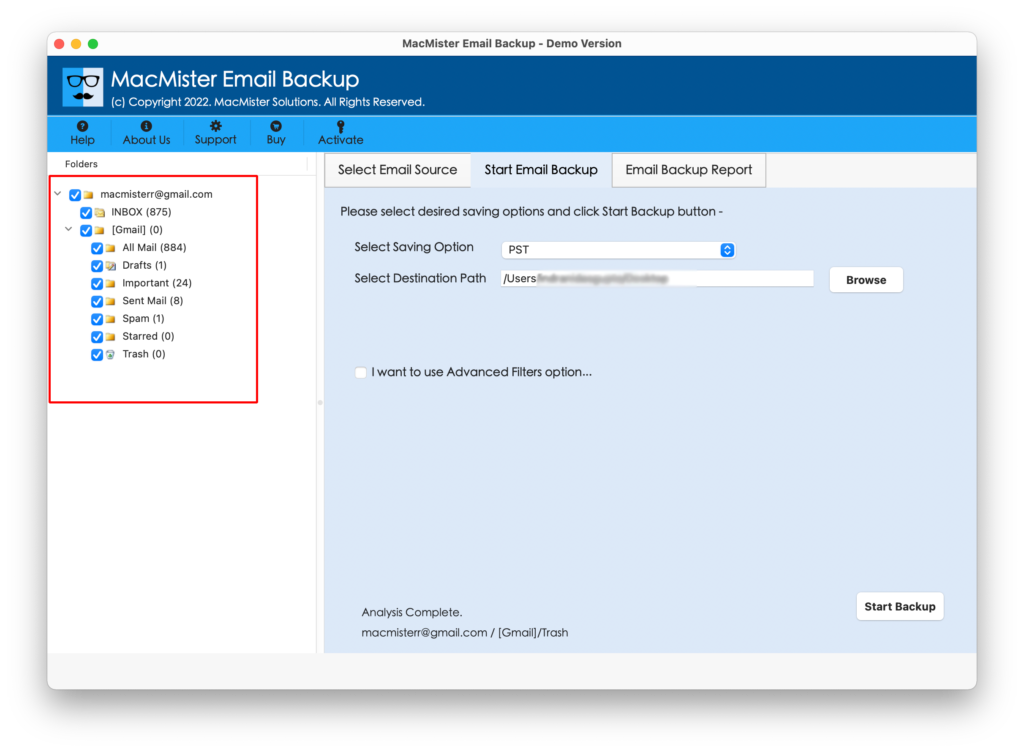
Step 4. Pick the Google Drive option from Select Saving Option.
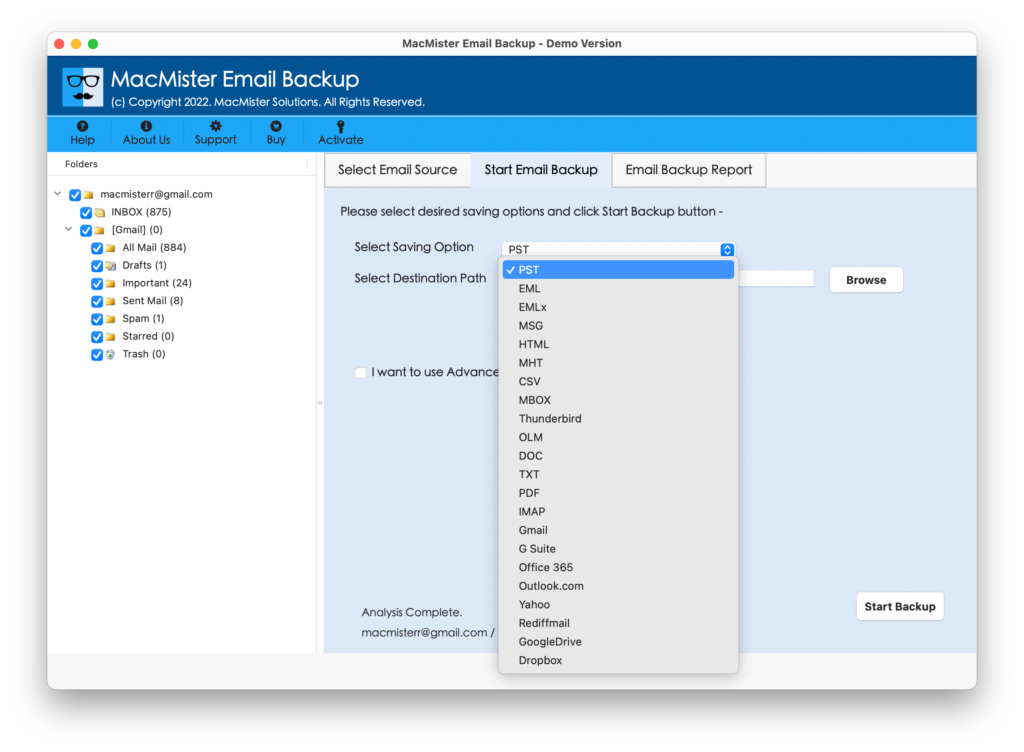
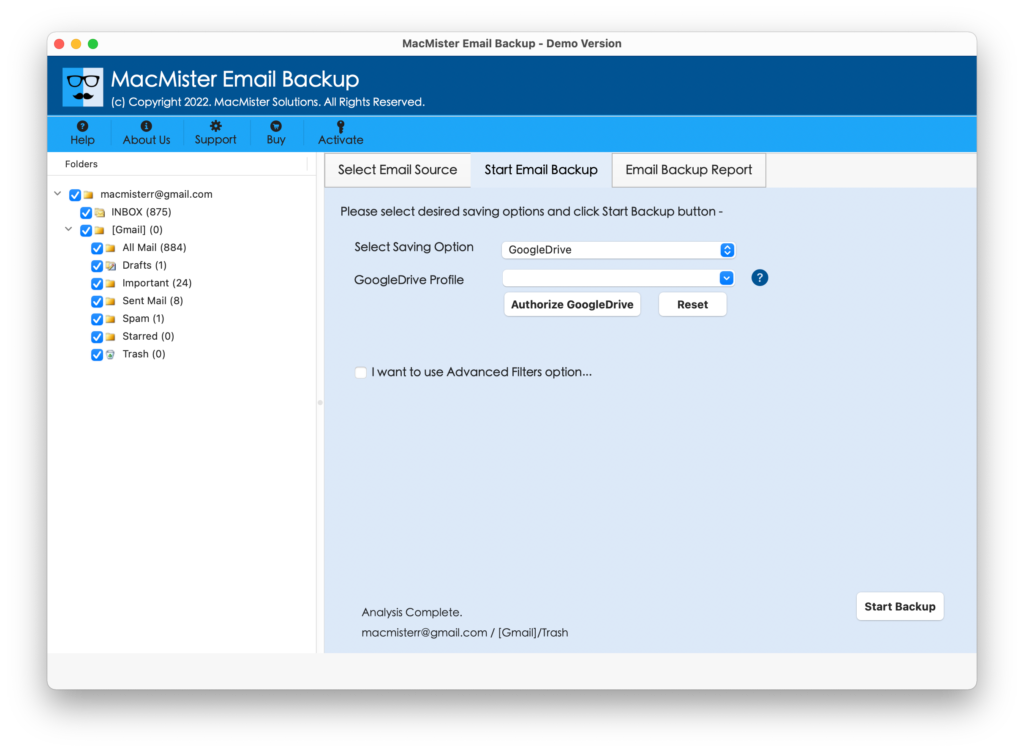
Step 5. Apply the required Google Drive sub-options and hit the Start Backup button.
Step 6. The Office 365 to Google Drive migration process is now live and the entire migration details will appear on the Email Backup Report screen.
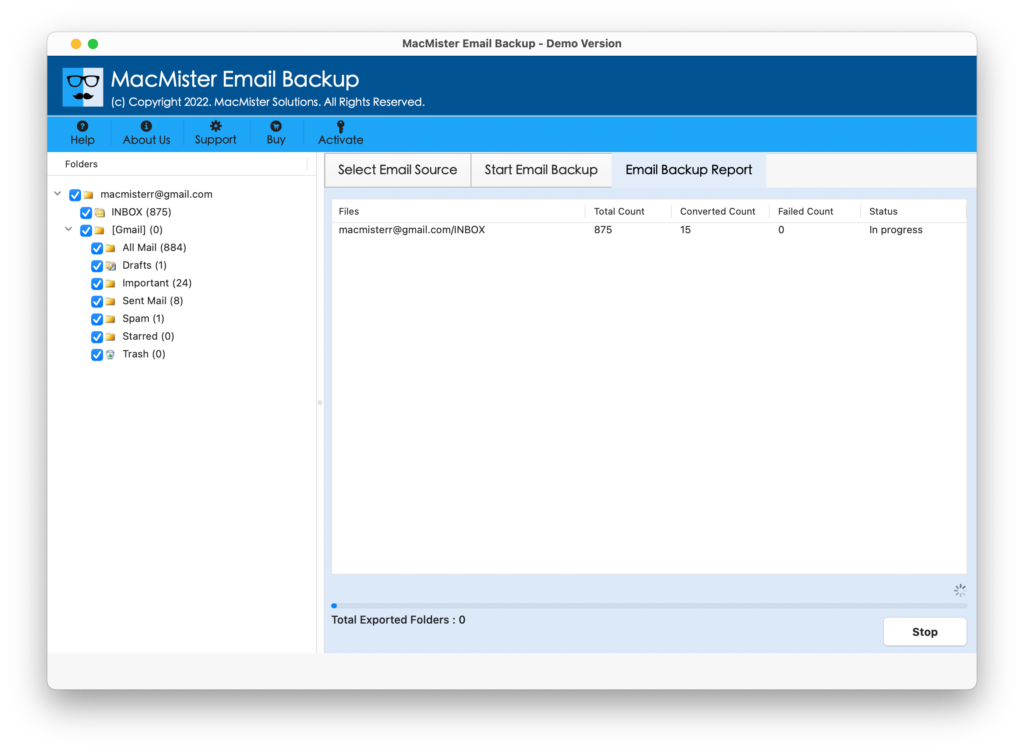
Within a few seconds, the application will transfer all Office 365 emails and attachments to Google Drive. And, users will get to know about this through a notification message that will show a “Process Completed” message. Click OK and then go to your Google Drive account to check the resultant files. The output will be unaltered and will appear with accurate content and formatting properties.
Why Office 365 to Google Drive Solution is Beneficial?
Office 365 to Google Drive application is a feature-rich solution that will discard the worries of users related to the migration process and help them acquire satisfactory results. Some of the solid features and options available in the tool are as listed:
Directly Backup Office 365 to Google Drive:
The solution has the ability to save Office 365 emails to Google Drive directly on Mac. And, for this, simply choose Office 365 webmail from the left and enter the required credentials in the same. Click Login and from the next screen, choose Google Drive and other options as per your requirements. After this, click Start Backup. Now, the tool will start moving all Office 365 emails to Google Drive with attachments on macOS.
Trouble-Free and Simplified User-Interface:
The application has a user-friendly and simple interface. It has an intuitive design that any professional or novice users can handle without stress and backup Office 365 emails to Google Drive. Even, the steps are very few. It will save the time of users who quickly wants to transfer all Office 365 emails to Google Drive at once in less time.
Office 365 Mails to G-Drive with Attachments
The software not only saves Office 365 emails to Google Drive. It supports attachments as well. So, if you are moving Office 365 emails to Google Drive, then the tool will make sure that the attached documents of respective email files will move as well.
Backup Selective O365 Emails to Google Drive
After choosing Google Drive as a saving option, users will get the section of Filters. It includes date range, subject, to, from and other options. By applying them as per their own requirements, users will be able to backup necessary Office 365 emails to Google Drive.
Office 365 to Google Drive on Mac OS Versions:
The application has the ability to backup emails from Office 365 to Google Drive on versions of Mac OS with attachments. With the help of the utility, users will be able to save Microsoft 365 emails to Google Drive on macOS Ventura, Monterey, Big Sur, Catalina, High Sierra, etc.
Note. To know more features, download the freeware version now!
Epilogue
The article here offered a wonderful technique to backup Office 365 email to Google Drive on Mac right away. The tool is completely verified and secure. Mac users can use the solution without a doubt and successfully execute the desired task without data loss. The tool will protect the confidential details of users throughout the process. If you want to check the software working, download its free demo now that will suit all versions of Mac OS. It will allow you to backup the first 25 emails from Office 365 to Google Drive free of cost.