How do I Backup & Download eM Client Emails with eM Client Backup Tool?
Are you an eM Client user who wants to take backup of its emails as well as attachments? Wondering how do I backup eM Client emails on my Mac. Searching for an advanced technique to download all emails from eM Client on Mac? If yes, then not to overthink on it, because MacMister here has offered a solution with the help of which users can directly perform eM Client email backup on any Mac OS device.
There is manual method available to implement the task but it will not prove beneficial for users who need to take backup of eM Client emails quickly. Because there is no presence of Filters that could perform eM Client backup & restore. Even, users will not find an option to download selective data and so the procedure will be of no use.
However, eM Client is known for sending/receiving emails, and managing tasks, contacts, calendars, and other items of users. But at times, without any prior notice, users need sometimes face many issues with their accounts that happen unexpectedly. That is why it is better to take regular eM Client backup to avoid such miseries. Let’s discuss the process further by taking the help of queries that eM Client users have faced during email management.
Query 1:
Recently my eM account got hacked but luckily I found out about that and now I need to urgently take a backup of all my emails from the eM Client account. I can’t wait anymore. Because I am going to delete my profile as soon as possible I take all the backup and after that, I will switch my account somewhere else. Can anyone suggest me better approach for the same?
Query 2.
My organization has recently faced unexpected malicious attempts on the eM Client account. So, before something happens, the company wants to backup & restore eM Client files locally. We are searching for a safe way that could help us in saving eM Client emails on Mac without losing any critical data. Can anyone recommend me such type of method?
Why MacMister eM Client Backup Solution is Perfect for Backup & Restore?
There are many reasons that will tell why eM Client Backup Tool is a perfect technique to backup and restore eM Client mailboxes.
- It will help to backup eM Client emails into many popular saving options.
- The Advanced Filters property will help to backup eM Client of a specific time period.
- Offers the ability to backup eM Client emails in a bulk in few seconds.
- Effective features will help to successfully backup emails from eM Client account according to specific necessities.
- Download versions for both Mac & Windows users available.
How to Backup eM Client Emails on Mac & Windows?
With the help of MacMister IMAP Backup Tool, users can directly backup eM Client mails and restore them locally. The application is direct and available for both Mac & Windows versions. The GUI of the tool is also simple and so any technical and novice user can effortlessly operate it and perform the task without dealing with any difficulties. Even, the operational steps are limited and so the whole procedure will take few seconds for carrying out the entire backup of unlimited eM Client emails.
The application has the ability to backup eM Client emails to PST, PDF, MBOX, MHT, HTML, EML, CSV, Gmail, IMAP, DOC, Outlook.com, Office 365, Yahoo, and more.
Moreover, the software has many features as well with the help of which users can save eM Client emails on a local system as per their requirements. However, you can download the trial edition of the tool and check the process for free.
Working Steps to Backup & Restore eM Client Emails for Mac
Step 1. Download and run IMAP Migration Tool for Mac on macOS.
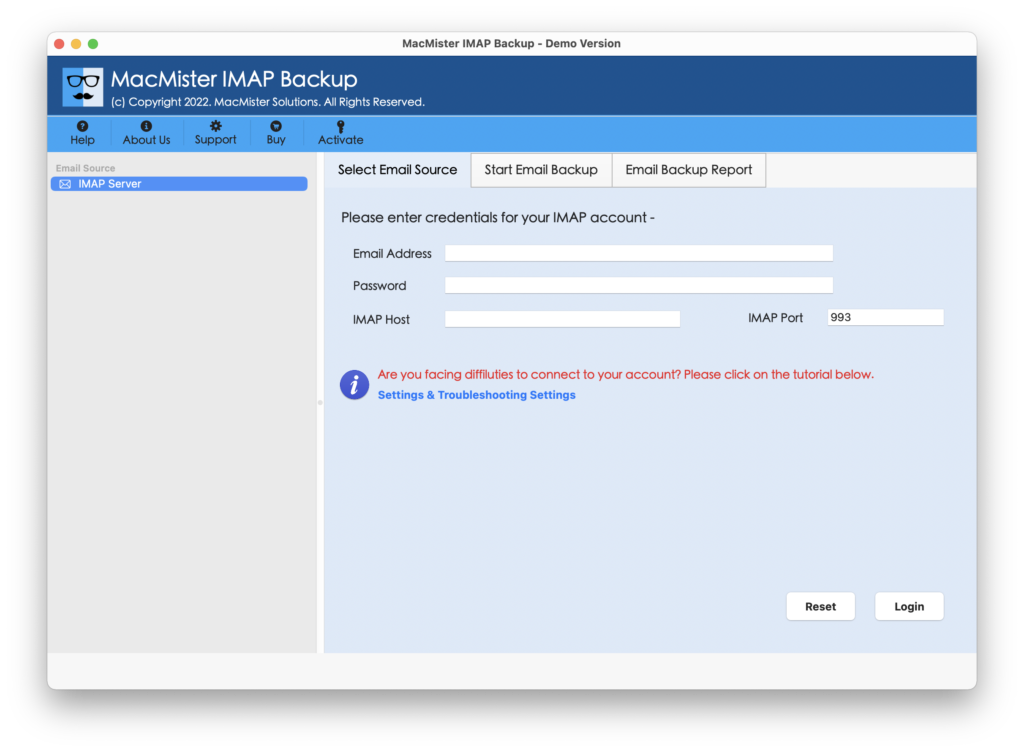
Step 2. Specify the eM Client IMAP credentials in the required fields i.e. email address and password. And, also provide the details of the IMAP Host and Port Number. Click the Login button.
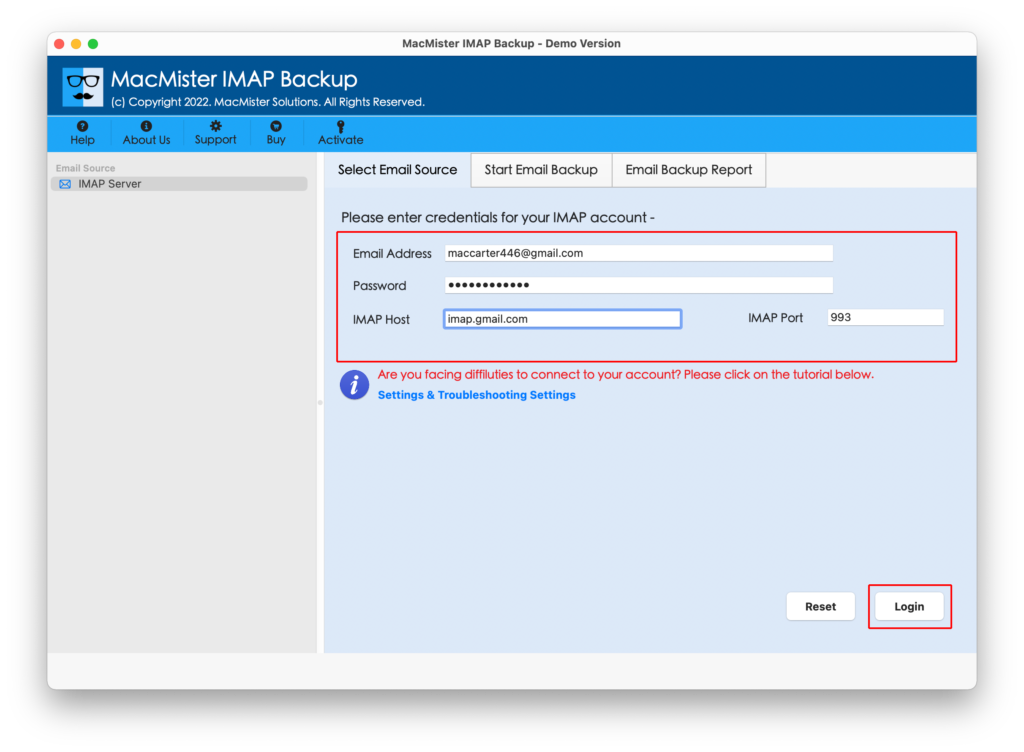
Step 3. The specified eM Client account will connect with the application and the tool will start to load eM Client mailboxes on the software.
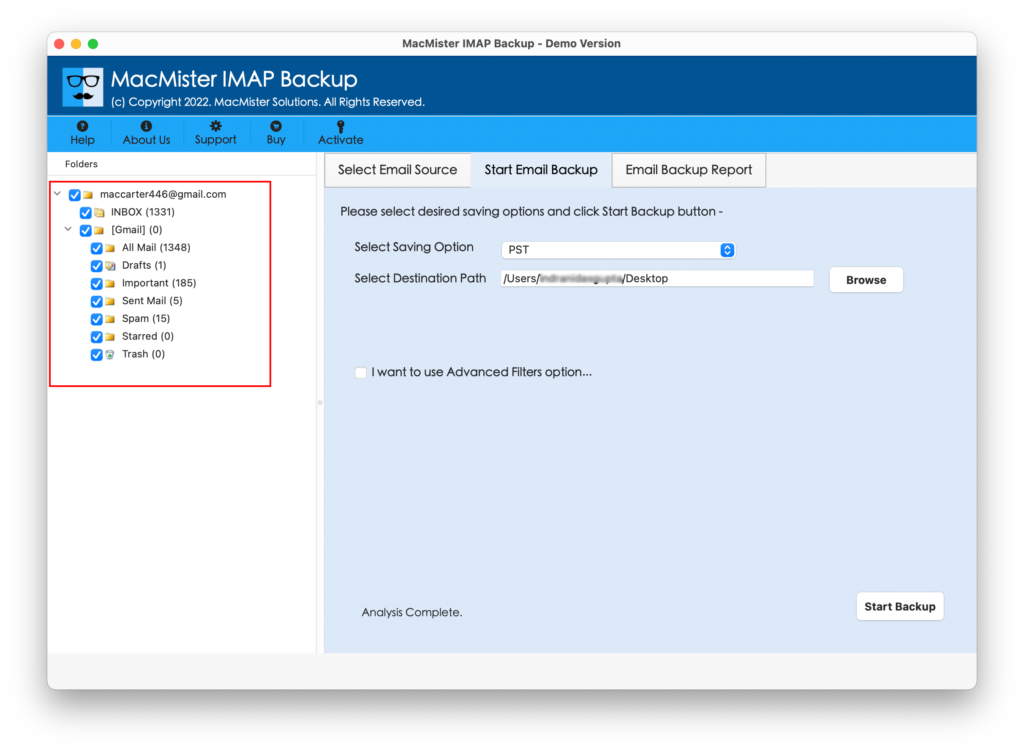
Step 4. Go to Select Saving Options and pick the required saving type from the list.
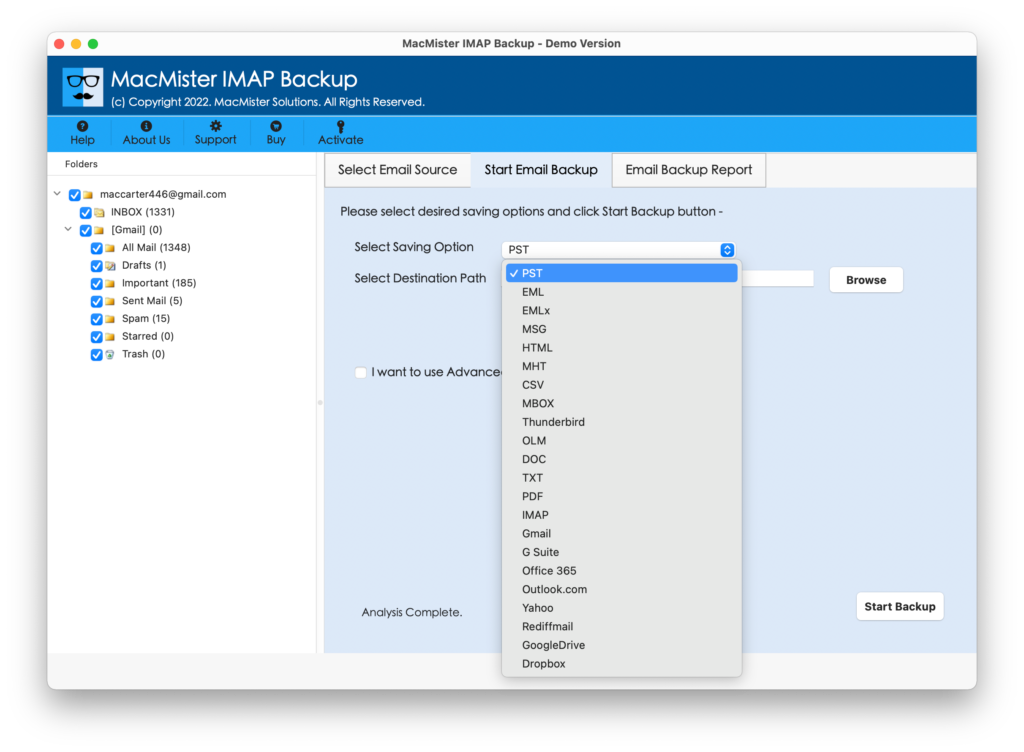
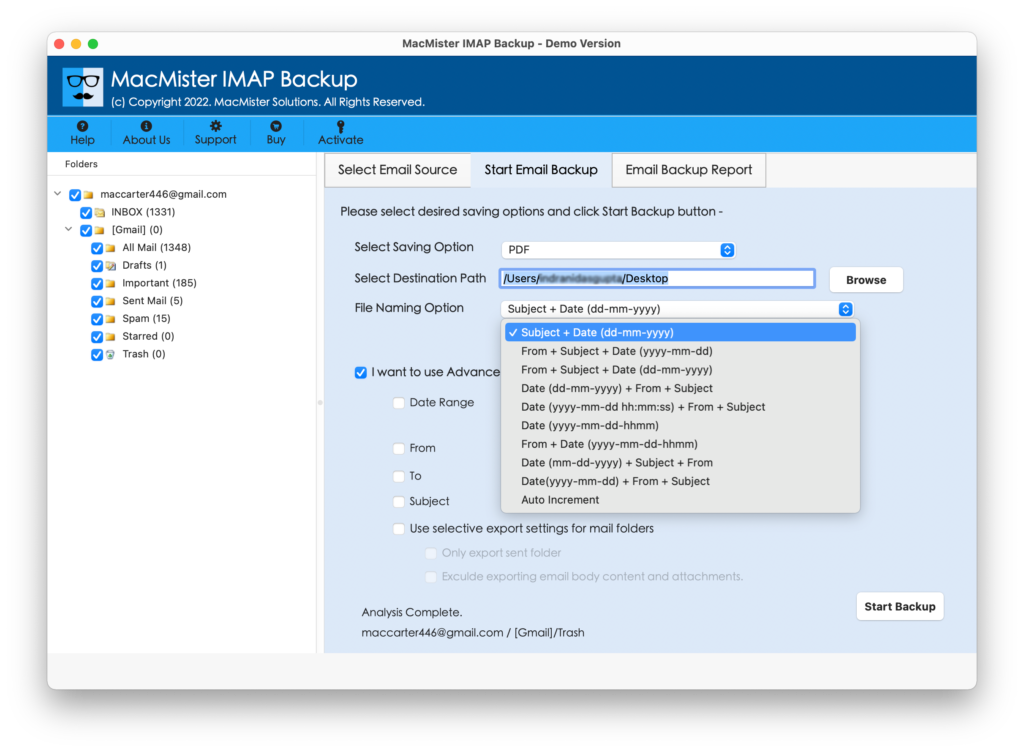
Step 5. Set the sub-options as per need and start the process by clicking the Start Backup button.
Step 6. Now, view the live process of eM Client backup and track the progress by checking the backup report appearing on Email Backup Report.
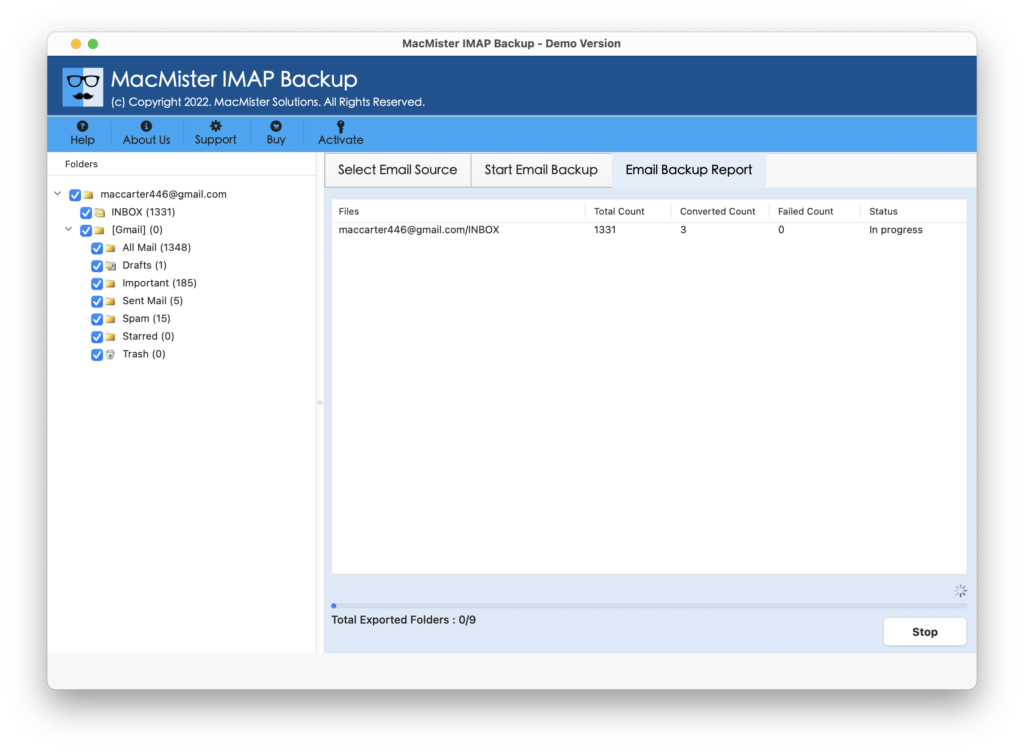
The entire procedure will finish within seconds and then the tool will show Process Completed message to users. Click OK and go to the location where results are saved and then open the required file to cross-check the content. However, you will see that the data after the backup process is original as well as accurate and even the properties associated with the files will also appear precise.
Benefits of Choosing MacMister eM Client Backup Tool
Backup eM Client Mails into Multiple Formats
The tool provides many file format options to backup eM Client mailboxes. With the help of the app, users can take backup of eM Client to PST, PDF, MSG, EML, EMLx, MHT, HTML, DOC, CSV, and OLM.
Save eM Client Mailboxes on Cloud Applications
The utility allow users to save eM Client mailboxes into popular cloud-supported platforms. Users can use the app to upload eM Client folders to Office 365, Outlook.com. Gmail, G Suite, IMAP Server, and more.
Use Different Filters for Selective Backup Process
The application has a separate section of Advanced Filters. By clicking on it, users will get more options i.e. date range, from, to, subject, etc. Users can set them as per necessity and backup specific eM Client files.
Choose the Desired Path to Save Resultant Files
The software provides Set Destination Path property with the help of users can save the results at desired location after the process. Simply click the Browse button present and load the file path and save the backup files of eM Client account on the same.
User-Friendly Interface with Easy Functional Steps
The utility is programmed with a GUI that is easy-to-manage and handle. The steps are also simple to execute. Both professional and non-professional users can operate the application and save eM Client emails without taking support of skilled professionals.
Mac & Windows Download Versions Available
The application provides the download versions for both Mac & Windows users. Mac users can download and use the software for backup on macOS Ventura, Monterey, Big Sur, Catalina, etc. And Windows users can utilize the same on Windows 11, 10, 8.1, etc.
Quick Note. Download the FREE DEMO to Know More Software Options
Epilogue
The write-up here offered a direct approach to backup eM Client emails & attachments on Mac and Windows. The software is direct, fast, and secure to use. Anyone can use the application and perform the required task without any difficulty. The results will be accurate. It provides the trial edition facility as well. It will help users to experience the complete working of the tool for free. It allows to save first 25 eM Client emails and attachments free of cost.
Quick Note. In case you have eM Client EML files, then you can try our MacMister EML Converter application to convert eM Client EML files to PST, PDF, MSG, MBOX, CSV, Gmail, IMAP, and more.