How to Export eM Client to Thunderbird on Mac?

Are you moving from eM Client to Thunderbird on Mac and looking for a secure application to export emails from eM Client to Thunderbird? No worries because MacMister is discussing an amazing method that will directly & precisely export eM Client emails to Thunderbird with attachments on Mac OS X.
eM Client is a flexible email management application that is compatible with Windows and Mac OS. With emails, the email client easily manages sending/receiving process, calendars, contacts, tasks and notes. Moreover, it is integrated with Live Chat as well. It has range of features for handling email including mass mail, advanced rules management, in-built translator for incoming/outgoing messages and delayed send. Not only this, signatures, easy searching, and quick text are some option available that will help in easing the task for users.
Why to Export eM Client Emails to Thunderbird?
Many times, due to official demands, users need to move their accounts into a different email platform. However, migration of email accounts is not a complicated procedure. But, accessing files created from a previous email client in a new email application become challenging. Because, each email service provider stores email files in its own unique file extension. Here, we need to provide the migration of eM Client emails into Thunderbird account.
Thunderbird is another powerful open-source email client which is used by many organizations and individuals across the globe. The plenty of add-ons and advance features makes the email application more demanding in IT world. It is another personal information manager that is equipped with news client, RSS and chat client. However, message management, extensions and themes, junk filtering, different standards support and more will help users managing daily incoming/outgoing emails. Thunderbird has innumerable which one cannot tell in words. You can download it directly and check it out on your own.
But, in order to perform the migration of eM Client emails to Thunderbird, it is important to have a secure solution. And, it is recommended to take backup of eM Client files before starting the process.
How to Export eM Client to Thunderbird on Mac?
EML Converter for Mac is a solution that will directly export eM Client to Thunderbird on Mac with emails & attachments. The process will be performed directly as Thunderbird comes as an option under the Select Saving Options property. So, after picking it up as a saving type, users can click on the Export button to import eM Client emails to Thunderbird straightaway. The GUI and steps of the application are very simple and time-saving. Anyone, can quickly use the solution and execute the process without hiring well-skilled professionals.

Moreover, the software is launched with plenty of beneficial features using which users will be able to export emails from eM Client to Thunderbird according to specific requirements. You can download the trial edition and explore the complete software process for free.
However, you can implement the entire task in two steps:
- Step 1. Extracting EML Files from eM Client
- Step 2. Exporting Extracted Files into Thunderbird
Let’s discuss them one-by-one and import the entire list of eM Client emails to Thunderbird.
Step 1. Extract EML Files from eM Client Application
- Open eM Client.
- Go to File and choose the Export option.
- After Export window appears, select Export to .eml files.
- You can mark the required email files/folders to export and then set the location where user wants to extract eM Client files.
- Last, press Finish button to terminate the process.
- Now, selected eM Client files/folders successfully exported to EML files.
Step 2. Export Extracted eM Client Files to Thunderbird
Step 1. Run EML to Thunderbird Converter for Mac Tool on Mac OS.
Step 2. Choose the required EML files/folder and load them on the tool by clicking Add File(s) and Add Folder buttons. Click Next.
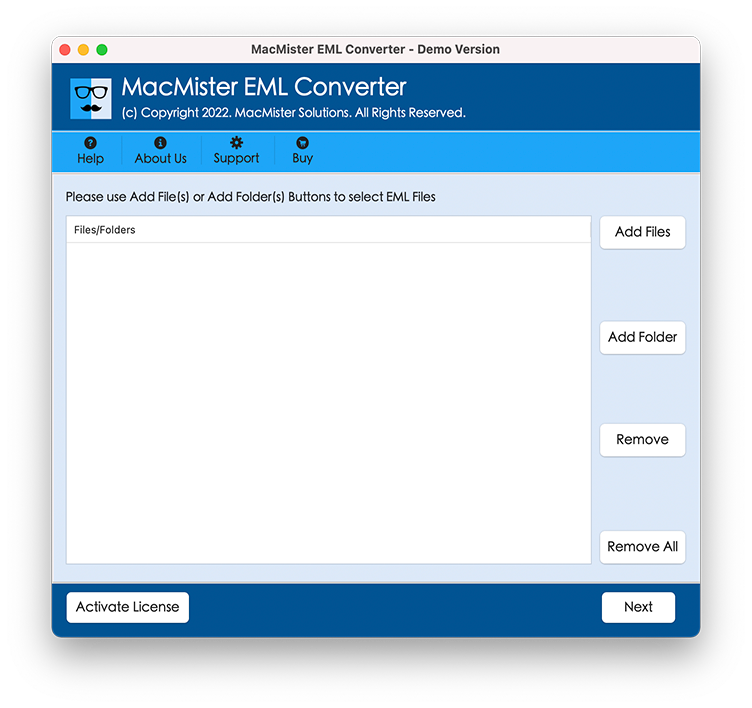
Step 3. EML files will load on the software as a list and appear with checkboxes. By utilizing the checkbox, users will be able to import selective eM Client mails to Thunderbird. Click Next.
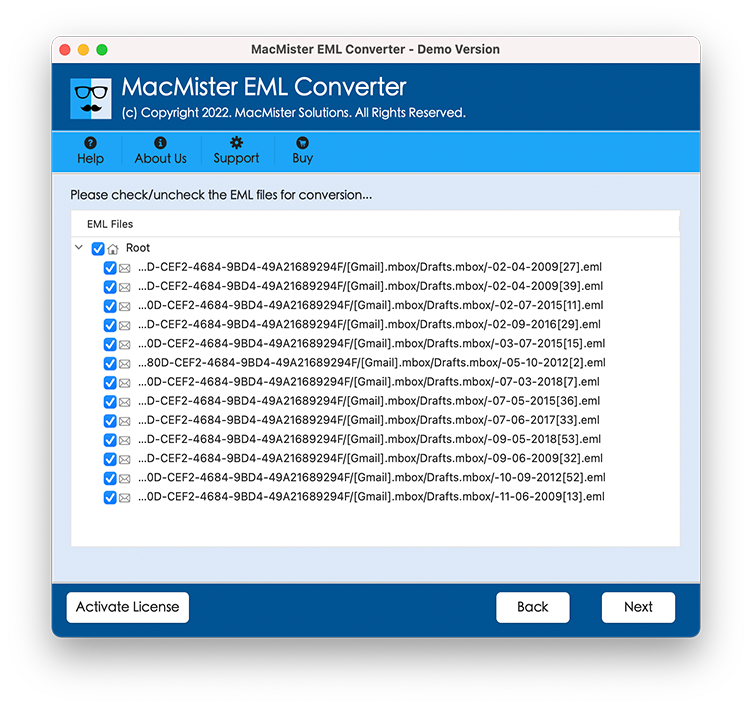
Step 4. Select Thunderbird from Select Saving Option property.
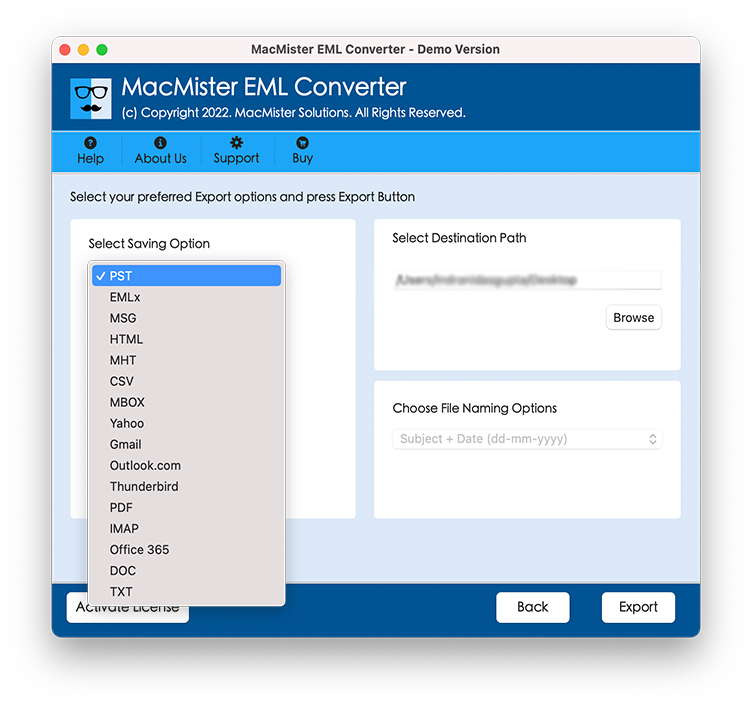
Step 5. Provide sub-options as per your requirements and click on Export button to start the migration.
Step 6. Now, Live Conversion screen will appear showing the live export status of eM Client files to Thunderbird.
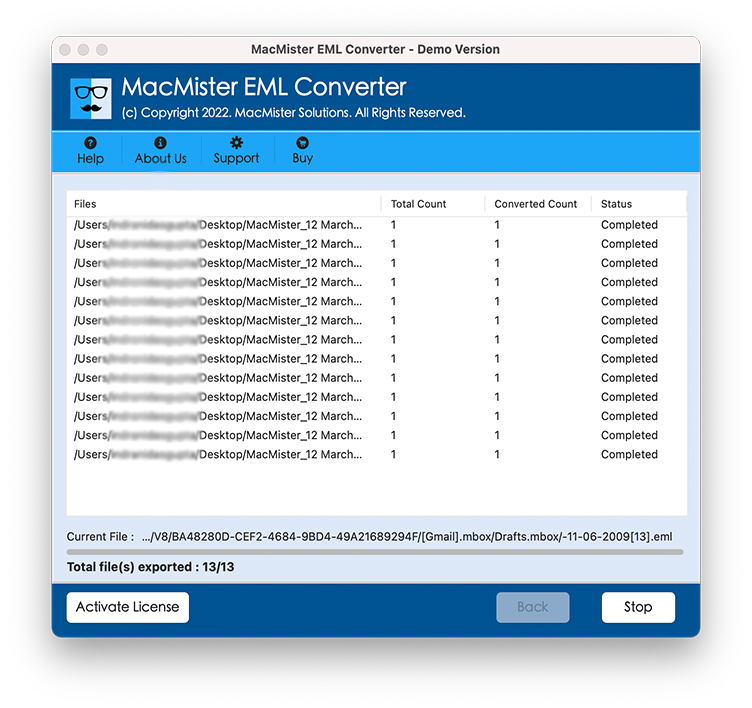
After the process will complete, users will get “Conversion Completed” message on their screen. Now, you can go to the Thunderbird file location to check the resultant files. After you open them in Thunderbird, you will see that content is accurate and appearing with precise rich-text formatting properties such as font style, hyperlinks, images, etc.
Why to Choose eM Client to Thunderbird Software?
The software offers n number of benefits but here we tried to mention the important ones:
Adaptive and Advance Interface
The software has been developed with an adaptive and instinctive working environment that provide ease to both professional and non-professional users. Moreover, the steps are not hard to manage. Anyone can operate them and import unlimited eM Client emails to Thunderbird at once.
Batch Conversion of eM Client Emails
The eM Client to Thunderbird software provides batch conversion property that will save the time of those who urgently need to access eM Client emails in Thunderbird. By making use of Add Folder button, users can load a folder containing multiple eM Client files folders. The tool will then add all the files on the tool and now users will be able to export all of them at once into Thunderbird without data loss.
Load Files & Folders using Dual Options
The utility includes two options to load required eM Client email files for conversion. The Add File(s) and Add Folder will provide the facility to add the necessary EML files or folders for conversion. You can locate the extracted eM Client files by taking the help of these options and upload them to the software for conversion into Thunderbird.
Export Emails to Thunderbird Accurately
The eM Client to Thunderbird application provides Thunderbird as a direct saving option. So, by choosing it from Select Saving Option, users will be able to directly export eM Client emails to Thunderbird with attachments with 100% accurate rich-text formatting properties and folder structure.
Download and Use the Tool on all Mac OS
Users can download and operate the tool on any Mac OS version. With the help of the tool, users can export eM Client emails to Thunderbird with attachments on Mac OS Ventura, Monterey, Big Sur, Catalina, High Sierra, etc.
Note. To understand and explore more software options, download free demo now!
Epilogue
The complete article provided a wonderful strategy to export emails from eM Client to Thunderbird with attachments. The EML to MBOX Converter for Mac is a verified solution that allow Mac users to achieve the desired task successfully. The solution is offers trial edition that allows users to export the first 25 emails from eM Client to Thunderbird for free. It will help users to get an idea of software procedure and the options it delivers free of cost.