How to Export Emails from eM Client to MBOX on Mac?
If you were an eM Client user but moved to an application recently that saves email files in .mbox extension and now want to export emails from eM Client to MBOX on macOS! Then, not to rush anywhere as MacMister Solutions is here to help you.

In today’s world, due to lot of reasons people are moving from one email application to another. And, that cause a challenge for most of them. MBOX is a file format of multiple email clients and is compatible with both Mac and Windows OS. Many email service providers stores list of user account emails in MBOX folder such as Apple Mail, Thunderbird, Postbox, The Bat and many more. And, many organizations has a habit of changing applications in order to get more flexible and smart GUI which is a good thing. But, sometimes it makes things complicated. Because, each email program has its own way of storing user account data. So, if a user tries to open a file of one email app into another, then an error will surely occur. In other words –
- PST will become inaccessible in Thunderbird
- OLM will become inaccessible in Windows Outlook
- MBOX will become inaccessible in eM Client
- MSG will become inaccessible in Apple Mail
In the same way, eM Client supported files will not open in MBOX-based email clients. To do the same, eM Client to MBOX export process is required.
How to Convert eM Client to MBOX on Mac OS?
The eM Client to MBOX migration process will complete in two steps:
- Extracting EML files from eM Client application.
- Converting extracted EML files to MBOX format.
Step 1. Extract EML Files from eM Client
Step 1. Open eM Client, navigate to File and select Export.
Step 2. Choose Export to .eml files option from the displaying drop-down list.
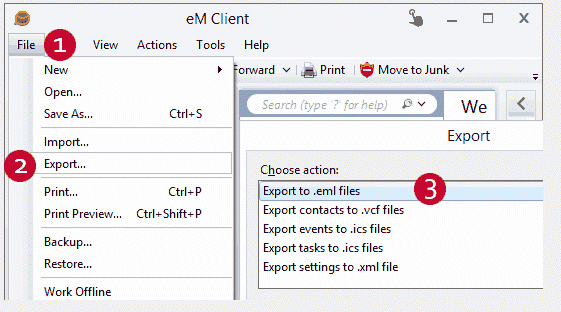
Step 3. Finally eM Client emails are successfully exported with .eml extension.
Step 2. Convert Resultant EML Files to MBOX Format
To convert EML to MBOX, now make use of Mac EML Converter application. The reliable and trustworthy application which effortlessly batch convert eM Client emails to MBOX with attachments at once. The software launched with the approach of friendly GUI that will help professional and non-professionals to convert eM Client email files to MBOX instantly. Moreover, the uncomplicated three working steps will save the time of users and help them to acquire the output accordingly.

There are numerous features introduced in the software. And, you have the freedom to test each one of them through freeware version of the application.
Steps to Export eM Client Emails to MBOX on Mac OS
Step 1. Run EML to MBOX Converter Tool on macOS.
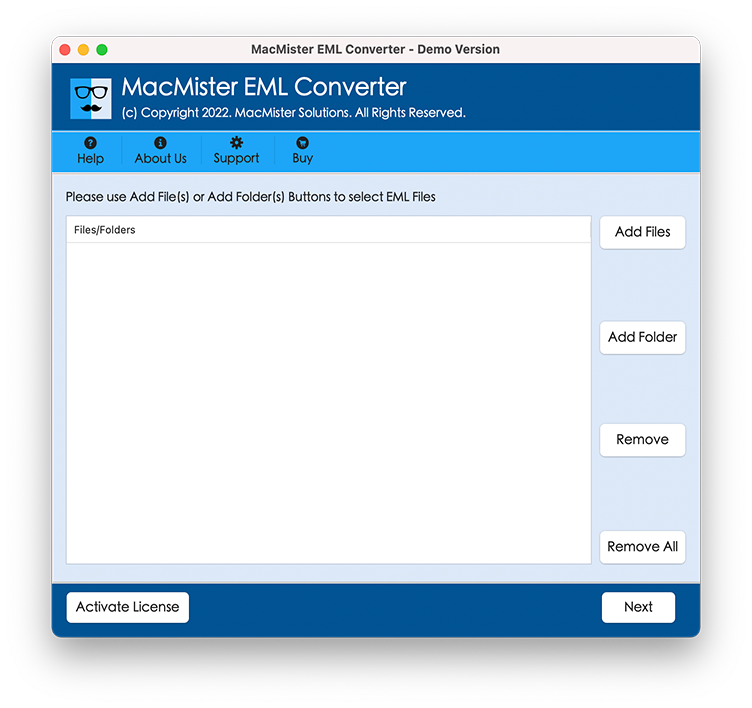
Step 2. Upload extracted EML files with the help of Add Files and Add Folder button and press Next.
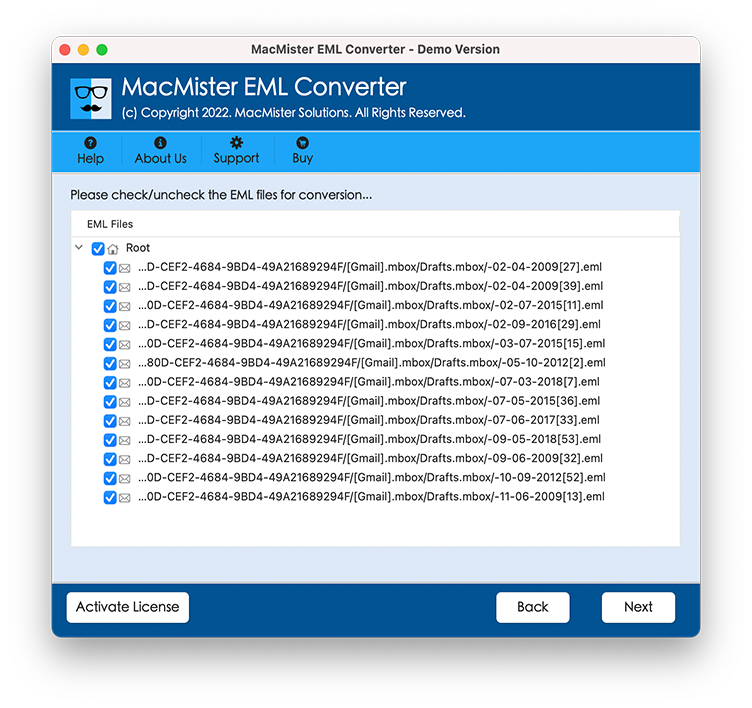
Step 3. The list of eM Client extracted files will be now shown with checkboxes and all will be selected by default. In case you need to do some selections, you can easily do that and import selective files as per need. When done, click on Next.
Step 4. Now, choose the MBOX saving option by clicking Select Saving Option.
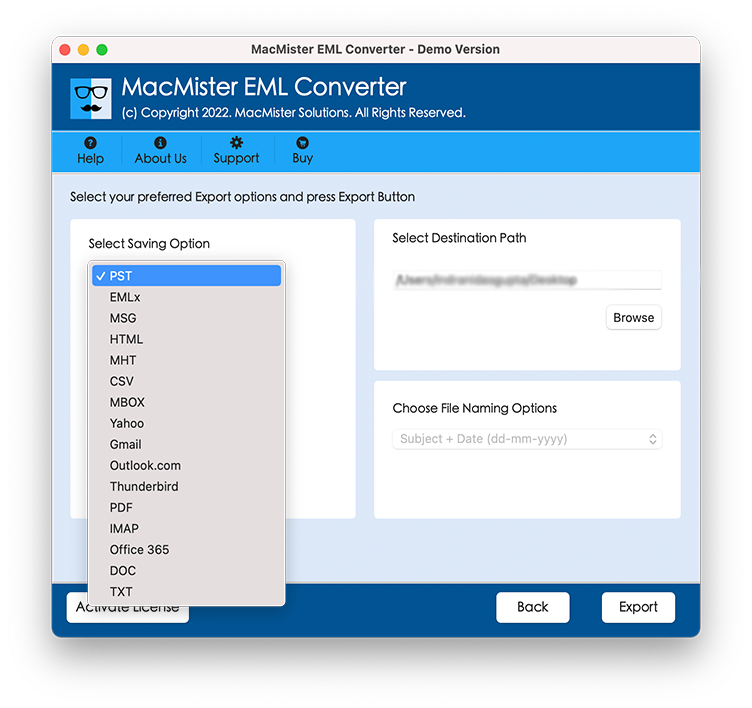
Step 5. Apply the related sub-options of MBOX file format and click on Export button.
Step 6. Track the conversion process by using Live Conversion screen as shown –
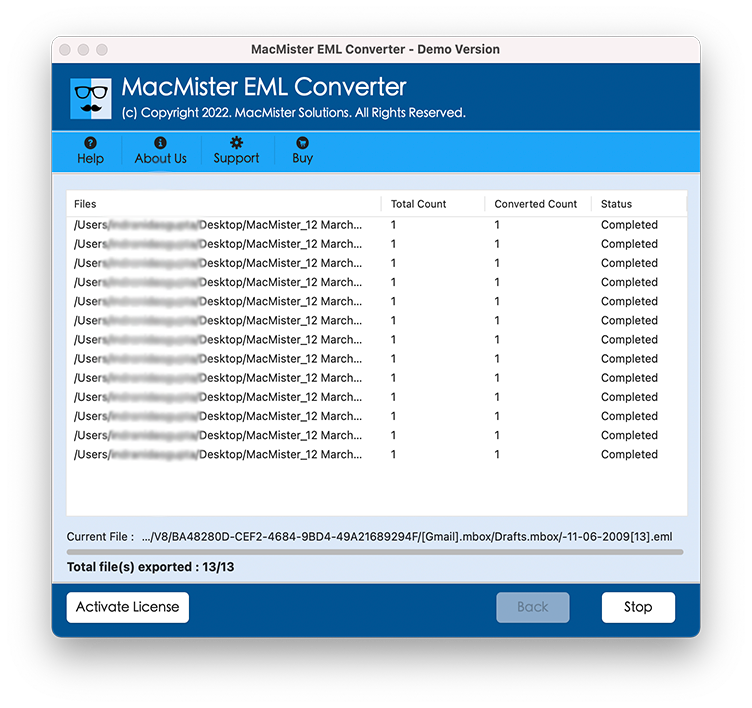
Process ends by showing the message on the screen “Conversion Completed”. You can click the OK button and review the entire conversion details that will be auto-generated by the application. It will show the saving option, start/end time process, saving path and etc.
Why to choose eM Client to MBOX Software?
There are many reasons for choosing eM Client files to MBOX application. Some of the common are displayed below:
Intuitive and Advance GUI
The application has been built-up with an advance and a friendly environment which eases the process for professional and non-professional users. By just implement few simple options, users will be able to export emails from eM Client to MBOX format.
Batch eM Client File Conversion
The eM Client to MBOX software delivers the batch conversion facility that will save the time for busy users. By utilizing the Add Folder button, users can load the complete folder containing unlimited eM Client email folders and has the ability to export all of them at once into MBOX without data loss.
Dual Options to Load Email Files
The utility has multiple options that will help to load required EML files for conversion. The Add Files and Add Folder will give the facility to directly add the desired EML files or folder for conversion. You can locate the eM Client supported files with the help of these buttons and upload them on the software to convert the same into MBOX format.
Export Emails to MBOX Accurately
The eM Client to MBOX Tool will not only save the time by exporting unlimited eM Client emails to MBOX but also will take care of the data originality. So, you do not need to worry about the original content as its data integrity will be preserved by the application during the conversion.
Use the Software on all Mac OS
The application allow Mac users to operate the software and export emails from eM Client to MBOX with attachments on all Mac OS versions. Users can download and handle the software on Mac Monterey, Big Sur, Catalina, High Sierra and etc.
Note. To know more options, download the tool now for free and convert first 25 emails from eM Client file to MBOX free of cost. Freely experience the advance software working and its options and see what the tool has to offer.
Conclusion
The segment has provided the perfect guidance on how to export emails from eM Client to MBOX directly. The eM Client to MBOX Tool does not carry complicated options. By implementing three easy steps, users can quickly access eM Client emails in MBOX. For any help, contact the technical support team.