How do I Export Emails from Office 365 to CSV?
Are you watching out for a remarkable method to export emails from Office 365 to CSV? Unable to find the right and perfect solution for the same! If yes, then continue reading the article because MacMister tutorial will surely help you out by providing the appropriate technique that is completely secure and believes in delivering the accurate output by taking minimum time.
Office 365 is a known cloud-based application. It is programmed by Microsoft for data management. Currently, big corporates and individuals are using the application who need to manage large amount of data on a daily basis and want to keep them secure and safe on cloud. Moreover, the application is quite flexible as one can utilize its services from any location anytime. It is totally a complex-free program which has the ability to store unlimited users database in an organized and proper way. Undoubtedly, Office 365 possesses several benefits but at times users look for an alternative where they can take the backup of important email files and documents.
Why to Export Email List from Office 365 to CSV?
There are different reasons present that tells why exporting emails from Office 365 to CSV is a best option:
- Internet connectivity is required to access updated files.
- Office 365 has strong security measures but sometimes it can interfere with the regular business workflow. For e.g. preventing specific files from being imported. In such a case, Enterprise Plan allow to control database for keeping peace of mind.
- Not compatible with bespoke applications in-house. It updates frequently and at times it breaks integration and compatibility.
- 90% users across all sectors use Word, Email and Excel. It means if a user is paying for office 365 subscription one will not be getting any profit from it.
- Constant update can slow down the workflow of large businesses.
Besides this, there are many more drawbacks that create an urge in users to export emails from Office 365 to CSV as a backup.
How to Export Emails from Office 365 to CSV on Mac?
Office 365 Backup Tool for Mac is a perfect application which is direct and delivers secure migration to users. The easy and user-friendly interface equipped with the three operational steps makes the tool simplified to access. Users do not need professional help for operating the migration process by utilizing the application. Even, the tool will save the time by providing the direct functionality. It allows to enter the Office 365 credentials and choose CSV as a saving option. Once this is done, then the users can click the Start Backup button to directly start the export process of Office 365 emails to CSV on Mac. However, the app is programmed for Mac users and so it is safe to use.


Moreover, the application is introduced with lots of beneficial features with the help of which one will be able to save emails from Office 365 account to CSV as per requirements. Users can download the freeware version to check the migration process for free.
Steps to Export Email Lists from Office 365 to CSV
Step 1. Run Office 365 to CSV Tool on Mac OS X.
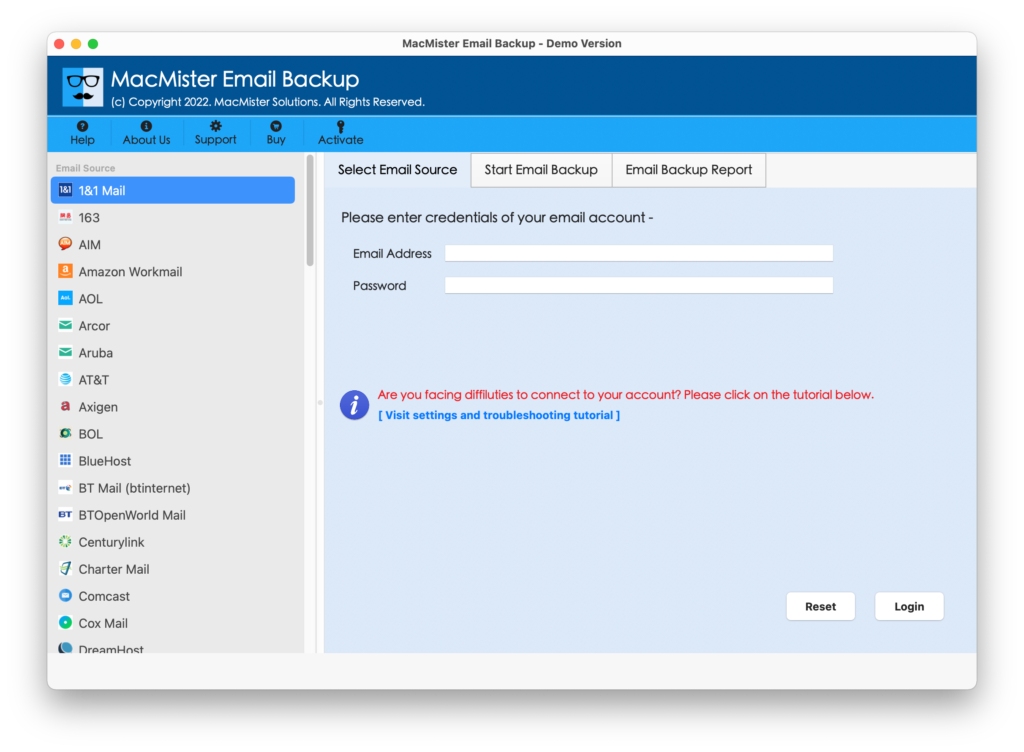
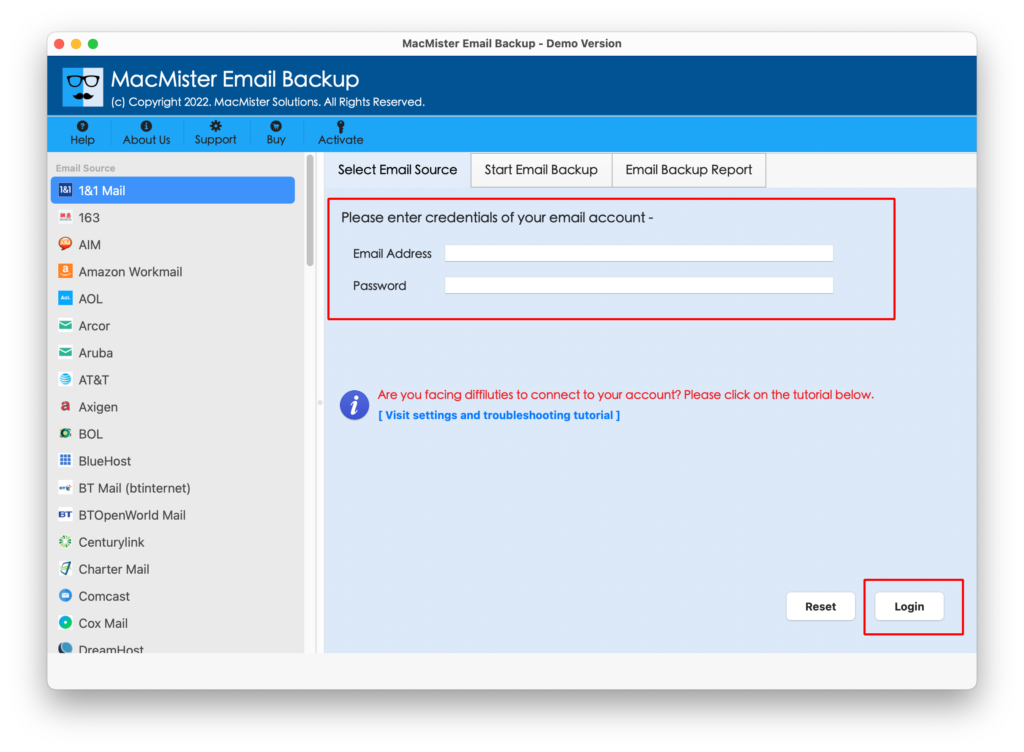
Step 2. Select Office 365 webmail option from the list on the left. Enter Office 365 login credentials and click Login button.
Step 3. Office 365 mailbox list will start to appear on the software.
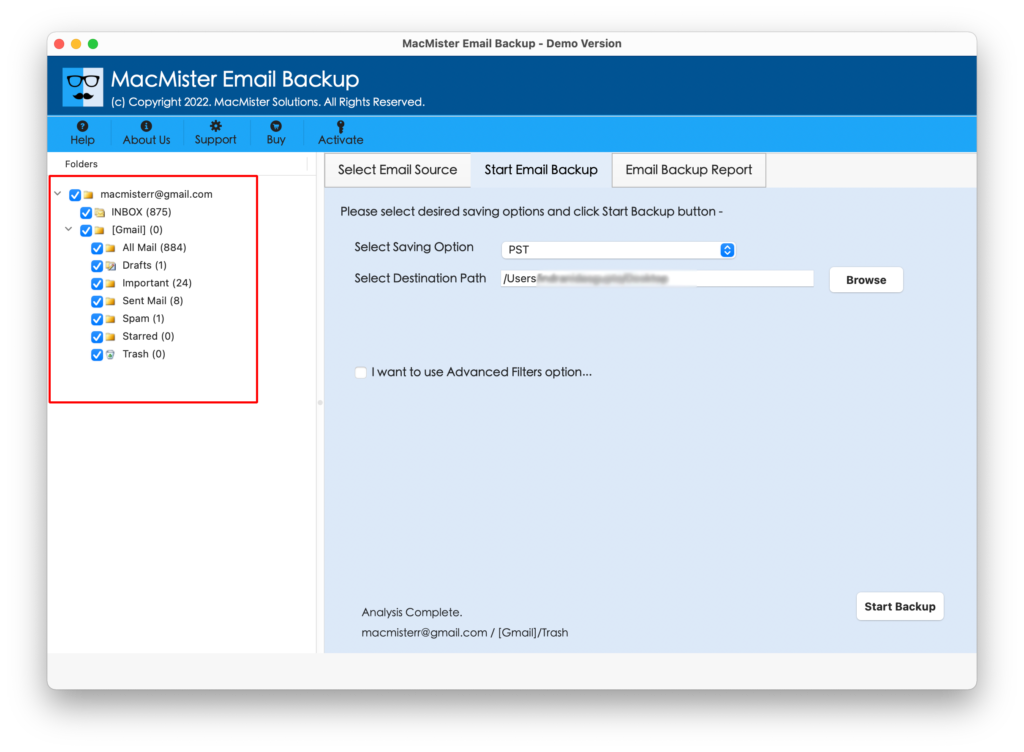
Step 4. Click Select Saving Option to choose CSV format from the list.
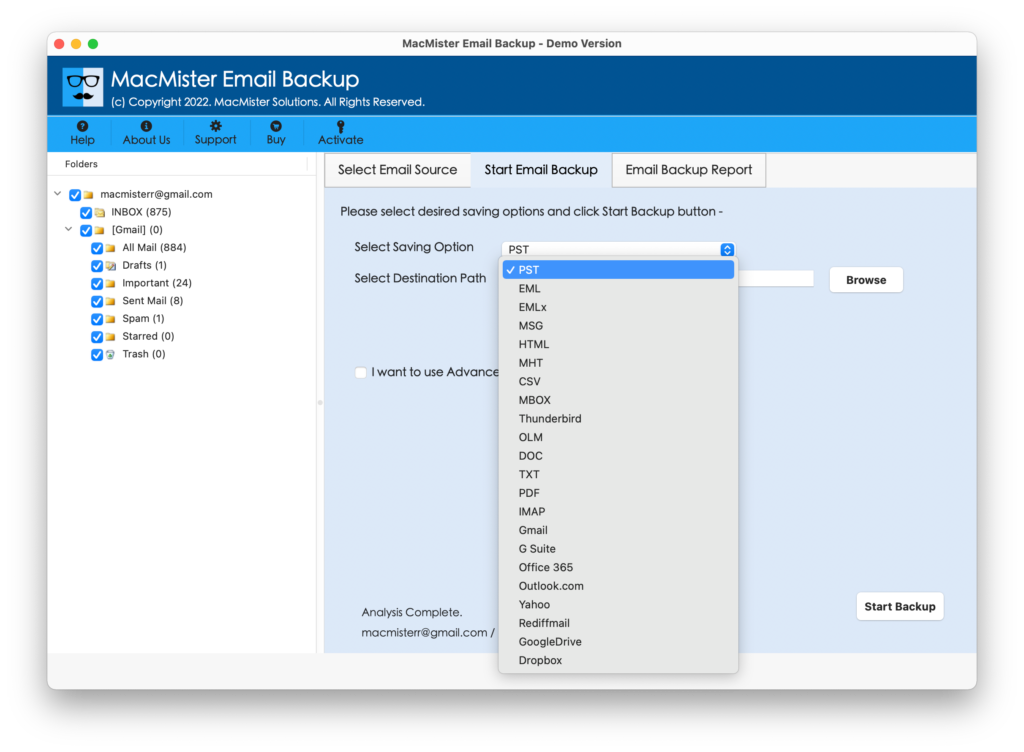
Step 5. Provide sub-options of CSV format and start the process by clicking Start Backup.
Step 6. Office 365 to CSV Migration Process will be Live and one can even track the current migration status by using the Live Migration Report:
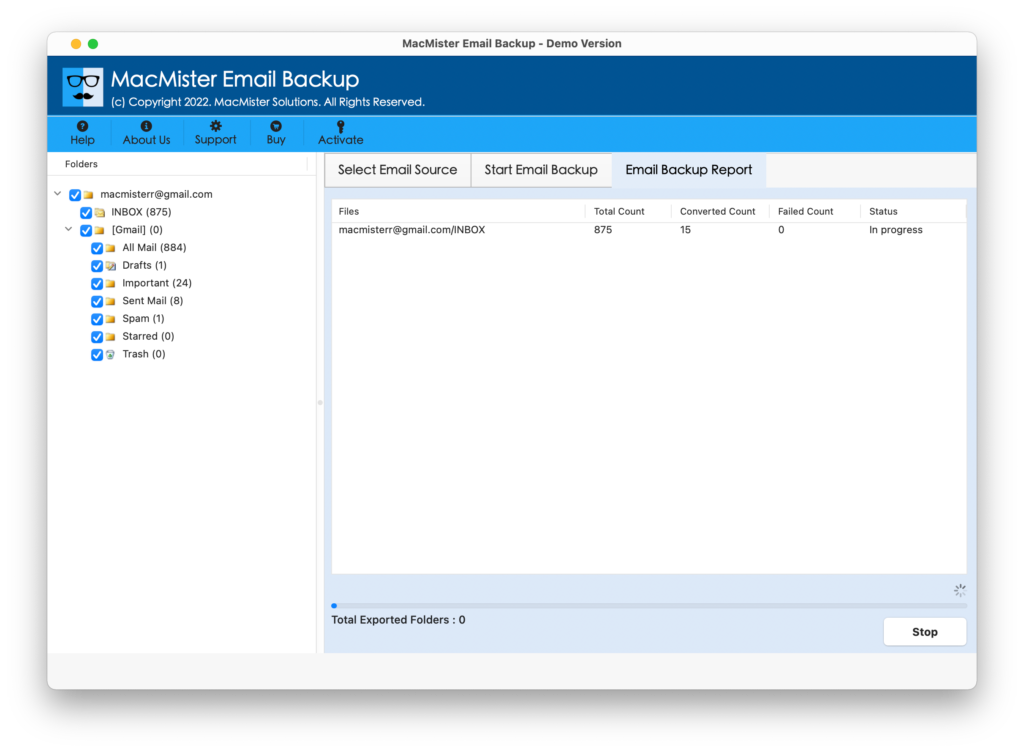
The completion of the migration process of Office 365 emails to CSV will be notified with a message showing “Process Completed”. Now, go to the destination path where the tool has saved CSV file. Open the same to check the content originality and formatting properties. However, the task of Office 365 emails to CSV will finish with 100% accuracy.
Why Office 365 to CSV is a Best Solution for Mac Users?
There are many benefits to choose the application and some are as given below:
Direct Office 365 to CSV Process
The application supports the direct migration of Office 365 emails to CSV. The software asks to provide the credentials of Office 365 account and to choose the CSV format as a saving option. And, after completing these tasks, users can click the Start Backup button. It start the direct migration of Office 365 emails to CSV.
Multiple Filters for Selective Process
The software has Filters section that users can select if they want to export selective email list from Office 365 to CSV. It includes Date Range, To, From, Subject, etc. Applying them as per requirements, one will be able save the essential and required Office 365 data to CSV on Mac.
Friendly GUI with Simplified Steps
The utility has a friendly interface. Users with technical and non-technical skills can quickly access. Moreover, the steps are very easy to use and manage. They are direct and help users in implementing the instant migration with no interruption. One can operate the entire task without seeking any help from the outside source.
Track the Status of Live Migration
The application has included the option of Email Migration Report with the help of which one will be able to track the current migration status of Office 365 emails to CSV. With the help of the screen, one can check the count of total files migrated and the total email files left for migration.
Office 365 Emails to CSV on all Mac OS
With the help of the tool, one will be able to perform the process on all Mac OS versions. Moreover, the application has the ability to export email lists from Office 365 to CSV on macOS Ventura, Monterey, Big, Sur, Catalina and all earlier macOS versions.
Note. Know more enhanced options of the tool by downloading the free demo now!
Final Thoughts
The MacMister has discussed the impeccable approach to export emails from Office 365 to CSV. The Office 365 Email Backup Software Mac is a direct solution which has the ability of exporting Office 365 emails to CSV directly on Mac OS X. However, users can make use of free demo to test the software steps and feature for free. It will allow users to export first 25 email lists from Office 365 to CSV free of cost.