How to Export Emails from Roundcube to Outlook on Mac & Windows?

Do you want to move to Outlook email client from Roundcube? Having lots of important email messages stored on the same that you want to access in Microsoft Outlook urgently? Wondering how to effectively export emails from Roundcube to Outlook with attachments? Looking for a reliable methodology to implement the necessary task on Mac? If yes, then keep following the section because here we have provided multiple approaches that will help in accessing the required Roundcube emails into Outlook without data loss.
Nowadays, the use of email clients is increasing rapidly. Every other organization is working with an easy-going yet effective email program to manage communication and a large amount of crucial data. However, there are plenty of email service providers available online but it becomes challenging when it comes to picking powerful and feature-rich email platforms.
Why to Export Emails from Roundcube to Outlook?
The reason why so many users are moving from Roundcube to Outlook is due to the reliability, powerful features, and secure functionality offered by Microsoft. And, when we talk of high-performance, smart, and robust email applications, then Outlook is the champion.
Microsoft Outlook is an all-in-one email program that possesses advanced security algorithms and helps to deliver strong communication and data management facilities. Now, the main challenge occurs when the users are unable to find a suitable solution to export emails from Roundcube to Outlook. So, in the below segment, we have introduced a step-by-step process for the task.
How to Export Emails from Roundcube to Outlook on Mac?
There are two different approaches to migrate Roundcube emails to Outlook.
- Direct and Safe Method
- Using Manual Solution
Method 1. Direct Method to Export Emails from Roundcube to Outlook
With the help of MacMister Roundcube Email Backup Software for Mac, users can directly and securely migrate Roundcube emails to Outlook-supported PST & OLM format on macOS. The software has a Windows version as well that required users can download and perform the migration of Roundcube to Outlook on the Windows operating system. The application holds a simple interface and is designed with non-typical steps and so anyone can effortlessly operate it and export emails from Roundcube to Outlook in three seconds.
Moreover, the software includes advanced features that help users to export Roundcube emails to Outlook with attachments according to their requirements. However, one will get the benefit of a trial edition as well. It will help users to experience the entire processing of the application for free.
Working Steps to Export Emails from Roundcube to Outlook on Mac
Step 1. Download and run Roundcube to Outlook Converter for Mac on macOS.

Step 2. Choose Roundcube webmail from the left and provide its credentials in the required fields. Click Login.

Step 3. The tool will create a connection with the specified Roundcube account and start listing its mailboxes on the software.

Step 4. Go to Select Saving Options to choose PST/OLM format.

Step 5. Set the sub-options of a chosen file type as per your need. You can also set Filters if you want to export selective Roundcube emails to Outlook. After this, click the Start Backup button to continue.

Step 6. The Roundcube to Outlook process will be live and the ongoing export status of Roundcube emails will appear on Email Backup Report.
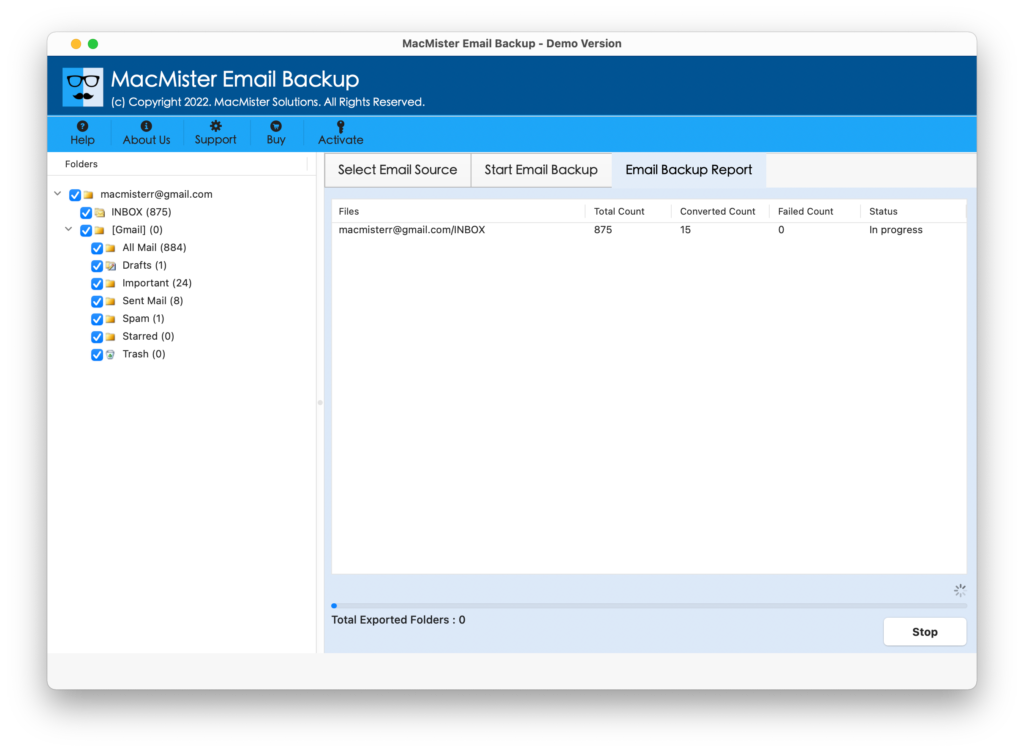
The entire migration will take a few seconds to successfully migrate all emails from Roundcube to Outlook on macOS. After this, users will receive Process Completed message. Click OK to proceed and then go to the location where the resultant files are saved. You can now go to your Outlook email account to import the resultant files.
Step-by-Step Procedure to Import Roundcube Emails to Outlook on Mac
For PST, follow the steps:
- Open Outlook for Mac email app on a macOS device.
- Click Tools and go with the Import option.
- Choose Outlook for Windows archive file (.pst) from the Import window.
- Press the Continue button.
- Navigate to the resultant file location. Select the required file. Click Import.
- The import process will start and when it completes, you will see that all the imported files will appear on the left navigation pane under On My Computer.
For OLM, follow the steps:
- Open Outlook for Mac email app on a macOS device.
- Click Tools and go with the Import option.
- Choose Outlook for Mac archive file (.olm) from the Import window.
- Press the Continue button.
- Navigate to the resultant file location. Select the required file. Click Import.
- The import process will start and when it completes, you will see that all the imported files will appear on the left navigation pane under On My Computer.
You can open the required file to check the result. However, you will see that the data is accurate and will appear with the correct formatting properties.
Method 2. Export Emails from Roundcube to Outlook in a Manual Way
- Go to the cPanel account and select Roundcube webmail.
- Click a single email message from the mailbox.
- After selecting the required email, click the More option appearing above.
- From the drop-down list, select an Export option and proceed with the next step.
- Now, the file will be downloaded on the computer in .eml.
Steps to Import EML Files into Outlook for Mac
- First, go to the location where .eml files are saved.
- Select the required EML file and right-click on it.
- Go with Open and then click MS Outlook.
- Choose the Move option and click the drop-down arrow to move the files in a specific folder.
- Now, the files will move successfully.
Epilogue
The write-up discussed different approaches to exporting emails from Roundcube to Outlook on Mac & Windows. The first approach is the MacMister Roundcube Backup Tool for Mac app which is 100% safe and easy to use. Anyone can operate it without any difficulty and migrate Roundcube emails with attachments into Outlook effortlessly.
Also, it has a freeware version that will help to explore the entire working of the tool for free. The second approach is manual and needs to be implemented under expert guidance. So, go with the suitable method and perform the migration in a minimum time.
Note. For assistance, contact MacMister Support.