How to Export SeaMonkey Mail to Thunderbird?

Do you want to export SeaMonkey Mail to Thunderbird on Mac OS X? Finding a way out for a secure execution but unable to get the suitable technique for the same! If yes, then the MacMister blog here provides multiple methodologies that will facilitate users to safely export SeaMonkey Mail mailboxes to Thunderbird on Mac OS within seconds.
SeaMonkey Mail is an open-source free internet suite that came into existence in 2005 when Mozilla Foundation decided to focus only on standalone projects such as Thunderbird and Firefox. It is a traditional email client which provides support for multiple accounts, message filters, junk mail detection, HTML, message support, address book, and more. Moreover, the email client is equipped with the section Blogs & News Feeds through which users will get updated and easily read information from all across the web.
However, Thunderbird and SeaMonkey share the same code. It is also built from Mozilla’s comm-central source tree. Thunderbird is also an open-source as well as cross-platform email application that is free to use and capable of managing the user’s personal account data items. Also, popular as a news client, RSS, and chat client. Moreover, the main benefit of using Thunderbird is that it is an application that is compatible with multiple operating systems such as Microsoft Windows, Linux, and macOS. Users can easily configure the email client and retrieve email from email providers that use IMAP/POP3 and send email from one location to another using SMTP.
More Reasons to Choose Thunderbird over SeaMonkey Mail
Let’s discuss some more possible reasons behind the migration of SeaMonkey mail to Thunderbird email client.
- SeaMonkey is a single program whereas Firefox and Thunderbird are different. Thus, if one crashes the other one will remain unaffected.
- Thunderbird has its own profile registry whereas SeaMonkey keeps browser and mail settings in the same profile.
- Firefox and Thunderbird run simultaneously and make use of more computer resources as compared to SeaMonkey (browser and mail component open at the same time.
How to Export SeaMonkey Mail to Thunderbird Directly?
There are multiple approaches for exporting SeaMonkey emails to Thunderbird. The first method is a usual practice and it will be applied to files that are fewer in number. The second method is direct and allows to securely transfer of unlimited SeaMonkey Mail mailboxes to Thunderbird at once. You can choose the suitable method and achieve the desired task.
Practice 1. Manually Exporting SeaMonkey Emails to Thunderbird
The method is divided into two different stages:
Stage 1. Extracting MBOX files from SeaMonkey Account
- Open SeaMonkey email client.
- Navigate to Settings and Server Settings & copy the path.
- Now, enter the path in the Windows Explorer Search box.
Stage 2. Move Extracted SeaMonkey Mailboxes to Thunderbird
- Open Thunderbird.
- Go to Menu and click Add Add-ons.
- Choose ImportExportTools NG and add the same.
- Navigate to the required folder and right-click on it.
- Click the ImportExportTools NG option and choose Import MBOX file.
- Pick the files from the location and upload them to Mozilla Thunderbird.
However, it is advised to operate the steps under an expert’s assistance. Because users can find the steps quite technical and could take a little bit of time.
Practice 2. Directly Export SeaMonkey Mail to Thunderbird
MBOX Converter for Mac is a reliable and perfect approach for those who want to export unlimited SeaMonkey emails and attachments to Thunderbird at once on Mac OS. The steps are short and time-saving and capable of exporting SeaMonkey data to Thunderbird in minimum time. Moreover, the interface designed by MacMister developers is friendly and anyone can operate and use it.

The application is launched with plenty of advanced options and features with the help of which one will be able to receive the desired outcome. Download the trial edition quickly to test the software’s procedural steps for free.
Working Steps to Export SeaMonkey Mailbox Lists to Thunderbird
Step 1. Run MBOX to Thunderbird Mac Tool on Mac OS.
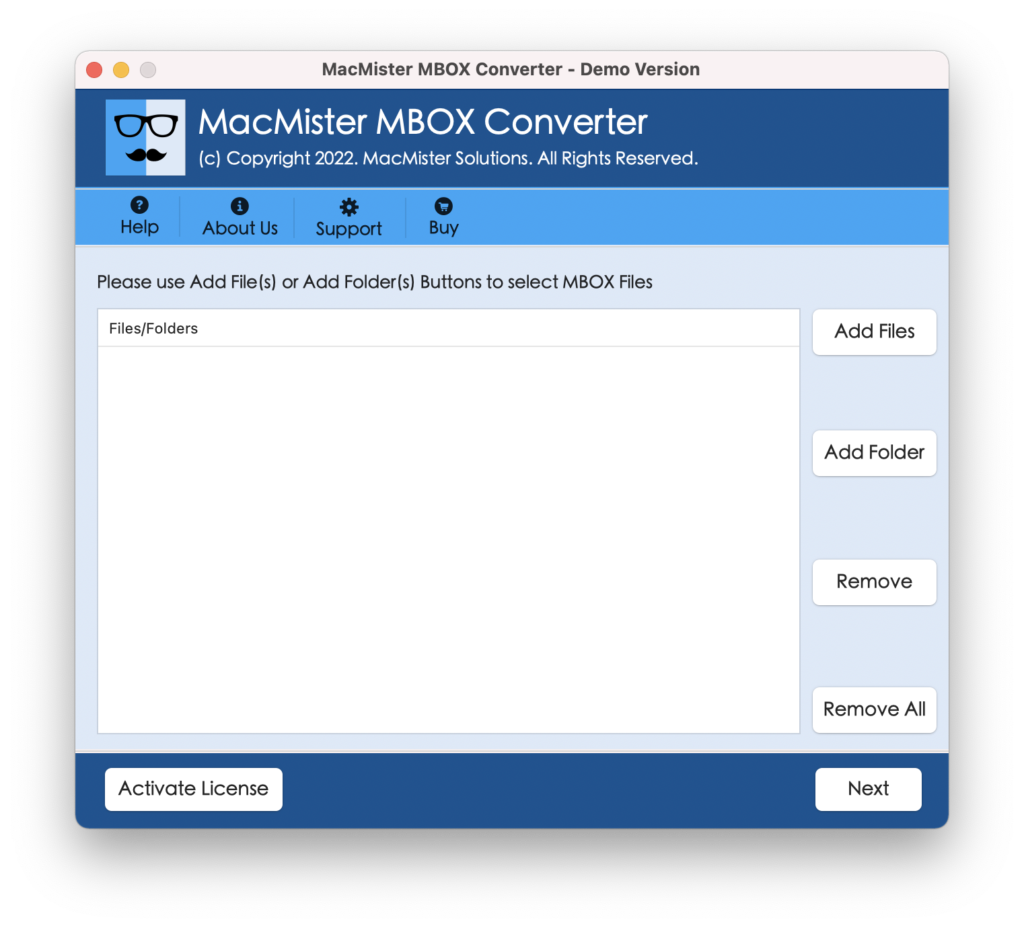
Step 2. Load SeaMonkey mailboxes by using the Add File(s) and Add Folder buttons. After this, click Next.
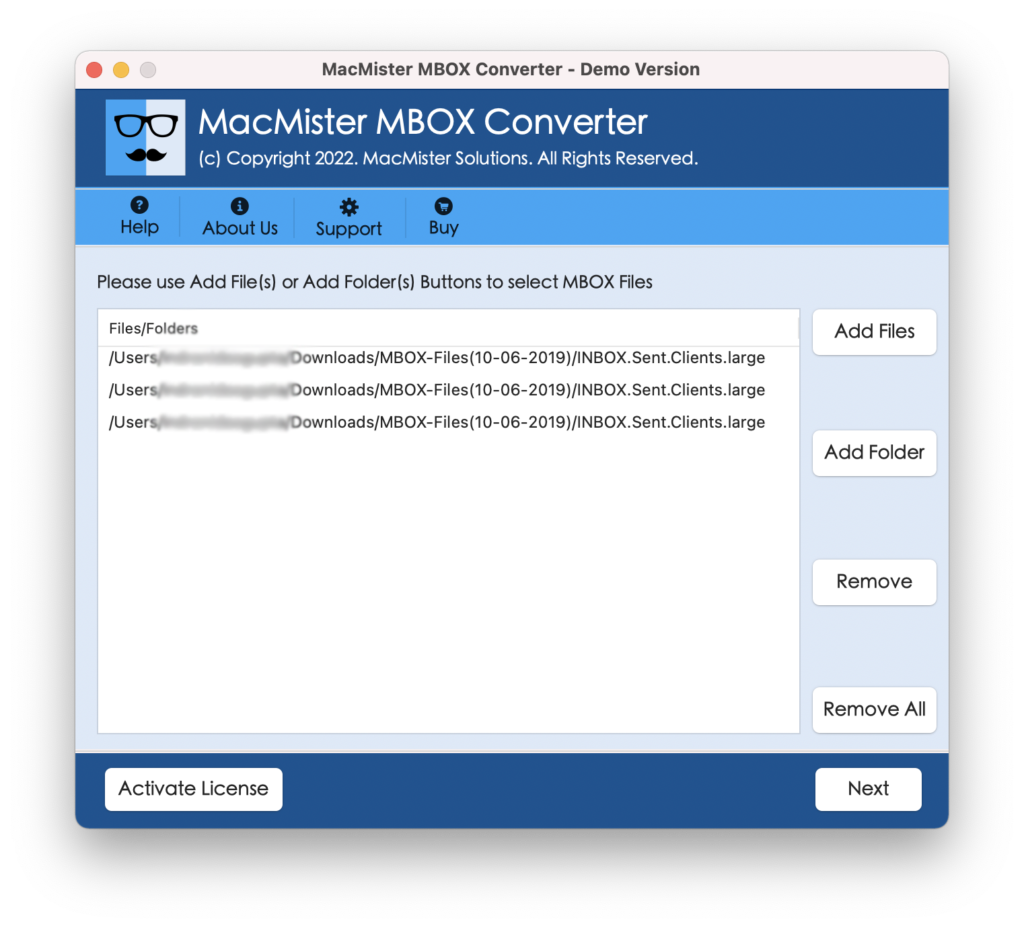
Step 3. SeaMonkey mailboxes will start to list and each will appear with checkboxes. The checkbox allows exporting of selective SeaMonkey emails and attachments to Thunderbird. Select/deselect them as per need and continue by clicking Next.
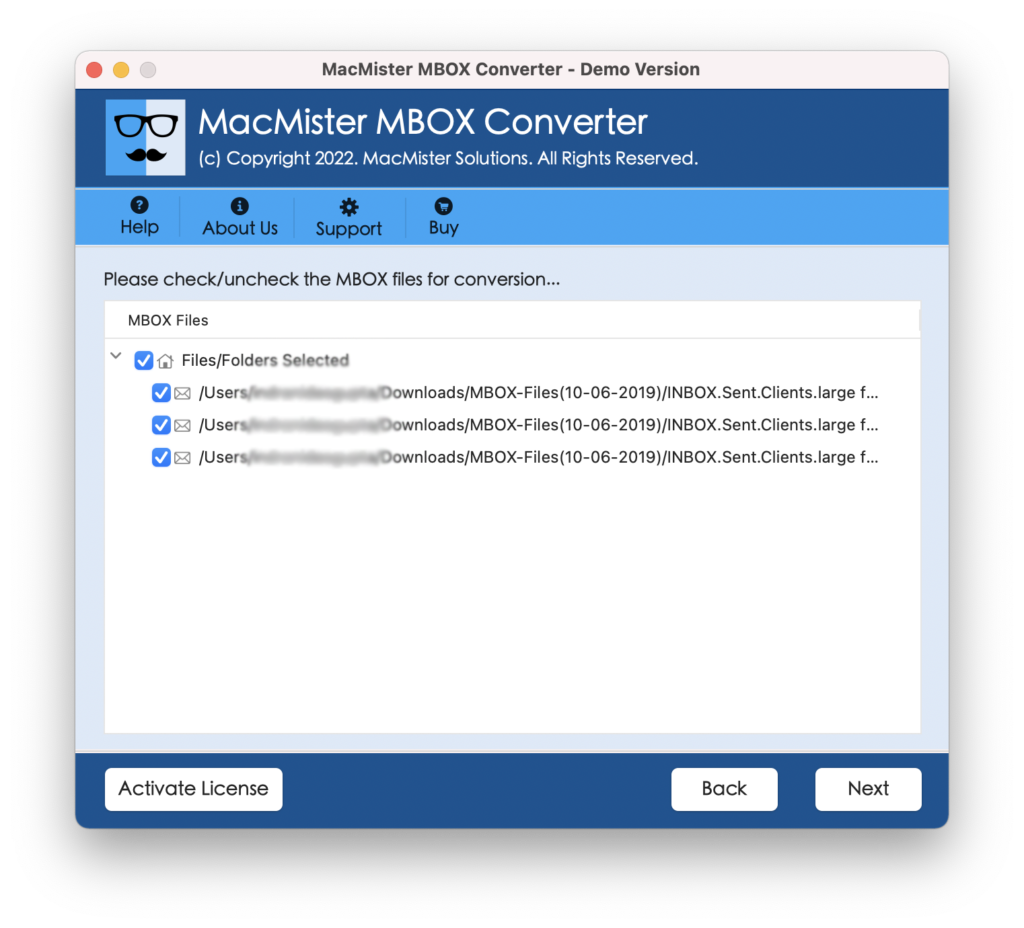
Step 4. Select Thunderbird saving type from Select Saving Option.
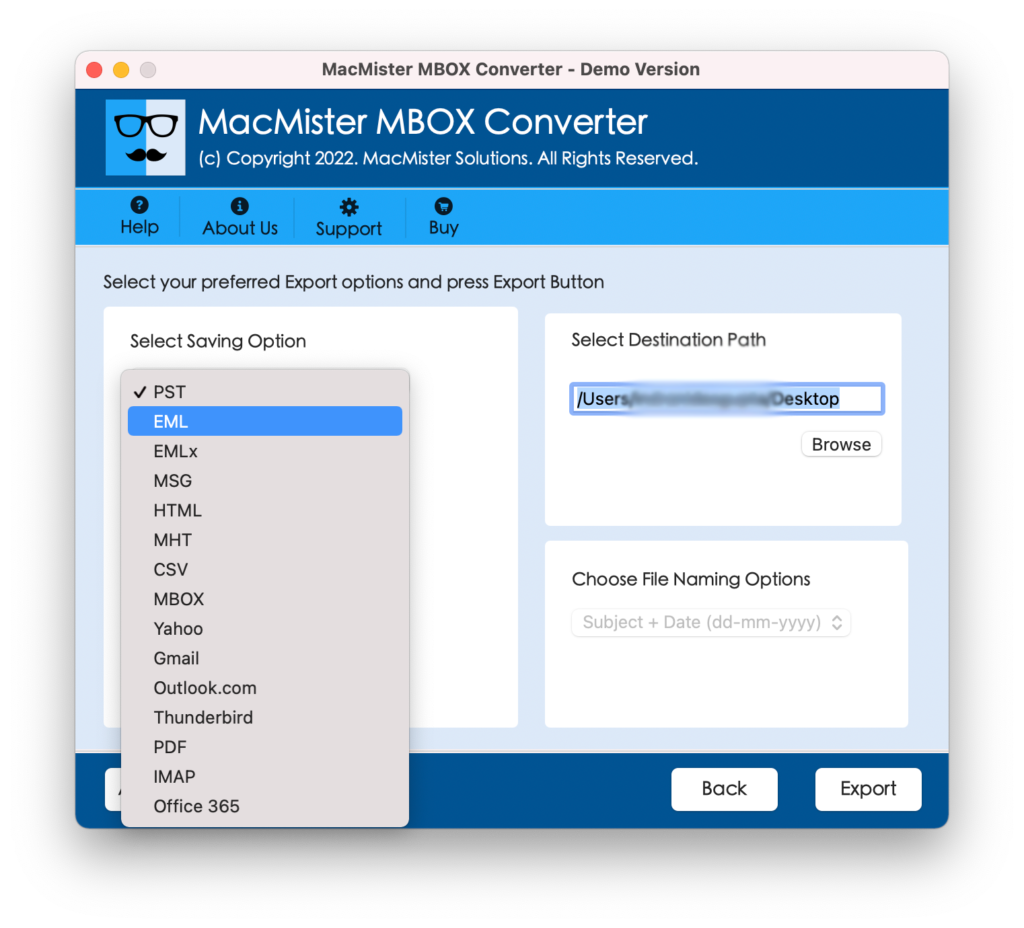
Step 5. Apply the sub-options appearing under Thunderbird as per requirement and click on the Export button.
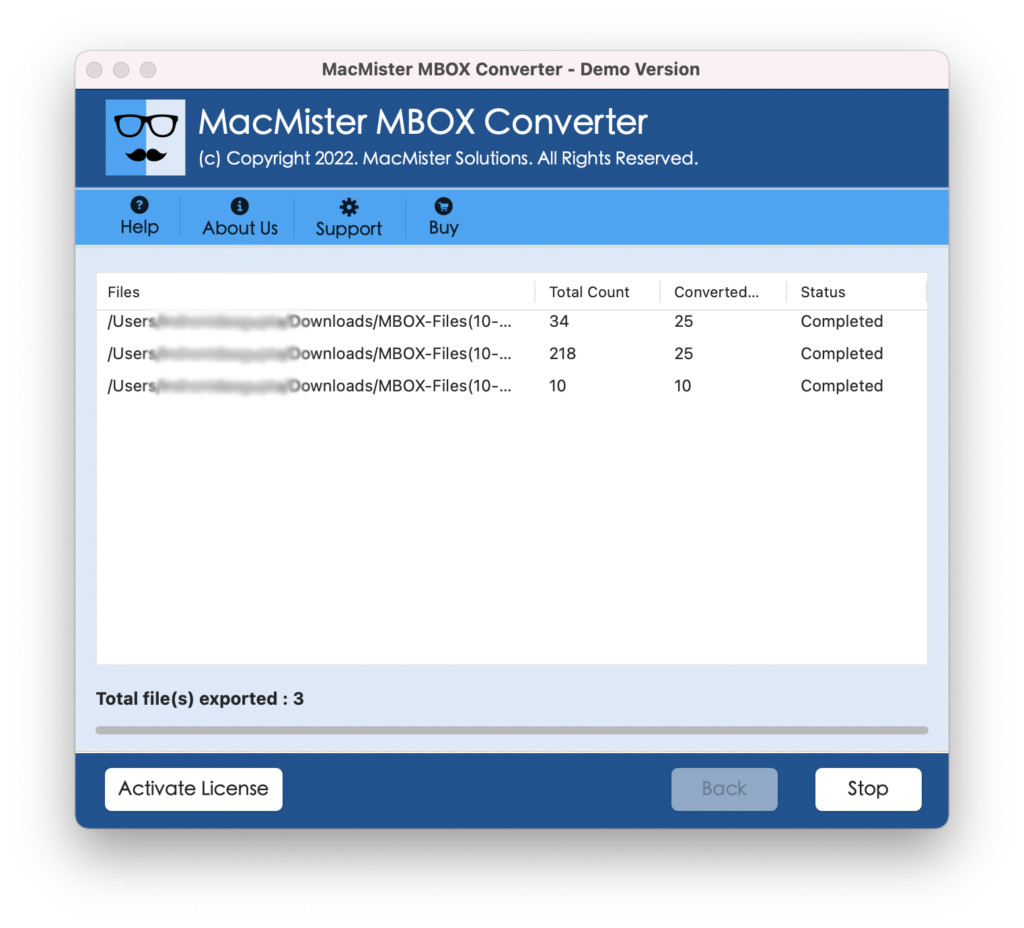
Step 6. SeaMonkey to Thunderbird process is now running and from the same users can easily track the export status.
.
The process will take minimum time to finish and will notify you through a “Conversion Completed” message. After this go to the location where files are saved and open them in the Thunderbird account to check the accuracy. However, the tool will cause no harm to the data originality and makes sure that the migration will be performed smoothly and without data loss.
Why Choose MacMister’s SeaMonkey to Thunderbird Application?
There are several reasons for choosing the MacMister’s application and some of them are:
Batch SeaMonkey mailboxes to Thunderbird
The tool provides the batch mode option with the help of which one will be able to perform the batch migration of SeaMonkey Mail mailboxes to Thunderbird. And, it will be accomplished when a user chooses Add Folder button. It allows to load a folder containing a list of multiple SeaMonkey mailboxes and helps to export all of them to Thunderbird at once.
Load SeaMonkey Mailboxes by using Two Options
The software offers Add File(s) and Add Folder buttons on the launch screen. By tapping the Add File(s) option, one can load the necessary SeaMonkey mailboxes and by making use of Add Folder button, users can add a folder with multiple SeaMonkey mailboxes on the software.
Simple User-Interface with a Friendly Steps
The application possesses an intelligible GUI with friendly clicks that technical and novice users can operate in a snap. By clicking the three main steps – first is to add SeaMonkey Mailboxes, second is to choose the saving option and third is to click the Export button, users will save their time and effectively implement the migration process.
Direct SeaMonkey to Thunderbird is Possible
The utility includes Thunderbird as a saving option which users can choose directly to export SeaMonkey emails to Thunderbird. However, after adding the SeaMonkey mailboxes on the tool, one can click on Select Saving Option to choose the Thunderbird saving type. When you are done with these two steps then click on Export & start the process.
Export SeaMonkey Mail to Thunderbird on all Mac OS
With the help of the tool, one will be able to export SeaMonkey mailboxes to Thunderbird on all Mac OS versions. The tool has the ability to export SeaMonkey emails to Thunderbird on macOS Ventura, Monterey, Big Sur, Catalina, High Sierra, etc.
Note. For more features, download the trial edition now!
Final Thoughts
The blog has discussed different approaches that will help to export SeaMonkey emails to Thunderbird with attachments on Mac OS. The SeaMonkey to Thunderbird Converter for Mac is a verified solution that delivers an intelligible GUI with powerful options. And, in order to check them, one can make use of the free demo edition and export the first 25 emails and attachments from SeaMonkey Mail to Thunderbird for free.