How to Export Sylpheed to Outlook on Macbook?
Introduction
If you want to switch from Sylpheed to Outlook on your MacBook, you might be searching for how to export Sylpheed to Outlook on Macbook seamlessly. For some users from non-IT background it might seem like a tricky task at first. But let me ensure you with the right steps, the process becomes much simpler. And in this blog post, we’ll get complete clarity of the process of exporting your emails from Sylpheed and importing them into Outlook on your MacBook, while ensuring that no important data gets lost. As we know, it is better to opt for Outlook email client for better features, a more user-friendly interface, or simply because you prefer the Microsoft ecosystem, this blog will help you make this migration smoothly. Now let’s start the proceedings.
Complete Process of Exporting Sylpheed to Outlook
Extract MBOX Manually
The mailbox files are located in the default directory if Sylpheed is already installed and set up on your computer in the C:\Users\<YourUsername>\AppData\Roaming\Sylpheed\Mail
You need to copy the required mailbox files (such as Inbox, Sent, etc.) from this path to a new folder. Important Note: The files may not appear with a .mbox extension, but saves as MBOX format.
Export the Mailbox using Sylpheed
- Users can go with Sylpheed’s built-in export option, follow these steps to know how:
- Launch Sylpheed on your computer system.
- Click on the “File” from the menu bar at the top.
- From the drop-down menu, choose Export mail data option.
- Select the folder you wish to store the exported mailbox file in.
- Enter name as per your choice and click on the “Save”. Your chosen mailbox will then be exported into the MBOX format, preparing it for the subsequent conversion stage.
Sylpheed to Outlook Export Tool -A Comprehensive Solution for Sylpheed to Outlook Email Migration
MacMister MBOX Converter for Mac & Windows –is an impeccable and seamless solution for users to convert/import Sylpheed emails into the more widely PST file format (compatible with Microsoft Outlook 2021, 2019, etc). This tool ensures smooth email migration while retaining all original data and folder structures. The app supports batch migration so that users can export multiple Sylpheed emails to PST files at once. Users can acquire this solution on Mac OS of all editions. And demo edition of the app is available that let users to convert 25 emails from Sylpheed to Outlook free of cost.
How to Export Sylpheed to Outlook on Macbook? – Working Guide
Step1: Download, install and launch the MBOX to PST Converter tool on your Mac machine.
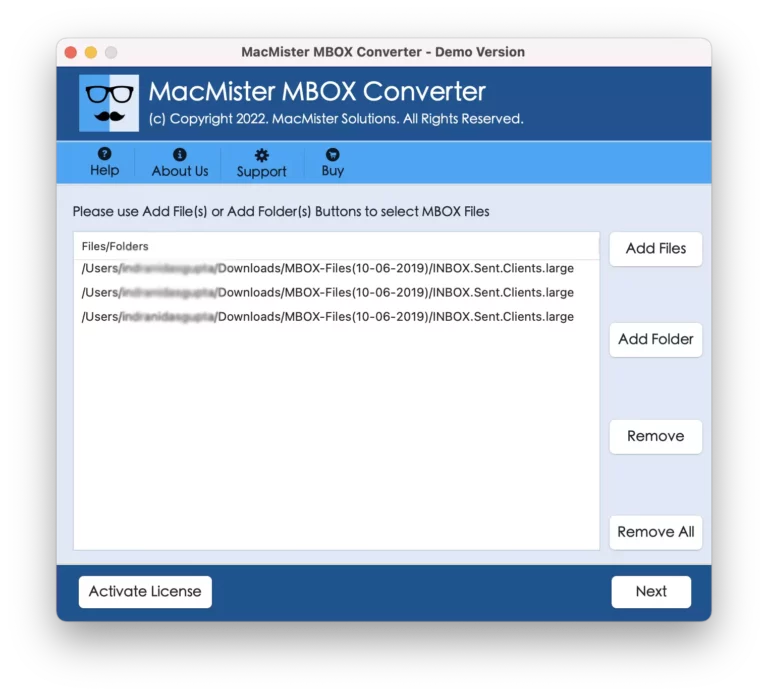
Step2: Go to the Add Files or Add Folder button to upload your Sylpheed MBOX files. Choose Add Files for selecting individual MBOX files or Add Folder to add the complete folder that can contain multiple MBOX files.
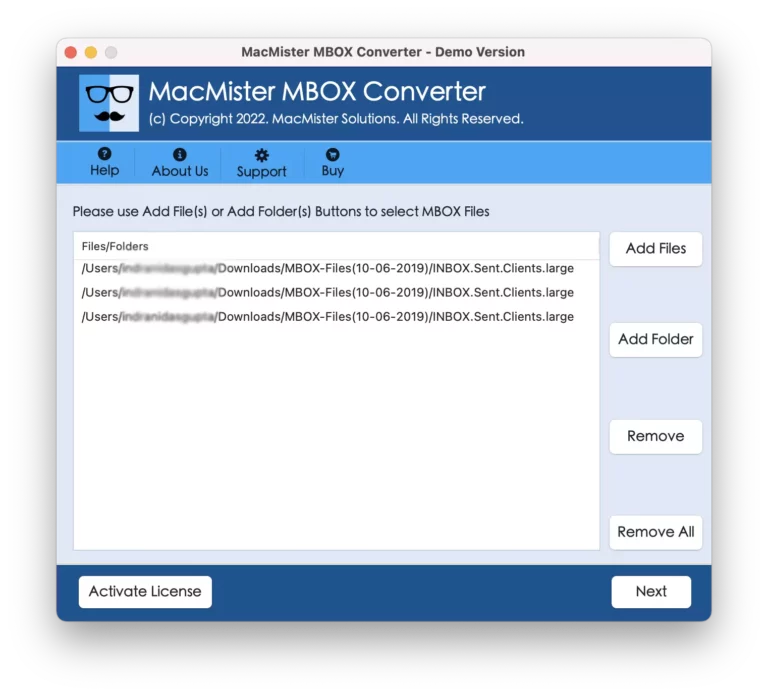
Step3: Choose the required file folder accordingly, then move further clicking on the Next.
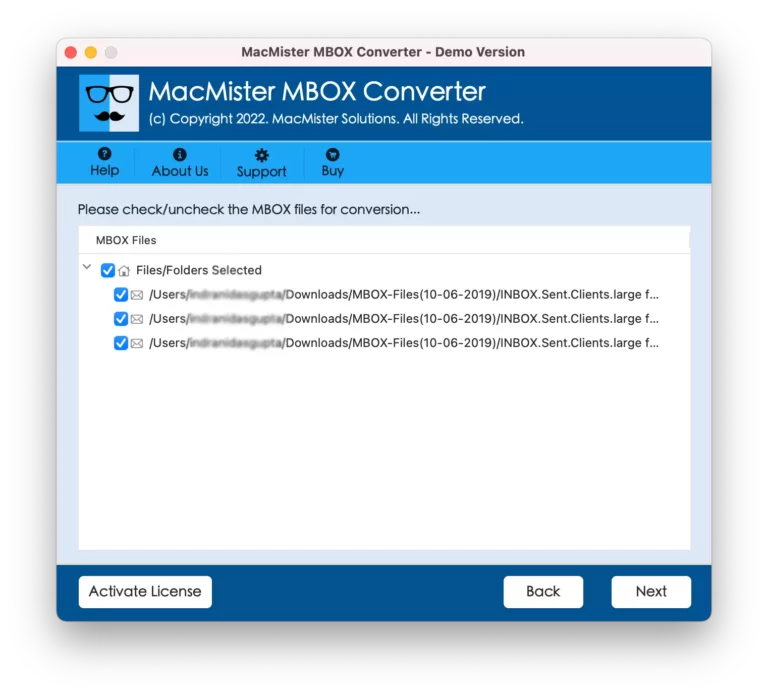
Step4: Choose PST output option so that your Sylpheed emails convert into Outlook-compatible PST files, then again click Next.

Step5: Locate a destination path by clicking the Browse button. After that exported PST file will be saved after completion of the process.
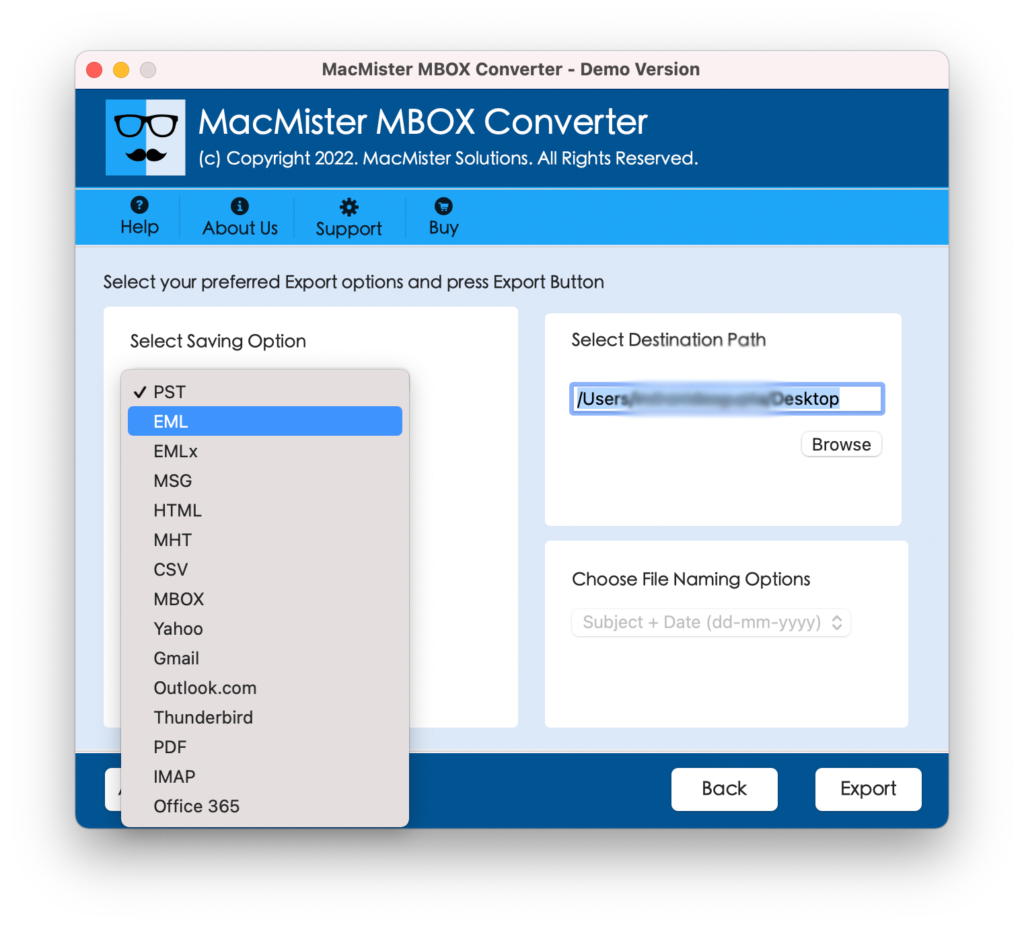
Step6: Click on the Export to initialize the conversion process.
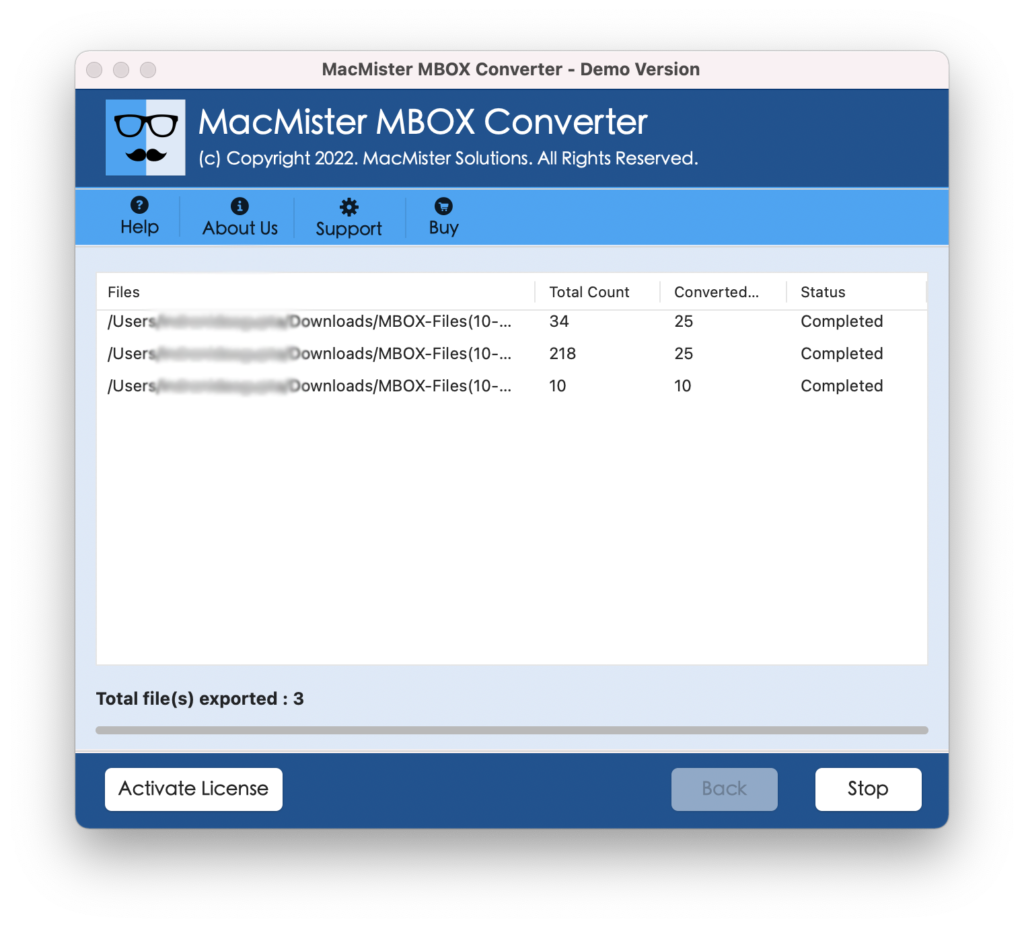
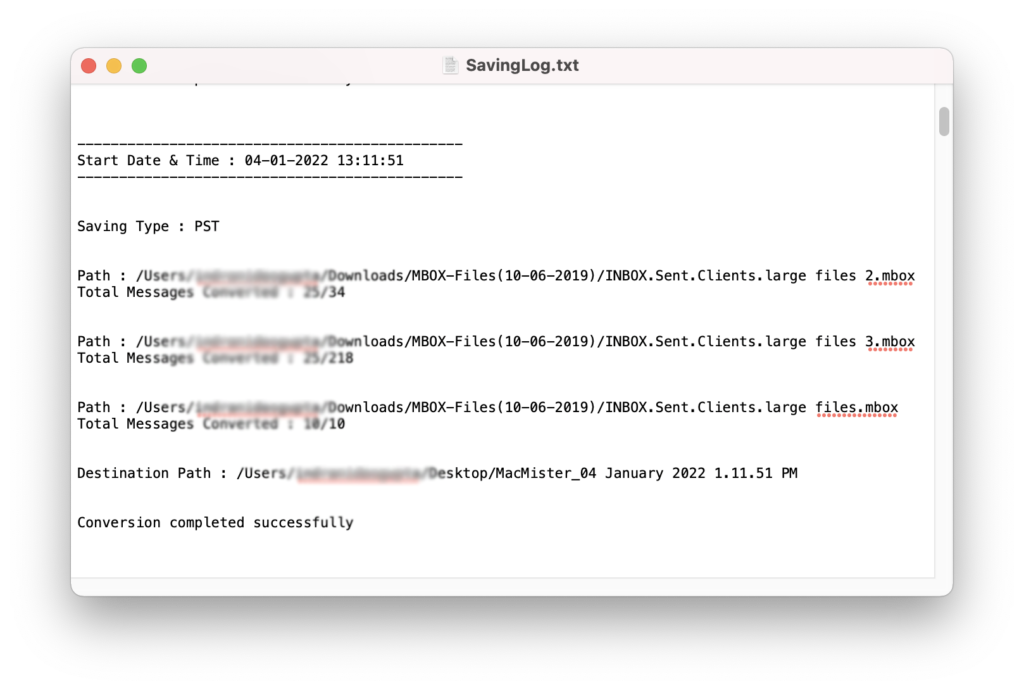
Step7: After the conversion, you’ll get notified. Click OK to end the process.
Key Features of Sylpheed to Outlook Migration Solution
Accurate Sylpheed to PST Conversion: Converts Sylpheed emails into PST format without any data loss or corruption, ensuring a complete and accurate migration of emails.
Batch Conversion: Supports bulk conversion, allowing users to convert multiple Sylpheed files into PST file in one go.
Maintains Folder Structure: Retains the original folder hierarchy during the conversion process,
Preserves Email Metadata: Keeps essential email metadata intact, including sender/receiver details, attachments, and email formatting.
Safe and Secure Solution: The software ensures that all data is processed without risking any loss or corruption.
Compatibility with Windows and Mac: Available for both Windows and macOS operating systems, ensuring accessibility for a wide range of users.
User-Friendly Interface: Designed with simplicity while offering an intuitive interface suitable for both technical and non-technical users.
Preserves Attachments: Ensures that email attachments, including images, other files, are preserved during the conversion process.
Selective Conversion: Allows users to convert specific Sylpheed files or folders to PST, providing flexibility to choose only the necessary emails.
Read more
Conclusion
In this post we have learnt the correct way of resolving how to export Sylpheed to Outlook on Macbook. By following the outlined steps, you can easily export your emails and folders from Sylpheed and import them into Microsoft Outlook. Your emails now accessible in Outlook, you can take full advantage of the Outlook powerful features like, advanced search capabilities, and seamless syncing across devices. Sylpheed to Outlook Migration Solution works for all Mac OS editions for example Mac OS Venture, Catalina, Monterey, Big-Sur, High-Sierra, Mojave, and many more. The tool is also well compatible with Windows OS editions. To know more go with free trial option that simply enables to convert 25 Sylpheed emails to Outlook PST files free of cost.