How to Fix Outlook Error 0x800ccc1a? – [Methods 2026]
MS Outlook is one of the popular and widely used email client applications which are useful in sending/receiving emails. It also handles many other things including calendars, events, journals, contacts, and more. Outlook 0x800ccc1a occurs when there is issue in SSL (Secure Socket Layer).
It is generally due to incorrect specification of port number to SMTP or POP3. The error won’t allow implementing tasks such as sending and opening emails on Outlook email client. So, in the write-up, we will discuss the error and go through the solutions for the same.
Part 1. Factors for Receiving Outlook error 0x800ccc1a Error
Several MS Outlook users have encountered Outlook error 0x800ccc1a while sending/receiving emails. The code appears in many locations within the system.
Though it holds few details in its name, it is still hard for the user to become aware of and fix the cause without software or technical skills. If you have received the message on a PC then it means that there is some fault in the system. And here are some factors for getting error Outlook error 0x800ccc1a –
- Windows unexpectedly crash.
- System freezes for some seconds.
- Regular crash of PC while using the same program.
- Outlook error message appears whenever you try to open Outlook.
- Windows take lot of time to respond to keyboard and mouse input or window running slow.
Part 2. Causes of Outlook Error 0x800ccc1a
Outlook contains two servers for both sending and receiving email files. So, in case the client app is not able to contact single server, then the user will encounter the error. It displays the message as appearing below –
“An unknown error occurred. The server unable to support “the encryption type” that you have mentioned. Kindly save existing work and restart your work”.
Lot of things can cause 0x800ccc1a error. Such reasons are –
Encryption Type
In few cases, the encryption type i.e. SSL can be main cause of error.
Damaged Outlook Profile
Damaged or corrupted Outlook profile is also the reason behind getting the error message constantly.
Wrong Port Number
If the connection is configured with wrong port numbers of IMAP, POP3, and SMTP, then also there is a possibility of receiving the error message. At times, users set wrong port number for outgoing server i.e. SMTP and incoming server i.e. POP.
Anti-Virus
If the installed anti-virus supports email scanning functionality, then it will lead to error.
Quick Note. If you are using Outlook 2016 or earlier version, then ensure to upgrade it. However, operating old version can also sometimes result in Outlook error code 0x800ccc1a as they do not receive important security update.
Part 3. Different Methods to Resolve Outlook Error 0x800ccc1a
One can resolve the issue quickly by implementing simple solutions discussed here. Remember, the method you choose will largely depend on the severity of Outlook 0x800ccc1a error.
Method 1. Reconfigure SSL Encryption and SMTP and Port Number Settings
The first method is to configure SSL encryption again in Outlook 2010 above and 2007. One needs to make modifications in the settings to fix the issue. For this, follow the below steps –
For Outlook Versions – 2010, 2013 and 2016
To fix the error in Outlook 2010, 2013 and 2016, follow the steps below –
Step 1. Run MS Outlook.
Step 2. Go to File and tap Info.
Step 3. Click Account Settings.
Step 4. When email account pop up, navigate to Advanced tab and uncheck “the server requires encrypted connection (SSL) in the incoming server”.
Step 5. Tap OK and then click Next.
Step 6. Press Finish button and start MS Outlook again.
For Outlook Version – 2007
To resolve Outlook 2007 error code 0x800ccc1a, then follow the below steps –
Step 1. Run MS Outlook app.
Step 2. Go to Tools and click Account Setting.
Step 3. Choose email and tap “Change” in a pop-up screen.
Step 4. Tap “More Settings”.
Step 5. From Internet Mail Settings screen, tap “Advanced” tab and deselect the option “this server needs an encrypted connection in the incoming server”.
Step 6. Press OK, then click Next and hit Finish.
Step 7. Tap Close and start MS Outlook again.
Method 2. Utilize Outlook Inbox Repair Tool to Fix MS Outlook PST Files
The second way out to resolve error 0x800ccc1a is by using Inbox Repair Tool or Scanpst.exe. Make use of it to fix minor issues with both OST and PST files.
Step 1. Go to “File Explorer” and move to “\Program Files\MS Office\Office 12” folder.
Step 2. Click “scanpst.exe” and browse to select corrupt or damaged .pst file.
Step 3. Tap “Start” to repair it. Also, click repair in case you have received an error message on the system.
Step 4. Once the error is fixed, a message will appear displaying “repair completed”.
Method 3. Run Windows System File Checker
Step 1. Go to Start button and enter “Command” in a search bar.
Step 2. Press CTRL + Shift button and hit Enter.
Step 3. Hit “Yes” appearing on the dialogue box.
Step 4. A black screen will display with a blinking cursor.
Step 5. Type “sfc/scannow” and press Enter.
Step 6. Go to “System File Checker” to scan the error and try to fix it.
Step 7. Restart MS Outlook.
Method 4. Try Professional Approach
In case none of the above method works, try MacMister PST Converter for Mac & Windows. With the help of the solution, one can backup PST files into 15+ saving options. It allows users to extract and fix Outlook mailboxes with high accuracy quickly in multiple formats. The tool preserve contacts, calendars, emails, and other items from inaccessible PST files. Besides, its exceptional features will help users saving PST files as per users’ requirements.
Follow the below steps to know how the tool fix the error by transforming PST files into accessible saving type –
Step 1. Download, install, and run the app on macOS.
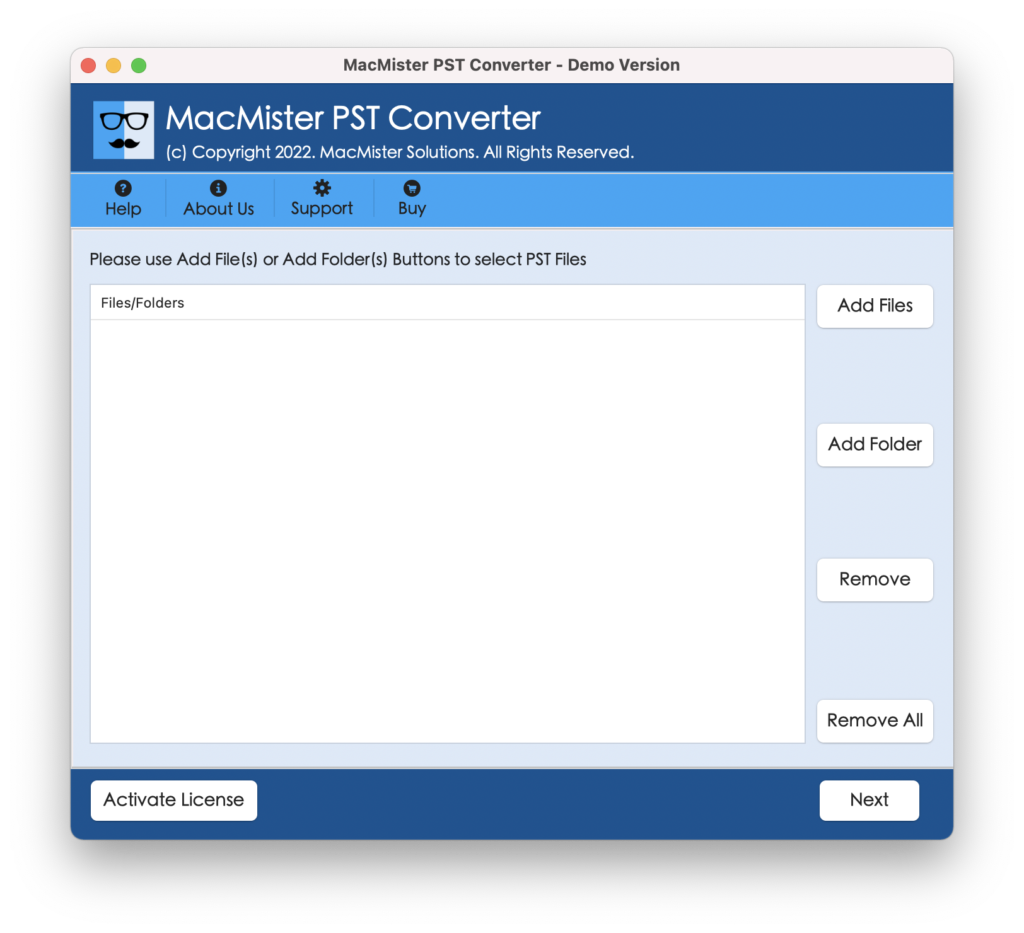
Step 2. Add PST files using Add File(s)/Add Folder buttons.
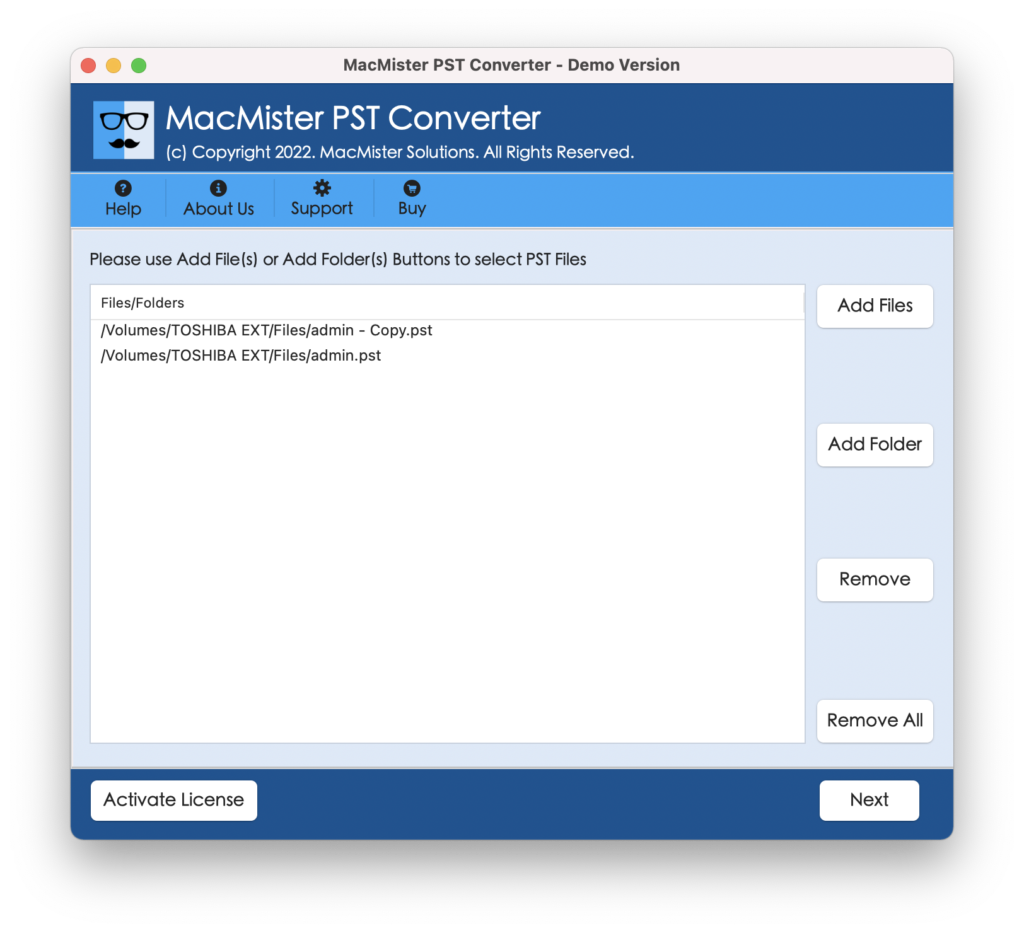
Step 3. The tool start listing PST files on the panel.
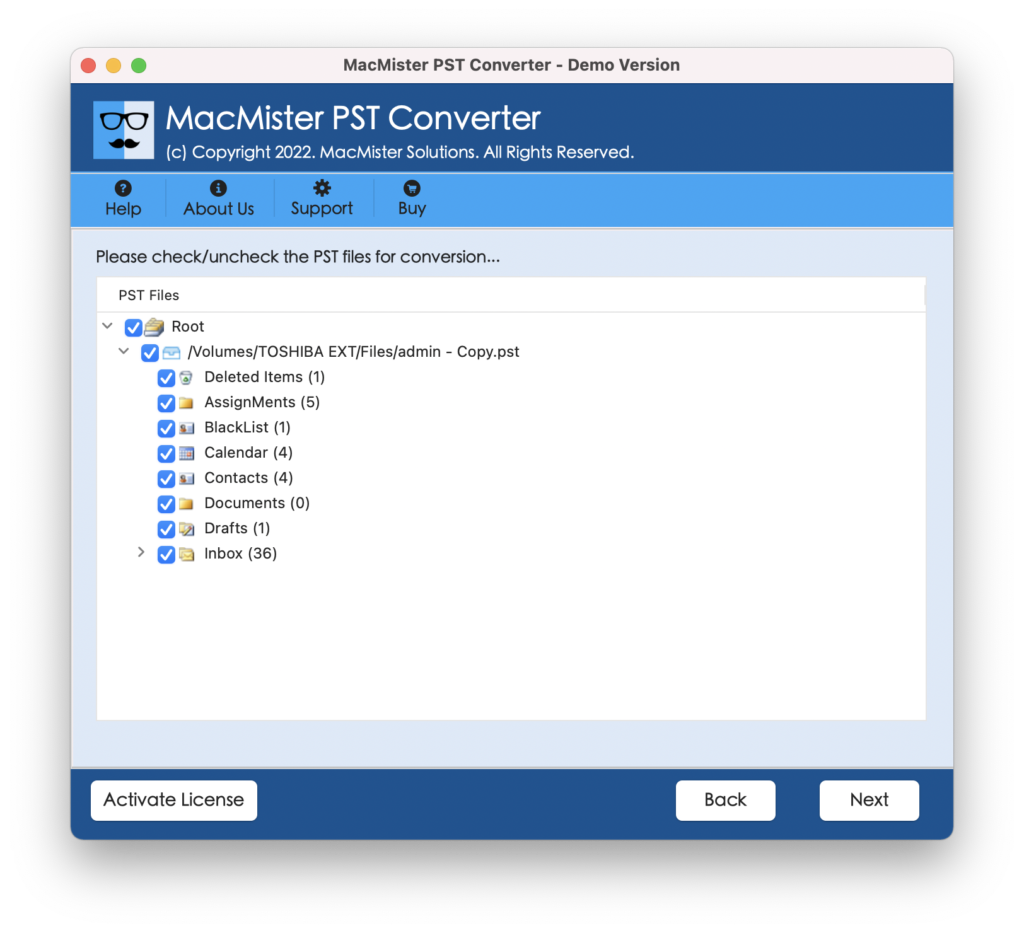
Step 4. From the next software screen, choose required saving type from Select Saving Options.
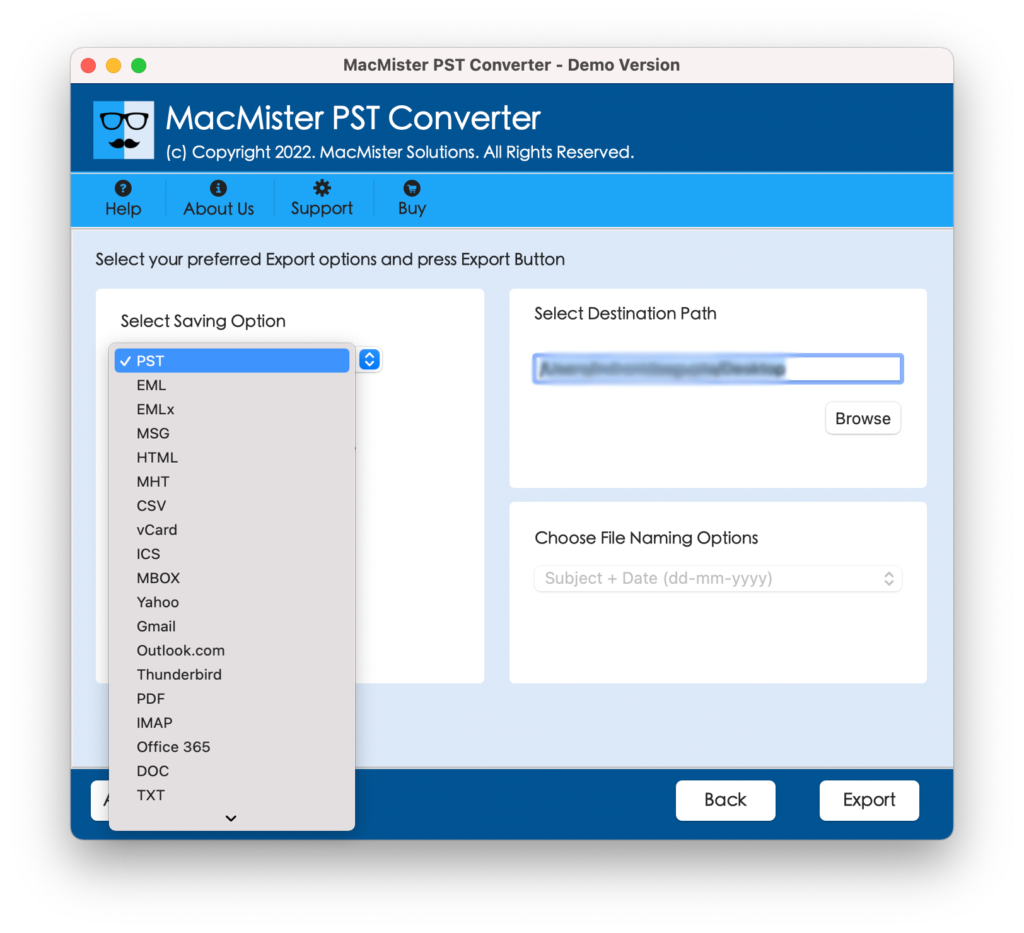
Step 5. Set sub-options as per requirements and click Export.
Step 6. The Live Conversion Report screen appears displaying the conversion status.
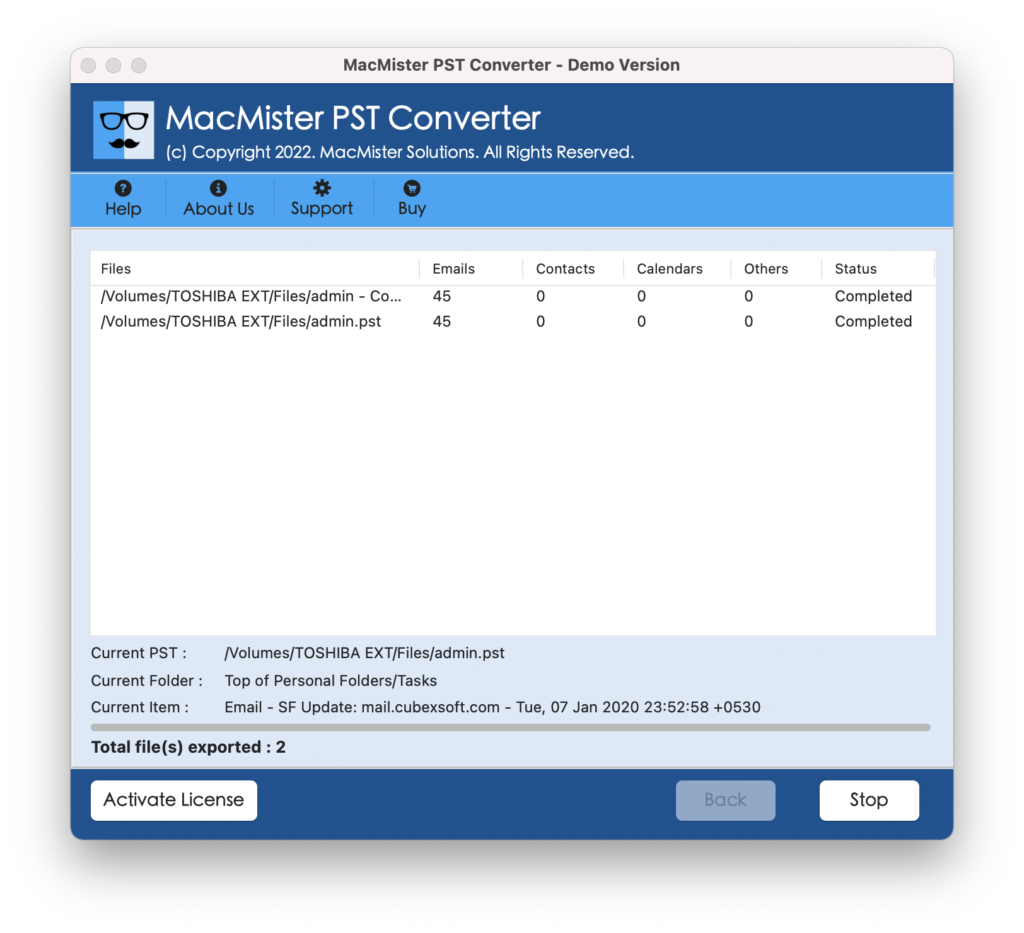
Within seconds, the procedure will finish and then “Conversion Completed” notification will display on the screen. Click OK and then go to the specified destination to check resultant files. However, you will see that the app has perfectly handled the process as the entire PST data will appear with 100% accuracy.
Epilogue
In the write-up, we have explained multiple ways to fix error code 0x800ccc1a. Users can opt for the suitable method and perform the task accordingly. For any queries, contact MacMister Support.