Guide to Directly Backup Gmail to Dropbox on Mac
Are you looking for a direct procedure to backup Gmail to Dropbox on Mac OS X? Then, stick with the MacMister blog because here the article is providing a direct strategy to save Google Mail emails to Dropbox with attachments.
Emails play an important part in everyone’s lives. More than half of the population are utilizing email clients to manage their personal account that carries essential files and documents. And, many times they need to deal with sudden and unexpected circumstances that are out of their control. However, memory full, data theft, virus attacks, and server shutdown, are some examples that make users panicked and frustrated. Thus, to avoid the unavoidable issues, users go for an alternative that not only delivers easy data accessibility but also keeps their data safe as well as up to date. Therefore, they find Dropbox a suitable match for their data storage.
Dropbox is a popular and widely used cloud storage provider. In other words, one can use the cloud application to save the essential database such as contacts, emails, documents, etc. in one place. Dropbox offers plenty of services like cloud storage, file synchronization, client software, and personal cloud. And, the best thing is files are easy to share with anyone across the globe. However, Dropbox does not offer an in-built mechanism that could help to import Gmail files to Dropbox directly. So, one needs to first take the backup of Google Mail emails to a computer and then manually move the same to a Dropbox account.
More Reasons to Save Gmail Emails to Dropbox
There are many strong reasons to save Gmail emails to Dropbox account and some of them are:
- Dropbox provides 25GB of free storage space. Thus, saving taking a backup Gmail to Dropbox will reduce the size of Google Mail INBOX.
- Data is easily sharable on Dropbox. One can choose the required document and share it with others through a shared link.
- Dropbox includes an easy-to-use interface that not only makes it easier for users but for many organizations as well because one can easily share information through the cloud with others.
- File synchronization is easy in Dropbox. Users can quickly synchronize their files on multiple platforms allowing them file accessibility from any location.
- Selective synchronization of Google Mail emails is possible with Dropbox. It means users can choose the required emails for synchronization instead of synchronizing the entire data files.
How to Backup & Import Emails from Gmail to Dropbox?
Gmail Backup Tool for Mac is a direct way of importing Gmail emails to Dropbox with attachments on Mac OS. The software is an automated solution that is introduced with a friendly GUI and smart procedural clicks with the help of which technical and novice users can quickly save Gmail emails to Dropbox. Moreover, the tool is programmed specially for Mac users who are searching for a secure methodology to import Gmail files to Dropbox.

Moreover, the software delivers plenty of advanced benefits by offering powerful features with the help of which users will be able to import Gmail to Dropbox as per requirements. Download the trial edition of the tool and check the process by importing the first 25 Google Mail emails to Dropbox for free.
Steps to Import Gmail Files to Dropbox on Mac
Step 1. Run Gmail to Dropbox Tool on Mac OS.
Step 2. Enter the required Gmail account credentials i.e. Email ID and App Password and click Next.
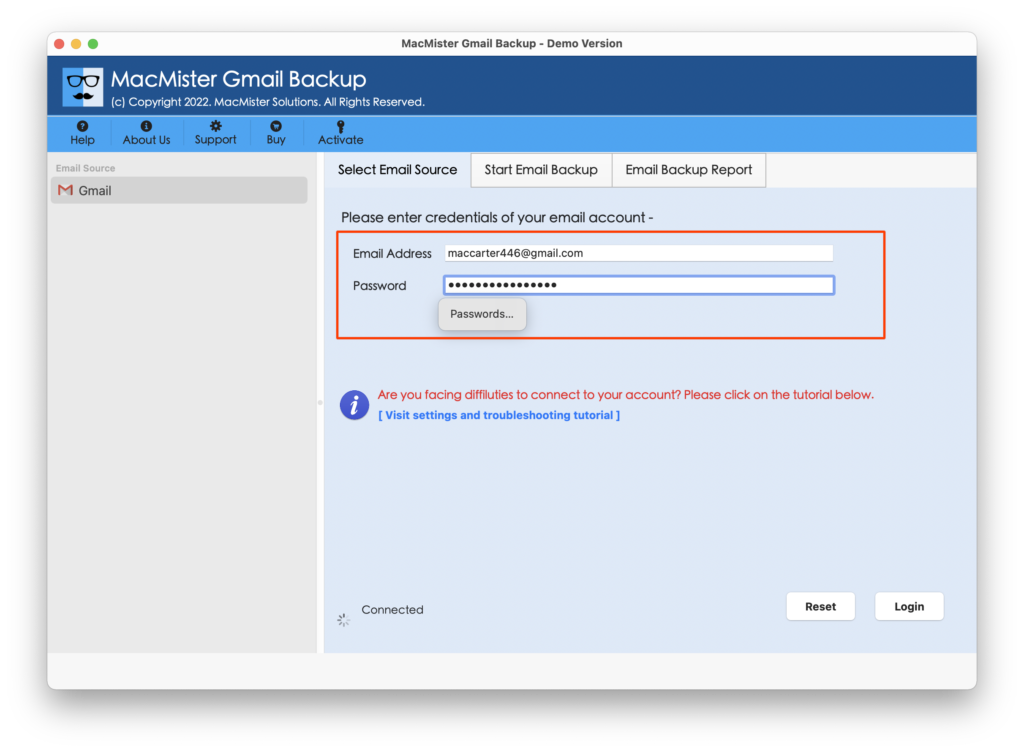
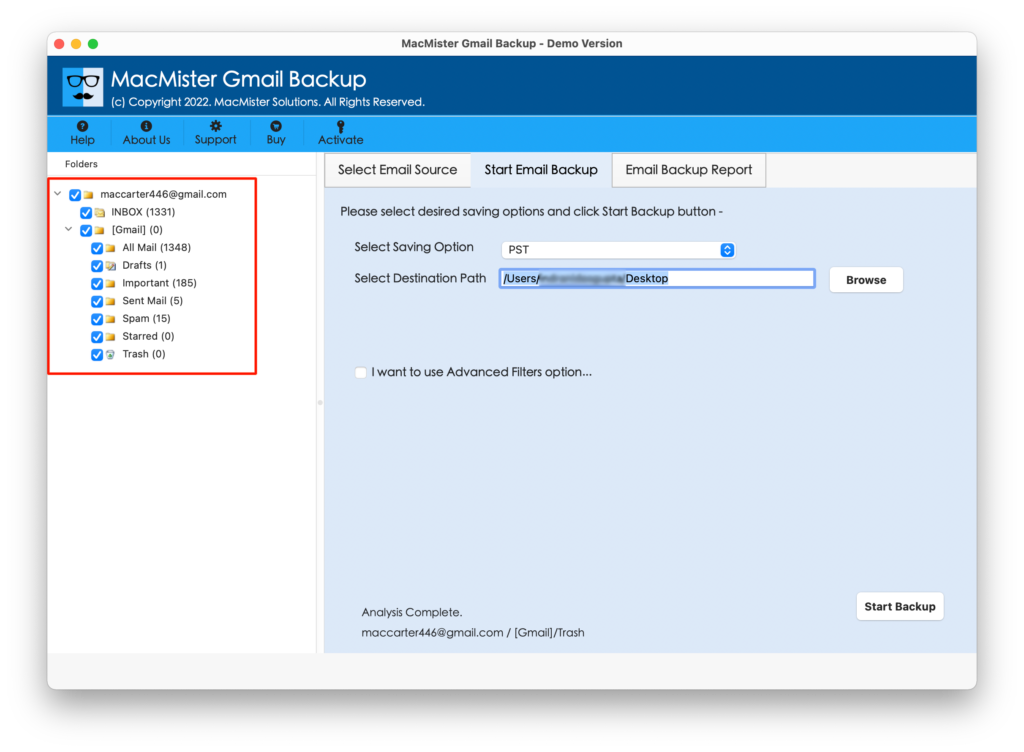
Step 3. The specified Gmail account will connect with the application and start listing all its associated items on the tool.
Step 4. Select the Dropbox option by clicking the Select Saving Options menu.
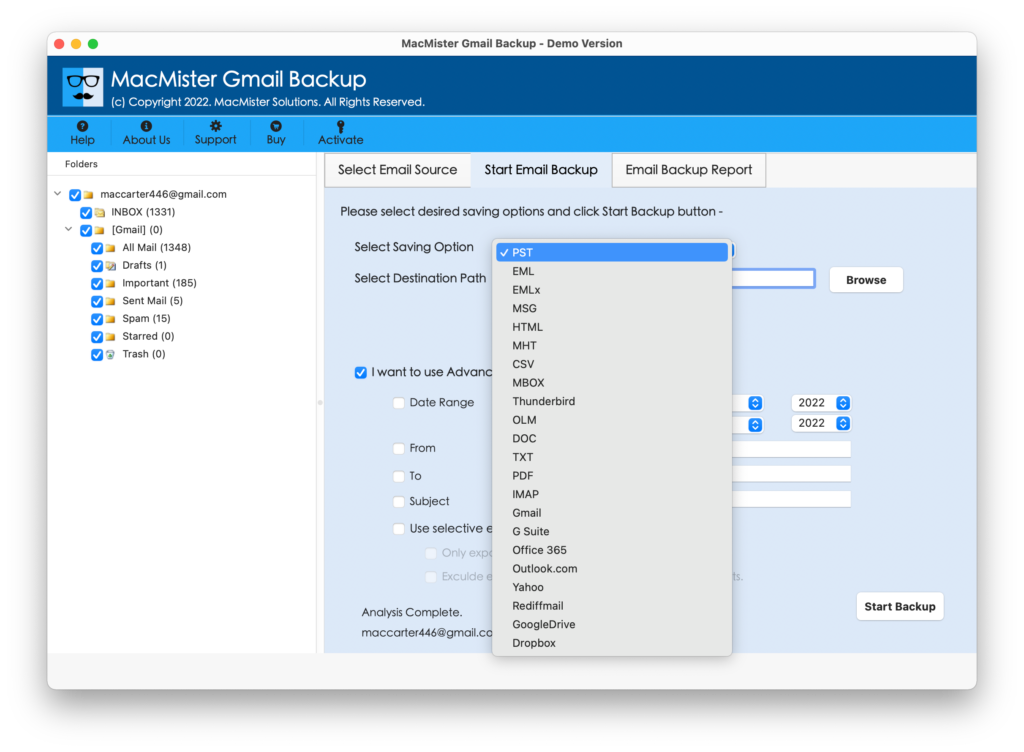
Step 5. Go with the sub-options according to your requirements and click the Start Backup button.
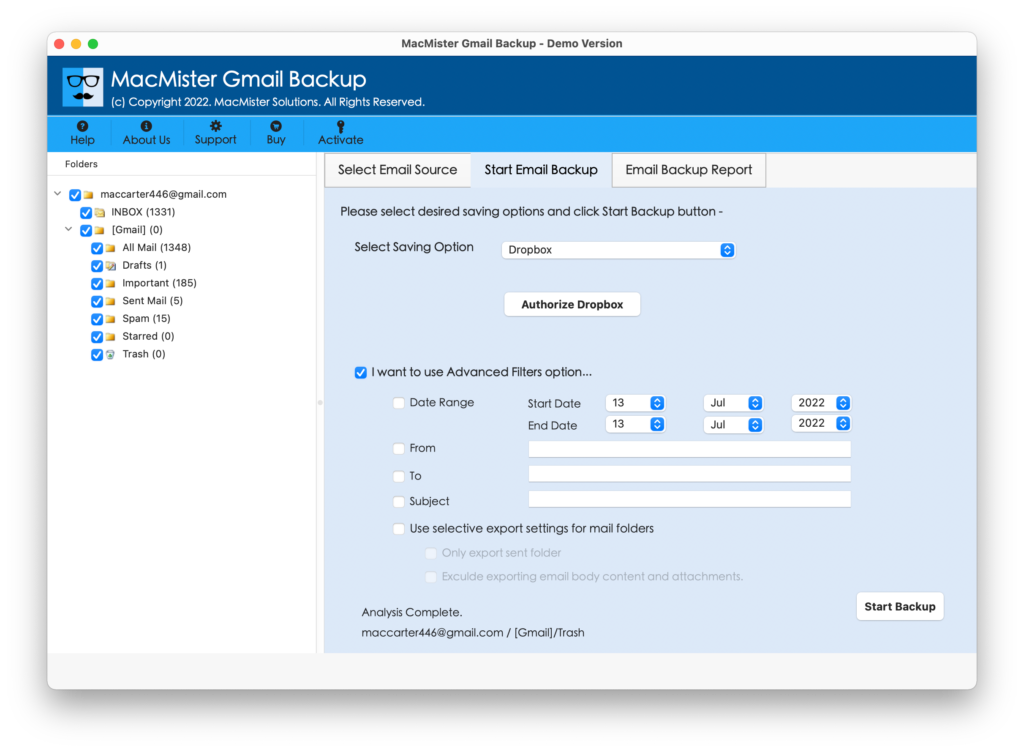
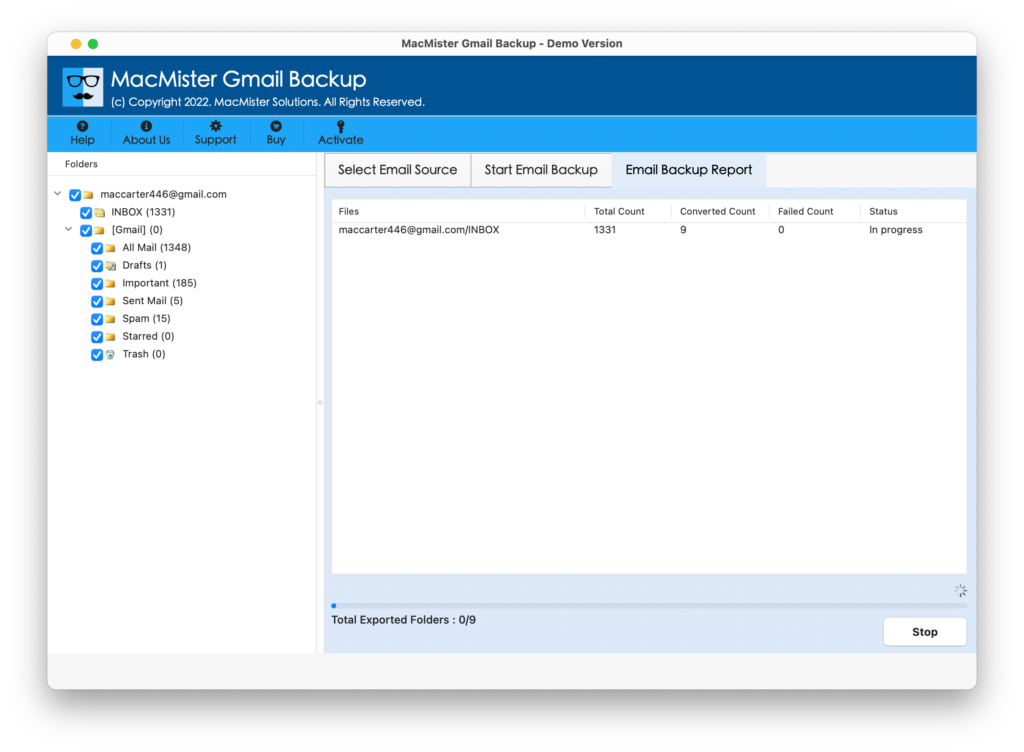
Step 6. Google Mail to Dropbox Process will go Live and the entire ongoing process will appear in the Email Backup Report window. However, users can use the same to track the migration status as well.
After the process completion, users can go to the specified Dropbox account to check the resultant files. The files will be transferred accurately and appear with unaltered content and metadata properties.
Why Choose Gmail to Dropbox Application?
There are many different reasons for choosing the software and some of them are:
Directly Save Gmail to Dropbox
The application provides the facility to import Gmail files to Dropbox directly. However, to implement the process, the tool has provided the Dropbox saving type that users can choose when clicking Select Saving Option. It will ask to authorize the same and backup Gmail to Dropbox directly.
Utilize Filters for Specified Migration
The software offers multiple filters that help users to import selective Gmail emails to Dropbox with attachments. It includes to, from, subject, date range, and more. By applying the specific filter, users will be able to save selective Gmail files to Dropbox on Mac.
Provide the Easy to Use Environment
The utility is programmed with easy to use environment. In other words, the tool has a friendly GUI that any user can quickly make use of to import Gmail to Dropbox. Moreover, the operational steps are simple, short, and effective that will take a few seconds to complete the entire migration.
Maintains Originality during the Process
The application takes care of data originality as well even if there are plenty of files for a backup. The content of the documents remains original. Moreover, the metadata properties like font style, hyperlinks, images, etc. will appear with 100% accuracy.
Easily Adaptive on all Mac OS Versions
The software is adaptable to all versions of the Mac operating system. Users can use download and perform the process of transferring Gmail to Dropbox on Mac OS Ventura, Monterey, Big Sur, Catalina, High Sierra, and earlier versions.
Note. Check out more software features by downloading the trial edition!
Final Thoughts
The entire blog has mentioned an effective way how to access emails in Dropbox from a Google Mail account. The Gmail Email Backup Software Mac is a Mac-based secure application that allows Mac users to safely import Gmail to Dropbox. However, the tool comes with a trial edition facility, and using it will help users to test the entire software process and features. It allows importing the first 25 Gmail emails and attachments to Dropbox for free.