How to Migrate Gmail to Tutanota? – Know Trouble-Free Process!
Are you transitioning to Tutanota from Google Mail but unsure of the process? Seeking guidance on how to migrate Gmail to Tutanota with emails and attachments safely? Looking for a straightforward solution to implement the same task? Then not to be concerned anymore because the article will present an effective method that will directly migrate Gmail to Tutanota with 100% accurate results.
Overview
Tutanota is now popular as Tuta Mail, a Germany based company in the year 2011 that mainly focus on privacy and encryption. Tutanota delivers end-to-end encrypted emails. In other words, only the sender/recipient has the power to read the messages. It also encrypts subject line, address book, and the attachments, enhancing the privacy for its clients.
Gmail, on the other hand is a free webmail service developed by Google itself in 2004. It has become one of the extensively used email platforms in the world that offers wide range of features for improving users’ convenience, communication, and integration with other Google-based services.
What are the reasons to Migrate Gmail to Tutanota?
Switching to Tutanota from Gmail is suitable to those who need to prioritize privacy, security, and ad-free email experience. Here are some reasons responsible for migrating Gmail to Tutanota –
- Tutanota offers end-to-end encryption for emails, subject line, and attachments. Whereas, Gmail supports data encryption but does not include complete end-to-end encryption by default.
- Tutanota cannot access email content or data, even the email provider will fail to read the stored messages. Whereas Google scans the entire emails to analyze users data.
- Tutanota email service is ad-free and thus doesn’t track user’s mine data or behavior for analytics. Whereas, Gmail collects users data to improvise its services.
- Tutanota includes simplified interface that only focuses on the essentials for email management. This looks impressive to those who are generally busy with their work and want a minimal experience. Gmail however supports heavy integration with other Google services which overwhelms some users.
How to Migrate Gmail to Tuta Mail? – Step-by-Step Tutorial
There are basically two ways available to import Gmail emails to Tutanota –
- By using a manual approach
- By using a third-party professional tool.
Method 1. Manually Migrating Gmail Emails to Tutanota
- Open Gmail account.
- Navigate to gear icon (Settings) appearing at the top-right of Gmail screen.
- Click See all Settings option.
- Go to Forwarding and POP/IMAP tab.
- Scroll until Forwarding option become visible and then click Add a Forwarding address.
- Enter Tuta Mail email ID in the required field.
- Press Next button to save the changes.
Now, a confirmation link will appear on the Gmail screen, click on the same to confirm.
Note. There is a high possibility that the process might fail. In case you do not trust the manual process or looks complicated to you, then use the other solution discussed below.
Method 2. Directly Migrate Gmail to Tuta Mail with Emails & Attachments
The direct procedure to migrate Gmail emails to Tutanota is by utilizing MacMister Gmail Backup Tool Mac & Windows. The software is easy, cost-effective, and reliable. All technical and non-technical users can operate the app effortlessly. Meanwhile, the tool will take care of the Gmail and Tutanota login details throughout migration. And, the three-step process will take only three seconds of users to finish the entire migration process.
Moreover, the software is programmed with many powerful features with the help of users can perform the migration of Gmail emails to Tutanota according to the requirements. However, a freeware version of the software is available that can be used to explore the entire software process on any macOS for free.
Working Steps to Migrate Gmail to Tutanota on Mac Right Away
Step 1. Download and run MacMister Gmail to IMAP Backup for Mac Tool on Mac OS.
Step 2. Add Gmail account details and click the Login button.
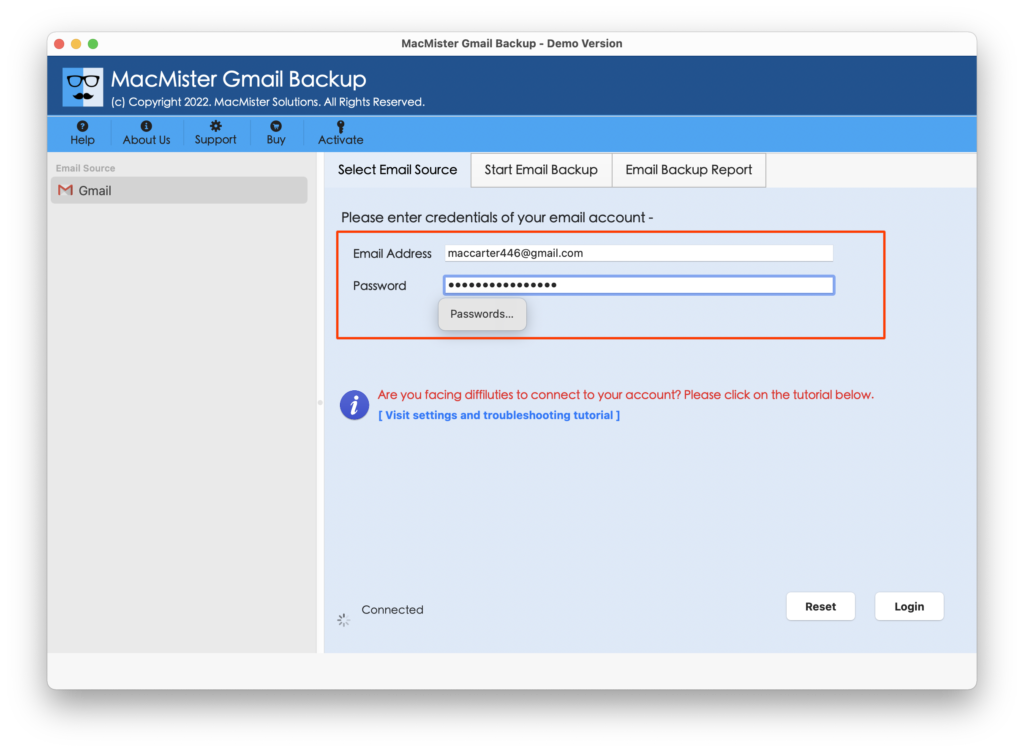
Step 3. The Gmail account will connect with the application and show its mailboxes on the left pane.
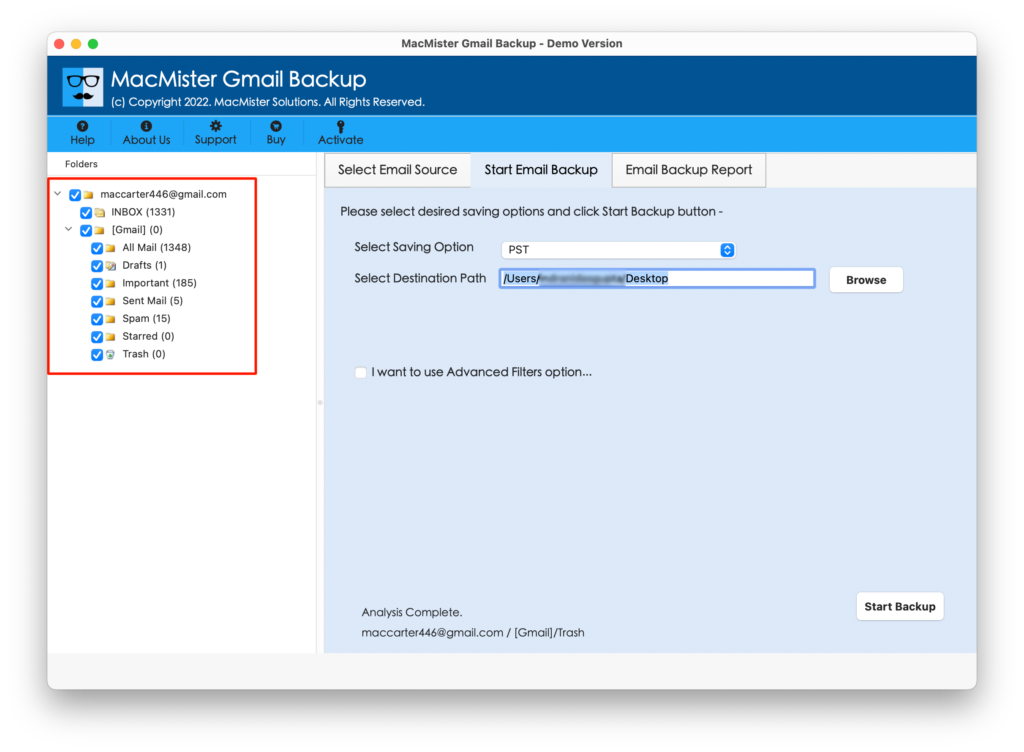
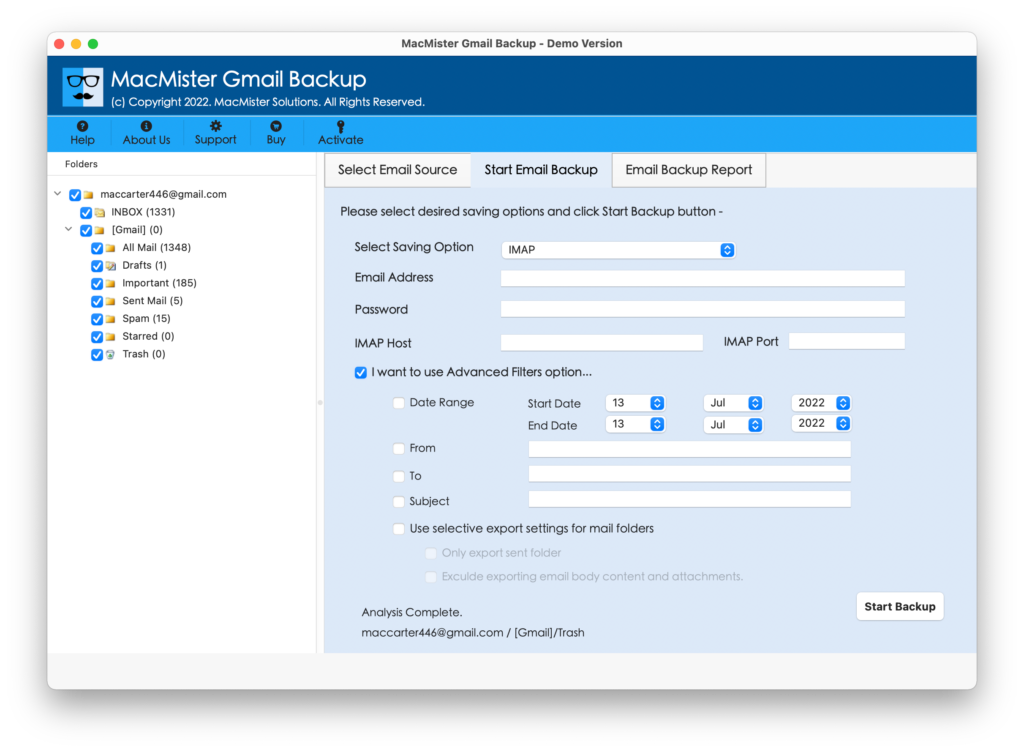
Step 4. Go towards right, click Select Saving Options, and select IMAP from the drop-down list.
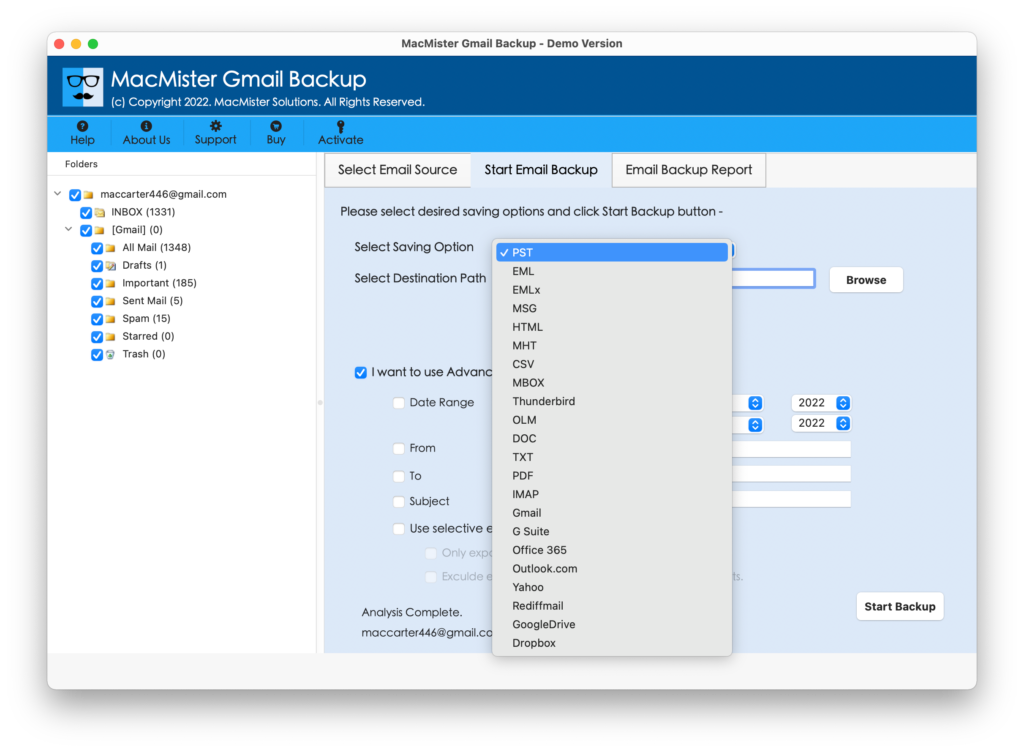
Step 5. Provide Tuta Mail login details with IMAP Host and Port Number. Apply filtering if you need and then press start Backup button.
Step 6. The Email Backup Report will appear which displays the live migration of Gmail emails to Tutanota email account.
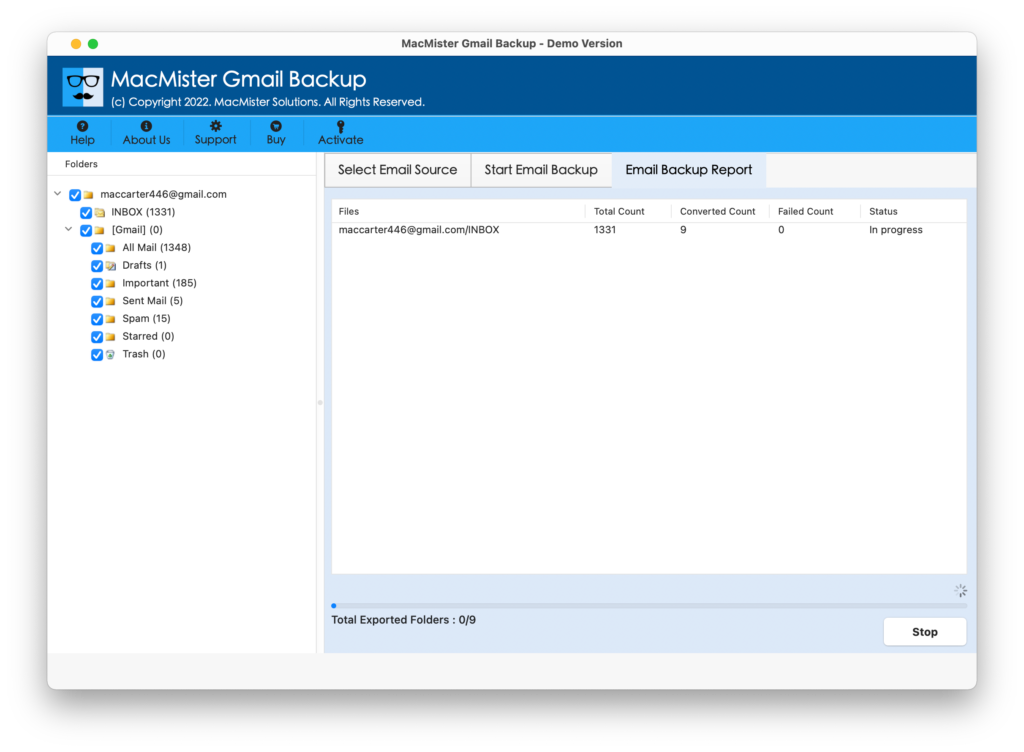
The whole process will finish with a message “Process Completed”. Click on the OK button and go to Tutanota email account to check the results. You will see that the tool has successfully handled the email migration of Gmail to Tuta Mail. Now, go to the required email message and you will see that the software migrated the emails with precise content, layout, and formatting properties.
Benefits of using Professional Solution
Using MacMister Gmail to Tuta Mail Tool can provide many benefits, some of them are –
- Directly migrate Gmail emails to Tutanota with attachments accurately.
- Delivers different types of filtering to import specific emails from Gmail to Tutanota such as date range, subject, to, etc.
- Besides IMAP, also offers PST, PDF, CSV, MSG, EML, EMLx, Office 365, and more.
- Protects the credentials of Gmail and Tutanota email services throughout process.
- Performs the entire migration with precise data and metadata properties.
- Simple and friendly interface is manageable by technical and novice users.
- Windows users can operate the software on the entire range of Windows OS versions including the latest.
- Mac users can utilize the software on Mac OS Sequoia and earlier macOS versions.
Quick Note. Download TRIAL VERSION of the Tool to discover entire Software Options & Features.
Epilogue
In the write-up we have provided two different approaches to migrate Gmail to Tuta Mail on Mac & Windows. The first solution has discussed manual steps that could be tiring for those who need to complete the migration process quickly. The second solution is easy, safe, and reliable. Anyone ranging from technical to non-technical can operate the entire task effortlessly. Moreover, its features will help users to access Gmail emails to Tutanota as per specific requirements. However, it’s free demo is available with the help of users can experience the working steps of the tool for free. It also allows to migrate first 25 Gmail emails to Tuta Mail free of cost. Besides, MacMister also offers Email Backup Software Mac & Windows application that includes 30+ webmail sources from which users can export emails and save the same into 15+ saving options on Mac & Windows both.