How do I fix my Mac not receiving Emails?
Apple or Mac Mail is one of the widely known emailing platforms for Mac users that help in managing or syncing emails seamlessly with other Apple devices. Often, there are issues such as Mac Mail not receiving emails which can result in the inaccessibility of Apple Mail emails. Thereby, many users constantly contemplate on how do I fix my Mac not receiving emails.
The issue of Mac unable to receive emails on macOS can cause problems for professional, personal, and business communication. Now, looking for ways to resolve the issue, then here is the complete guidance present to fix it and enhance the productivity.
Instant Fixes
If Mail is unable to receive messages, try these four techniques to fix the issue immediately –
- Verify Internet Connection.
- Open Webmail for that account such as Gmail.com, Outlook.com, or iCloud.com. In case you see new messages there, the problem is then local if not then the issue persists on the server side.
- Quit and restart Mail (Go to Mail, then click Quit Mail and launch Mail app again).
- Restart Mac.
How Mail Works?
Mac Mail connects to remote mail servers with the help of two main incoming protocols –
IMAP – Mail will be preserved on the server and shows its replica on all the synced devices such as Outlook, Gmail, etc. It is best when try to access the data from different devices.
POP3 – Mail is downloaded to the device and discarded from the server. Not advised if it isn’t appropriately configured as emails exist on the single device or app.
Outgoing Mail makes use of SMTP and is separate from incoming.
What Happens if Mac Mail Unable to Send Emails?
Without any doubt, issue related to Mac Mail unable to receive emails provides many challenges for Mac users when it is about organizing or accessing mailbox data. Due to the anxiety of losing essential emails, an individual could be skipping crucial meeting updates. Indeed, the consequences of such interruptions are annoying especially delays in sending/receiving emails.
Furthermore, users won’t get any responses on time. However, several users encounter the same issues with other email applications as well. Many times these issues arises due to multiple reasons, so let us explore further and find them quickly.
Why Mac not Receiving Emails? Know Possible Reasons
Facing issues in Mac Mail, unable to send emails on Ventura, Monterey, Sonoma, and earlier macOS versions! Then here we have discussed some common factors responsible for encountering the problem on a Mac system.
Wrong Mac Mail Settings –
Unintentionally, several users modify the default settings to reorganize the emails. On the other hand, it will result in preventing access to or sending emails on Apple Mail on Mac Mail. Some of the common misconfigurations happen with incorrect server addresses, syncing issues, port numbers, and more.
Connection Error –
Many users won’t find a need to check internet connection stability as unstable internet connection can sometimes cause Mac Mail unable to send/receive emails. The issue halts the operation of Mac Mail on macOS. Therefore, make sure to test the connection to prevent failure.
Incorrect POP/IMAP Settings –
For managing incoming/outgoing emails, Mac Mail offers the support of POP and IMAP. So, these two different protocols help in extracting new emails on Mac Mail. Unfortunately, wrongly configured settings can lead to Mac Mail not receiving emails on a Mac machine issue.
Full Storage –
Inadequate Mac storage significantly affects the entire mailbox. With this, users could encounter some problems of the inbox or errors in sending new emails.
Using Outdated Mac Mail version –
At times, outdated Mac Mail version can also cause the same problem. If the Mac Mail version is not updated on time, then the users will surely face some inconvenience in sending/receiving emails. Hence, this will cause incompatibility issue, therefore check for updates and install them whenever they are available.
Simple Tips to Fix Mac Mail not Sending/Receiving Emails
In the following segment, we will go through some manual troubleshooting techniques to fix the Mac Mail not sending emails error. So, read them properly and follow the below steps to fix the issue right away.
Get a Stable Connection
It is a primary troubleshooting step while encountering Mac Mail not receiving emails error. To fix the same, turn the switch of network connection On/Off to get continuous smooth connectivity. It allows users to access emails from Mac Mail with ease.
Restart macOS and Mail
Another basic troubleshooting one can opt for is restarting both macOS and Mac Mail to resolve minor issues if present. Furthermore, users can refresh the inbox folder of Mac Mail by using few easy steps. At first, navigate to Mailbox and tap Get All New Mail or type Command + Shift + N. Applying this will help in fetching new emails without any issues.
Configure Email Account Again
Sometimes when IMAP authentication gets failed, users then also face the same error. Thereby, it is advised to log out and reconfigure Mac Mail account. Here are the steps discussed for the same –
- Open macOS and click Apple icon appearing on the left corner.
- From System Preferences, select Internet Accounts.
- Choose the email ID which is causing trouble.
- Go to the (-) icon displaying in the bottom.
- Afterwards, tap (+) icon to add the email.
- At last, sign-in to Account again and launch Mac Mail.
Check for Mail Rules
If there are any changes done in the Mail rules, then this will also affect the operation of Mac Mail account. Additionally, such rules are set to produce clutter-free inbox. Thus, to fix the same, follow the below steps –
- Run Mac Mail and go to Mail, select Preferences.
- Navigate towards Rules section and tap Remove or Edit.
- In such a way, users can keep using Mac Mail services.
Verify Server Outage
Server Outage can also result in Mac Mail not sending/receiving emails. In such a situation, first you need go to Apple’s official support page to check for new updates and issues related to Mac Mail not receiving emails error. If the update is available, then wait for few minutes to get its accessibility.
Update the Mail App and macOS
Outdated version can also cause incompatibility issues in Mac Mail sometimes. So, to fix the error, follow the below steps –
- Go to System Preferences, and click Software Update.
- If you see any updates, then tap Update button.
Use Force Quit
Another way to resolve the problem is by using Force Quit. Here are the steps for the same –
- Navigate to Apple Menu and click Force Quit.
- In Force Quit App, choose Mail app and press Force Quit.
Disable Email Account
Disabling email account can also prevent the issue from occurring and to implement it, go through the steps below –
- From Apple Mail, go to System Settings.
- Select Internet Accounts.
- Open the account you need to delete and tap Delete Account option.
- Last, hit OK button.
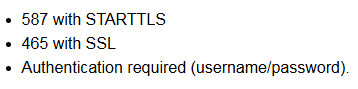
Check IMAP/POP/SMTP and Port Settings
Incorrect server name and port settings can block connections as well. To fix the settings, follow the steps mentioned below –
- In Mail, click Preferences.
- Tap Accounts, click Server Settings or go to Accounts and select Advanced in older macOS and confirm –

- Enable TLS/SSL modern providers.
For outgoing SMTP Server, apply below settings –
Corrupt Mail Data and its Fix
In case Mail is showing errors or crashing while rebuilding then there could be the possibility of corrupt mail data.
Backup – Use Email Backup Software Mac & Windows to backup mail data first before repairing. So it is advised to first backup ~/Library/Mail and ~/Library/Containers/com.apple.mail
If Mail crashes during launch, then start the app in Safe Mode (press Shift while boot) and try to launch Mail. If it is operable in Safe Mode, then issue could be due to third-party plug-in. And uninstalling them can fix the problem.
Protect your Mailbox using Server Backup
If Mac Mail is causing the issue, then it is recommended to backup its entire mailboxes immediately. And this can be done with the help of MacMister IMAP Backup Tool Mac & Windows. By using the app, one can connect the account of Apple Mail with the tool, authenticate it, and export its entire list of mailboxes into 15+ saving types. Its GUI is user-friendly and simple. Anyone can perform the operation and implement the process with ease. Besides its exceptional features help users to backup IMAP emails and attachments according to the requirements. Get its free demo and backup 25 emails for free.
Epilogue
The write-up here offered different troubleshooting ways to fix how do I fix my Mac not receiving emails. Go through the methods and opt the one which is more suitable to you. And at the same time make sure to backup your mailboxes before starting the repair process. This will prevent your data from loss. In case of any assistance, contact MacMister Support.