How do I Import a List of Emails into Gmail?
Here, an end-to-end guide is discussed to resolve how do I import a list of emails into Gmail account. Go through all the possible manual procedures – importing emails into Gmail using Gmail’s inbuilt option i.e. Import Mail and Contacts or through desktop-supported email client in order to import all emails at once. Also, explore a professional method recommended by experts to batch import emails into Google Mail at once.
Understanding Importing Mails to Gmail Process
In simple terms, importing emails to Gmail means moving emails from one email provider to a Gmail account, often performed when moving to Gmail environment. However, in some cases, users also import emails in Gmail while implementing cloud backup of different email accounts.
Possibility of Email to Gmail Migration
This write-up assists you to import emails to Gmail with –
- Attachment
- Header
- Metadata
- Preserved Label Structure
You may move emails to Gmail from most of the email applications such as Outlook.com, Office 365, BT Mail, Yahoo, and more.
Some Tips before Importing Emails to Gmail Profile
- Enable IMAP access to your source email account
- Gather login credentials of old email profile and new Gmail account.
- Make sure you have enough mailbox storage in Gmail account.
- Clear junk/spam emails and import only the important emails to Gmail.
- Understand the folder/label structure before transferring emails to Gmail profile.
How to Import Emails to Gmail Account? Know Top Methods
The step-by-step procedure here shows how to import emails to Gmail account using three different ways recommended by IT experts at MacMister Solutions –
- Utilizing Gmail Fetcher, a.k.a Gmail Import Account and Contacts Option
- Making use of a desktop email application such as Outlook or Thunderbird
- With the help of MacMister Email Backup Software Mac & Windows.
Method 1. Importing Emails using Gmail Mail Fetcher
Gmail Fetcher Tool is a native free tool provided by Gmail. Its primary use is not to only move emails but also contacts into Google Mail profile.
The method works perfect for –
- Smaller Mailbox.
- One time transfer of email to Gmail.
- Dealing with a single account.
Steps to Import emails into Google Mail using Gmail Import Mail and Contacts Option
Step 1. Enable IMAP/POP of a source email account.
Step 2. Open Gmail, go to gear icon that represent Settings appearing at the top right and click See All Settings.
Step 3. Navigate to Accounts & Import tab and scroll until you see Import Mail and Contact option.
Step 4. Mention email address of a source account from which you need to import emails in Gmail.
Step 5. Tap Continue.
Note. A pop-up will be received. Make sure you the notification from mail.gmail.com is enabled to proceed.
Step 6. Now, sign-in to Gmail ShuttleCloud Migration with old email account.
Step 7. After successful sign-in using a password, allow Gmail ShuttleCloud Migration to retrieve email data and contact list of previous email profile.
Step 8. A pop-up appears on the screen showing authentication successful message. You may now close the tab and proceed further.
Step 9. Choose the import options from the previous email account for import into Google Mail – Import Mail & Import New Email for the next 30 days and Import Contacts.
Step 10. Tap Start Import.
Step 11. Press OK to finish.
Limitations of Gmail Fetcher Tool to Import Mails into Google Mail –
- Time-consuming process, can take several hours to finish the task.
- Only suitable for POP-supported account, not all email providers are supported.
- Risk of data loss.
- Not secure and reliable.
- Generate duplicate emails often.
- Users have reported “Import has not started” error.
Method 2. Move Mail to Gmail using Desktop Email Client
With the help of desktop applications such as Thunderbird or Outlook is one of the fastest procedures to import mails from desktop email app to cloud-based servers.
A desktop email application to import mails into Google Mail is a feasible option to import selective emails to Gmail account.
Follow the below steps to implement the same –
Using Microsoft Outlook
- Install MS Outlook on a desktop.
- Go to File and click Add Account.
- Configure both source and destination email accounts in MS Outlook.
- After configuration completes, simply use the drag-and-drop method from the source email profile to new Gmail account.
Using Mozilla Thunderbird
- Install Thunderbird on the desktop.
- Go to Hamburger menu appearing at the top right.
- Click Account Settings and tap New Account.
- Configure Source and Destination email account in Thunderbird.
- After configuration, use drag-and-drop method to transfer emails from a source to a new Gmail profile.
Note. While transferring emails to Google Mail through desktop-client, you may also copy & paste source email account folders to a new Gmail profile. By doing this, you will have data backup in a source email account.
Limitations of the Method
- Susceptible to errors.
- Not suitable for large mailboxes.
- Users have reported configuration & sync errors.
Method 3. Import Emails into Gmail using Professional Approach
By utilizing MacMister Email Backup Software Mac & Windows, users can import emails directly into Gmail account without losing data originality. The application contains 30+ email sources and 15+ saving options including Gmail. Users can pick required email source and preserve its entire emails into Gmail within seconds. The GUI of the tool is user-friendly. Both professional and novice users can perform the operation with ease and import mails to Gmail with 100% accuracy.
Additionally, the software holds exceptional features including filters with the help of users can import emails to Google Mail according to their requirements. However, a freeware version is also available that is useful in exploring the detailed process for free.
Software Working to Import Emails into Gmail using Powerful Method
Step 1. Download and launch the application on a Mac-supported machine.
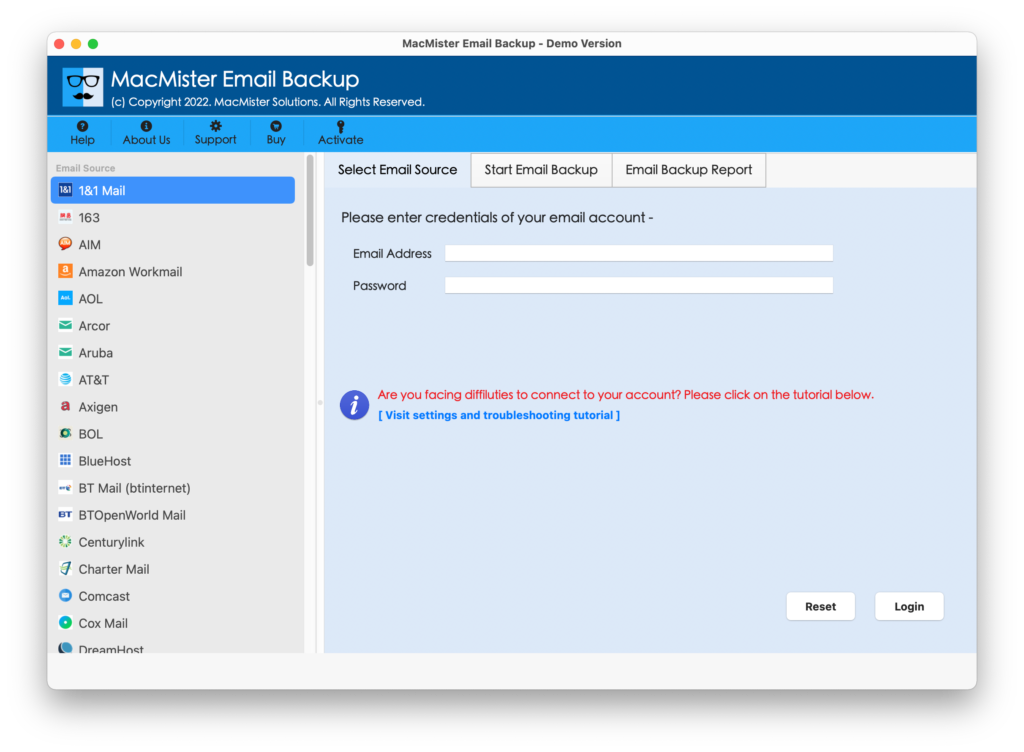
Step 2. Choose necessary email source from the left, add the required details, and tap Login button.
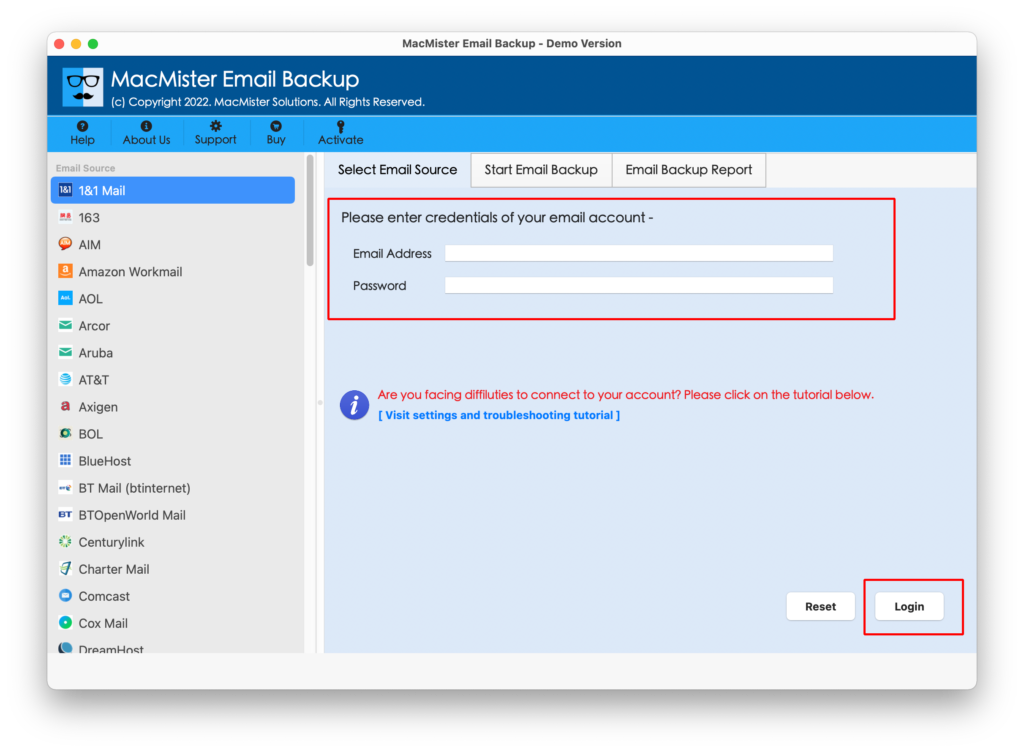
Step 3. Wait until the account connects. After successful authentication, verify all the folders listed on the left pane.
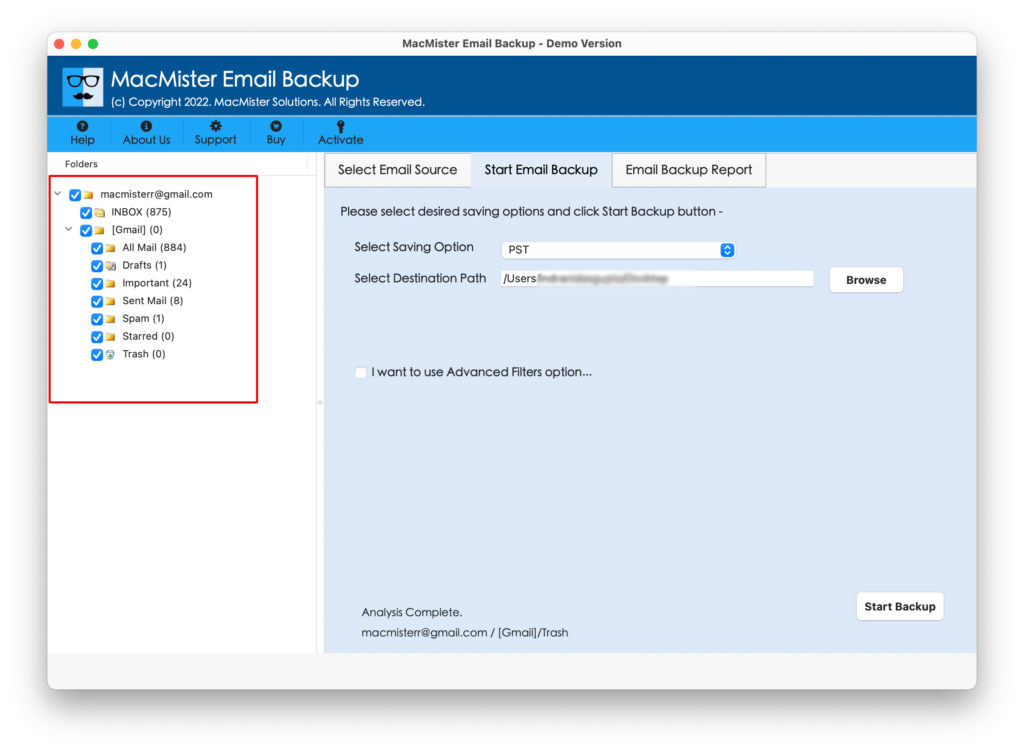
Step 4. Go towards right, click Select Saving Options,and pick the desired saving type.
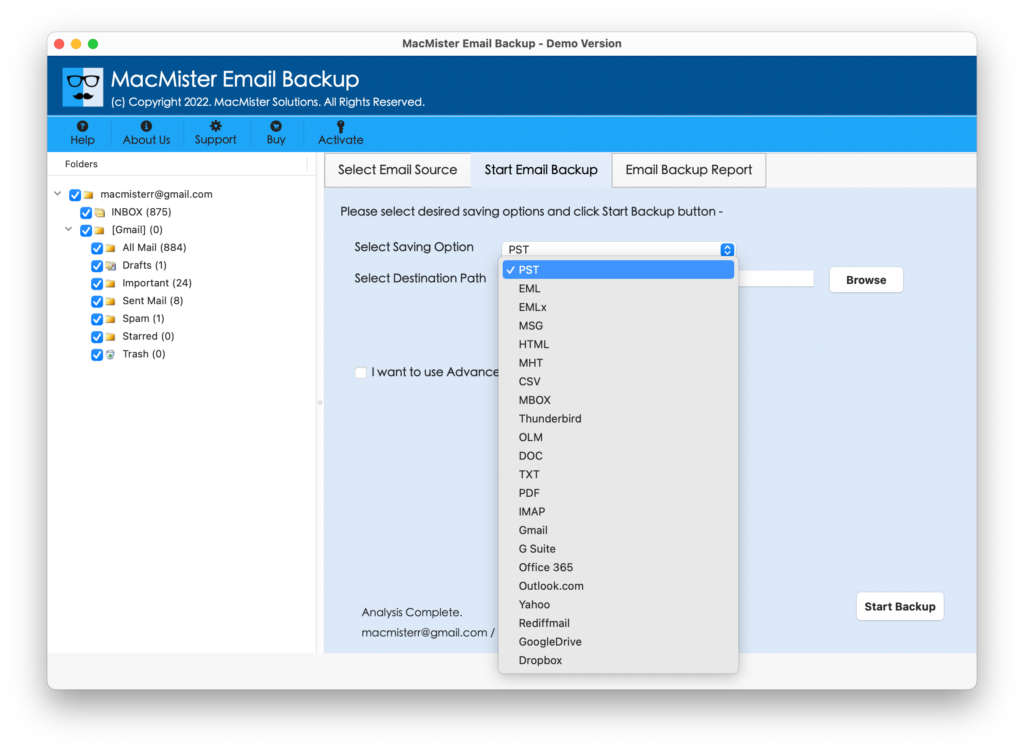
Step 5. Set the sub-options of a chosen saving type as per needs and click Start Backup.
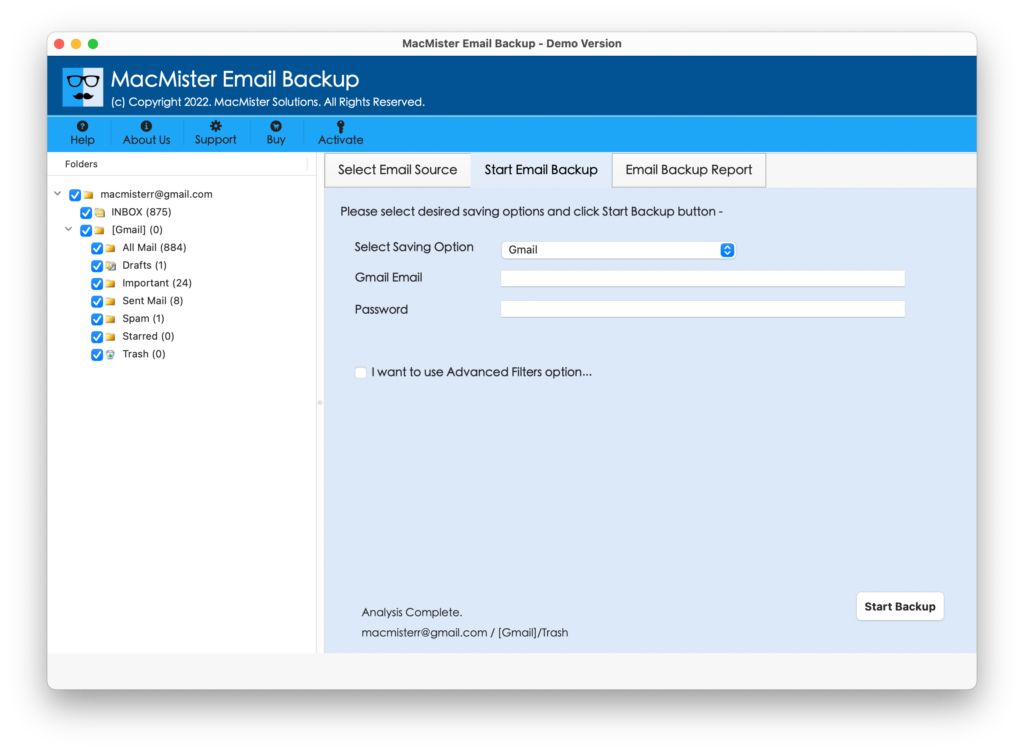
Step 6. The Email Backup Report window appears displaying the live import status of emails into Gmail account.
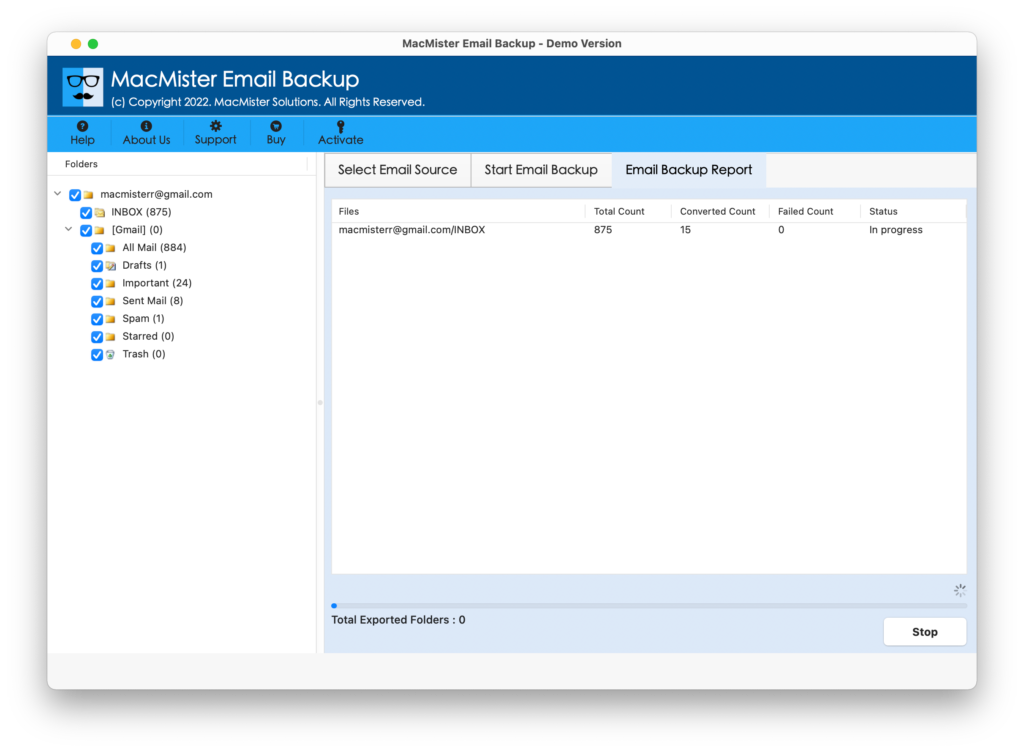
Within few seconds, the message will appear confirming the process is completed successfully. Click OK and then go to Gmail account to check resultant files.
Benefits of the App
- Directly performs the task.
- Ensures the safety of source email account data during the process.
- Able to implement the batch import at once.
- Maintains the data integrity of source emails throughout migration.
- Provides multiple saving types including Gmail such as PST, HTML, CSV, OLM, DOC, Yahoo, Office 365, and more.
- Offers 30+ email sources for import.
- Different filter types are present to import specific emails.
- Available in Windows and Mac OS versions.
Epilogue
In the write-up, we have provided top methods to fix how do I import a list of emails into Gmail. The first two methods are free of cost but require lot of time as they won’t allow importing large mailboxes at once. The third approach is direct, reliable, and secure. It is cost-effective but can be used by anyone to import all emails at once. Also, its freeware version will give the insight of its entire working. For any assistance, contact MacMister Support.