How do I Save AOL Emails to a USB?
Do you use AOL account for day-to-day email management? Want to save some of its critical emails in external drive? Wondering how do I save AOL emails to a USB and thereby looking for a safe and effective approach for the same? Not to worry as in the article we have offered a solution which will securely save AOL emails to a USB with attachments without data alteration.
Emails are a great source for keeping family in touch, no matter where you are living. It is a convenient way for sending and receiving email messages anytime and anywhere. It only needs internet connection and a device. Additionally, it allows you to send digital cards; attach documents, images, links, and other resources to email allowing easy sharing of data. Moreover, you no longer waste your time by travelling physically from one place to another as now you have the option to discuss everything through email.
Quick Tip: Download MacMister Email Backup Software for Mac and save unlimited emails from 90+ webmail sources (AWS, Bluehost, Rediffmail, iCloud, Outlook.com) and more into 15+ saving options. It supports PST, MSG, EML, EMLx, OLM, PDF, CSV, TXT, HTML, MHT, DOC, IMAP, Thunderbird, Gmail, G Suite, Outlook.com, Yahoo, Google Drive, and more. Get its freeware version now and save 25 emails from a required source free of cost.
What is AOL Mail?
AOL is an email platform which is popular among businesses. It is a free, web-based email service which is also known as AIM Mail, where AIM stands for AOL Instant Messenger. The email service provider contains a friendly interface that is suitable for any user for sending/receiving email messages, managing contacts, and accessing emails. Moreover, it is equipped with features that attracted lot of users from all over the world. Some of them are –
- Easily send attachments up to 25 MB.
- Supports 1 TB of storage space.
- Includes POP3, SMTP, and IMAP protocols.
- Capable to protect email account from virus and spam.
Without any doubt, AOL Mail is a feature-rich platform but sometimes the unexpected disruption can hamper the entire workflow of users. Due to this, users need to think about saving AOL emails to a USB.
Why Users Save AOL Emails to a USB?
AOL is a brilliant source when it comes to email management but somehow its drawbacks pressurize users to save AOL emails to a USB.
- AOL Mail is susceptible to security threats such as phishing, hacking, and unauthorized access.
- Lacking end-to-end encryption make AOL less trustworthy.
- Unwanted occurrence of ads disrupts users work.
- Cancelling AOL account is a complicated task as compared to other email service providers.
- Attachment limit is 25 MB which is not enough for large corporations.
- Keep emails in a trash folder for only 7 days. After that, it will permanently delete them which cannot be recovered later.
Therefore, in order to protect important AOL emails, users take a decision to save them into USB. But how, let’s understand the process in detail!
How do I Save AOL Emails to a USB? – [SOLVED]
The simplified procedure to save AOL emails to a USB is MacMister AOL Backup Tool for Mac & Windows. Both Mac & Windows users can operate the tool and save AOL emails to a USB on respective platforms. With the help of the application, you can save AOL emails into 15+ saving options such as PST, PDF, OLM, EML, EMLx, MHT, HTML, CSV, TXT, IMAP, Thunderbird, Gmail, Outlook.com, Google Drive, and more. One can select the required saving option and save AOL emails to a USB accordingly.
The software is programmed with a user-friendly interface so that professional and non-professional users can manage the process independently. Even, the three-clicks will save users time and precisely save unlimited AOL emails to a USB at once within seconds.
Moreover, the application has variety of beneficial features and options that can be applied to get the desired results. You may download the trial edition of the software and test the working of the tool for free.
Working Steps to Save AOL Emails to a USB on Mac
Step 1. Download and run MacMister AOL Backup for Mac Tool on your Mac system.
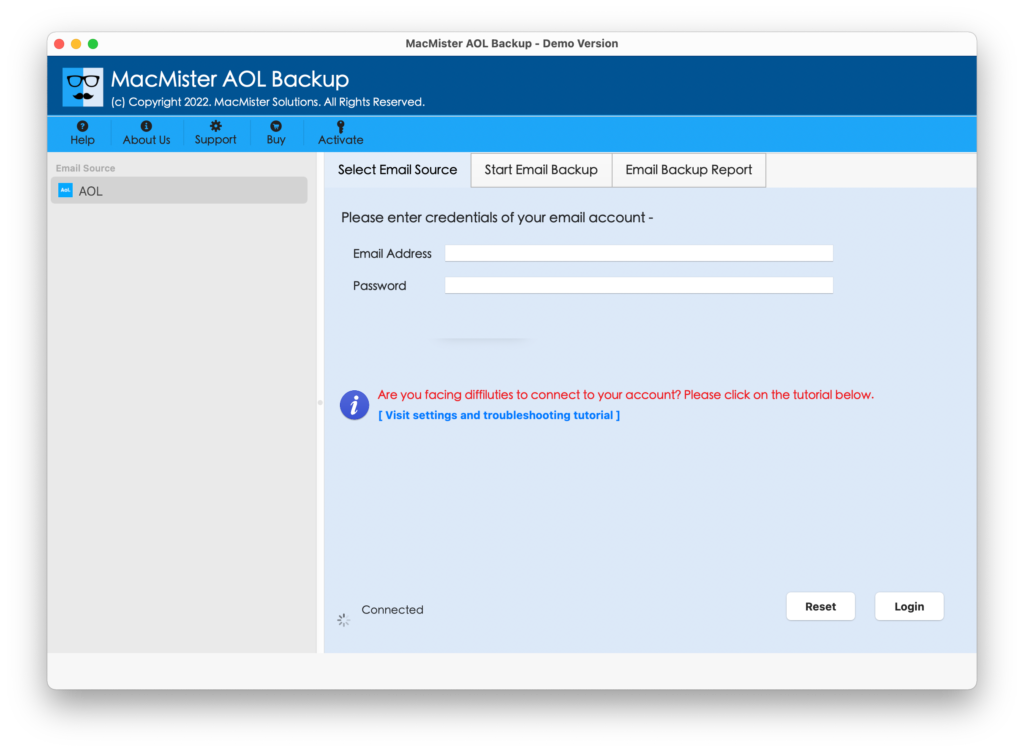
Step 2. Enter AOL login details in necessary fields and click Login button.
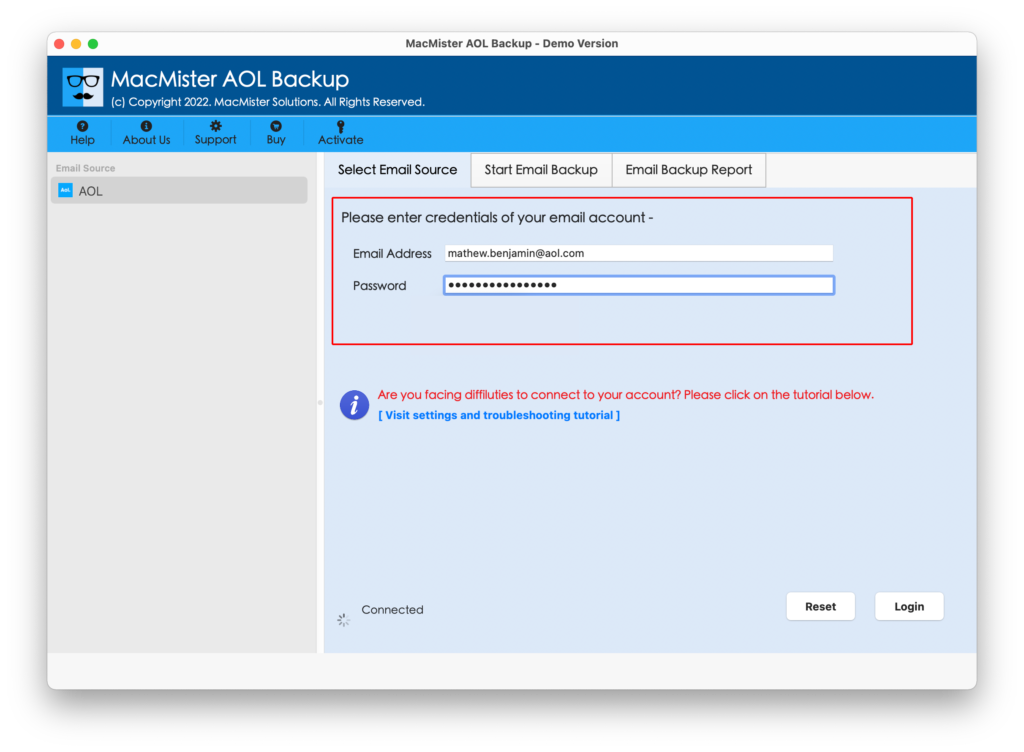
Step 3. The software starts listing AOL mailboxes on the left one-by-one.
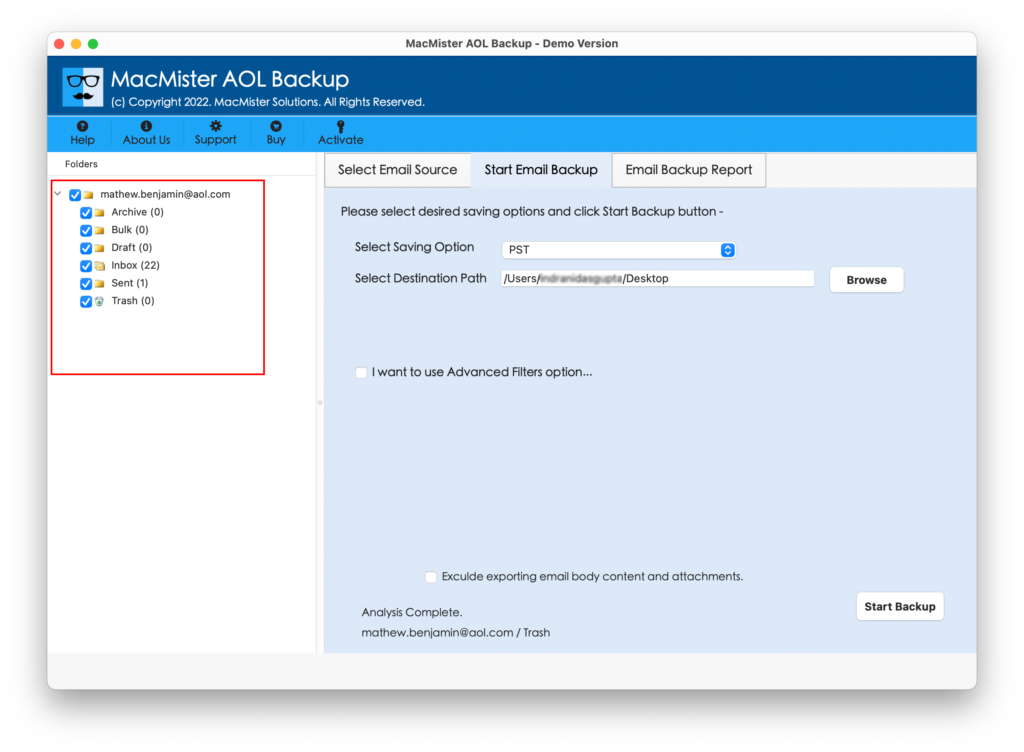
Step 4. Navigate towards the right side of the application. Click Select Saving Options. Choose required saving option.
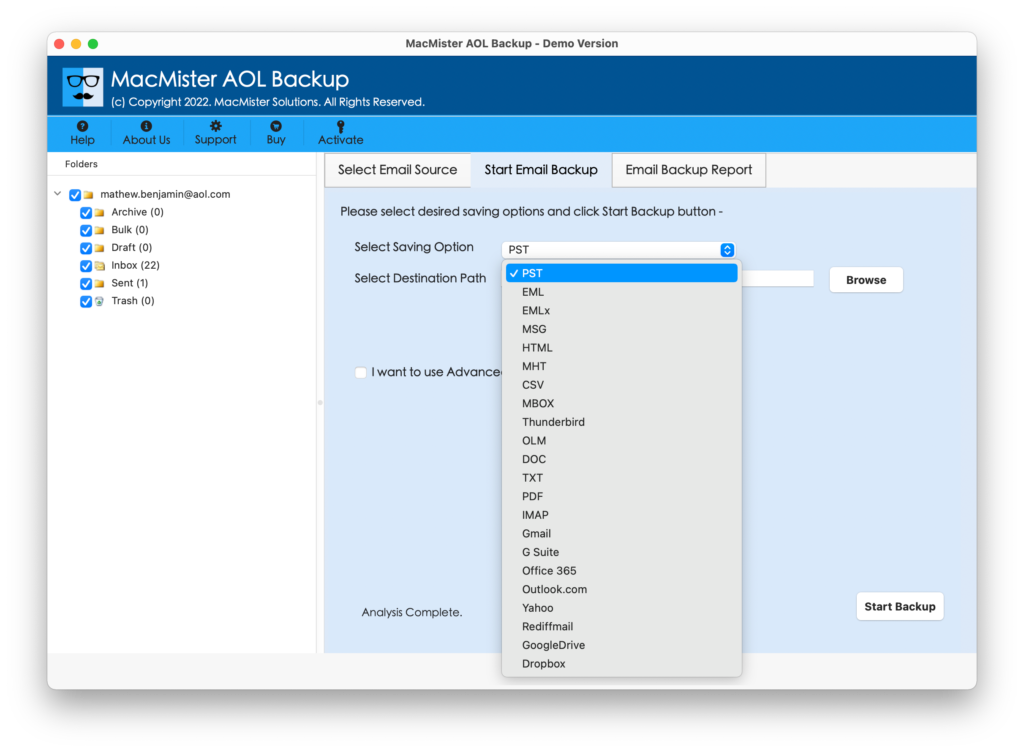
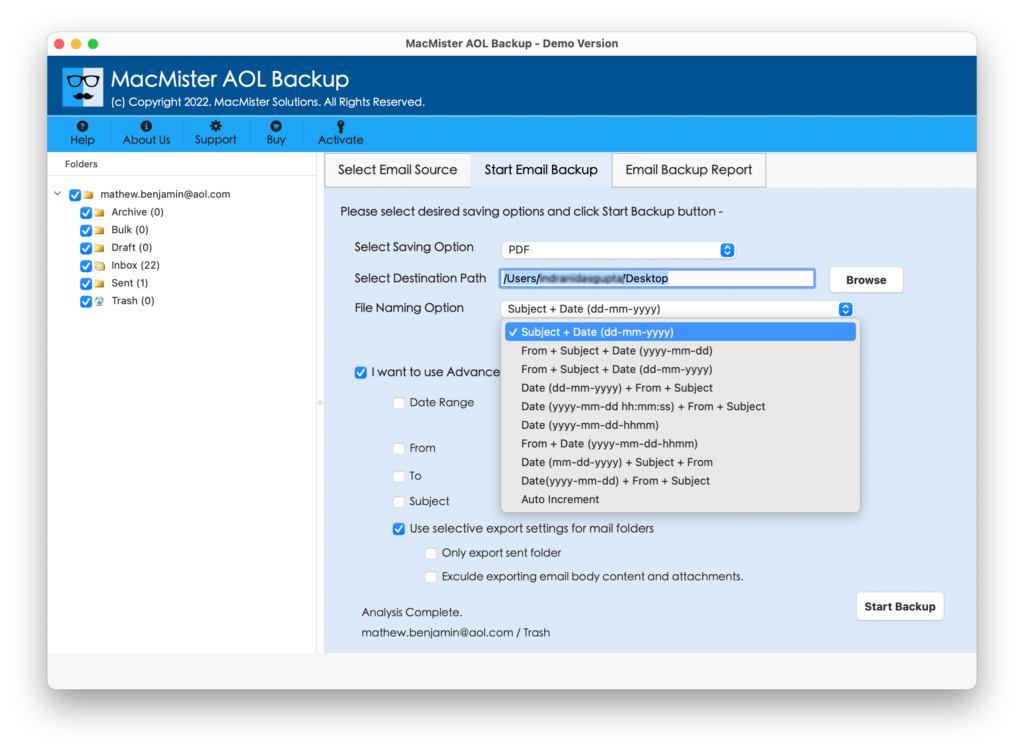
Step 5. Apply Filters if you want to save AOL emails to a USB according to date range, to, from, subject, etc.
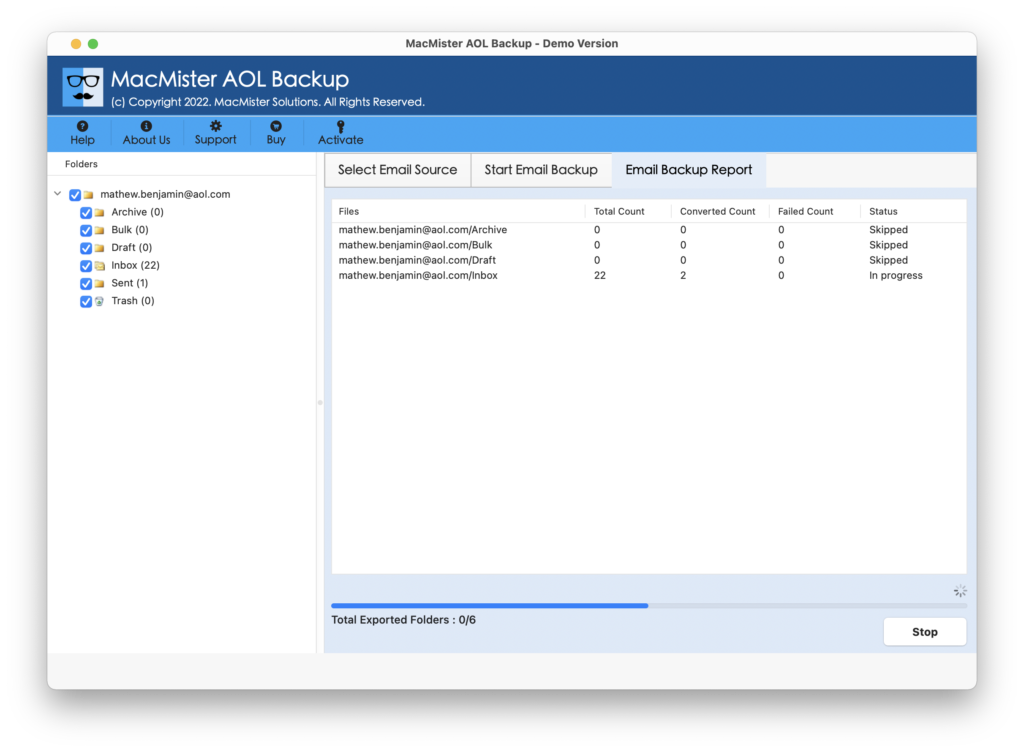
Step 6. The tool will start the migration and show Email Backup Report on your screen that displays the ongoing backup progress of AOL emails.
In few seconds, the process will finish and you will encounter “Process Completed” pop-up on your screen confirming that the tool successfully saved AOL emails to a required saving option. Now, you can transfer the resultant files to a USB drive. However, you can open the necessary file to check the result. You will find no alteration in the content. Every email will appear with accurate database and correct formatting properties.
Epilogue
The write-up has highlighted an incomparable approach to resolve “How do I Save AOL Emails to a USB?” By utilizing the above-discussed method, one can easily implement the smooth process and obtain the accurate results in a short amount of time. The application is cost-effective, safe, and reliable. It protects the AOL details throughout the process and help in carrying out the whole task smoothly. You can download the trial edition of the software and experience the software steps for free. Moreover, the free demo allows you to save first 25 AOL emails to a USB free of cost.