How do I Transfer my Frontier Email to Gmail?
Switching to a Gmail account from Frontier Mail and worried about your crucial emails stored in Frontier email account? Wondering how do I transfer my Frontier email to Gmail on Mac with ease? Searching for a highly secure and effective technique to transfer Frontier email to Gmail account without data loss? Then no worries at all because in the write-up we will explore a method that will help transferring Frontier email to Gmail with precise results in few seconds. But first, let’s understand why users transfer Frontier email to Google Mail platform.
Why Users Transfer Frontier Email to Gmail Account?
There are several reasons to transfer Frontier email to Gmail account. Some of them are mentioned here –
- Gmail is built with a friendly environment. It possesses a simple GUI. Anyone can manage their Gmail account without trouble.
- When it comes to security, Gmail is more advanced as compared to other available email services. It offers strong security measures such as Google Prompt, 2-step verification, etc.
- Free email account provides 15 GB of storage space for free whereas Frontier email only delivers 5 GB of storage capacity.
- Frontier email service is suitable only for residential users. Whereas Gmail offer services for home and professional users.
How do I Transfer my Frontier Email to Gmail Account?
Users will encounter two different approaches to transfer Frontier email to Gmail account –
- Manual Method
- Direct Solution
Method 1. Manually Transfer Frontier Email to Gmail Account
Step 1. Login to Gmail account and click Gear icon that represent Settings in order to open Settings screen.
Step 2. Click See all Settings option from the menu.
Step 3. Go to Accounts and Import section and choose Import Mail and Contacts option.
Step 4. Specify Frontier email login details and tap Continue.
Step 5. Sign-in to Frontier account and accept Terms & Conditions.
Step 6. Once the account is authenticated, click Start Import button.
Step 7. Wait until Frontier emails are imported.
Now, go to Gmail account to check imported files. However, manual method is free to use but it has some drawbacks which you should consider first before implementing it right away.
Limitations of a Manual Method
- The technique could take few days to transfer all the essential Frontier emails to Gmail account.
- Only technical users will be able to carry out the process manually because the steps require technical knowledge of Frontier and Gmail account both.
- Frontier does not provide any option to forward Frontier email to Gmail within date range.
- You may encounter many errors associated with authentication and import settings.
So, in order to overcome such issues, go through the next method and transfer Frontier email to Gmail directly.
Method 2. Direct Solution to Transfer Frontier Email to Gmail Account
The direct process to transfer Frontier email to Gmail account is MacMister IMAP Backup Software Mac & Windows. The application provides simple and stress-free operational environment. Its intuitive GUI allows all types of users to perform the task effortlessly. It enables users to mention the credentials of Frontier email account in required fields to establish the connection for the same. Once the specified account is connected, all its folder items start to display on the left pane of the app. Now, go to right software screen, click Select Saving Options to choose Gmail saving type. Then, add the login details of the same, set sub-options as per your needs and click Start Backup. Within seconds, the app will transfer all Frontier emails to Gmail account without modifying the email originality.
Now, follow the steps of the tool to transfer Frontier email to Gmail account on Mac –
Step 1. Download and run Frontier Email Backup Software Mac on Mac OS.
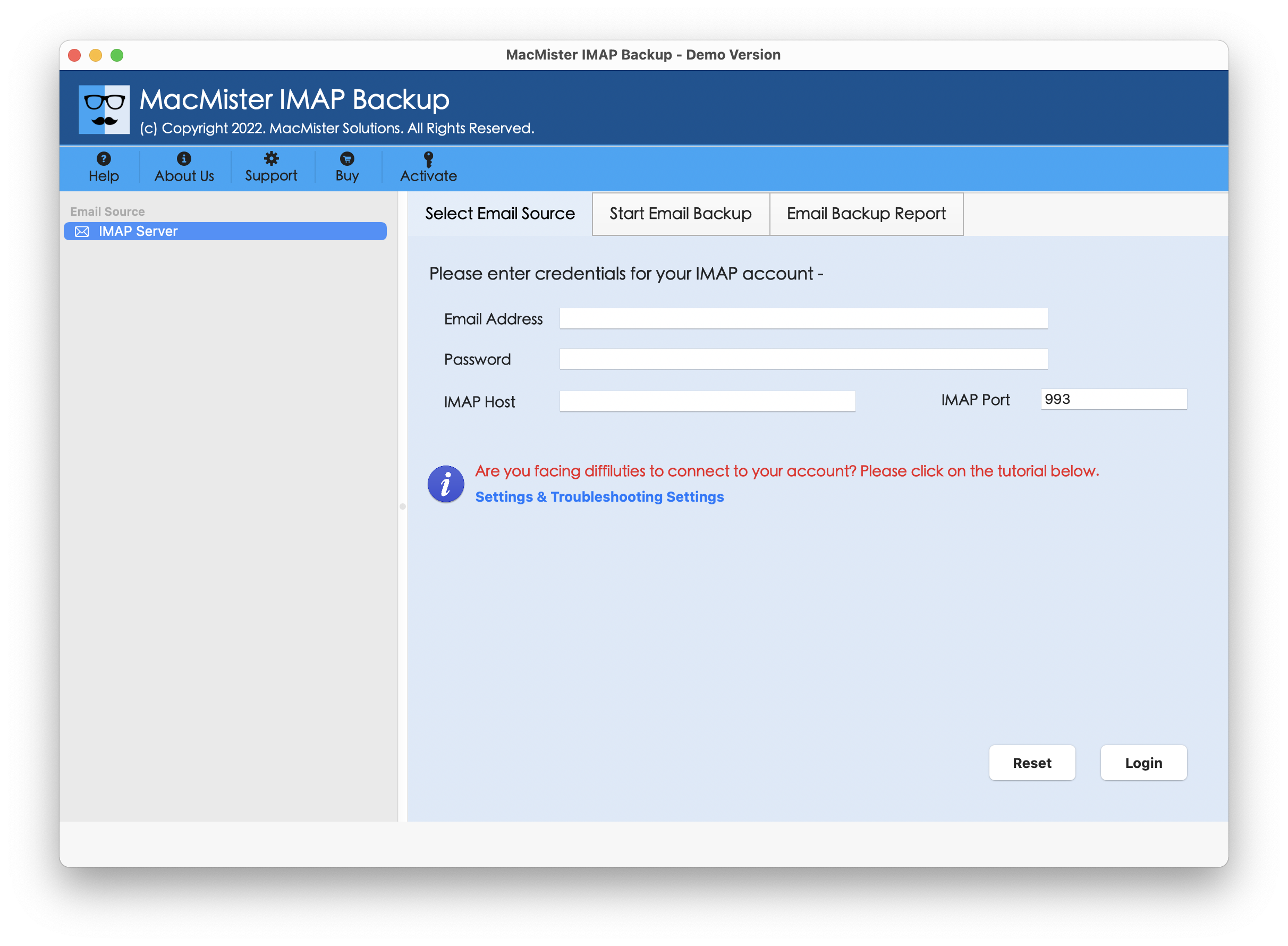
Step 2. Add Frontier email credentials, IMAP host, & Port number and click Login button.
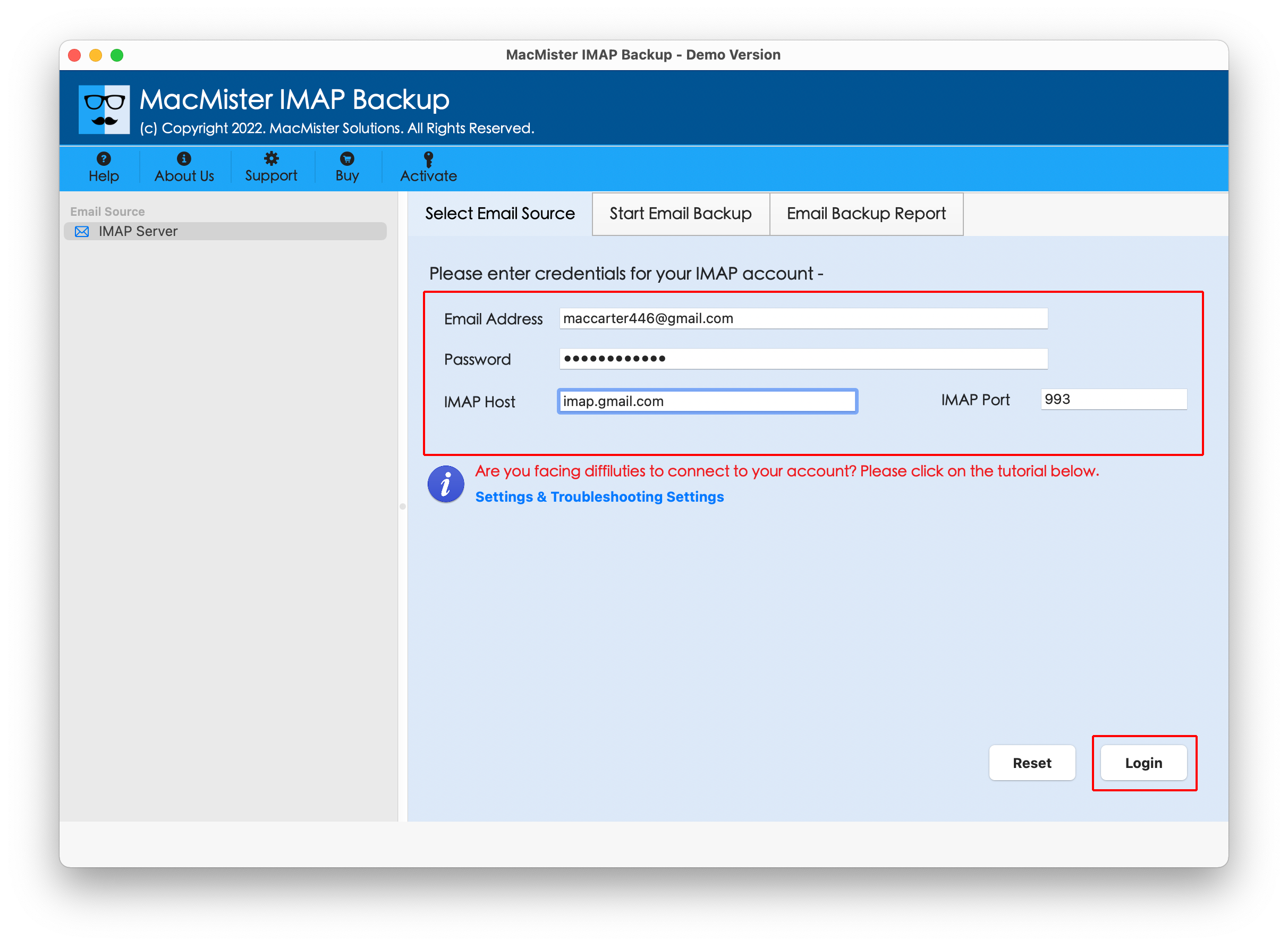
Step 3. The tool connects with specified Frontier email account and displays all its folder items on the left side of the app.
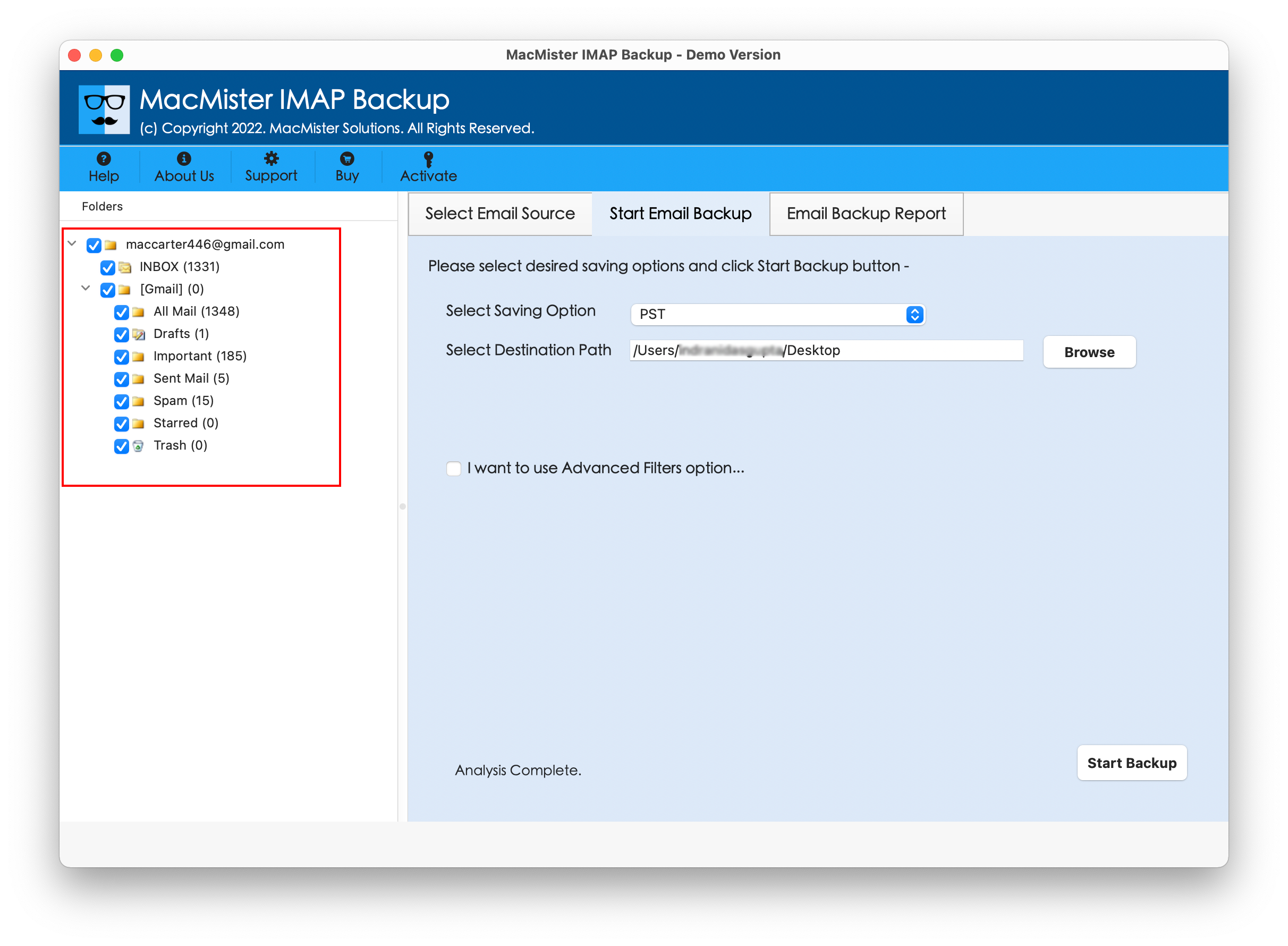
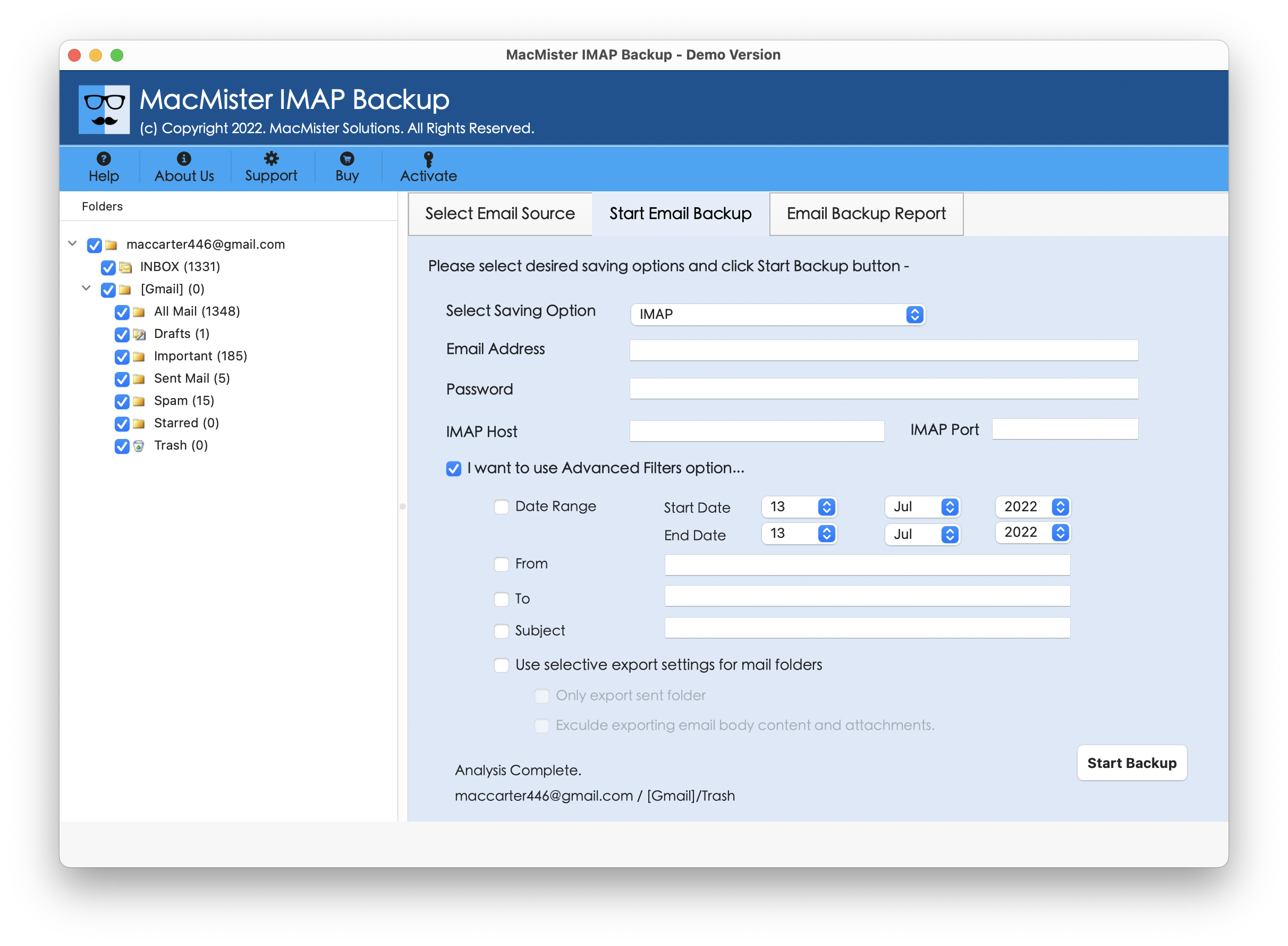
Step 4. Go towards right software window, click Select Saving Options, and choose Gmail saving type from the list.

Step 5. Enter Gmail email address and app password in the necessary fields. Go to Filters section to transfer only the required Frontier emails to Gmail account. Then click Start Backup button.
Step 6. The application now shows Email Backup Report which displays the live migration of Frontier emails to users.
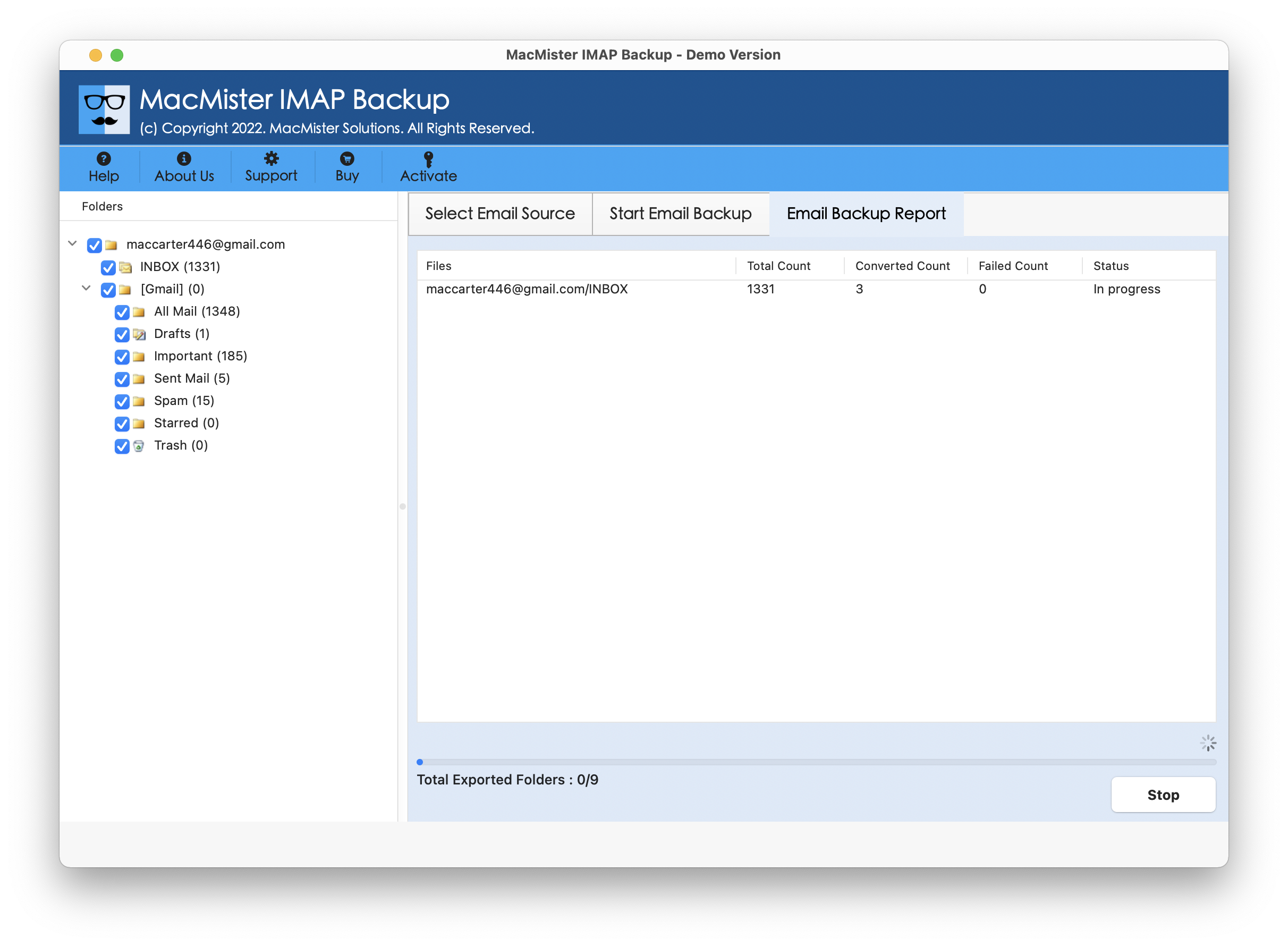
In few seconds, the tool will complete the process and then “Process Completed” message will appear on the screen. Click OK and go to Gmail account to cross-check resultant files. However, you will see that the app has accurately transferred Frontier emails to Gmail account. The Frontier emails will display emails with precise content and data integrity after migration. Even, the attachments will not get affected.
Epilogue
The write-up here discussed two different ways to transfer Frontier email to Gmail account. The manual steps are free but quite lengthy and time-consuming. The direct solution is cost-effective yet secure, reliable, and advanced and has a trial edition. Anyone can operate the automated approach and perform the migration of Frontier emails within seconds. It also provides many features that are useful in carrying out the desired task according to the specific requirements. However, it is suggested to download the freeware version of the tool to understand the process in detail. It also allows to transfer first 25 Frontier emails for free.