How do I Transfer Sympatico Email to Outlook.com on Mac & Windows?
If you are moving to Outlook.com from Sympatico and wondering how do I transfer Sympatico email to Outlook.com! Then no worries at all, just go through the write-up and you will discover a method that will directly transfer Sympatico email to Outlook.com without losing data integrity.
Overview
Sympatico email is a web-based email service which is mostly used to create multiple accounts. It is owned by Bell Canada, the internet service provider (ISP) and is also popular as Bell Canada email. Anyone can access Sympatico account from mobile devices and desktop email applications using IMAP and is also useful to send newsletters as well as other group emails through Sympatico SMTP mail server.
But Sympatico is not as advanced as Outlook.com. It is slow as compared to other webmail servers. The cumbersome navigation will create obstacle for users who need to perform important task immediately. Also, the difficult search, missed emails and address book, emails with attachments not appropriately delivered to the recipient are some issues that users encounter when using Sympatico email.
Why Users Choose Outlook.com to Transfer Sympatico Email?
Outlook.com is a Microsoft web email service that helps managing users’ emails, contacts, and calendars on cloud. One can directly visit https://Outlook.com and access Outlook.com services right away. It also supports integration with desktop-supported email applications with the help of IMAP/POP protocols. Besides, the email service has many features to offer, such as –
- Able to manage all the items at one place such as email, calendar, and contacts.
- Allows sharing calendar easily, saves time when scheduling meetings.
- Help users to find contacts easily by using keyboard commands and easy navigation.
- Offers advanced security protocols and two-factor authentication to safeguard email account from cyber threats and hackers.
- Supported by variety of devices and platforms including web by using OWA.
- Easy integration with other Microsoft tools such as OneDrive & SharePoint.
Overall Outlook.com is a perfect platform to manage emails online. Users can send/receive emails with the help of the same from anywhere anytime.
How do I Transfer Sympatico Email to Outlook.com on Mac & Windows?
The direct and easy way to transfer Sympatico to Outlook.com is MacMister IMAP Backup Tool Mac & Windows. The software is friendly, simple, and cost-effective. All professional/novice users can utilize the application independently and perform the necessary process with accurate emails and attachments. The count of operational steps is limited. This saves users lot of time and efforts.
Moreover, the application also includes many features with the help of users can transfer Sympatico email to Outlook.com as per specific requirements. Download the free demo of the app to check the migration steps for free.
Working Steps to Transfer Sympatico Email to Outlook.com on Mac
Step 1. Download, launch, and run the app on a Mac system.
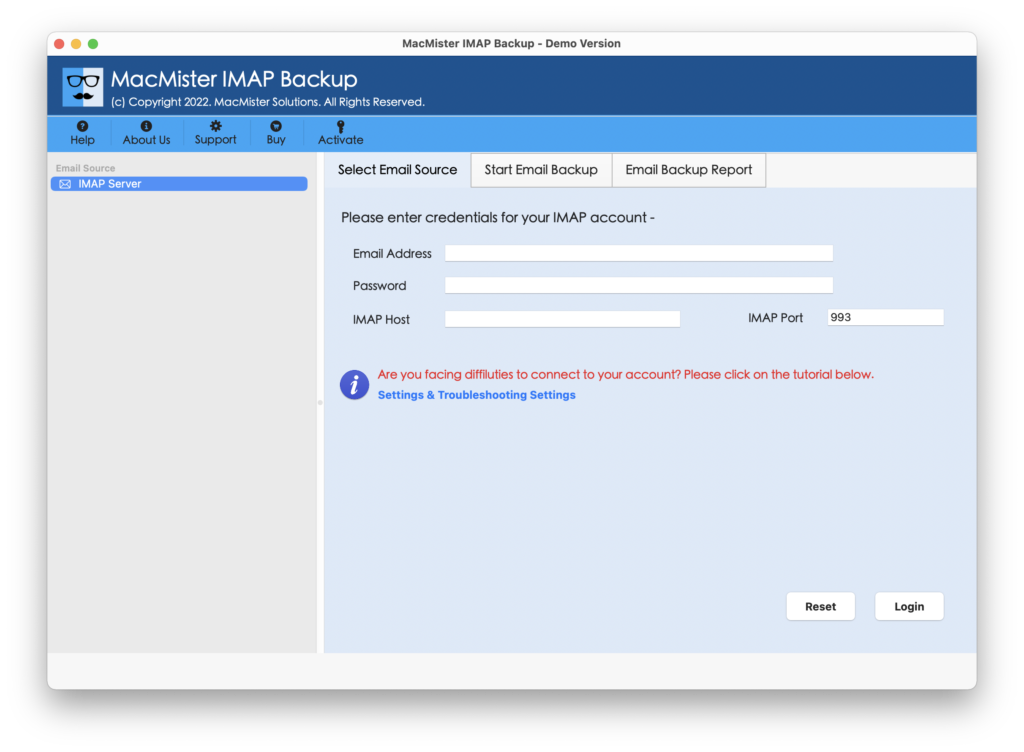
Step 2. Add Sympatico login details with IMAP Host & Port Number and click Login button.
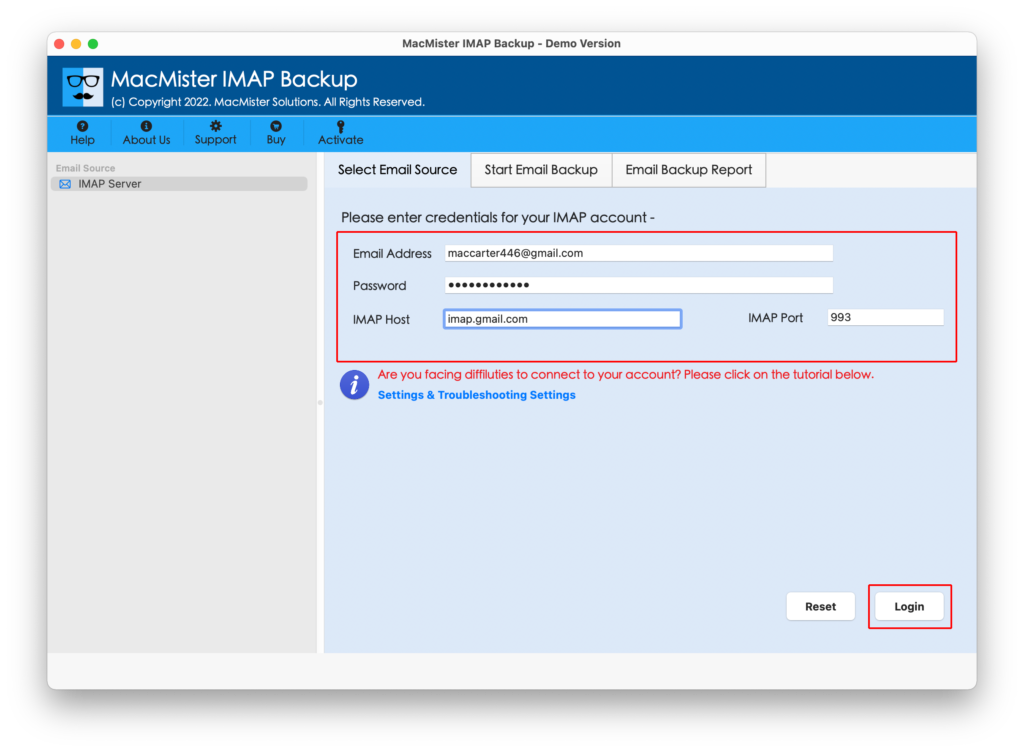
Step 3. The Sympatico account will connect with the app and show Sympatico mailboxes on the left pane.
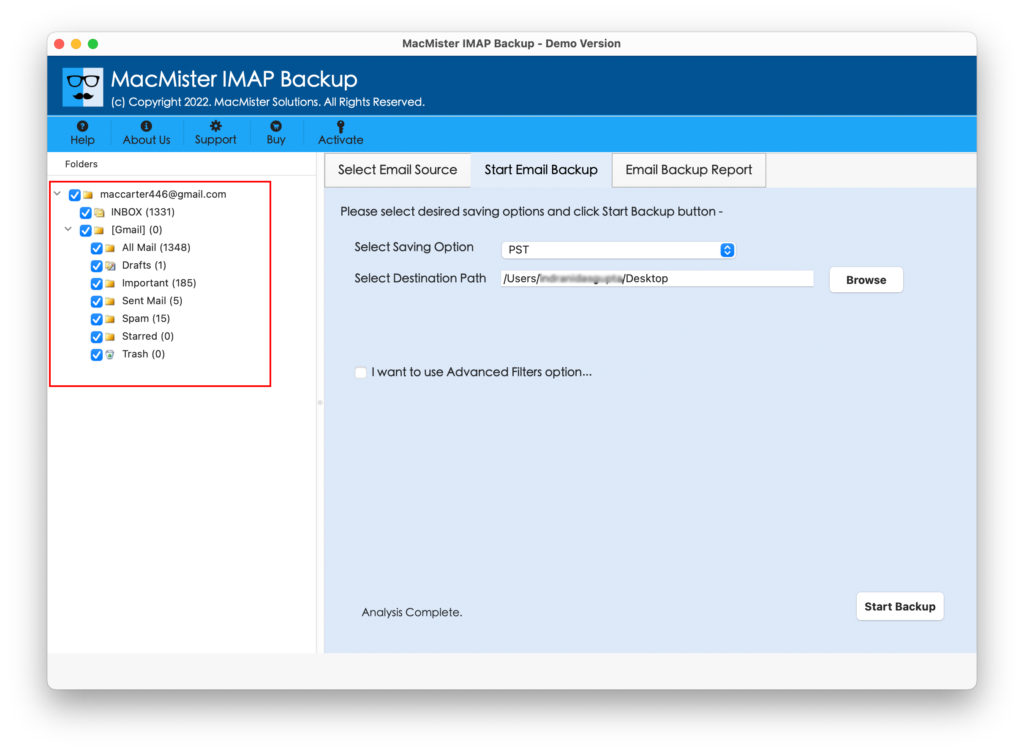
Step 4. Go to the right-side of the software screen, click on the Select Saving Options and choose Outlook.com option from the menu.
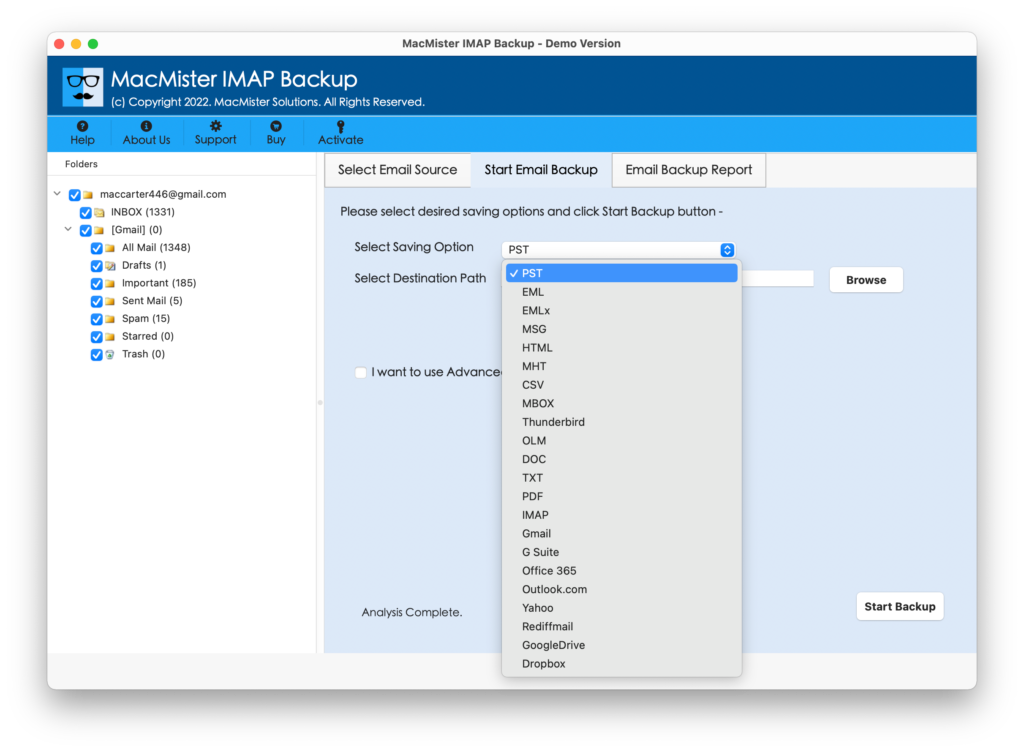
Step 5. Add Outlook.com credentials in the required fields, set Filters (if necessary) and click on the Start Backup button.
Step 6. The tool will display Email Backup Report that shows the live migration details of Sympatico emails.
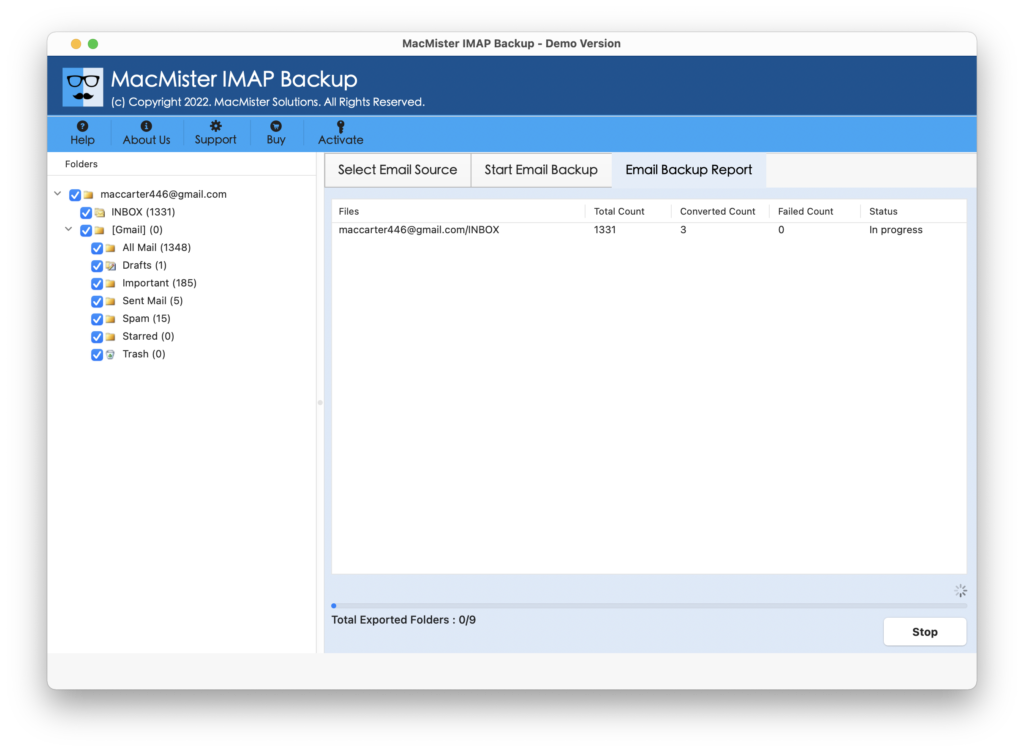
The process finishes with a message “Process Completed”. Click on the OK button and login to Outlook.com account to check transferred Sympatico emails. However, the application will perform no alteration in the original files. The content, metadata properties, and email layout will also remain accurate throughout process.
Why to Choose MacMister Sympatico to Outlook.com Tool?
MacMister Sympatico to Outlook.com is a solution that precisely transfers all Sympatico emails to Outlook.com with attachments at once in few seconds with 100% accuracy. It is programmed with many features; some of them are listed below –
Directly Transfer Sympatico Email to Outlook.com
The application supports direct migration of Sympatico emails to Outlook.com with attachments on Mac. Just provide the necessary credentials of both the email accounts in required fields, set other options as per requirements and click the Start Backup button. After this, the app will start transferring Sympatico emails to Outlook.com
Offers Filters to Transfer Selective Sympatico Emails
The tool includes multiple Filters options with the help of users can transfer specific Sympatico emails to Outlook.com. It has date range, from, subject, and many other filter options that users may take support of to transfer emails from Sympatico to Outlook.com according to particular date, month, email ID, etc.
User-Friendly Interface with Easy Operational Steps
The software is programmed with a friendly interface so that any professional/novice user can use the app effortlessly to implement the required process without taking any support or assistance from technical experts. Also, the three-step process will not take much users time and efforts.
Supports Multiple Saving Options other than Outlook.com
The application not only supports Outlook.com as its saving option but also includes 15+ more saving options in which users can transfer Sympatico emails. It includes PST, PDF, MSG, EML, EMLx, MHT, HTML, DOC, IMAP, G Suite, Yahoo, and more.
Offers Software Versions for both Mac & Windows OS
The tool is available in Mac & Windows version both. Mac users can handle the transfer process on all the Mac OS versions including Mac OS Sonoma. Whereas, Windows users can download the software on any Windows version including Windows 11 and transfer emails from Sympatico to Outlook.com
Epilogue
In the write-up, we have offered unique and trouble-free way to fix “how do I transfer my Sympatico email to Outlook.com” on Mac & Windows. MacMister Sympatico to Outlook.com/Hotmail Backup Tool for Mac is a solution that quickly transfer emails from Sympatico account to Outlook.com with attachments without data loss. It has a simplified environment with minimum operational steps. Moreover, the remarkable features will help users obtaining the desired results in short span of time. Download its free demo to check the migration steps for free. It also allows to transfer first 25 Sympatico emails to Outlook.com free of cost.