How to Backup Apple Mail to iCloud on Mac?
Are you searching an appropriate method to backup Apple Mail to iCloud on Mac? If yes, then MacMister Solutions is here to help you.
Apple Mail is a preinstalled application of Mac OS. It is one of the popular email client and used globally by Mac users. However, any special or extraordinary type of configuration is not needed to run Apple Mail email client on macOS. The email client has simple interface, adaptive environment and strong email components.
Note. Get Email Backup Software and directly backup Apple Mail mailboxes into 15+ saving options supporting Mac OS. The tool allows to backup emails to MBOX, PDF, MHT, HTML, PST, DOC, TXT, O365, IMAP Server, Outlook.com, Gmail and more.
But each email application has some drawbacks. And, due to this, many Apple Mail users need to backup their email files on iCloud to safeguard their important data. However, there could be plethora of reasons for this such as switching onto a different email client, change of organization, security purpose and more.
Therefore, in the following section, we will be discussing some important reasons to backup Apple Mail to iCloud and the solution for the same.
Why to Backup Mac Mail Folders to iCloud
After going through lot of user forums, we realized that there are multiple reasons existed that force users to take the backup of Mac Mail to iCloud. Some reasons are highlighted below –
- Protection from virus attacks such as spyware, malware and more.
- Unexpected data corruption can lead to severe data loss.
- Need of accessing Apple Mail emails into different platform.
- iCloud offers best security and safety to database than Apple Mail.
Apart from this, there are plethora of other reasons as well due to which many Mac users are backing up Apple Mail folders to iCloud.
How to Backup Mac Mail to iCloud?
To backup Apple Mail folders to iCloud, users can make use of advance Apple Mail Converter for Mac. The strong, user-friendly and safe solution which effortlessly backup unlimited Apple Mail mailboxes to iCloud at once. The software provides IMAP Server option that will help in the direct migration of Apple Mail folders to iCloud. The option will only ask to enter the credentials of required iCloud account with IMAP Host as well as Port Number. Once you provided the desired details, the app will then directly transfer Apple Mail mailboxes to iCloud.

The Apple Mail Email Backup Tool includes many advance features that will help users in saving Mac Mail folders to iCloud as per requirement. You can test the entire process of the same by downloading the free demo version of the software.
Steps to Backup Mac Mail Mailboxes to iCloud
Step 1. Run Apple Mail Backup Tool on macOS.
Step 2. Use the option as per your need to upload Apple Mail mailboxes that needs to be backed up in iCloud account. Then, click on Next.
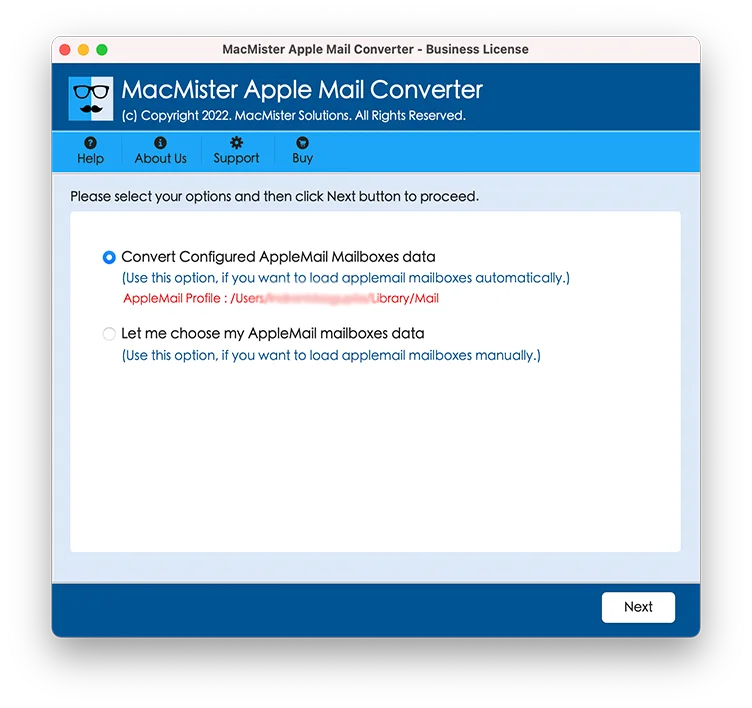
Step 3. Tool will list Apple Mail folders one by one with checkboxes. Users can take help of checkbox if they want to backup selective Apple Mail folders to iCloud. Click Next.
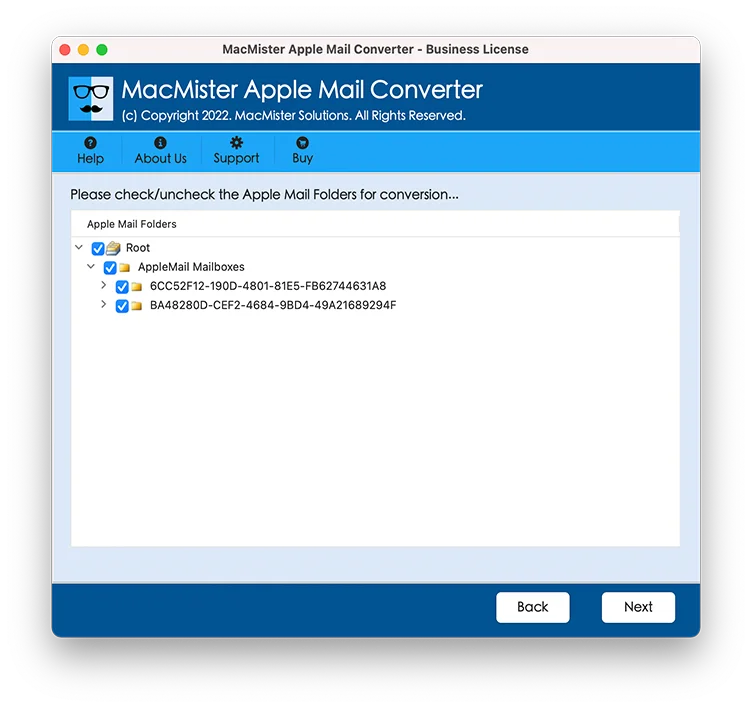
Step 4. Choose IMAP Server from Select Saving Option menu.
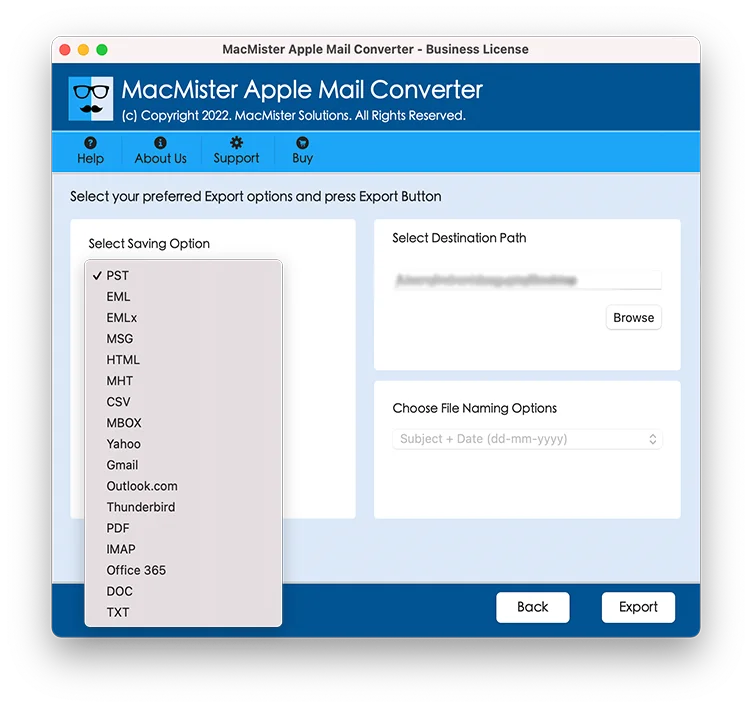
Step 5. Enter iCloud email ID and password in the required fields. Also, provide iCloud IMAP host and port number. After this, press Export.
Step 6. You can see the on-going process through Live Conversion screen as shown. However, the entire process will terminated with a message ‘Conversion Completed’. Click OK to end the process.
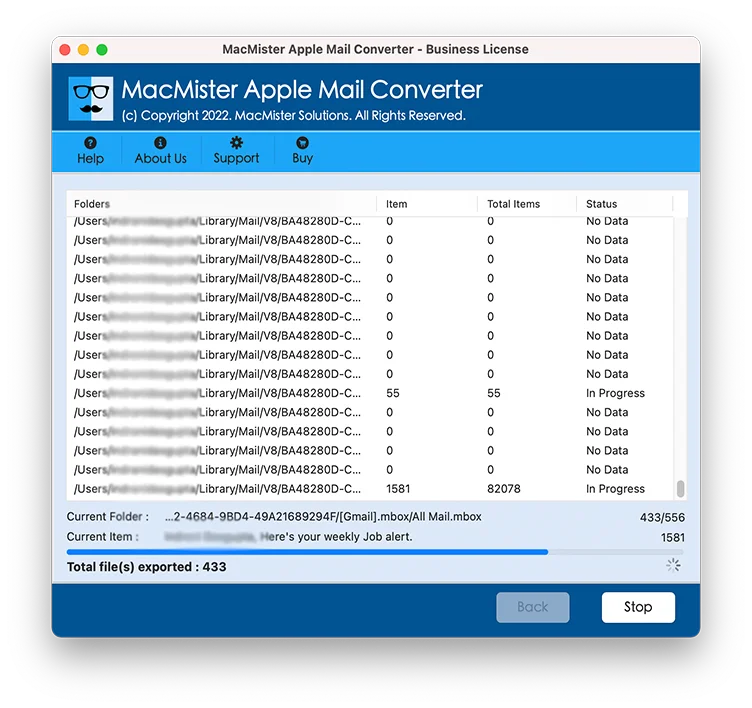
Now, login to iCloud account to check the file that you recently backed up. The process performed by the tool will give the accurate outcome.
Remarkable Features of Advance Solution
Direct backup of Apple Mail to iCloud
With the help of the tool, users can directly backup Apple Mail mailboxes to iCloud account. The tool offers IMAP Server option to save Apple Mail folders. It will ask to provide the login details of iCloud account and the IMAP host and port number. Once tool gets all the information, it will directly backup all your Apple Mail mailboxes to iCloud.
Multiple Options to Load Apple Mail files
The application is programmed with multiple loading options. Users can upload configured Apple Mail mailboxes or manually upload Apple Mail supported MBOX files for backup into iCloud platform.
Batch Apple Mail Folders to iCloud Account
The software provides Add Folder button to perform the same. Just create a new folder and put all Apple Mail mailboxes in the same. Now with the help of Add Folder button, upload the new created folder on the software and carry out the backup process in batch without data loss.
Backup Apple Mail to iCloud in Easy Steps
The software has the ability to backup Mac Mail to iCloud in three easy steps. The tool includes load, save and export options. Simply apply them appropriately and you will get all Apple Mail folders in iCloud account in few seconds.
Access Apple Mail Files in iCloud on all Mac OS
You can utilize the application on all Mac OS versions. The tool supports accessibility of Apple Mail folders in iCloud on Mac Monterey, Big Sur, Catalina, High Sierra and more.
Conclusion
The article has provided a smart solution to backup Apple Mail folders to iCloud. The Mac Mail Mail to iCloud Backup Tool comes with various benefits and help you to achieve the required task successfully according to your needs. Download the freeware version now and backup 25 Mac Mail files to iCloud free of cost.