How to Download Data from Disabled Google Account?
Are you one of those Gmail users whose account is disabled or deleted and now you are wondering how to download data from disabled Google account without any loss? If yes, then you are at the right place. Here, we will explain two exceptional methods that will help in restoring data from disabled Gmail account with complete details.
As everyone is already aware of Gmail’s popularity and the fact that it is widely used email client application that effectively manages sending/receiving personal as well as professional email messages by users. Also, the email service helps storing essential database along with emails such as calendars, contacts, tasks, journals, etc.
But at times the occurrence of unexpected circumstances and errors disable Gmail services, resulting in permanent data loss. So, it is necessary to restore data from disabled Gmail account.
Here, you will encounter perfect and suitable method to download data from disabled Google account. And before initiating the process, let’s grab some details related to disabled or deleted Gmail profiles.
Why Gmail Account is disabled?
First, it is important to understand the reasons responsible for disabled Gmail account. However, some of them are mentioned here –
- Violating Google’s rules and policies.
- Google account deleted recently.
- Modifications in organization’s account configuration.
Note: One can extract data from disabled Gmail account but there are some limits related to the process. Users will get 20 days to recover data from a disabled Google Mail account. Afterwards, data might be lost forever.
In what conditions data can be recovered from Google Mail account?
Before restoring data from a deleted or disabled Gmail account, here are few things one should keep in mind –
Time Limit – Users have 20 days from when the Gmail account is disabled to initiate restoration process.
User License – Ensure you hold user license for the service assigned to that particular user.
Domain Status – The domain should be in working state and not transferred to different Google Workspace account.
How to Download Data from Disabled Google Account Manually?
Sometime, disabled Google account name is still being used either by a group or another account. If this happens, then there are probabilities to download data from disabled Gmail account –
- Go to Admin Console and search for a username. Note that group aliases might not show up in search results.
- If username is related to alias address or group, then you may modify or delete the group’s username to restore data from disabled Google Mail account.
Step 1. Login to Google Admin Console.
Step 2. Ensure you are signed in with great privileges administrator account.
Step 3. Navigate to Menu, click Directory and select Users options.
Step 4. Go to More options and click Recently Deleted users.
Step 5. Tap Recover button.
Step 6. Afterwards, go through the confirmation and press Continue button.
Step 7. Select organizational unit for user assignment.
Step 8. Last, tap Recover icon.
Note. The process will require minimum 24 hours which can extent up to 5 days to complete.
Recommended Solution to Download Data from Disabled Gmail Account
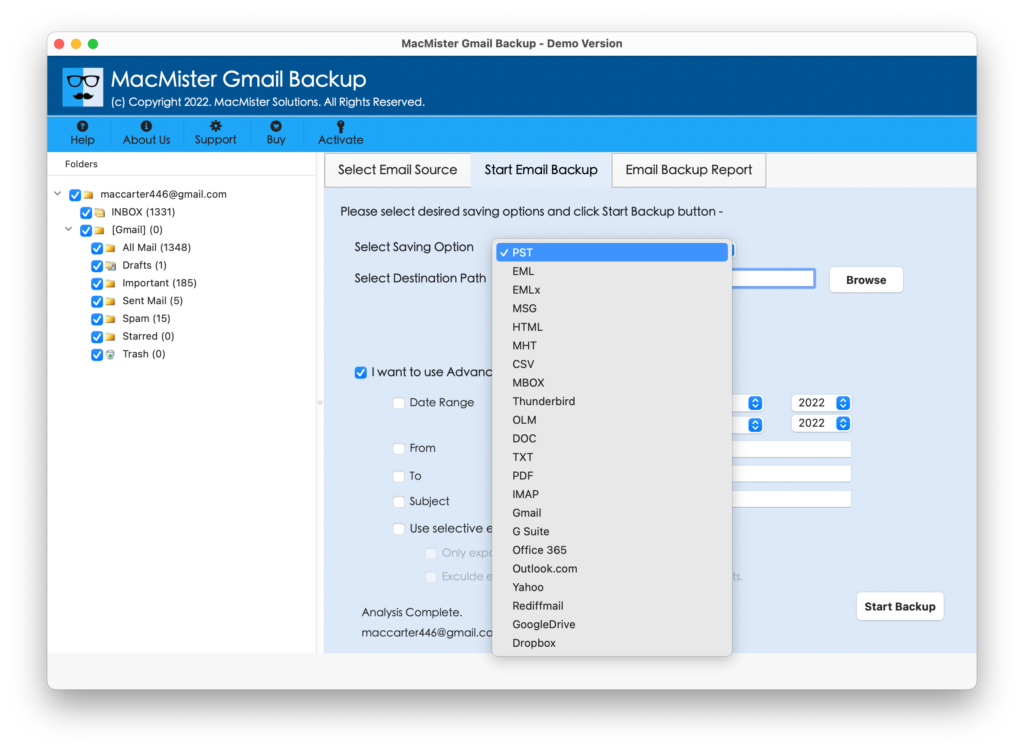
If Gmail account is deleted or disabled and you want to restore data from the same, then make use of MacMister Gmail Backup Tool Mac & Windows. The software is programmed with highly advanced algorithm that makes it more strong and powerful for users. Also, its GUI is friendly and secure. All users can safely perform the operation and attain desired results without data loss. With the help of the tool, users can download data from disabled Gmail account into many saving options such as PST, EML, HTML, DOC, IMAP, CSV, Gmail, Yahoo, Office 365, PDF, and more.
Moreover, the app holds remarkable beneficial features with the help of one can download data from disabled Gmail account according to the requirements. However, it is advisable to install freeware version of tool to know the detailed software working for free.
Step-by-Step Software Tutorial to Download Data from Disabled Gmail Account on Mac
Step 1. Download, launch and run MacMister Gmail Email Backup Software Mac & Windows on any Mac OS.
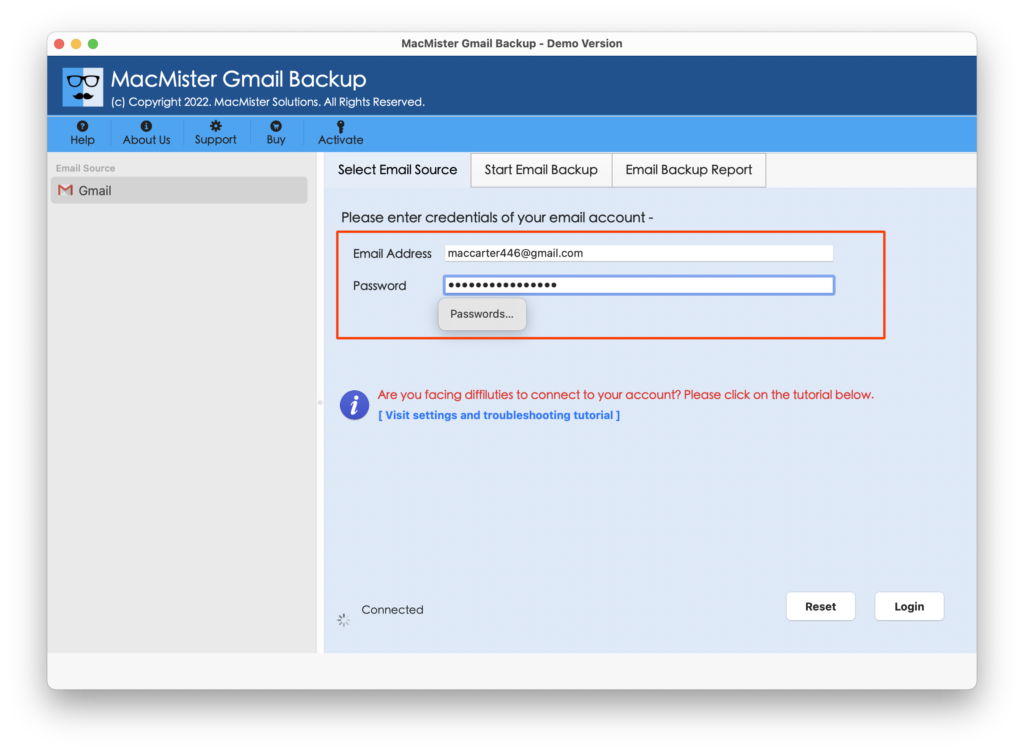
Step 2. Add Gmail credentials (email ID and app password) in required fields and tap Login button.
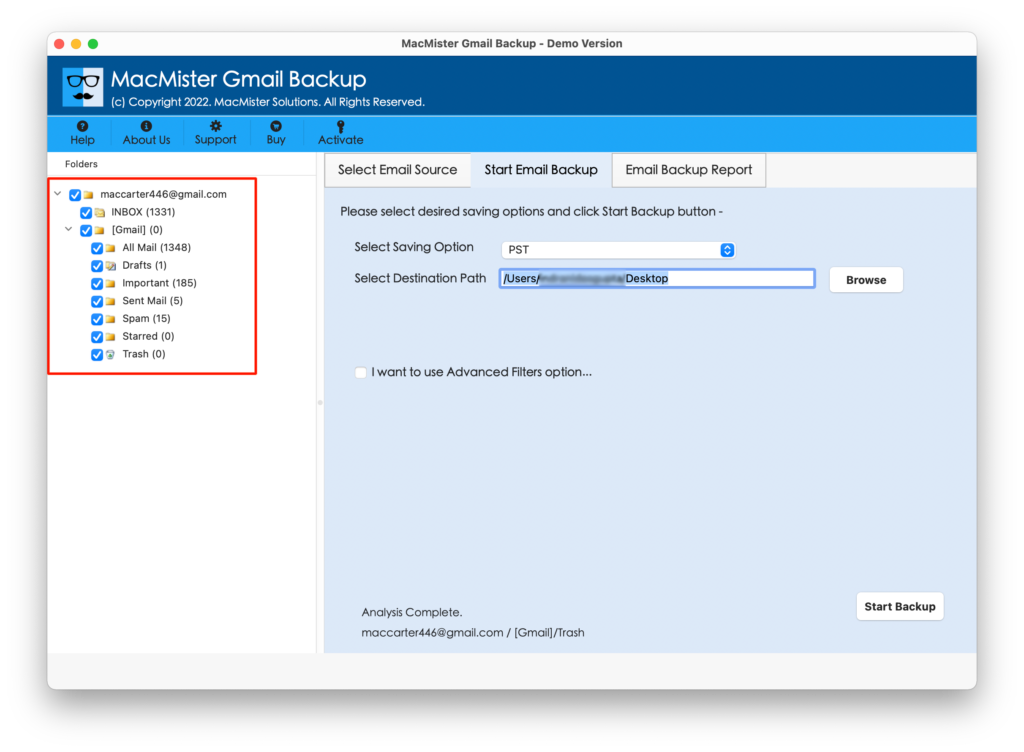
Step 3. The tool will authenticate Gmail account and list its folder items on the left side of the software screen.
Step 4. Go to Select Saving Options and pick necessary saving type from the list.
Step 5. Set sub-options of a selected saving type according to the requirements and tap Start Backup button.
Step 6. The Email Backup Report appears showing live backup progress of Gmail emails.
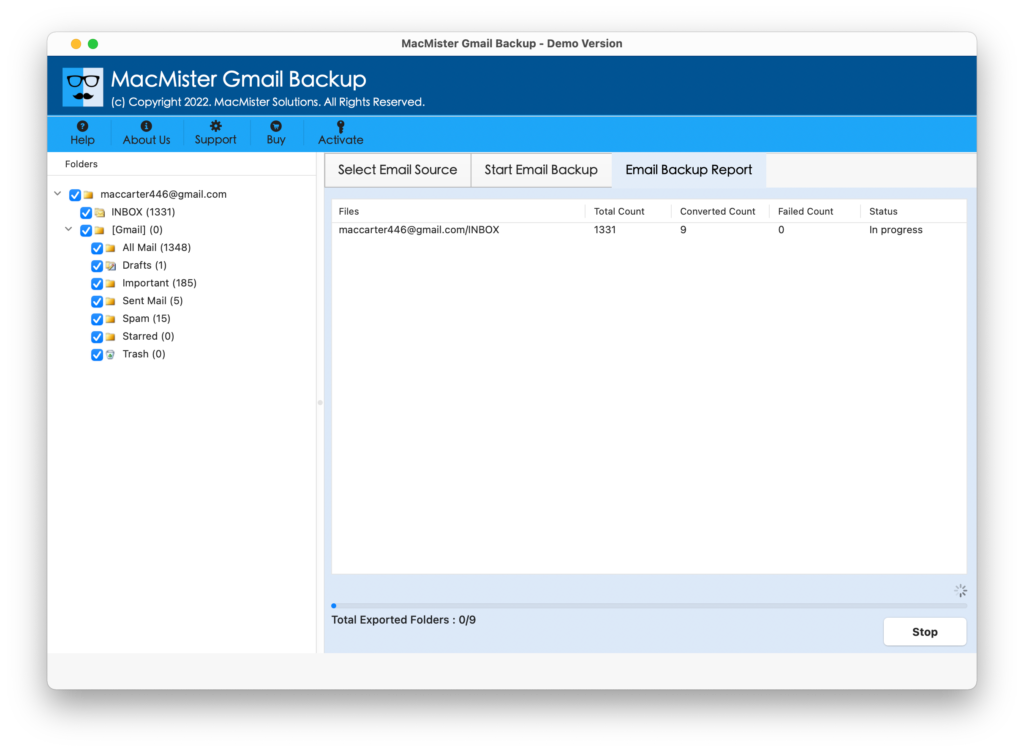
Within seconds, the process will terminate and “Process Completed” dialogue box will appear on the screen. Click OK button and go to the system location where resultant files are saved. Now, open the required file to view the result. However, you will realize that the app has perfectly performed the operation. The resultant data will display with precise content and metadata properties. So, there is nothing to worry about your original database as the tool will take care of it throughout backup.
Why to Choose Expert’s recommended Tool?
There are many reasons for choosing expert’s recommended solution, some of them are highlighted below –
- Able to download data directly from disabled Google account.
- Supports multiple saving types to preserve the data of disabled Gmail profile.
- Protects the credentials of Gmail account during the process.
- Keeps the Gmail data safe throughout backup.
- Asks for app generated password instead of the original password to maintain the security of Gmail account.
- Available for Mac & Windows OS (all versions supported).
Epilogue
In the write-up, we have offered two powerful methods to fix how to download data from disabled Gmail account. The first method will help in downloading data through Google Admin console. It is a manual approach and is mostly suitable for technical users. The second method is direct and tested. It has the ability to download data from Gmail into 15+ saving options. Also, both professional and non-professional users can utilize the tool with ease and quickly carry out the desired task within seconds. Download the software free demo and check the detailed functioning of the same by downloading 25 data files from disabled Gmail account free of cost.