How to Download Emails from Outlook Web in Bulk on Mac?
If you are worried about your emails saved in Outlook Web and wondering how to download emails from Outlook Web in bulk on Mac with attachments safely! Then no worries at all, just go through the write-up and you will discover a method that will securely download emails from Outlook Web in bulk on Mac with attachments accurately.
If you are worried about your emails saved in Outlook Web and wondering how to download emails from Outlook Web in bulk on Mac with attachments safely! Then no worries at all, just go through the write-up and you will discover a method that will securely download emails from Outlook Web in bulk on Mac with attachments accurately.
Microsoft Outlook is considered one of the dependable email platforms that is utilized mostly by many organizations to manage emails and other data files. The email client provides remarkable functionalities and serves as the appropriate solution for managing email files, calendars, tasks, journal entries, notes, etc. Furthermore, Outlook allow users to send, receive, organize as well as schedule appointments & events, manage address book, set reminders and effective implement several daily tasks. But there are situations when a user needs to download emails from Outlook Web in bulk on Mac.
Quick Tip: Make use of MacMister PST Converter for Mac to safely and smoothly export Windows PST files into several saving options such as OLM, PDF, MSG, EML, HTML, CSV, DOC, Yahoo Mail, Google Mail, Outlook.com, and more on any Mac OS.
In the further write-up, we will discuss why one should download emails from Outlook Web and at the same time explore the solution for the same. So, without more ado, let’s get started!
Why Users Need to Download Emails from Outlook Web in Bulk on Mac?
There are numerous reasons why at times users need to download emails from Outlook Web in bulk on Mac. Some of them are discussed below –
- Outlook Web is online-based. But sometimes, users need to access emails without internet connection. Thus, downloading them locally will ease users’ worries.
- Outlook online is dependable email service but it is also susceptible to corruption and when it comes to organization, then no one can afford data loss. So many business users preserve the copies of emails to prevent their crucial data from unexpected misshapen.
- At times, users need to transfer their emails from one account to another due to change of employment or account suspension. This can be resolved by download emails on a local disk.
So, here we have mentioned few reasons that highlights why downloading emails from Outlook Web in bulk is beneficial. Now, let us check the suitable method to download Outlook Web emails in bulk with 100% accuracy.
How to Download Emails from Outlook Web in Bulk on Mac?
The direct and secure process to download emails from Outlook Web in bulk on Mac is MacMister Email Backup Software Mac & Windows. The tool contains over 30 email sources other than Outlook Web. Users can select the option, add the login details of the same, establish the connection of Outlook Web with the tool, verify the files listing on its panel, choose the desired saving type to save Outlook Web emails locally, apply sub-options, and click Start Backup. Within seconds, the tool will download Outlook Web emails on Mac with attachments at once. With the help of the application, users can download Outlook Web emails to PST, PDF, MSG, EML, MBOX, OLM, CSV, HTML, DOC, IMAP, Gmail, Yahoo, Office 365, and more. Its interface is friendly, thereby all professional and non-professional users can download emails from Outlook Web on Mac without any trouble.
Furthermore, the application provides matchless features with the help of users accomplish the process as per their requirements. Download its free demo version to know the process in detail.
Step-by-Step Software Working to Download Emails from Outlook Web in Bulk on Mac
Step 1. Download, launch, and run the application on Mac.
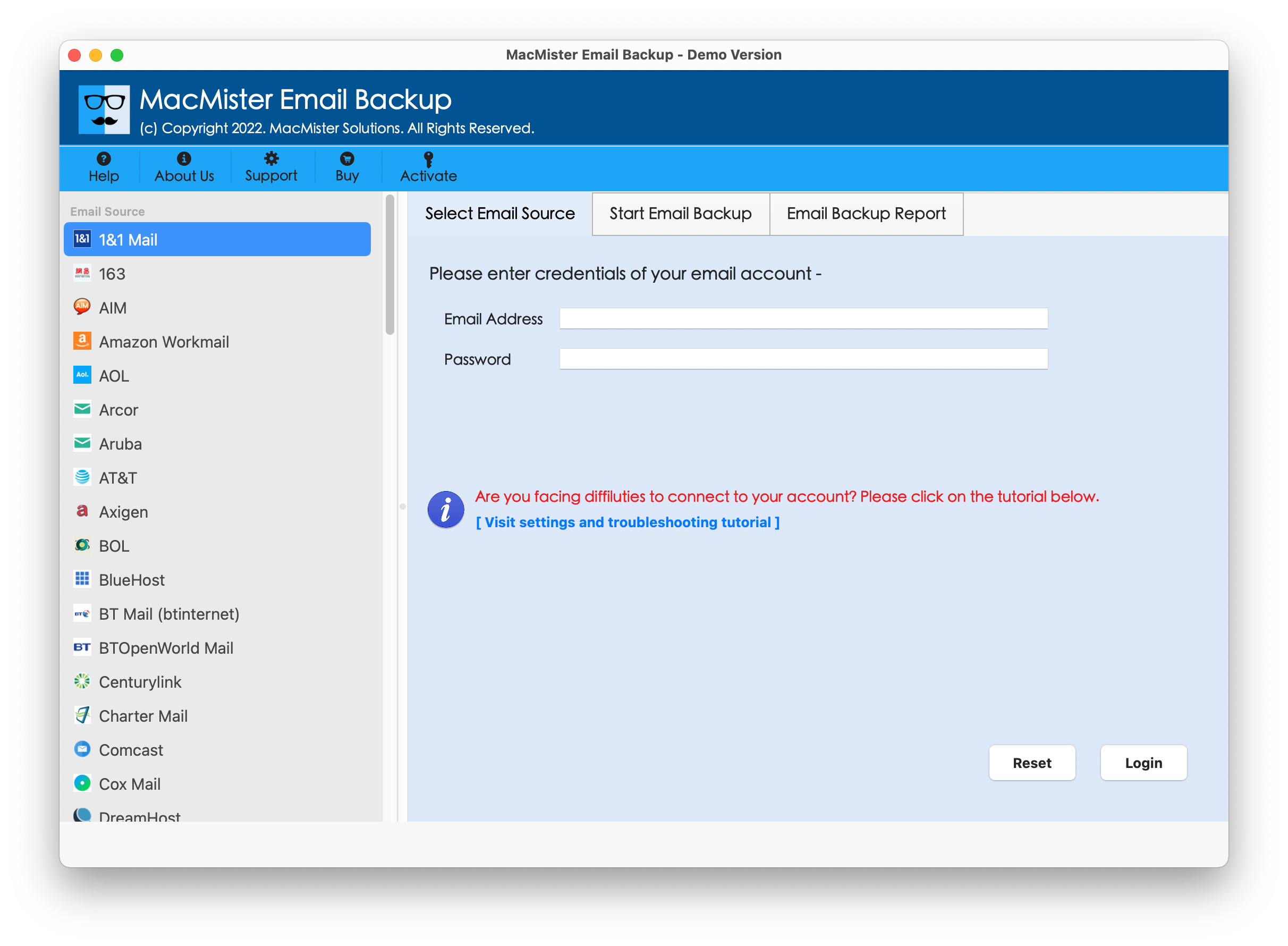
Step 2. Choose Outlook Web (Outlook.com) option from the left. Add the credentials. Click Login button.
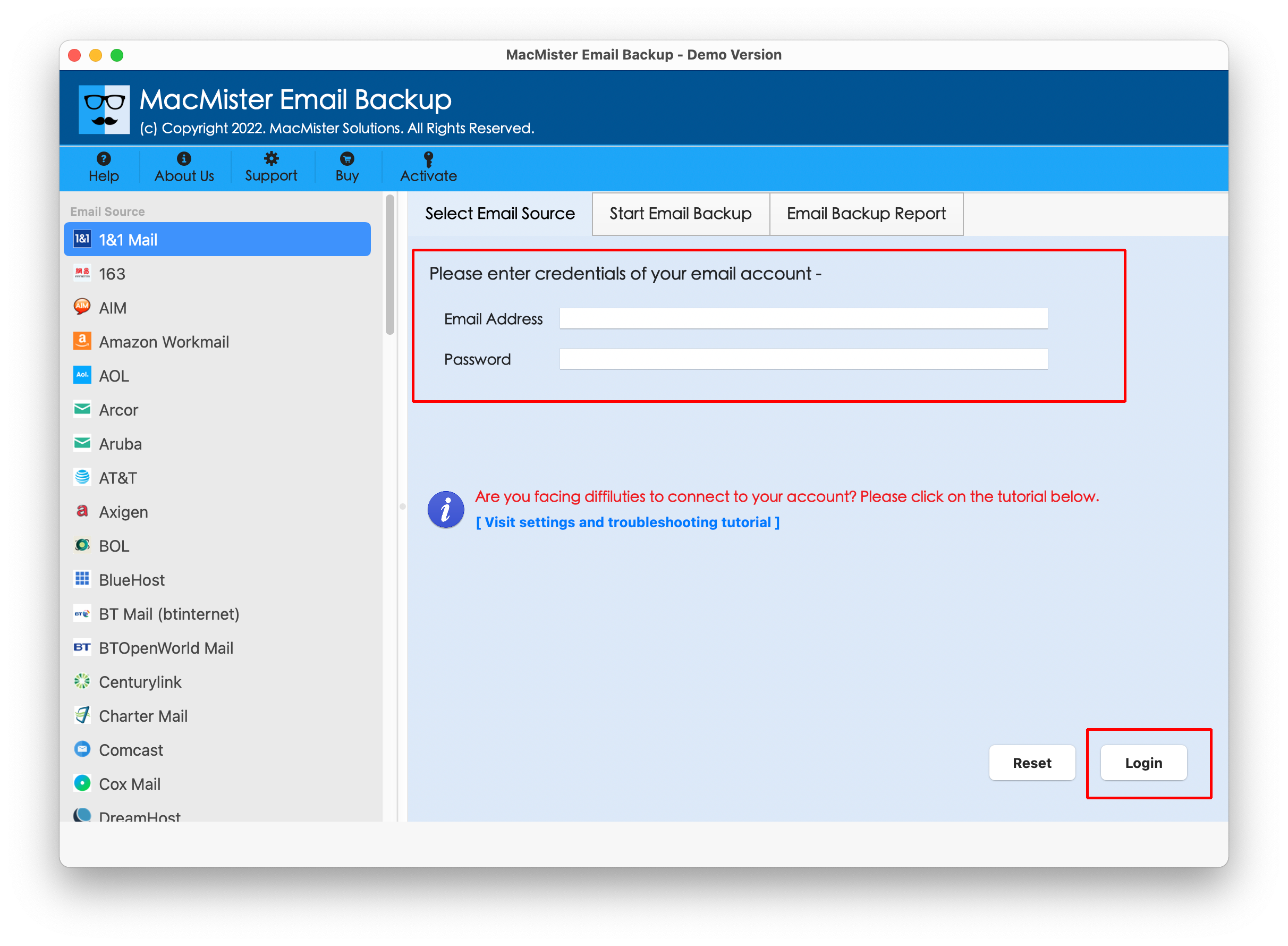
Step 3. After the account is connected, its entire list of items starts appearing on the left pane.
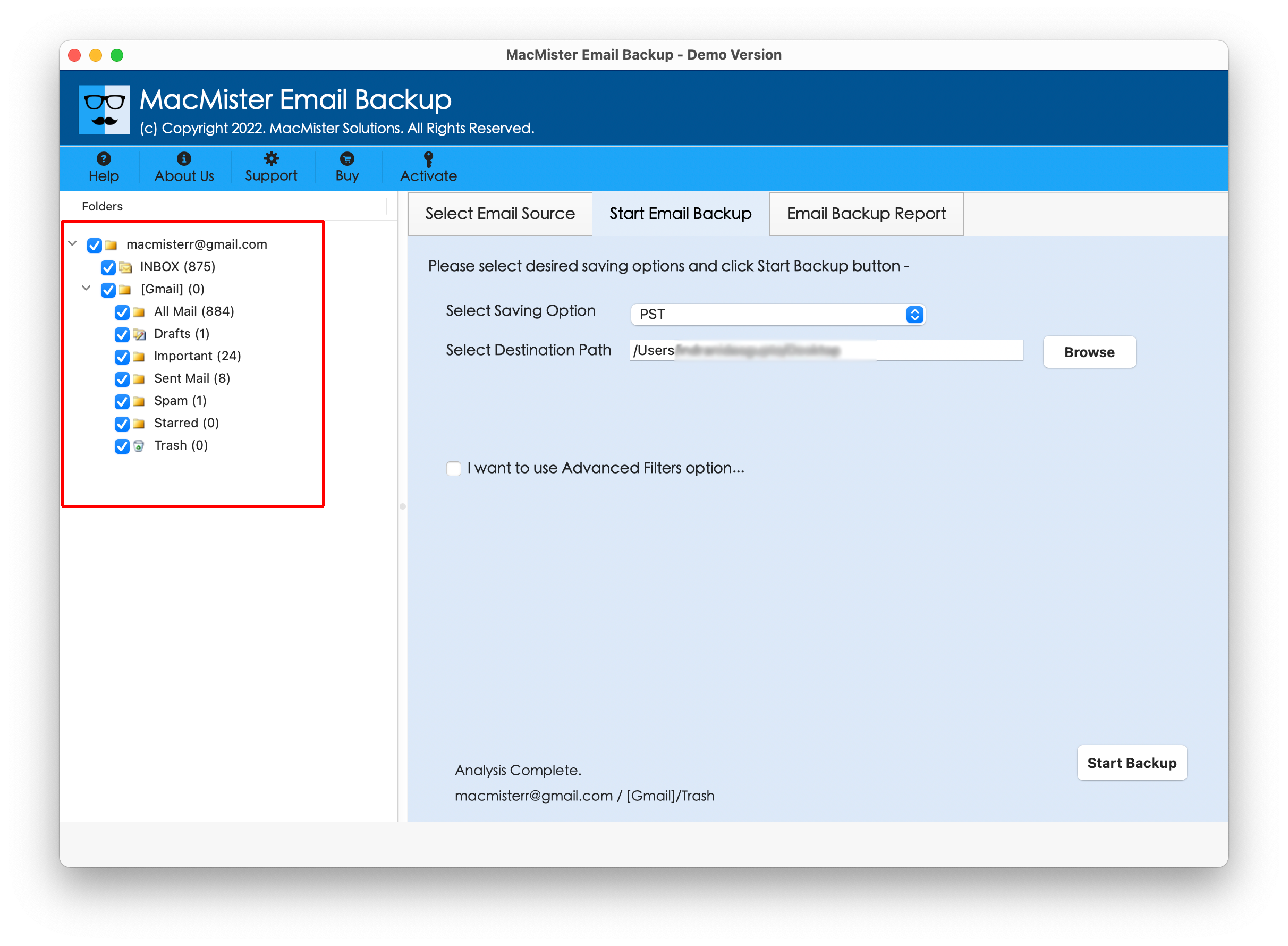
Step 4. Go towards right, click Select Saving Options and choose the required saving type from the menu.
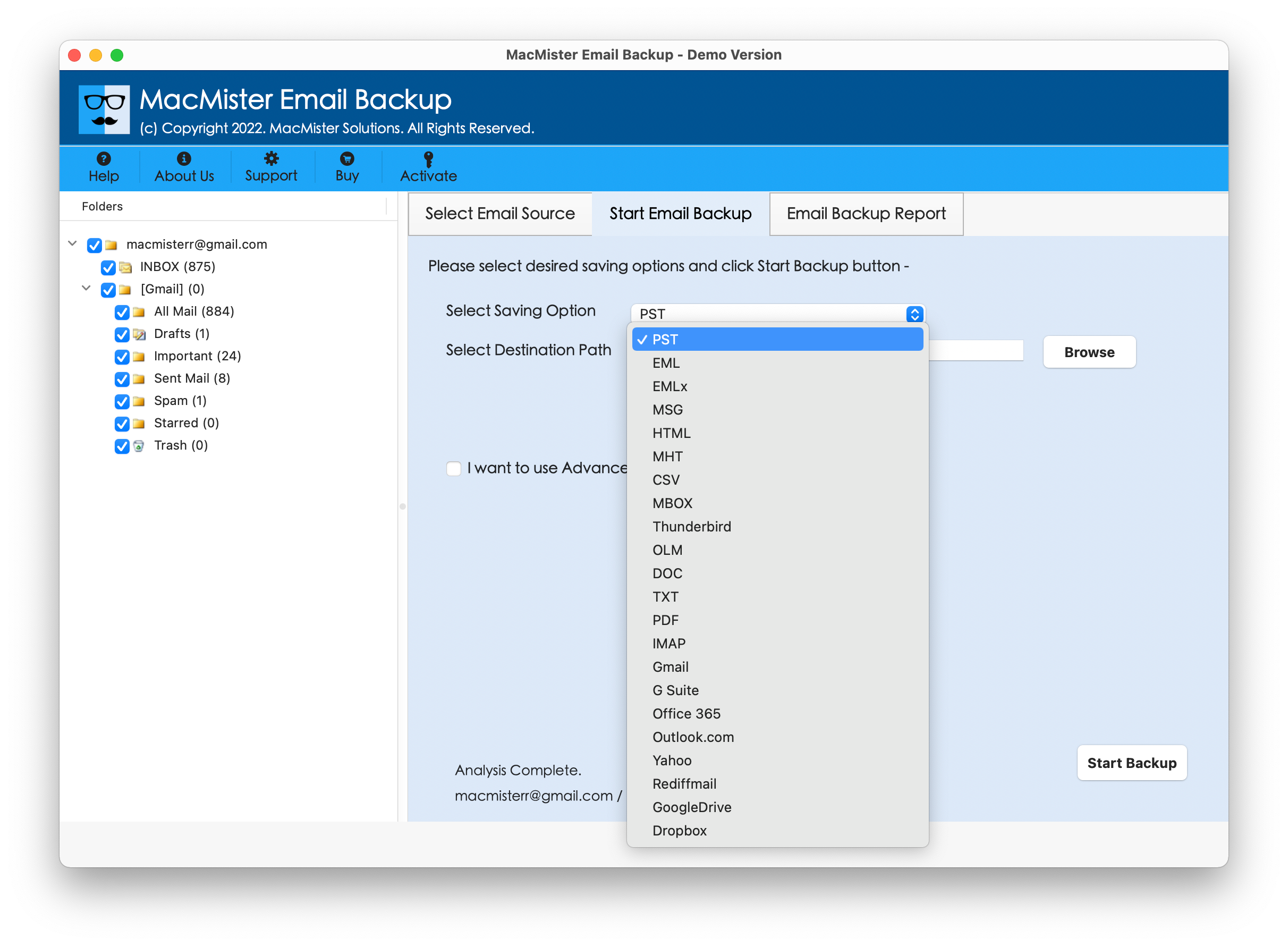
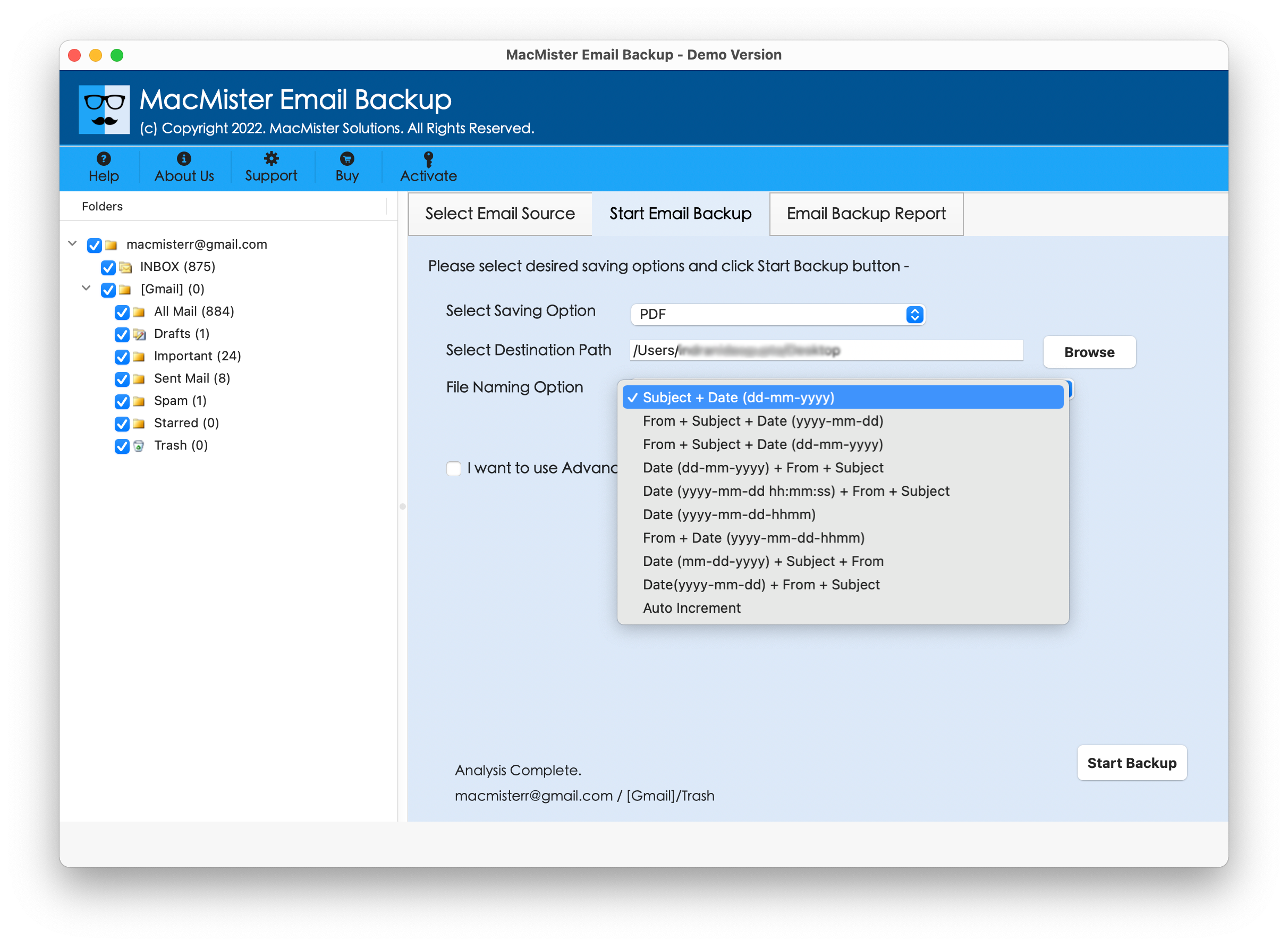
Step 5. Set sub-options of a selected saving type as per your needs, apply filter option (if necessary) and click Start Backup button.
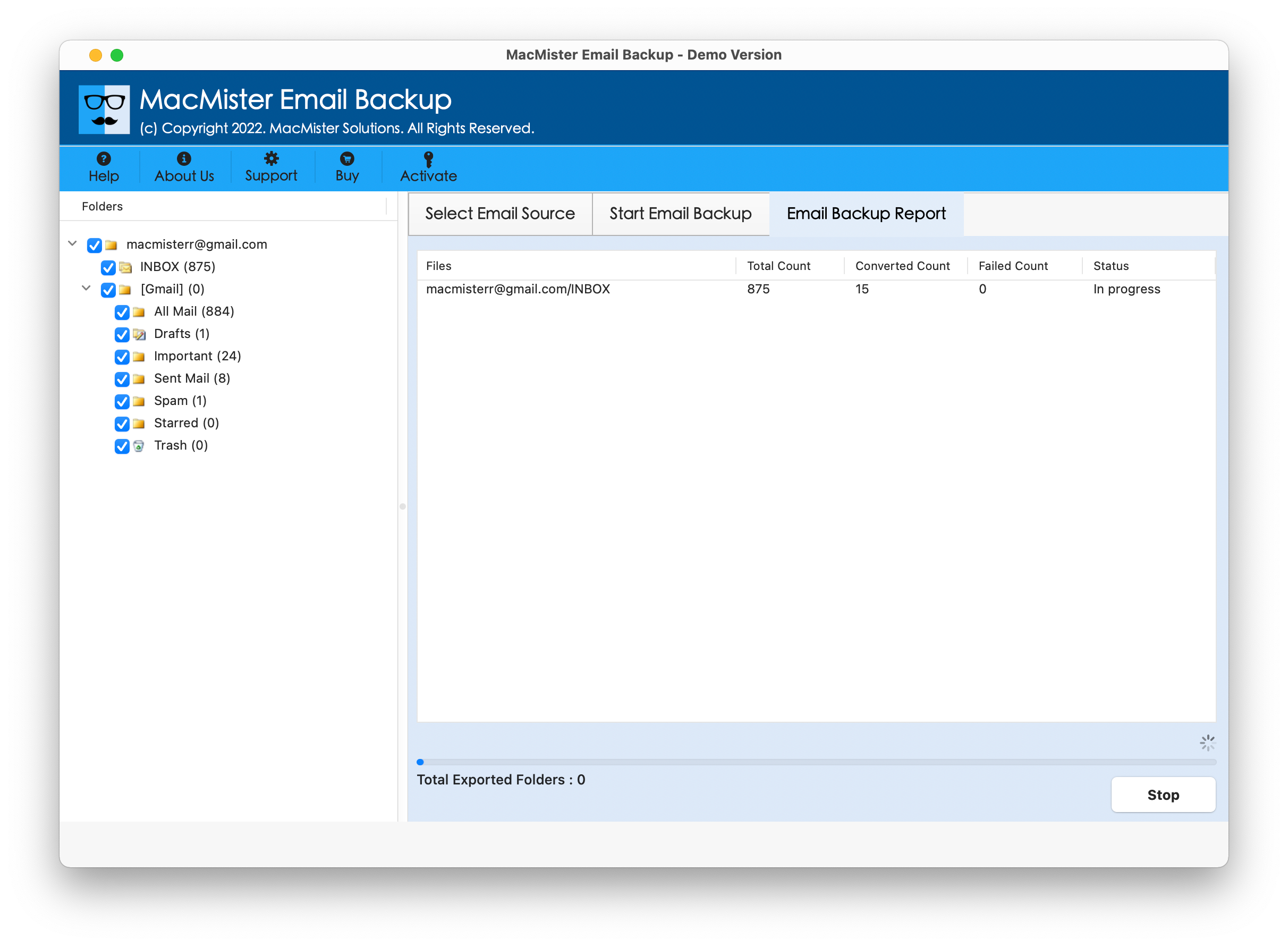
Step 6. The Email Backup Report will be generated which displays the ongoing download status of Outlook Web emails.
Within fraction of seconds, the process will end and then “Process Completed” notification will immediately appear on the screen. Click OK button and then go to the location of resultant files to verify the data. However, you will see that the tool has perfectly performed the entire task. All the emails will appear with correct content, metadata properties, and layout.
Benefits of Choosing the Application
- Directly download emails from Outlook Web in bulk on Mac at once.
- Allow users to download Outlook Web emails to PST, PDF, MSG, EML, CSV, OLM, DOC, HTML, IMAP, Gmail, Yahoo Mail, and more.
- Preserves the originality of Outlook Web emails during the process.
- The folder structure will also appear correctly after the task completes.
- Supports other email sources for download other than Outlook Web such as AOL, Amazon WorkMail, Bluehost, Comcast, Cox Mail, Fastmail, ProtonMail, and more.
- Different Filter types are also present to download specific Outlook Web emails locally.
- Enable users to download emails from Outlook Web on Mac OS Sequoia and earlier versions.
Epilogue
In the blog, we have provided an incredible way to fix how to download emails from Outlook Web on Mac & Windows. The solution mentioned here is dependable, secure, and easy to use. Anyone can utilize this method and perform the desired task within seconds. It has multiple saving types as well which users can use to download Outlook Web emails on Mac accordingly. Also, with its remarkable features, users can obtain the desired outcome in few seconds. Get its free demo version to check the process in detail. It also allows downloading 25 Outlook Web emails on Mac free of cost.