How to Download Gmail Emails for Offline View on Mac?
Are you having a Gmail account and want to view some of its emails offline? Wondering how to download Gmail emails for offline view? Searching for an appropriate technique to access and read Gmail emails offline on Mac? If yes, then not to worry, just go through the entire article in which you will find a solution that will help you to download emails for offline view on Mac OS.
Quick Note. If you have Gmail MBOX files and want to save the same on Mac in a readable file type, then use MacMister MBOX Converter for Mac. An advanced and proficient solution for converting unlimited MBOX files into 15+ saving options on macOS such as PST, MSG, EML, PDF, MHT, HTML, DOC, Gmail, IMAP, Outlook.com. Office 365, and more.
Gmail is a trustworthy webmail service that will not suddenly delete your emails or deactivate the account. However, you may sometimes need to take backup of Gmail messages and want to save them offline due to many reasons. There are many ways to download Gmail emails for offline view on Mac. We have discussed all of them. You can review them and opt for the same that suits you the most.
Multiple Ways to Download Gmail Emails for Offline View
Method 1. Download Emails from Gmail for Offline View using Email Client
In case of Microsoft Outlook, Thunderbird, Windows Live Mail or any other email client, make sure that POP is enabled of both the email servers. And, if POP is not enabled, then follow the steps and perform the same first:
- Open Gmail. Go to Settings by clicking the Gear icon appearing on the top-right of the account.
- Click See All Settings.
- Navigate to Forwarding and POP/IMAP tab.
- Check the status of POP. If it is enabled, then you do not need to do anything. If it is not enabled, then select Enable POP for all Mail option and click Save Settings.
Once the steps are implement, go to your desktop email client to add Gmail in the same. In the next section, we have provided the steps that you can use to access emails from Gmail in a desktop-supported email application.
Steps to Connect Add Gmail Account in Microsoft Outlook
Step 1. Open Microsoft Outlook on Mac.
Step 2. Click on Outlook menu in the top-left corner of the screen and select Preferences.
Step 3. Click on Accounts appearing under Personal Settings section.
Step 4. Tap on + button displaying at the bottom left corner of the window to add a new account.
Step 5. Enter email address of Gmail account and click Continue.
Step 6. Enter password of the same Gmail account and hit Add Account button.
Step 7. In case of two-factor authentication enabled on the Google account, you will need to generate the app password from the Google account settings and use the same instead of the regular password.
Step 8. Outlook will attempt to automatically configure the account settings. If it is successful, then skip to step 11. If not, then continue with the step 9.
Step 9. Select IMAP as the account type and provide the following details:
- Incoming Server: imap.gmail.com
- Outgoing Server: smtp.gmail.com
- User Name: Gmail account email address
- Password: Gmail account password
Step 10. Click advanced button and specify the following additional details:
- Incoming Server Port: 993
- Use SSL to Connect: checked
- Outgoing Server Port: 587
- Use SSL to Connect: checked
- Authentication: Password
Step 11. Click Add Account to finish adding the Gmail account to Outlook for Mac.
After the account is added, it may take some time for the emails to sync with Microsoft Outlook on Mac. You can select the required Gmail folders to sync by going to the Folders tab in the account settings and selecting the folders you want to include.
Method 2. View Google Emails Offline using Google Chrome
- Go to web-browser and open Gmail account.
- Navigate to Settings (gear icon) appearing on the top-left of the screen.
- Click See all Settings.
- Select Offline.
- Select the checkbox of Enable Offline Mail.
- Adjust the settings of sync and security as per requirements and click Save Changes.
- Now, to view the messages online, open chrome browser and go to mail.google.com.
Method 3. View Google Emails Offline using MacMister Gmail Backup for Mac
With the help of MacMister Gmail Backup Tool for Mac, users can view Google emails offline with attachments accurately. The software contains user-friendly interface and provides a platform that is manageable by professional and novice users. The steps of the tool are also non-typical and so with the help of the same, users can view Google emails offline on Mac in few seconds. The application allow users to access emails from Google Mail offline on 15+ Mac-supported saving options such as PDF, HTML, TXT, DOC, PST, MSG, EML, EMLx, MBOX, OLM, and more.

Not only this, users will get plenty of features with the saving types with the help of which users can download emails from Google Mail on Mac according to their requirements. However, the free demo of the tool is available with the help of which users can save Gmail emails with attachments for free.
Working Steps to View Google Emails Offline on Mac
Step 1. Download, and open MacMister Gmail Backup Tool on Mac.
Step 2. Specify Gmail account email address with password in the required fields. Click Login.
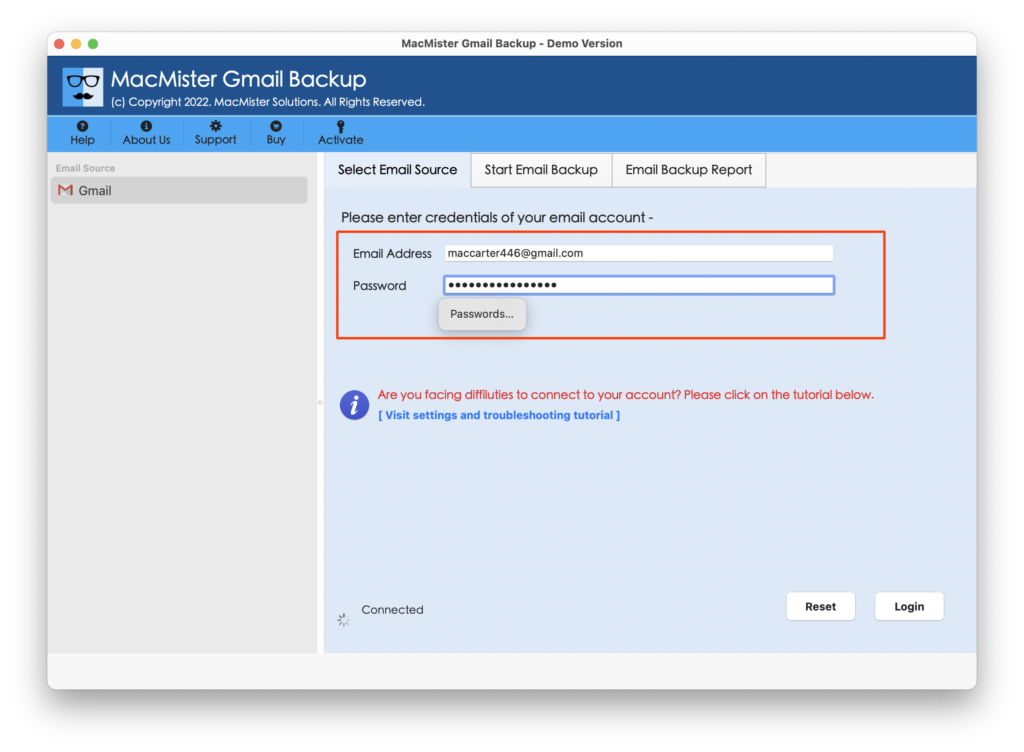
Step 3. The tool will connect with the specified Gmail profile and its mailboxes will start to immediately list on the software. Click Next.
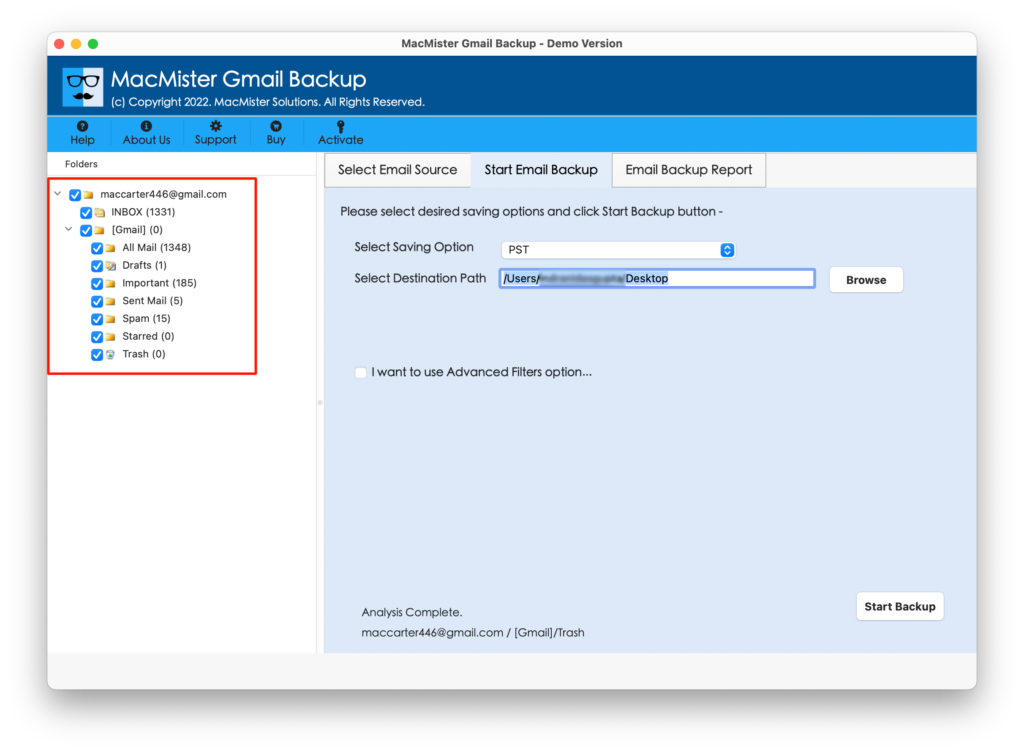
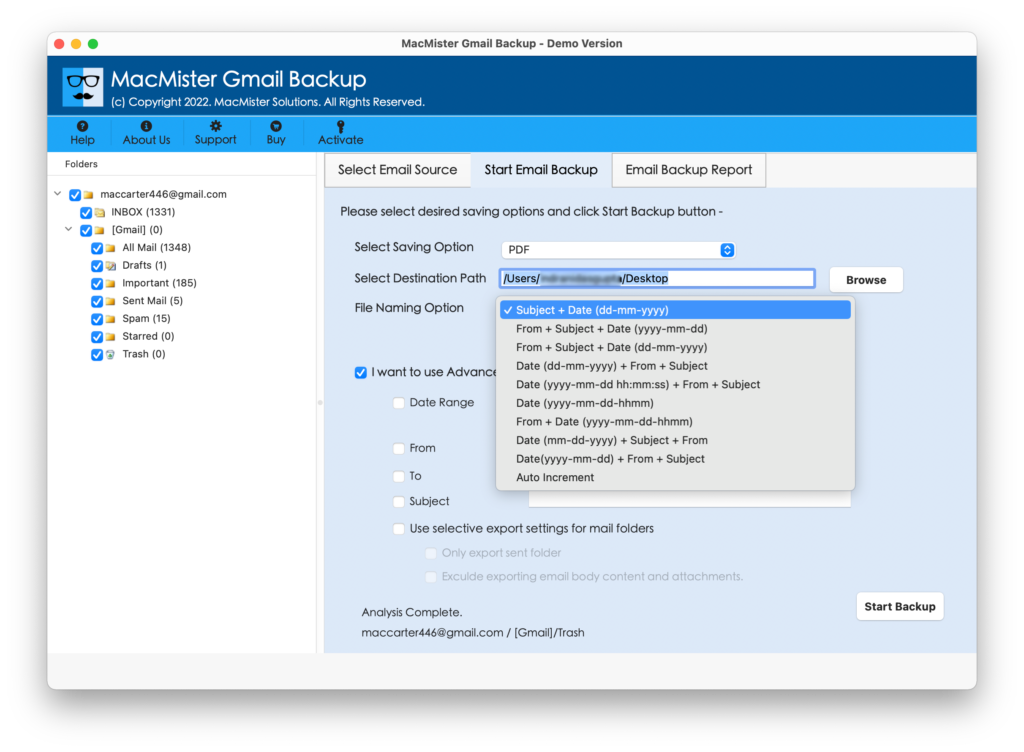
Step 4. Navigate to Select Saving Options and select the required saving type from the list.
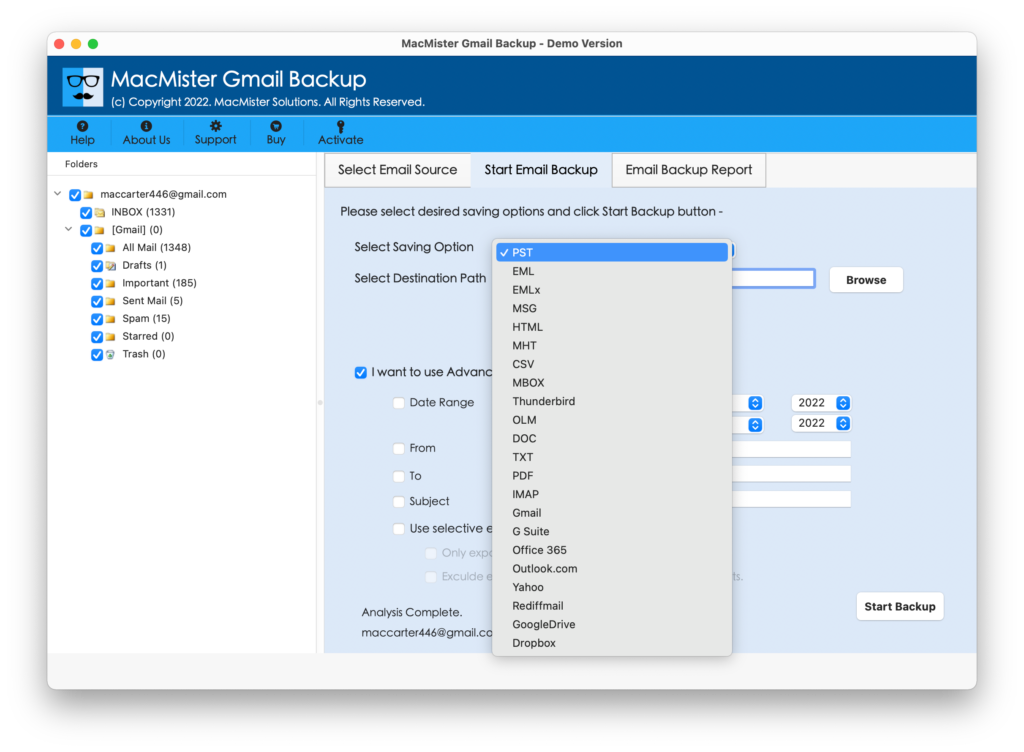
Step 5. Set the sub-options according to the requirements and click Start Backup button.
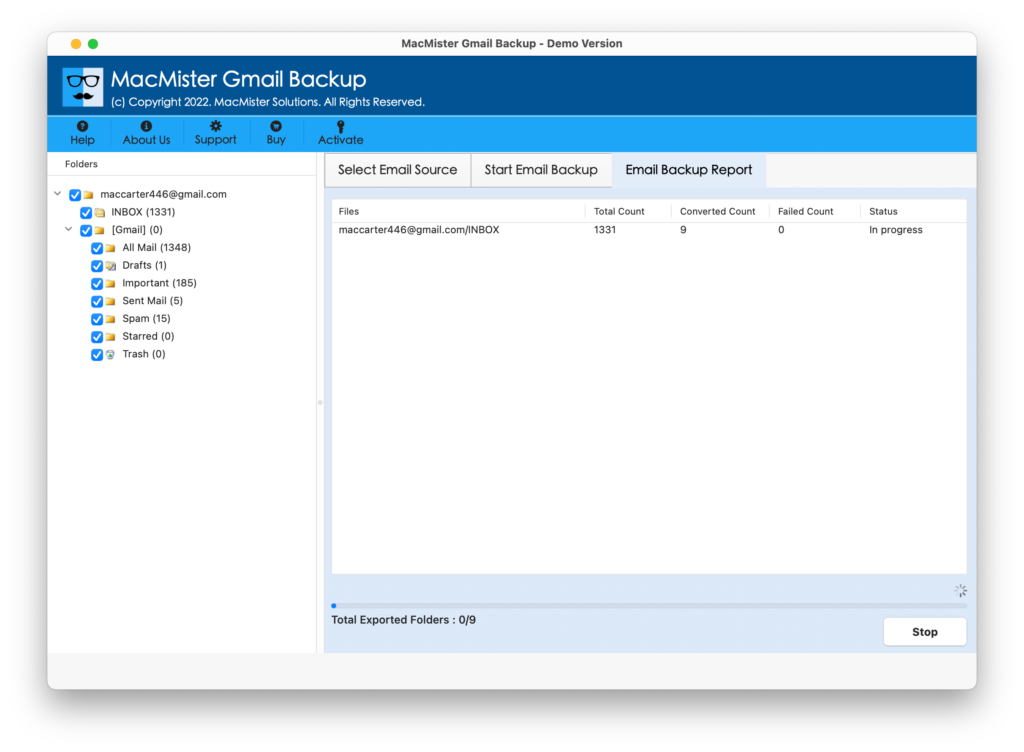
Step 6. The process will go live and the tool will show Email Backup Report through which users can track the export progress of Google emails.
When the process will finish, users will get a message that will show “Process Completed”. Tap on OK button and go to the destination path where resultant files are saved. You can pen the required output file and verify the result. However, you will see that data of each and every email message is accurate and every file is appearing with exact formatting properties.
Conclusion
The blog has highlighted the direct approach to view Google emails offline on Mac. We have approached three methods. However, you can opt for the suitable one and implement the task according. The first two methods require external support. Because they will be handled only by the technical experts. The third method i.e. Gmail Email Backup Software for Mac is quick, easy, and secure. It assures smooth migration and accurate results in minimum time. You can even use its free demo to check the steps of the tool. It allows to save first 25 Gmail emails offline on Mac free of cost.