How to Export Emails from Titan Email on Mac & Windows?
If you need to export emails from Titan email urgently and not sure of any method to implement the necessary process! Then not to worry at all because in the article we have introduced a powerful solution that will help exporting emails from Titan email service precisely to a different email client or saving option.
Titan Mail is a contemporary webmail server designed to cater the requirements of businesses and enterprises. It is known for delivering wide range of advanced features that aimed at enhancing the business productivity and ensuring security. The email server gives priority to end-to-end encryption that guarantees the protection of data against external risks. Furthermore, exporting emails from Titan Mail provides additional security layer to safeguard essential data.
But unfortunately, Titan Mail does not include any inbuilt option to export Titan emails. Nevertheless, it is possible to manually export emails from Titan Mail by synchronizing the email account with a different email application but the process will be lengthy and complex. Therefore, we have provided a straightforward solution that helps you to achieve a task by operating few simple clicks. And before delving into the process, let us first understand the significance of saving Titan emails on Mac.
Benefits of Export Emails from Titan Mail Locally
There are numerous advantages of exporting Titan Mail emails, some of them are –
- The export of Titan emails allow users to access them anytime without stressing over internet connectivity.
- Exporting Titan emails will protect the data from accidental deletion of data, hacking, virus attacks, etc.
- Switching from a Titan webmail to a different email service require the migration of their emails that can only happen after extracting emails from Titan Mail account.
How to Export Emails from Titan Email on Mac & Windows?
The simple and secure way to export emails from Titan Mail is MacMister Email Backup Software Mac & Windows. It has over 30+ webmail sources; however you need to choose IMAP, provide Titan email details with IMAP Host and Port Number then pick the necessary saving type in which you want to export its emails and tap Start Backup button. After this, the application will start exporting emails from Titan email account to a chosen saving type in few seconds. Besides, the user-friendly interface will give freedom to all types of users to utilize the solution effortlessly.
Moreover, the application is programmed with remarkable features with the help of users export emails from Titan email to a required saving option according to the requirements. However, a software freeware version is available with the help of users can explore the complete working of the tool for free.
Working Steps to Export Emails from Titan Mail on Mac
Step 1. Download the software on a Mac-supported platform.

Step 2. Choose IMAP from the sources given on the left. Add Titan webmail credentials with IMAP host and port number and click Login button.
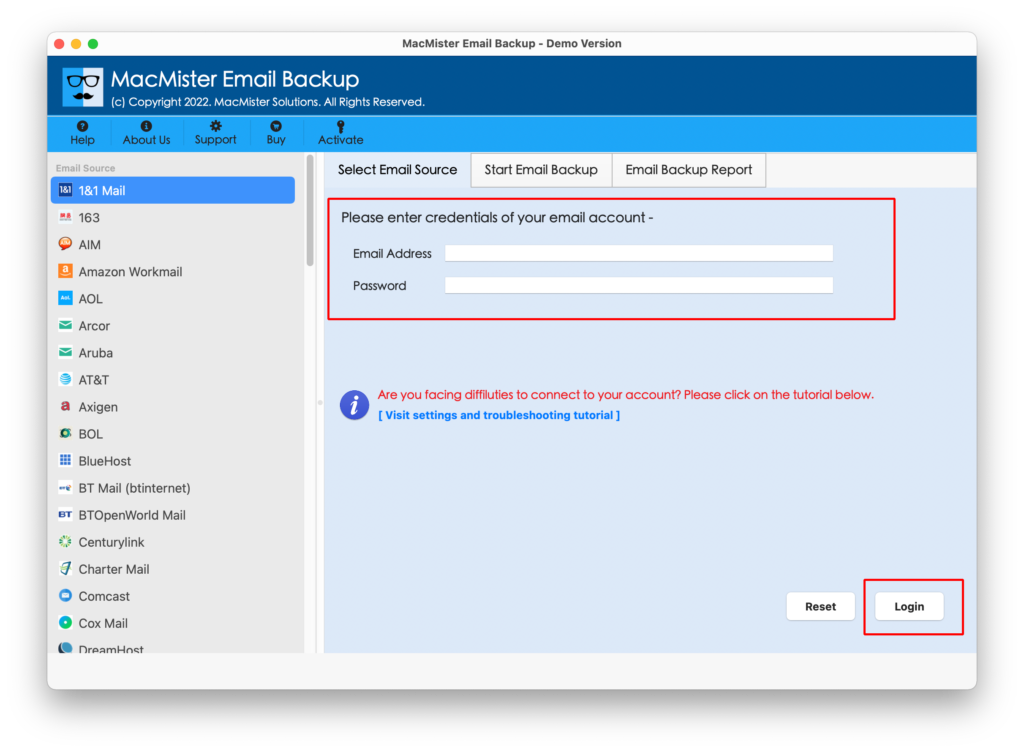
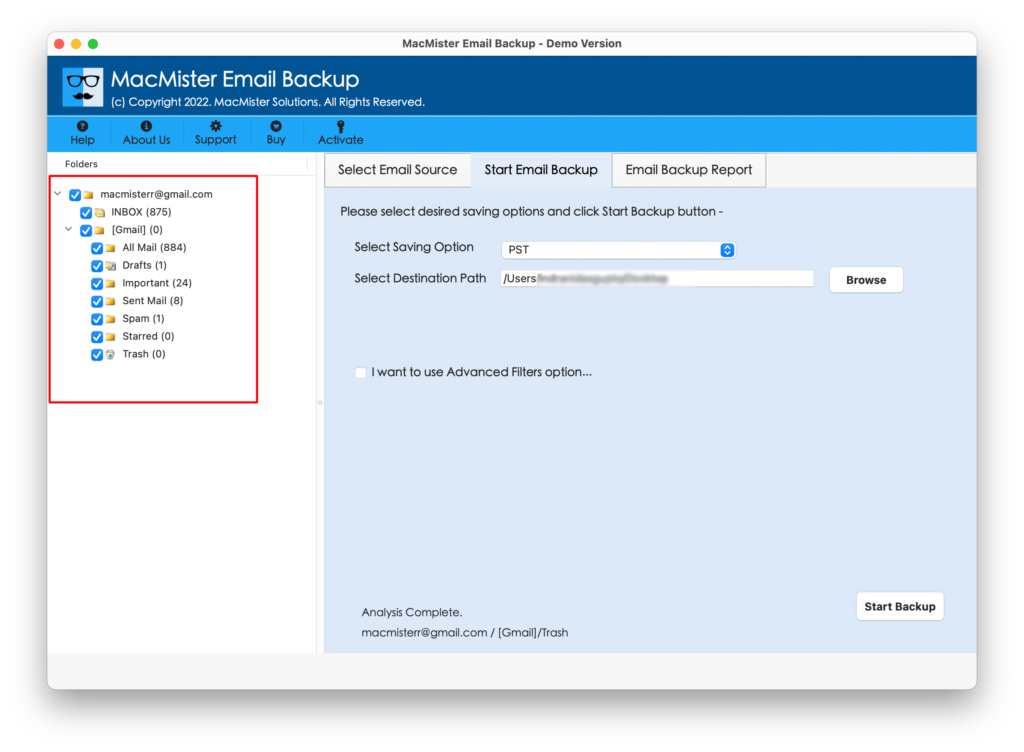
Step 3. The Titan Mail account will connect with the application and its mailboxes start to appear on the left pane.
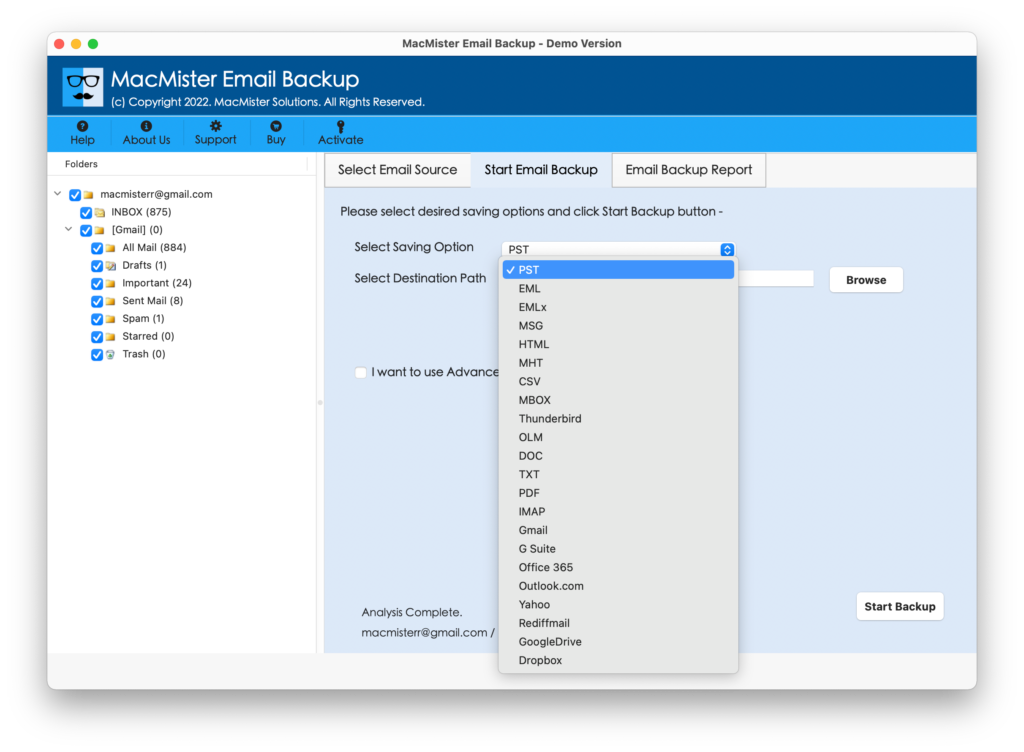
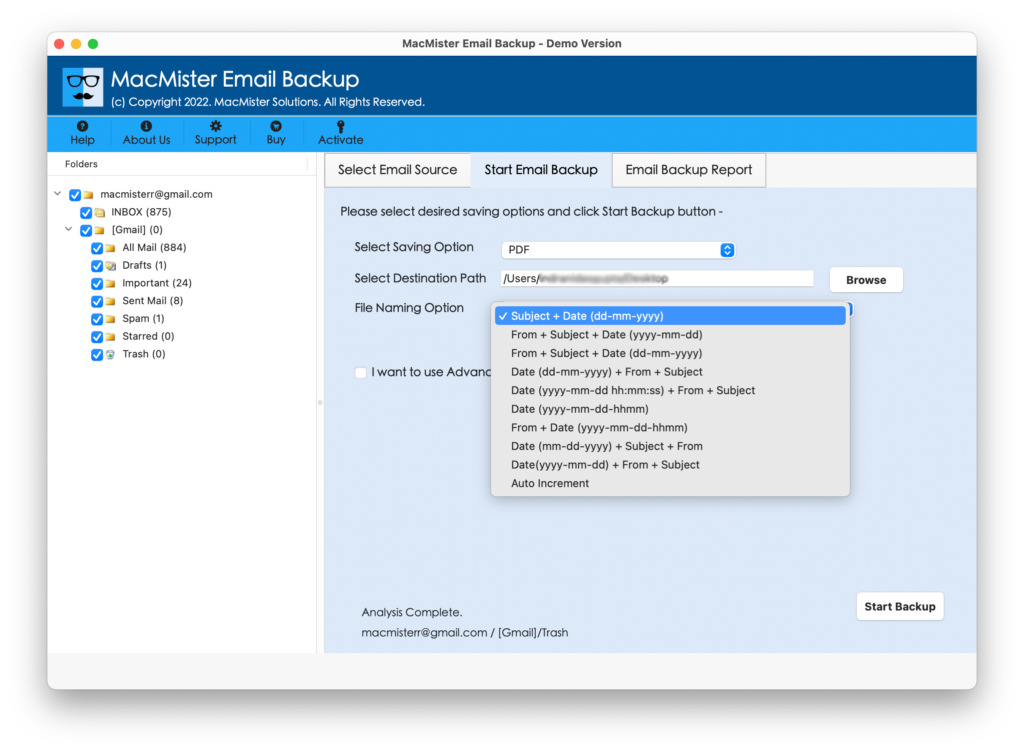
Step 4. Go towards right side of the tool, click Select Saving Options, and choose the required saving option from the drop-down list.
Step 5. Set the options of a chosen saving type according to the requirements. Set the necessary filtering (if needed) and click on the Start Backup button.
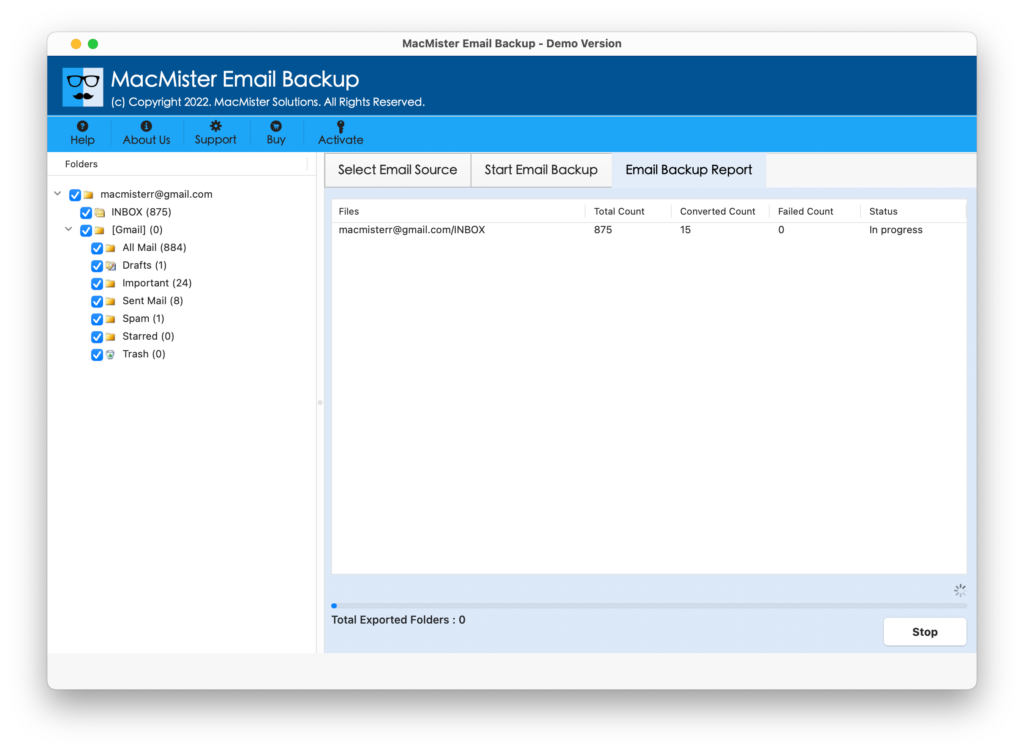
Step 6. The Email Backup Report will generate that shows the live email migration of Titan Mail.
In few seconds, the application will end the procedure and display “Process Completed” pop-up on the screen. Now, click on the OK button and go to the desired destination path to check the results. You will see that the tool has successfully exported Titan Mail emails with 100% accuracy. The emails will appear with precise content, layout, and formatting properties.
Overall, it is a best solution to export Titan Mail emails with attachments into a required saving option without facing any alterations in the original database.
Why to Choose MacMister Titan Mail Migration Tool for Mac?
There are many reasons for choosing MacMister Titan Mail Export Tool and one of them is its features that are listed here –
- Directly export Titan Mail emails with attachments without losing data integrity.
- Includes different types of filter options such as date range, to, subject, etc. to export specific emails from Titan Mail account.
- Ensures the safety of original email messages & attachments of Titan Mail account during migration.
- Equipped with 15+ saving options to export Titan Mail emails such as PST, PDF, OLM, EML, MSG, IMAP, Yahoo, Office 365, Gmail, and more.
- Provides a simplified environment which is manageable by all types of users effortlessly.
- Able to export the entire Titan Mail inbox folder at once.
- Shows Email Backup Report which displays the live migration progress of Titan Mail emails.
- Offers Mac & Windows software versions so that both Mac & Windows users can operate the app effortlessly.
Epilogue
In the write-up, we have offered an exceptional way to fix “how to export emails from Titan Mail” on Mac & Windows. The tool is easy to handle due to its intuitive and comprehensible interface. Also, delivers many advanced features which can be used to export Titan Mail emails with attachments as per specific requirements. Additionally, it has a trial edition that can be used to test the migration steps of the application for free. It also allows to export first 25 Titan Mail emails to required saving type free of cost.