How to Export Gmail to PST without Outlook on Mac & Windows?
Are you a Mac user and have a Gmail account for email management? But want to export a few emails from your Gmail account to PST due to official purposes? Wondering how to export Gmail to PST without Outlook? Searching for a reliable methodology to export Gmail emails to PST with attachments without data loss? No worries, because MacMister here discussed a technique through which one can directly perform batch Gmail import PST at once without facing any changes in the original files.
Gmail is a free webmail service that is introduced by Google in 2004. It is one of the most used and popular email service providers in today’s market. There are more than 1.5 billion active users of Google Mail across the globe. However, it is a powerful webmail service that provides the benefit of email account synchronization with different desktop-supported applications with the help of IMAP and POP protocols.
However, when it was first launched in 2004, it provided 1GB of storage space to users at that time. Today, it offers 15 GB of storage capacity which is divided between multiple Google services like Google Drive, and Google Photos. And, if a user needs more storage, then they can opt for Google One and extend the specified storage limit.
Undoubtedly, Google Mail is used globally by all individuals and organizations. The only drawback associated with the service is that it is cloud-based. And, cloud-supported apps do not deliver any guarantee of data safety. Because nowadays, most of the hacking takes place on cloud applications. This results in loss of data, data breaches, data corruption, and more. Therefore, to prevent the data from any unexpected misshapen, many users think about taking a backup of Gmail emails on a desktop-supported file type.
Why Exporting Gmail to PST is Beneficial?
There are multiple instances that pressurize users to export Gmail emails to PST. And, some of them are highlighted in the section:
- Users are moving to Outlook email clients from Gmail.
- PST files are highly secure and so users can protect their Gmail emails in PST.
- Outlook PST files are importable and easily accessible in any version.
- Taking a backup of Gmail to PST will prevent users’ data from malicious attacks.
- Gmail emails will become accessible when exported to PST during unexpected server shutdown or maintenance.
- Hacking can cause data breaches and so saving Gmail emails in a desktop-based file type will be beneficial.
Why to Opt PST Format for Gmail Import PST Process?
PST stands for Personal Storage Table and is a default file type of Windows Outlook. It stores the important data items of the user account such as emails, contacts, calendars, and other items. It is equipped with n number of advantages and some are mentioned here:
- PST files are easily portable. In other words, they can be transferred immediately from one Outlook client to another without IT skills.
- Includes Password option which users can set to save their important data from unauthorized access.
- Takes care of the mailbox size and does not put users into trouble when used across Microsoft Outlook.
- It can be saved on a local system and work as a backup for users.
How to Export Gmail to PST without Outlook on Mac & Windows?
There are many users who do not use Outlook email clients but still prefer PST for data backup. So, the best way for Gmail import PST process without Outlook is MacMister Gmail Backup Tool for Mac & Windows. The all-in-one proficient solution that is direct, easy to use, and highly secure. Anyone can operate the tool without technical skills and export unlimited Gmail emails to PST with attachments at once. The steps are also simple. They will save the crucial time of users and help them achieve the required task within seconds.
Moreover, the exceptional features of the tool will help users to export Gmail emails to PST without Outlook according to their specific requirements. Not only this, users will get the opportunity to test the entire process of Gmail import PST by using the free demo version of the tool.
Working Steps to Export Gmail to PST on Mac without Outlook
Step 1. Download, install, and run Gmail to PST Converter for Mac on macOS.
Step 2. Add Gmail credentials i.e. email ID and app password and click the Login button.

Step 3. The Gmail account will connect and its associated mailboxes will start to list on the software.
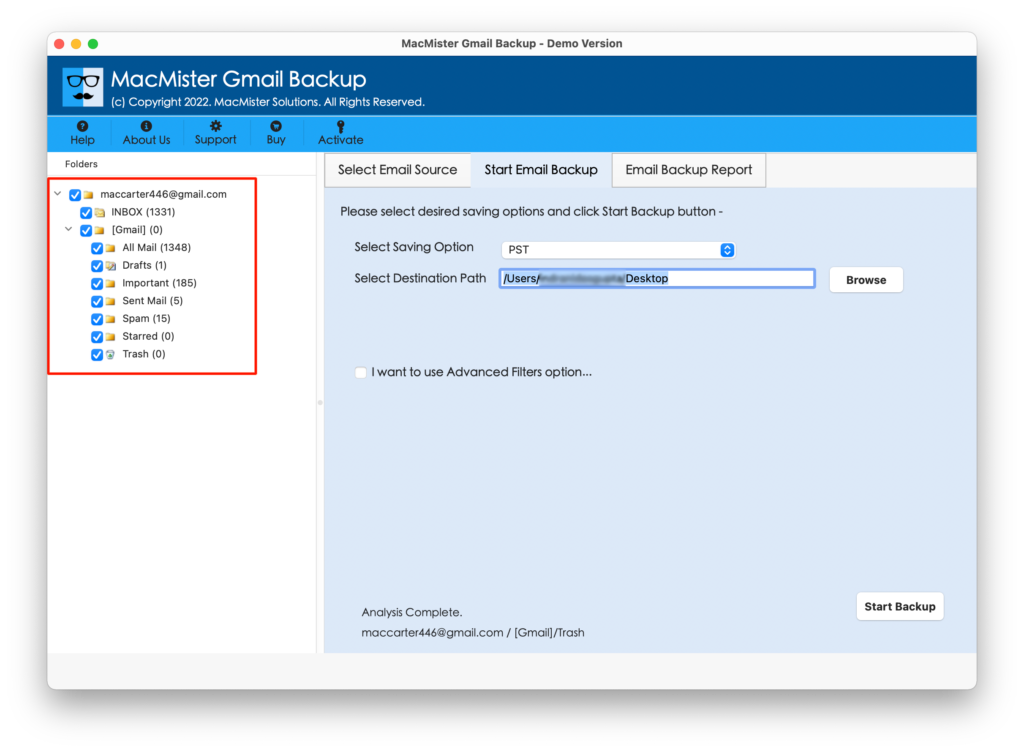
Step 4. Pick the PST option after clicking the Select Saving Options property.
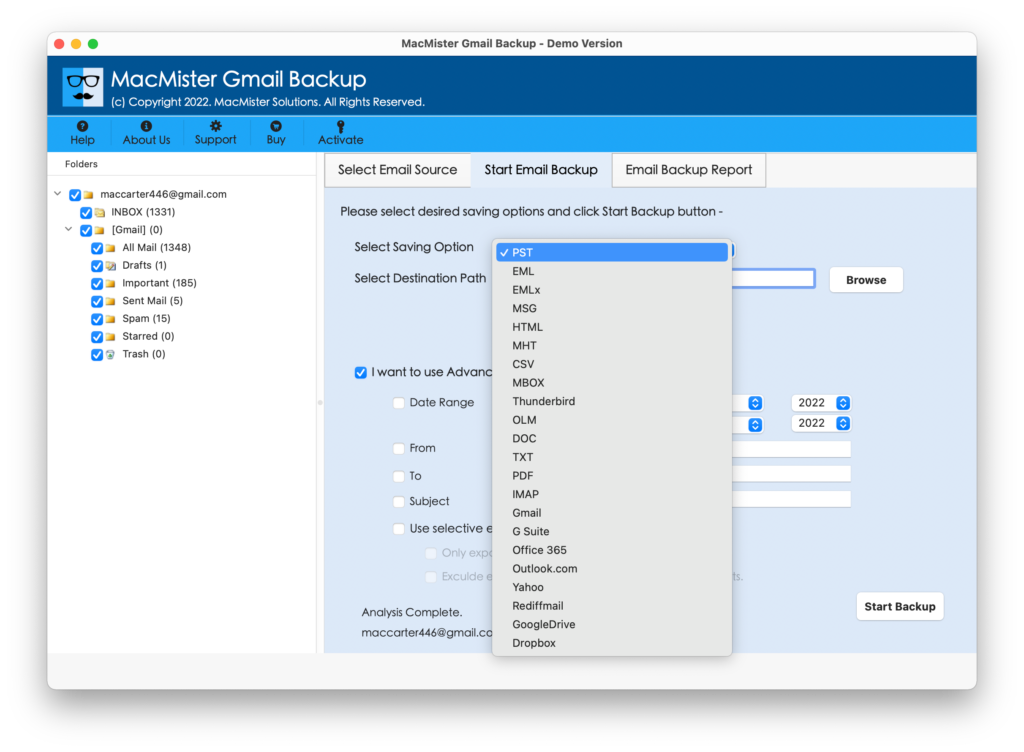
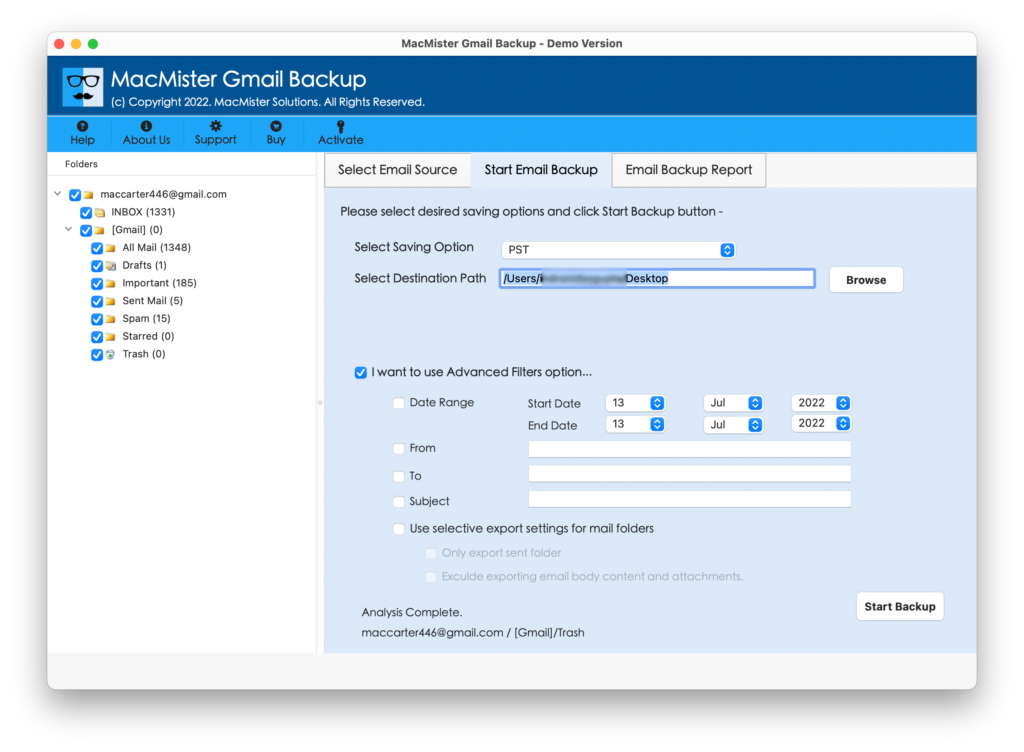
Step 5. Set the PST sub-options as per requirements. You can use the Filters section also if you want to export selective Gmail emails to PST. Last, hit the Start Backup button.
Step 6. The Gmail to PST process will be live and the current status will appear on Email Backup Report window.
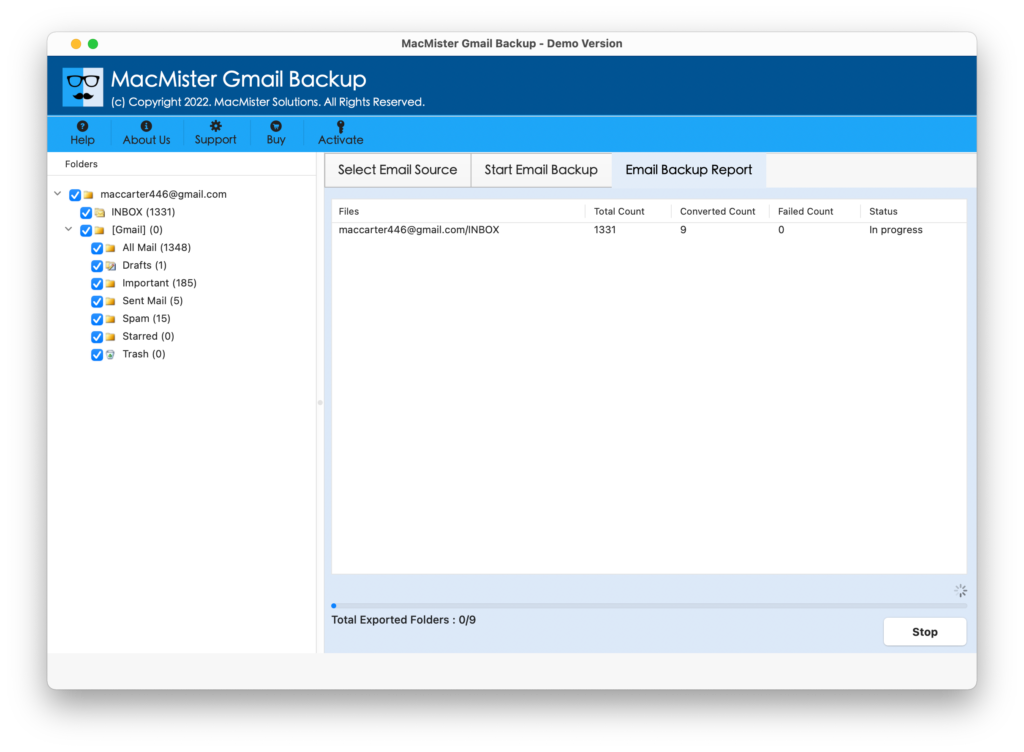
The entire task will finish in a few seconds and the tool will show Process Completed notification to users. Click OK and go to the location where PST files are saved. You can send them to Windows users or import the same into Outlook for Mac if needed. However, you do not need to worry about the content because the data of each and every email will be accurate and will appear with the correct email components.
Why MacMister Gmail to PST Solution is Expert’s Suggested?
MacMister Gmail to PST for Mac & Windows has several benefits and some of them are:
Directly Export Gmail Emails to PST
The software has the ability to directly export Gmail emails to PST with attachments. And, to do the same, simply add Gmail account details and wait once it gets connected with the tool. Then, choose PST from Select Saving Options and set its sub-options as well. Last, click on Start Backup. Now as soon as you click on Start Backup, the process of Gmail import PST will quickly start and immediately export all Gmail emails to PST in minimum time without any trouble.
Protects Gmail Confidential Details
The utility will make sure to protect the confidential details of users while implementing the migration process. Thus, it will ask to provide the app password instead of the main password of the Gmail account. So, by doing this, the main details of the user’s account remain protected and secure and the procedure will be successfully performed with the app password.
Advanced Filters & Selective Migration
The application has a separate section for Advanced Filters. It has options like date range, from, to, subject, etc. By applying the required filter property, users can export selective Gmail emails with attachments into PST without any trouble.
Shows Export Status in Live Window
The tool will show the Email Backup Report window after the user clicks on the Start Backup button. The screen will display the current progress of Gmail emails i.e. total file count that is transferred, files left to transfer, and export status. This will help users to keep track of their files using the same and check the live migration Gmail import PST.
Supports all Mac OS & Windows OS
The advanced program is installable on all versions of Mac & Windows OS. The Mac users can export Gmail emails to PST with attachments on Mac OS Ventura, Monterey, Big Sur, Catalina, High Sierra, etc. Windows users can download and use the tool on Windows 11, 10, 8.1, and earlier Windows versions.
Quick Note. Use the FREE DEMO to explore more incredible software features & options.
Epilogue
The write-up here mentioned a direct process to export Gmail emails to PST without Outlook on Mac and Windows. The Gmail Email Backup Software for Mac is a safe and secure app to download. No technical skills are necessary to operate the tool. It guarantees accurate and quick results. However, a free demo is available. It will help users to test the working steps of the application for free and analyze the process of Gmail import PST in a few seconds. It allows exporting the first 25 Gmail emails to PST with attachments free of cost.