Know How to Fix “Outlook Folders Disappeared” Issue
There could be several reasons why Outlook folders disappeared. You may go through the guide to understand the causes behind the issue and at the same time learn some ways to fix disappeared folders in Outlook.
Microsoft Outlook manages incoming emails in the Inbox folder and outgoing emails in the Sent Items folder. Drafted emails are present in the Drafts folder whereas deleted emails are transferred to Deleted Items folders. Similarly, users can generate few other folders in MS Outlook for email management. For examples, they can make folders by sender’s name and set up rules to make sure that any email sent by a specific sender is directed to the chosen folder.
At times, users face a situation where Outlook folders disappeared. In case you are one such user and you unable to find your essential emails in Outlook, then follow the methods and solutions discussed in the further segment.
Reasons to Resolved Outlook Folders Disappeared or Missing Error
The folders in Microsoft Outlook could disappear for many reasons; some of them are highlighted here –
- Accidental folder deletion
- Folder is not visible
- Sync issues between mailbox server & Outlook
- Wrong filter or rules
- Outlook profile corrupted
- Corrupt or damaged Outlook data file (PST)
Solutions to Fix and Resolve Outlook Folders Disappeared Issue
Go through the below solutions to successfully fix disappeared folders in Outlook –
Method 1. Search for Disappeared Folder in the Folder List
Sometimes, users could have accidentally moved the folder to a different location. To check this, go to the Outlook folders list and try to find the missing folder. Follow the below steps to perform the same –
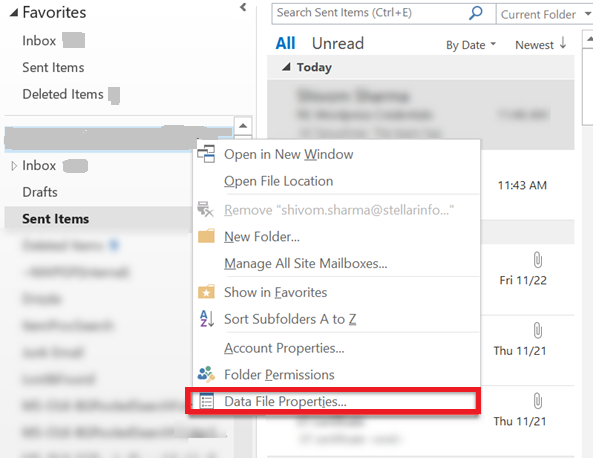
Step 1. Run Outlook, right-click on the mailbox account and tap Data File Properties.
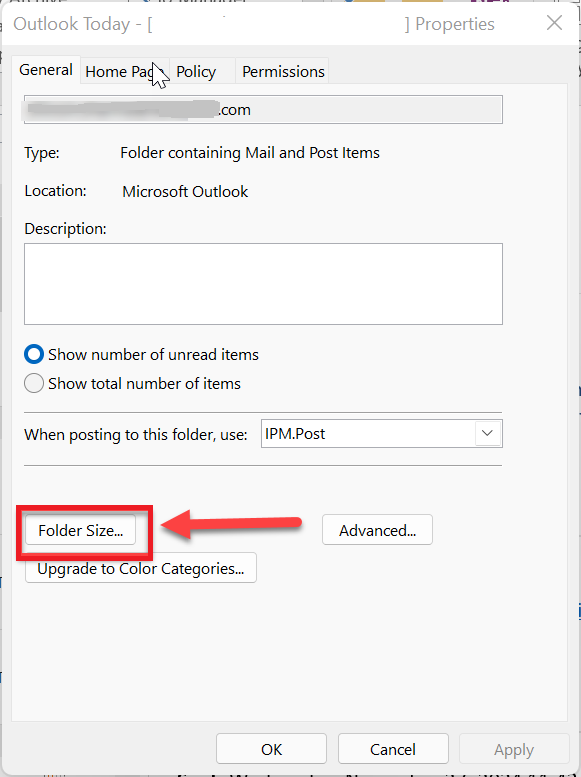
Step 2. From Outlook properties screen, click Folder Size… button.
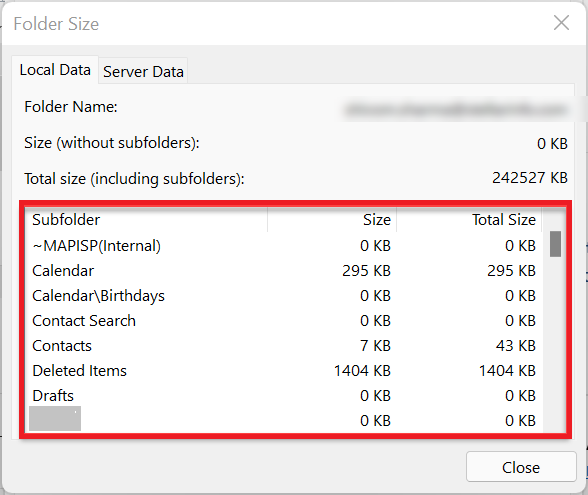
Step 3. A window will display showing all the folders and their specific location. Look for the list to confirm if the missing folder is listed. If it is, then make sure to note down its location. And, in case the folder doesn’t appear, then follow the next method.
Method 2. Reset View Settings
If there is an issue with the View Settings, then one may encounter some folders missing or not appear in Outlook. However, reset the View Settings by using the below steps –
Step 1. Close Microsoft Outlook.
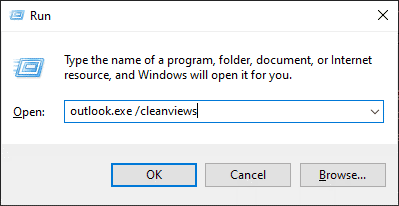
Step 2. Press Win + R key and type outlook.exe/cleanviews, and then tap OK. This will reset views in Outlook.
Alternatively, implement the below steps to reset View Settings –
Step 1. In Outlook, navigate towards View tab.
Step 2. From Current View section, tap Reset View.
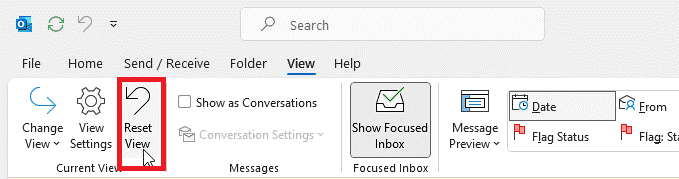
Step 3. If dialogue box appears, tap Yes.
Afterwards, check the folder pane and if the folder pane is not visible –
Step 1. Navigate towards View tab.
Step 2. Tap Folder Pane and select Normal.
In case you are still facing challenges, then follow the next solution.
Method 3. Subscribe or Re-sync the Folders
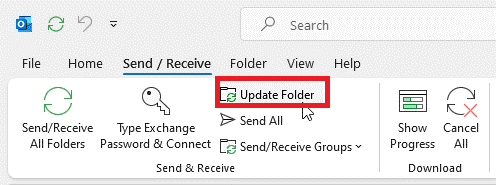
If you failed to find important folders in Outlook, then there are possibilities that you could have unsubscribed the folders or the subscription to particular folder has been reset or removed. In such a situation, check and subscribe to a folder one more time. Then, click Send/Receive tab in Outlook and tap Update Folder.
Method 4. Check Deleted Items Folder
It might happen that you have deleted the folders accidentally. Deleted mail items and folders are moved to the Trash or Deleted items folder temporarily. So, in case you search for a particular mail folder in the navigation pane, then you may check deleted items or trash folder. Follow the below steps to check deleted items folder to find disappeared files –
Step 1. Go to Deleted Items or Trash Folder and search for a missing folder.
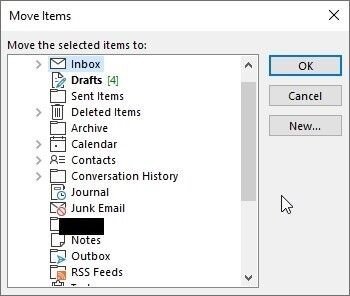
Step 2. If the folder is present, right-click on the same, select Move and click Other Folder.
Step 3. From the folders list, select the main folder where the folder was located earlier and tap OK.
Method 5. Recover Folder from Mail Server
If the disappeared folder does not appear in Deleted Items folder, then there is a probability that it is permanently deleted or removed from the Deleted folder after 30 days. Alternatively, it is advised to restore folder from Mail Server, to do the same, follow the below steps –
Step 1. Open Outlook, go to Folder and tap Recover Deleted items.
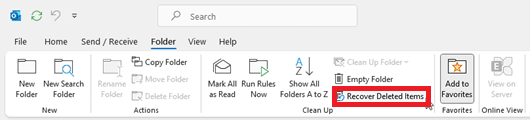
Step 2. If the folder is missing, tap Home, and choose Recover Deleted Items from Mail Server.
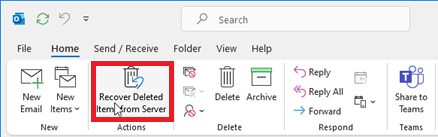
Step 3. From the available deleted items, search and select disappeared mail folder.
Step 4. Select the radio button of Restore Selected Items and hit OK button.
In case the folder was not deleted, then there could be other reasons why Outlook folder is disappeared.
Method 6. Fix or Make new Outlook Profile
Outlook profile corruption can result in multiple issues, including the missing or disappeared folder issue. However, you may fix the issue by repairing Outlook profile. Here are the steps –
Step 1. Open Outlook, go to File, click Account Settings and tap Account Settings.
Step 2. Select email profile from Email tab and click Repair.
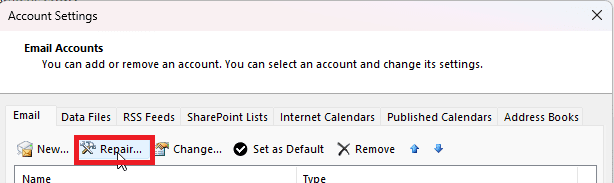
Step 3. Go through the instructions and repair Outlook profile.
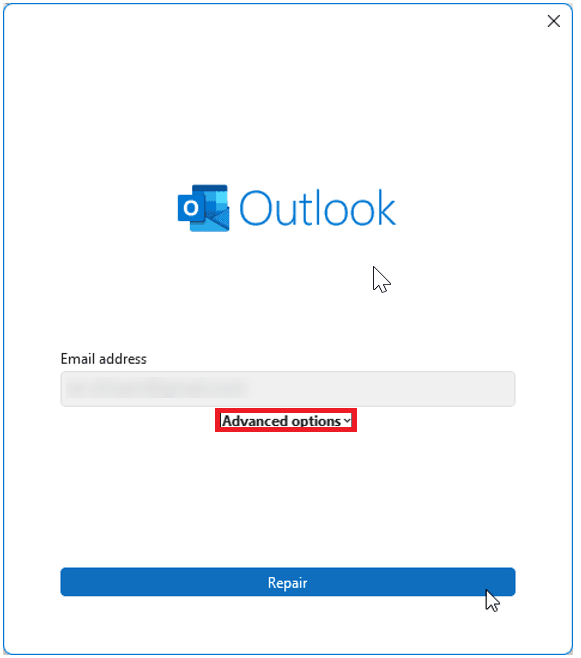
Step 4. Tap Repair button again to continue.
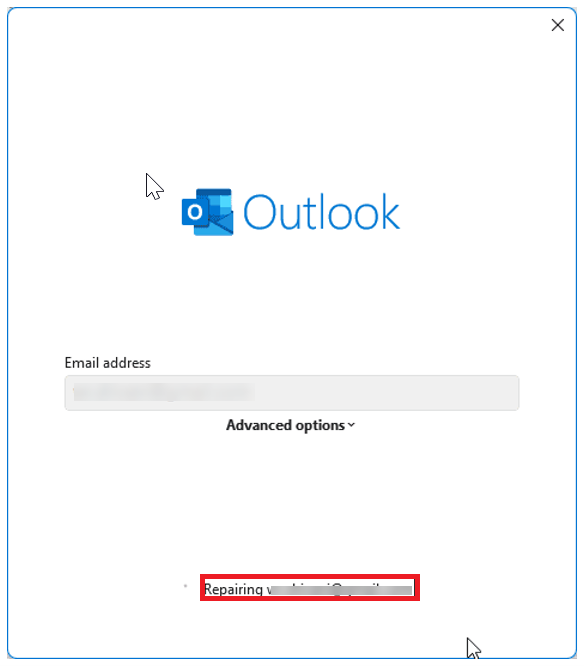
Step 5. This may take few minutes to complete. The process requires the credentials of email account.
Step 6. Once the repairing completes, start Outlook again.
If the repairing fails, then create a new Outlook profile using the steps below –
Step 1. Close Microsoft Outlook and go to Control Panel.
Step 2. Navigate towards Users Accounts and click Mail.
Step 3. Tap Show Profiles button.
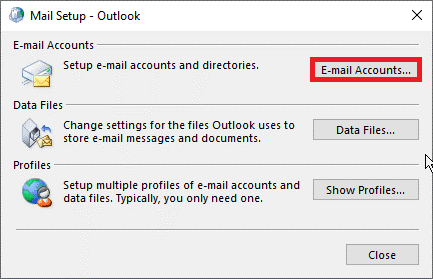
Step 4. Hit Add button, enter the name for a new Outlook profile and tap OK.
Step 5. Follow the sign-in wizard to configure email account in a new profile.
Now, make new Outlook profile as default and remove the earlier one with the help of dropdown in Mail dialogue box.
Method 7. Fix Outlook Data PST file
If you unable to find missing files using the above solutions, then it indicates that Outlook data file i.e. PST is either corrupted or become inconsistent. To fix the corrupted file, make use of Outlook inbuilt repair tool i.e. ScanPST.exe. Follow the below steps to fix PST file using the same –
Step 1. Close Microsoft Outlook and go to ScanPST.exe on the system.
Step 2. Launch the repairing tool and tap Browse.
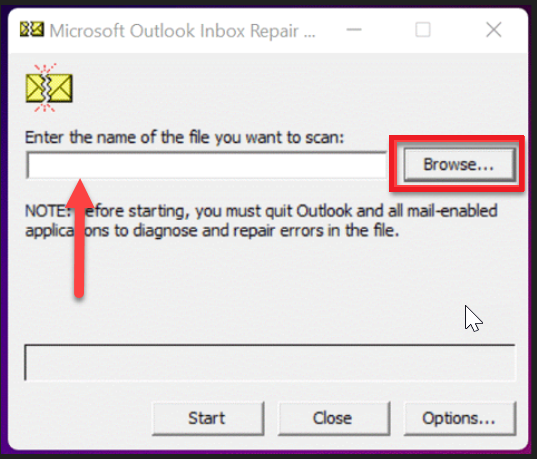
Step 3. Choose PST from the default location – drive:\Users\<username>\Documents\Outlook Files or drive:\Documents and Settings\\Local Settings\Application Data\Microsoft\Outlook.
Step 4. After the file is selected, tap Start to start the scanning process. However, the completion of the scanning process depends on the size of PST file.
Step 5. Once the scan completes, the tool will display the error or inconsistencies present in the file. Then, tap Repair.
Note. Make sure to backup PST file first by using MacMister PST Converter for Mac & Windows before implementing the repair process.
Step 6. After the repairing completes, restart Microsoft Outlook.
At times, the Inbox Repair Tool does not respond or fail to fix PST file if it is highly corrupted or file size is large. Moreover, it erases some parts of the file which result in data loss. Alternatively, it is advised to make use of MacMister’s remarkable tool i.e. PST Converter which can prevent PST data from loss. However, if you are a Mac user, then take help of OLM Converter for Mac for the same. Both the applications will help in preserving the data from PST or OLM into 15+ saving options with 100% accuracy.
Epilogue
In the write-up, we have mentioned different approaches to fix Outlook disappeared messages issue. One may resolve the problem using the troubleshooting ways highlighted above. If the file is corrupted or damaged, then make use of the Outlook inbox repair tool. Alternatively, take help of MacMister’s apps to protect data from any type of loss.