How to Fix Outlook Stuck in Loading Profile? – Top 7 Fixes
Are you continuously asking yourself about how to fix Outlook stuck in loading profile? While using Outlook, it is a common issue that users receive. There could be many reasons for the same hence we have mentioned various workarounds here. If you are also encountering the same problem, then read the post and resolve Outlook stuck in loading profile error.
Let us move further and understand the reasons for the Outlook stuck in loading profile issue –
- Issue with Outlook data file
- Add-ins in Outlook can also create issues sometimes.
- Utilizing old Outlook profile will also cause problem when loading profile.
- Corrupt Outlook profile is also a common issue in many cases.
Workarounds to Fix Outlook Stuck in Loading Profile
Method 1. Run Microsoft Outlook as Administrator
Users at times may face issues while loading Outlook profile in case they are lacking in administrative privileges. It is must to run Outlook using administrative privileges. Because opening Outlook as admin can save users from encountering the error message.
Method 2. Set Navigation Panel
- Press Windows + R simultaneously.
- Type Outlook.exe/resetnavpane and tap OK (while performing the process, application need to be closed.
- By implementing the above steps, Outlook’s navigation panel will go to the default state.
Method 3. Close Office-Related Tasks
- Go to Task Manager in the system.
- Check if any Microsoft Office based tasks are running in the background. If yes, then discover them and shut the task.
Method 4. Configure new Outlook Profile
- At first, go to Control Panel in the system.
- Click Mail, tap Show Profiles and hit Add option. The Add option will help users in adding new Outlook profile.
- Set name for a new profile and tap OK.
- Now, add email account to create new profile.
- Select the option according to the requirements, make the profile default if needed and click Apply.
Method 5. Turn off Outlook Add-ins
- At first, ensure that Outlook app is closed. Now, type “Outlook.exe/safe” and tap OK to open.
- Perform the selection for your profile and tap OK.
- Go to File, click Options and select Add-ins and Go.
- Here, deselect the checkboxes of all add-ins and tap OK.
After the steps are complete, restart Outlook.
Method 6. Disable Antivirus
In many situations, incompatibility of antivirus with other apps can also sometimes cause Outlook stuck in loading profile error. To resolve it, follow the below steps –
- Go to Antivirus and temporarily disable it. Now, check if Outlook profile is loading smoothly.
- Disabling Antivirus can also affect Outlook’s performance.
Method 7. Fix Outlook PST files
Outlook profiles are also susceptible to corruption which is also one of the main causes behind the error. To fix the same, Microsoft provides inbuilt utility i.e. Scanpst.exe.
Follow the below steps –
- Quit Outlook email client and type Scanpst.exe in a search box. (Location of Scanpst may be different based on the Outlook versions).
- When it opens, go to Browse button and load PST file you need to fix. Click Start after the file is added.
- The utility will scan loaded PST file and show the report.
- Lastly, tap Repair button to initiate repairing. Select the checkbox asking for backup.
Within seconds, the process will end and users will receive Repair Complete status.
And in case the above methods do not work or Scanpst.exe affects PST files, make sure to take their backup and then implement the solutions. Know how to backup PST data files.
Automated Approach to Backup Outlook PST File on Mac & Windows
Another best way to backup Outlook PST file on Mac & Windows is MacMister PST Converter for Mac & Windows. The tool is advanced, secure, and effective. It is programmed with a user-friendly tool so that professional and non-professional users will be able to utilize the app without issues. Additionally, the powerful features of the app allow users to implement the task according to the requirements.
Some of its important features are listed here –
- Backup PST files in bulk with precise outcome in few seconds.
- Able to preserve PST data into PDF, EML, DOC, HTML, Yahoo Mail, O365, etc.
- Built with a friendly design so that all types of users can perform the operation easily.
- Ensure the protection of original database during backup.
- Supports sub-options with every saving type to save resultant files according to the requirements.
- Compatible with Mac & Windows OS (supports all versions).
Operational Steps of the Application
Follow the steps of the app to backup .pst on Mac –
Step 1. Run the app on any macOS, then use Add File(s)/Add Folder buttons to upload essential .pst files.

Step 2. Verify the files listed and click Next. In case you want to perform selective conversion, then you may use the checkboxes and select the files as per your requirements and deselect the ones you no need to backup. Then, tap Next to proceed.

Step 3. Pick necessary saving type from Select Saving Options.
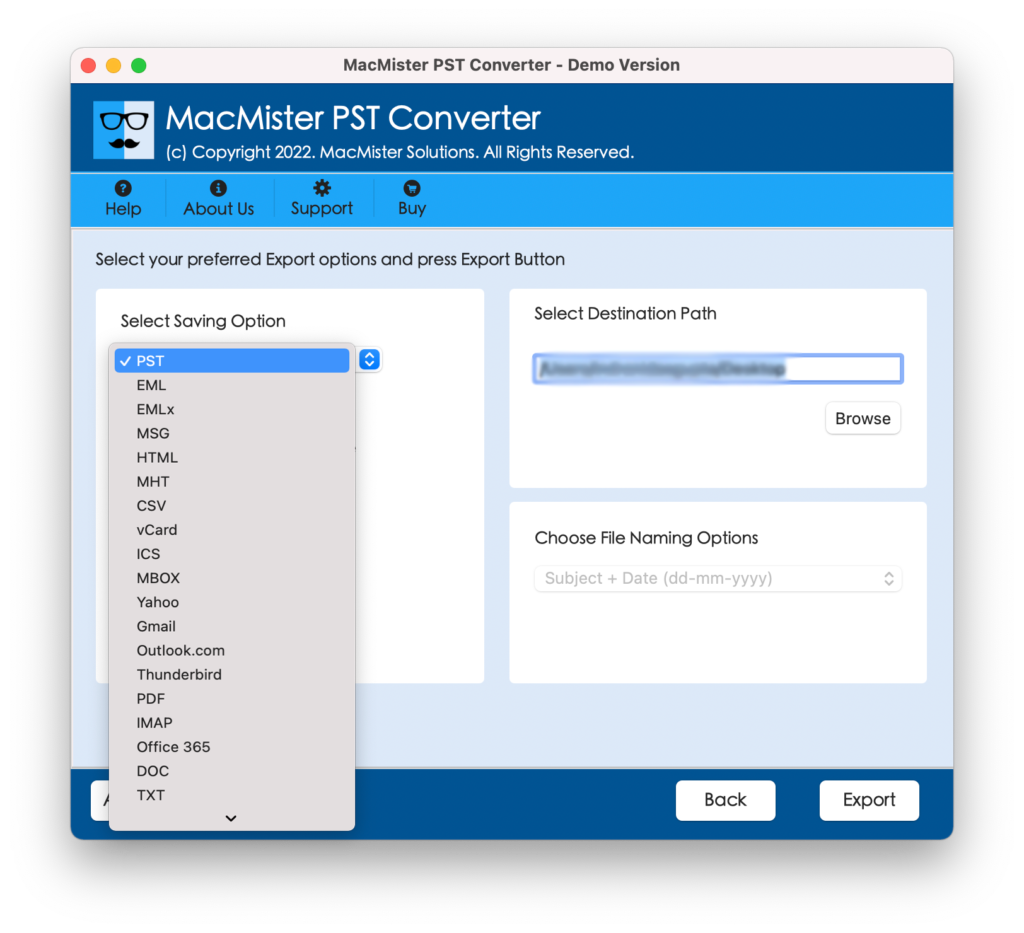
Step 4. Set sub-options as per your needs and click Export.
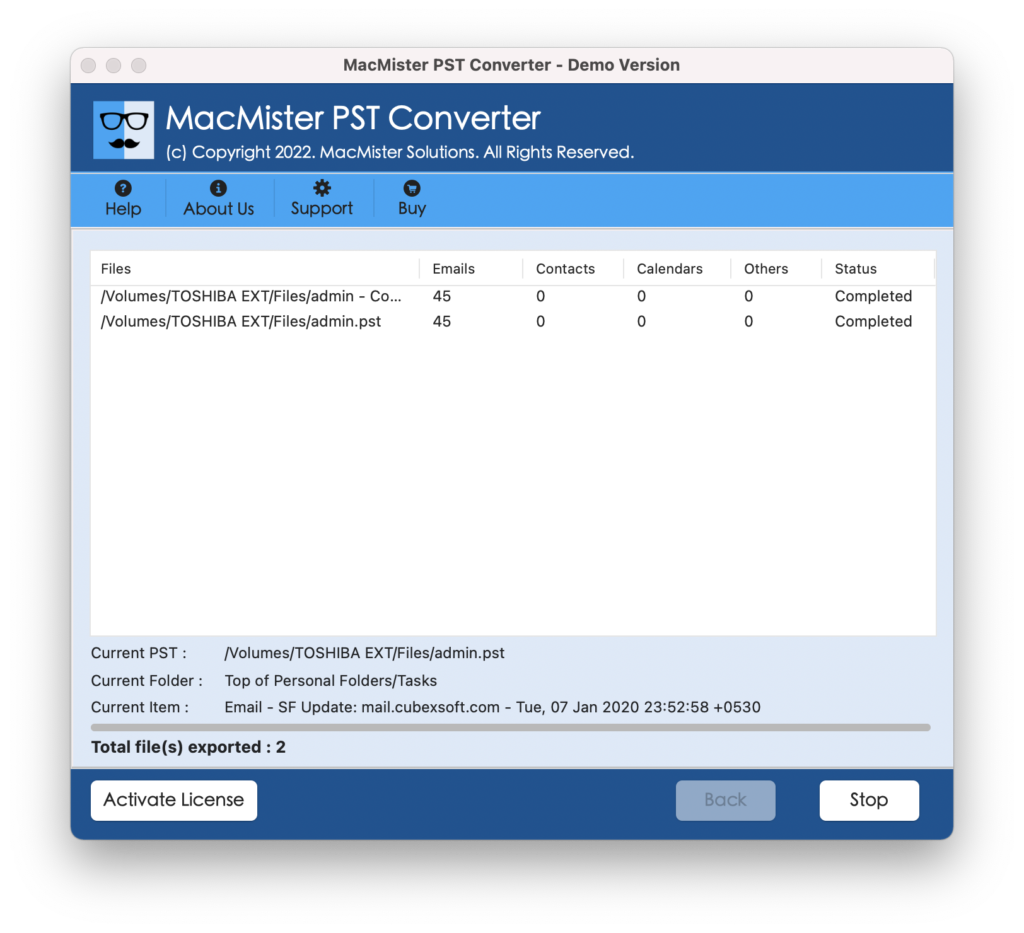
Step 5. Check the live backup status through Live Conversion Report appearing on the screen.
Quick Note. Get FREE DEMO of the app to explore the Detailed Working & Features of the Tool.
Epilogue
In the write-up we have discussed different approaches to fix Outlook stuck not loading profile error. With methods, we have mentioned automated solution which allows users to backup PST file before moving further with the fixes highlighted above. And in case of any help, contact MacMister Support.