How to Import AOL Mail to Thunderbird on Mac & Windows?

Are you finding the best solution to deal with how to import AOL Mail to Thunderbird? If so, then you are in the correct place. In the write-up we will convert different ways to import AOL Mail to Thunderbird. Also, we will go through tremendous method that will which will definitely prove suitable for the necessary process. Moreover, we have discussed some reasons responsible for importing AOL Mail to Thunderbird. So let’s get started without further delay!
Why Users Import AOL Mail to Thunderbird?
The import of AOL Mail to Thunderbird allow users to access all the emails at one place with ease. Below, we have discussed some main reasons behind importing AOL Mail to Thunderbird account –
- Importing AOL Mail to Thunderbird help users managing all their emails in a single place.
- Thunderbird includes advanced features for better email management as compared to AOL Mail.
- Transferring AOL emails to Thunderbird will generate a local backup of emails for added security.
- Thunderbird possesses a user-friendly interface and has the ability to work on multiple platforms.
- Migrating AOL Mail to Thunderbird offers more control over stored email data.
Once you have understood the reasons why users need to import AOL Mail to Thunderbird, then you can easily proceed further to check how to import AOL Mail to Thunderbird by utilizing different methods.
Manual Way to Fix – How to Import AOL Mail to Thunderbird?
In the manual method, we will enable IMAP in AOL and set up AOL Mail account in Thunderbird. After this, we will drag-and-drop emails from AOL into necessary Thunderbird email profile. Let us go know the complete procedure in detail –
Phase 1. Enable IMAP Access in AOL Mail
- Login to AOL Mail account.
- Navigate to Account Security Settings, enable Allow Apps and use less secure sign in option.
- Enable IMAP access option present in Settings.
Phase 2. Set up AOL Mail Account in Thunderbird
- Open Thunderbird.
- Go to Tools, click Account Settings.
- Enter Name, AOL email ID, & password. After this, Thunderbird should automatically configure the settings. If not, one can manually specify IMAP server settings (incoming) and SMTP server settings (outgoing) for AOL Mail.
Phase 3. Drag & Drop AOL Emails to Thunderbird
Once the configuration is successful, users can simply drag-and-drop emails from AOL Mail folders to Thunderbird folders. This will create a copy of AOL emails in Mozilla Thunderbird account. Users can also perform the import process using the above steps but at times, the manual process does not work and users encounter severe data loss due to the same. However, there are restrictions which users should remember before initiating the manual process.
Limitations of a Manual Method
- Importing large amount of emails from AOL to Thunderbird is not possible.
- The above steps will take a lot of time if there are lot of emails to import.
- Novice users will face difficulties when implementing the process because the steps are complicated and technical.
- The missed out of a single step can result in severe data loss.
Direct & Safe Solution to Import AOL Mail to Thunderbird on Mac & Windows
The smooth and seamless solution to import AOL Mail to Thunderbird is MacMister AOL Backup Tool for Mac & Windows. With the help of the application, users can add AOL email account details in the necessary fields and from Select Saving Options, choose Thunderbird. After this as soon as user clicks on Start Backup button, the application will right away start the import process and quickly import all AOL emails to Thunderbird with attachments without data loss. Its GUI is user-friendly. So, any technical/novice user can utilize the app effortlessly and perform the process in few seconds.
Moreover, the application offers wide ranging features as well that are useful in importing AOL emails to Thunderbird with attachments as per specific requirements. However, a freeware version of the app is available that allow users to explore the entire working of the software for free.
Working Steps to Import AOL Mail to Thunderbird on Mac
Step 1. Download, launch, and run the app on your system.
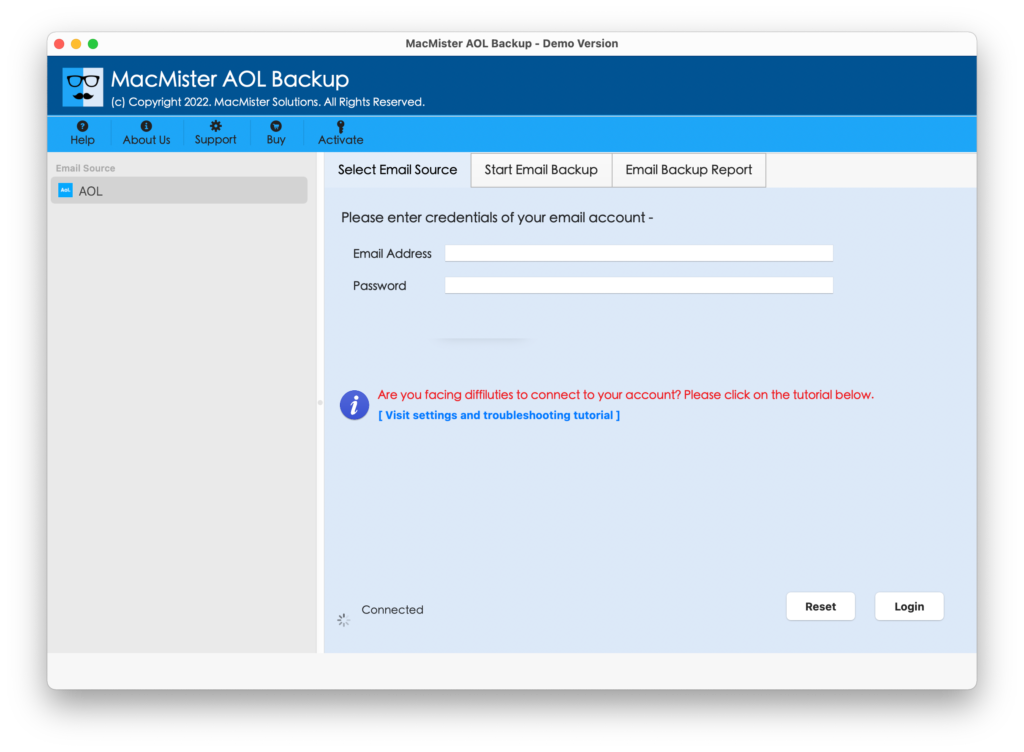
Step 2. Add AOL email account details (email ID and app generated password) and click on the Login button.

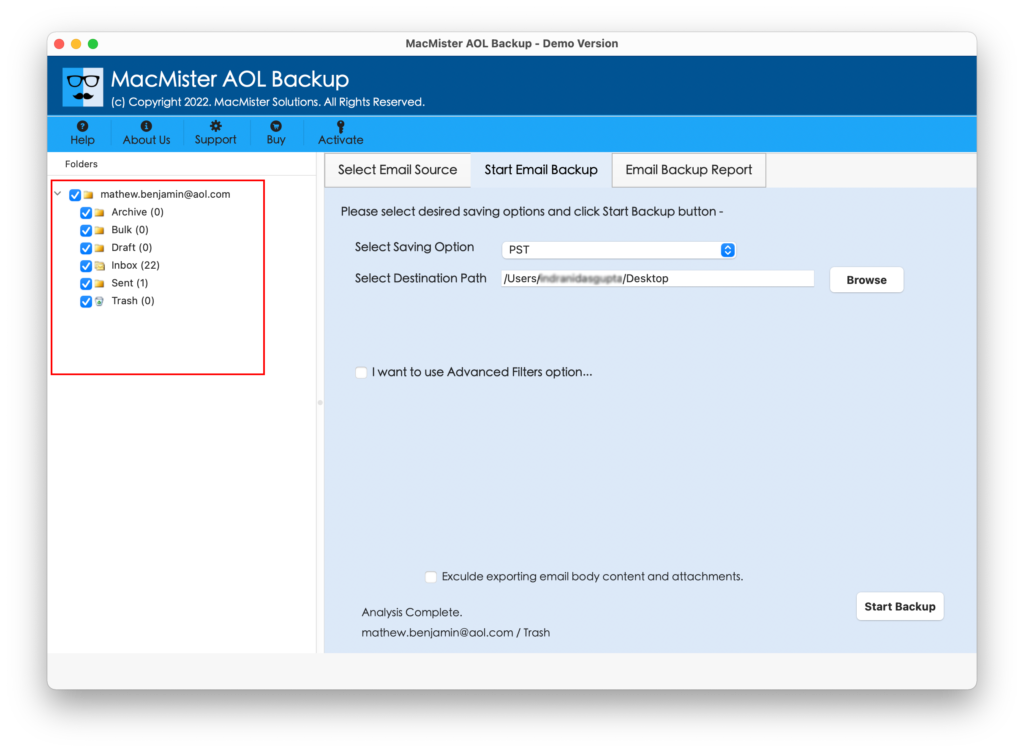
Step 3. The software will connect with AOL email account and list all the AOL account mailboxes on its pane.
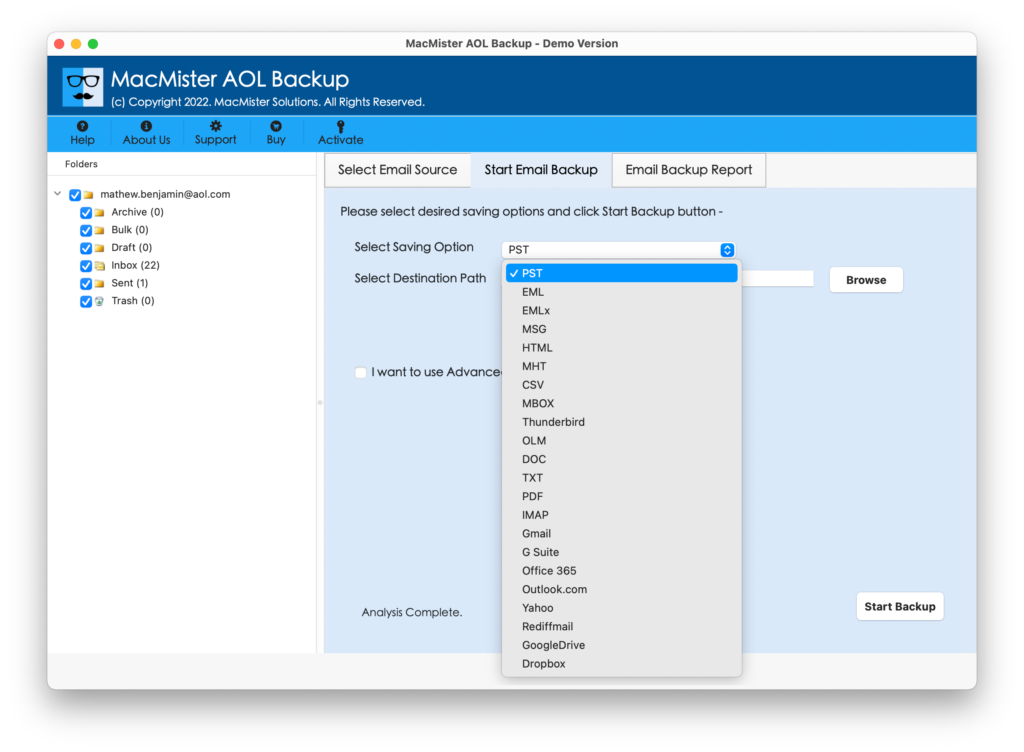
Step 4. On the right-side, go to Select Saving Options and select Thunderbird from the menu.
Step 5. Set necessary options, use filters if needed and tap Start Backup button.
Step 6. The tool will show Email Backup Report that helps in tracking the live migration status of AOL emails.
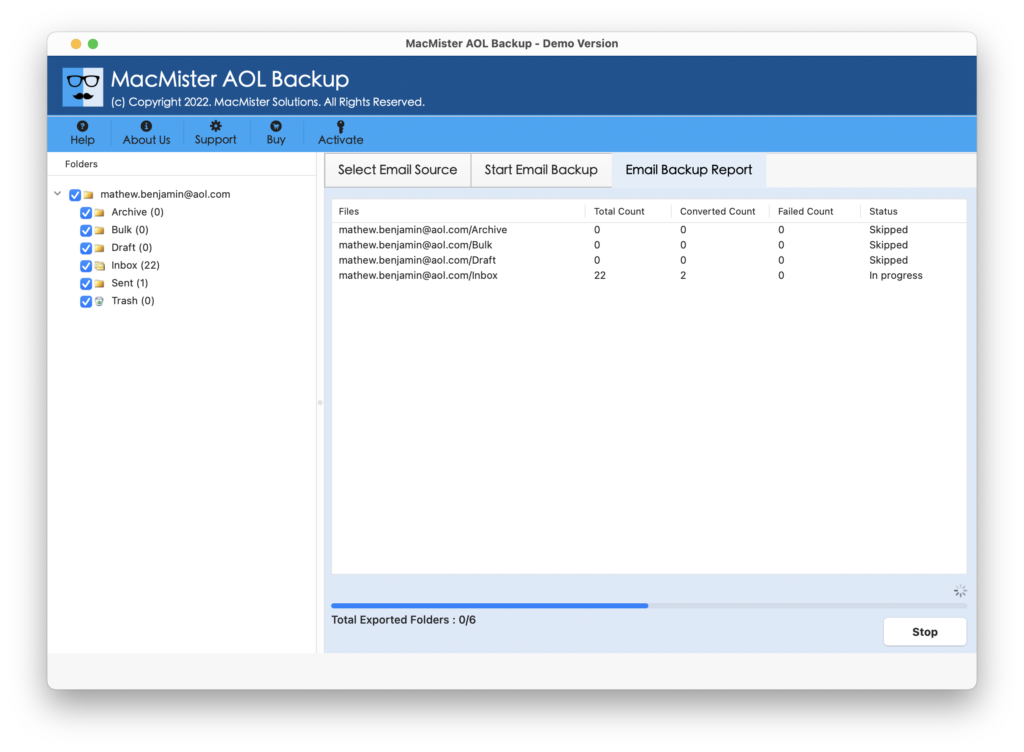
The process will end with a notification “Process Completed Successfully”. Click on the OK button and then go to the location where the application has stored the imported files. However, after accessing them in Thunderbird, users will see that they are completely accurate and appearing with precise layout and metadata properties. So, users do not need to take a lot of worries, they can instantly utilize the solution and import unlimited AOL emails to Thunderbird with 100% accurate results.
Advantages of using Direct Solution
- Both technical and non-technical users can use the application effectively.
- Able to import the entire AOL email folder to Thunderbird at once.
- Keeps the AOL emails original and accurate.
- Preserves the folder structure throughout migration.
- Protects the AOL login details when importing AOL to Thunderbird.
- Three-step procedure will take minimum time of users.
- Available for both Mac & Windows OS users.
Epilogue
In the segment, we have discussed two ways to import AOL email to Thunderbird on Mac & Windows. The first method is manual and is free to use but possesses time-consuming and complicated steps. The second method is direct and takes minimum time to import unlimited AOL emails to Thunderbird with attachments at once. Also, it is feature-rich and deliver trial edition that allow users to experience the entire process for free. It also enable users to import first 25 AOL emails to Thunderbird on Mac with attachments free of cost.
Quick Note. You can also try MacMister Email Backup Software for Mac & Windows. It offers 30+ webmail sources from which users can choose the desired webmail and save its entire emails into 15+ saving options. Download its free demo to check more about the tool for free.