How to Import Google Takeout to Gmail on Mac & Windows?

Want to urgently transfer Google Takeout database to Gmail account? Wondering how to import Google Takeout to Gmail in a secure way? No worries, read the segment and you will come across a solution that will help to directly import Google Takeout files to Gmail on both Mac & Windows OS.
Overview of Google Takeout
Google Takeout is a free way out provided by Google itself to download its important database locally. It allows users to extract Google photos, contacts, emails, and other items into the supported format and enable users to save them at the desired location on the system.
Millions of users use Google Takeout to restore the essential email files of Gmail accounts. By simply logging into Google Takeout and selecting the Mail option, one will be able to successfully retrieve Gmail emails in MBOX format. We will discuss the steps in detail in the further section.
Note. Install MacMister Gmail Backup Tool for Mac to directly import all emails from one Google account into another Gmail account with attachments. Download the free demo now and import 25 Gmail emails to another Gmail profile for free.
However, MBOX is a platform-dependent file format. And so, besides Gmail, it allows its access to Apple Mail, Mozilla Thunderbird, Eudora, Entourage, Opera Mail, and many other desktop-supported email clients.
Moreover, Google Takeout provides the functionality for extracting Google emails locally but it does not offer a technique to import the same back into a Gmail account. This at times creates a lot of problems for users who only use Gmail for email management.
Therefore, in the blog, we will first highlight the steps for how to take backup of Gmail emails through Google Takeout. Then we will discuss a solution that will directly import Google Takeout to Gmail on Mac & Windows.
Step 1. Download Google Emails using the Google Takeout Procedure
First, extract the Google Takeout database with the help of Google Takeout.
Follow the instructions carefully and restore the required Gmail emails on the system.
Step 1. Login to https://takeout.google.com/settings/takeout. and by default, all the folders will be selected. Select the Deselect all checkbox to deselect all the items. Now, scroll down until you see Mail option. Select it and click on Next.
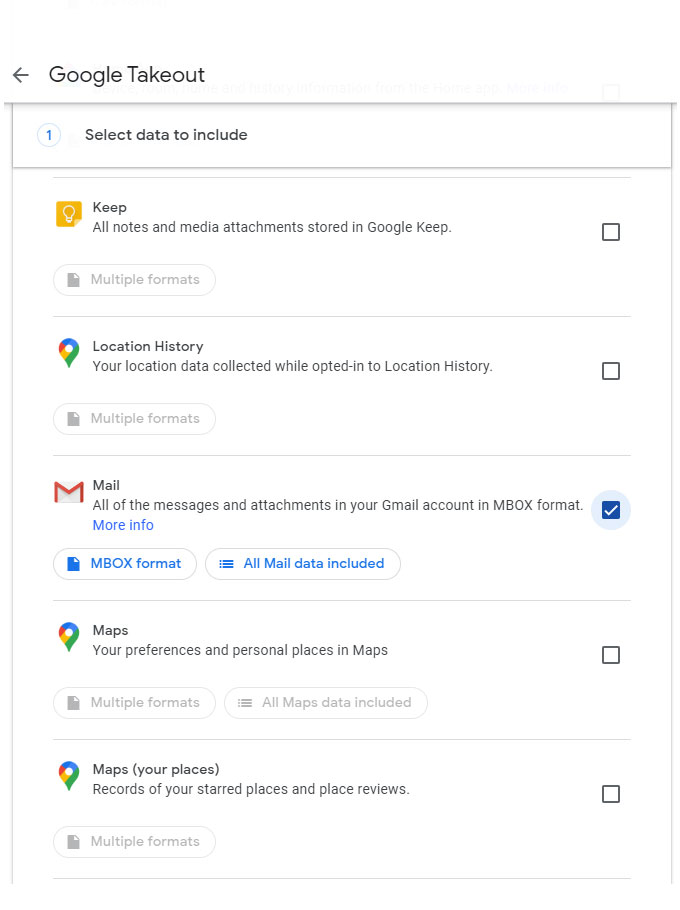
The export supports two file formats here. One will be JSON which provides the user settings. The other is key for the process, the MBOX file which includes the emails. The file formats are unchangeable.
Step 2. In Choose File Type, frequency, and destination, select the delivery source by clicking the drop-down button appearing with the Send download link via email.

Specify the frequency of download. Choose Export once if you want to export Gmail files only for one time. Or, select Export every 2 months for one year to export the files in every two months per year.
Select the file type in which you want the database. By default .zip file will be shown to you but by clicking on the drop-down button .tgz format will also appear. Select the necessary file type.
Simultaneously, specify the file size to start the split of the files greater than the specified size. Last, click on Create Export.
Step 3. The time of the process will depend on the file size. After the export is done, you will receive a link in your mail with the download button (depending on the destination you have chosen earlier to download emails). Click on it, choose the required location, and download the Google database.
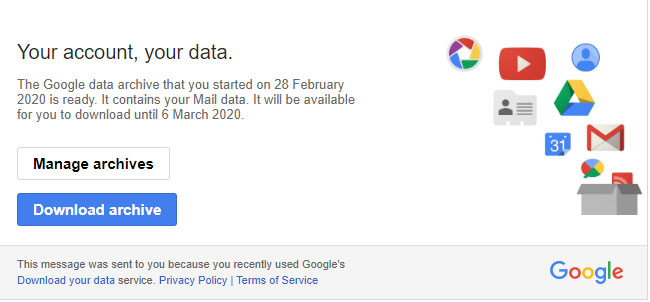
By properly implementing the above steps, you can store the essential Gmail email messages on the local system. However, the files will be saved in .mbox format. And, after retrieving them on the system, one will not be able to send them back to a Google account.
Let’s see then how to send downloaded Google emails back to the required Gmail account.
Step 2. Import Google Takeout to Gmail with all Emails & Attachments
One can easily import Google Takeout to Gmail with all emails and attachments with the help of MacMister MBOX to Gmail Converter. The remarkable solution instantly transfers unlimited Google Takeout files to Gmail without any data modification. The software is easy to use and friendly. Both professional and non-professional users can operate the application effortlessly and import Google Takeout to Gmail with unlimited emails and attachments in a minimum time. The operational steps are also short and non-typical. They will help in completing the entire task without wasting the time and energy of users.
Moreover, the software is programmed with exceptional features and options that will help in attaining the desired results in a short time. You can download the trial edition and test the software working of the tool for free.
Working Steps to Import Google Takeout to Gmail
Step 1. Download, install, and run MacMister MBOX Converter for Mac on a macOS.
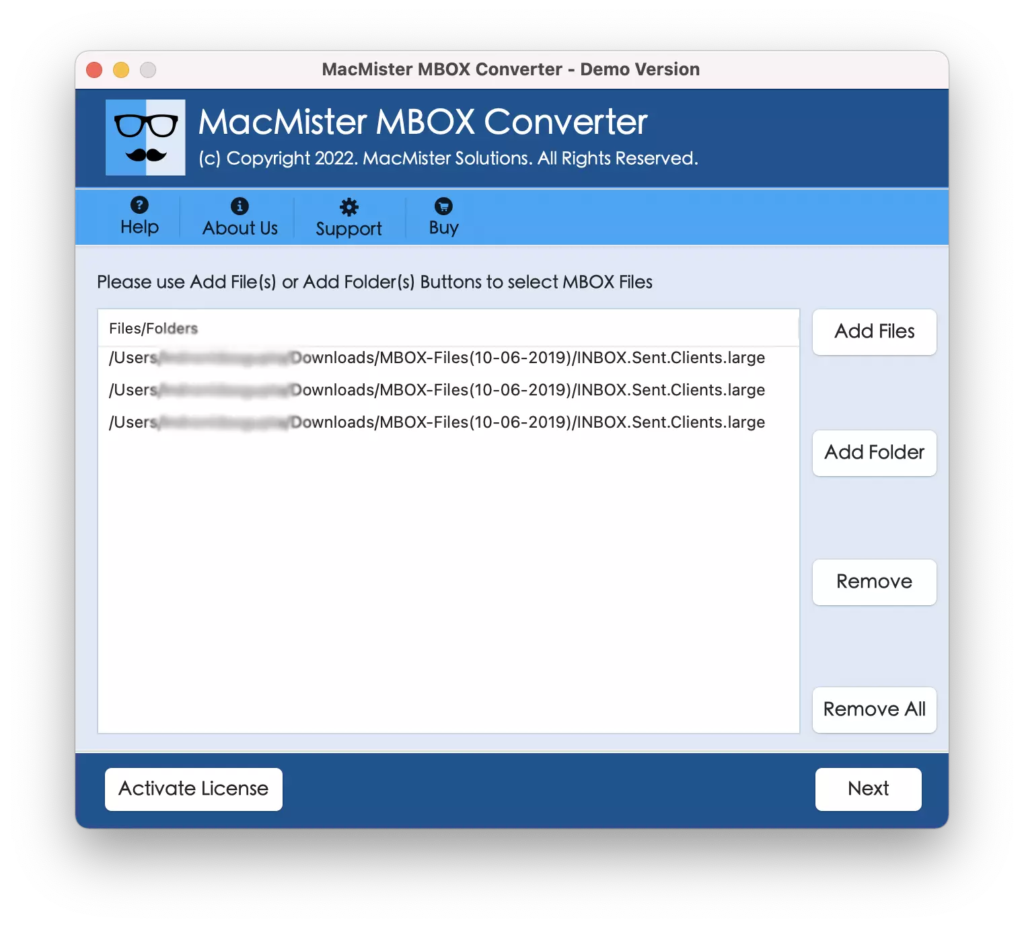
Step 2. Click the Add File(s) button to add the required MBOX files on the tool. Or, use the Add Folder button to add a folder with unlimited MBOX files on the tool and click Next.
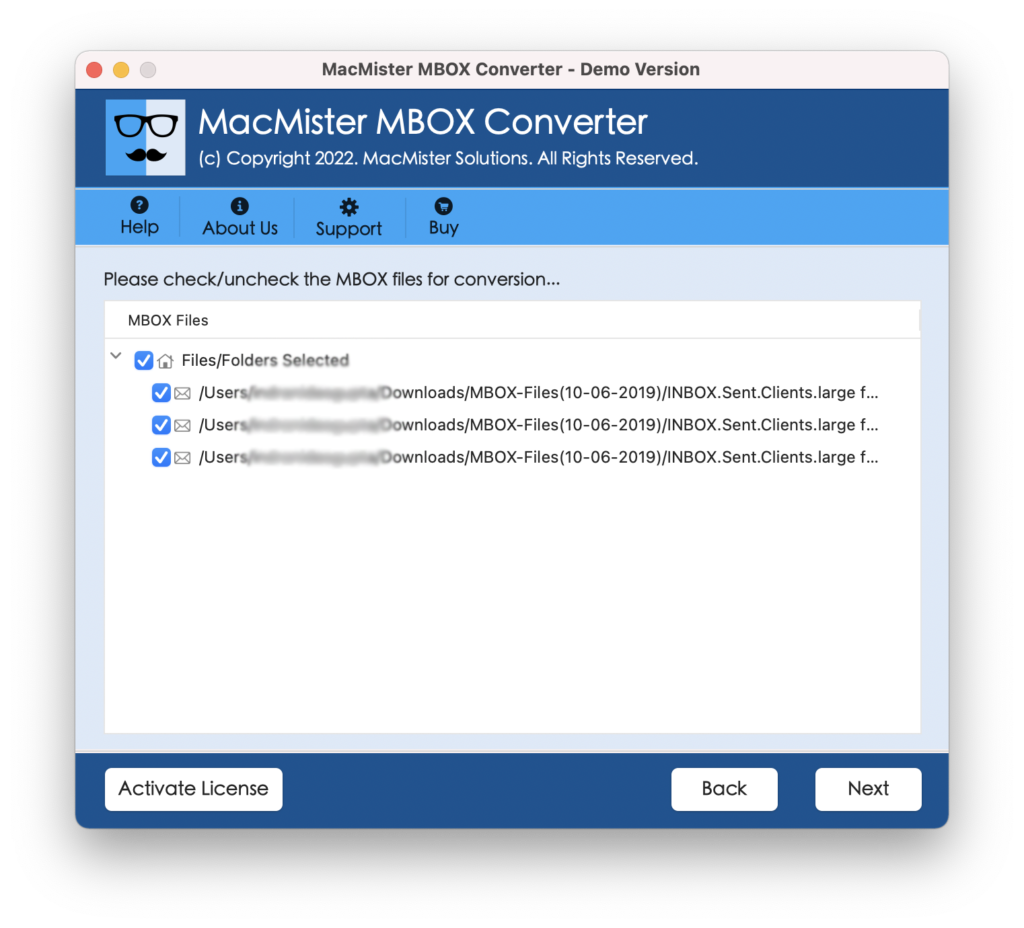
Step 3. The software now list MBOX files one-by-one on the software pane with checkboxes. The checkbox will help you to select/deselect the required MBOX files for selective migration, if needed. Click Next.
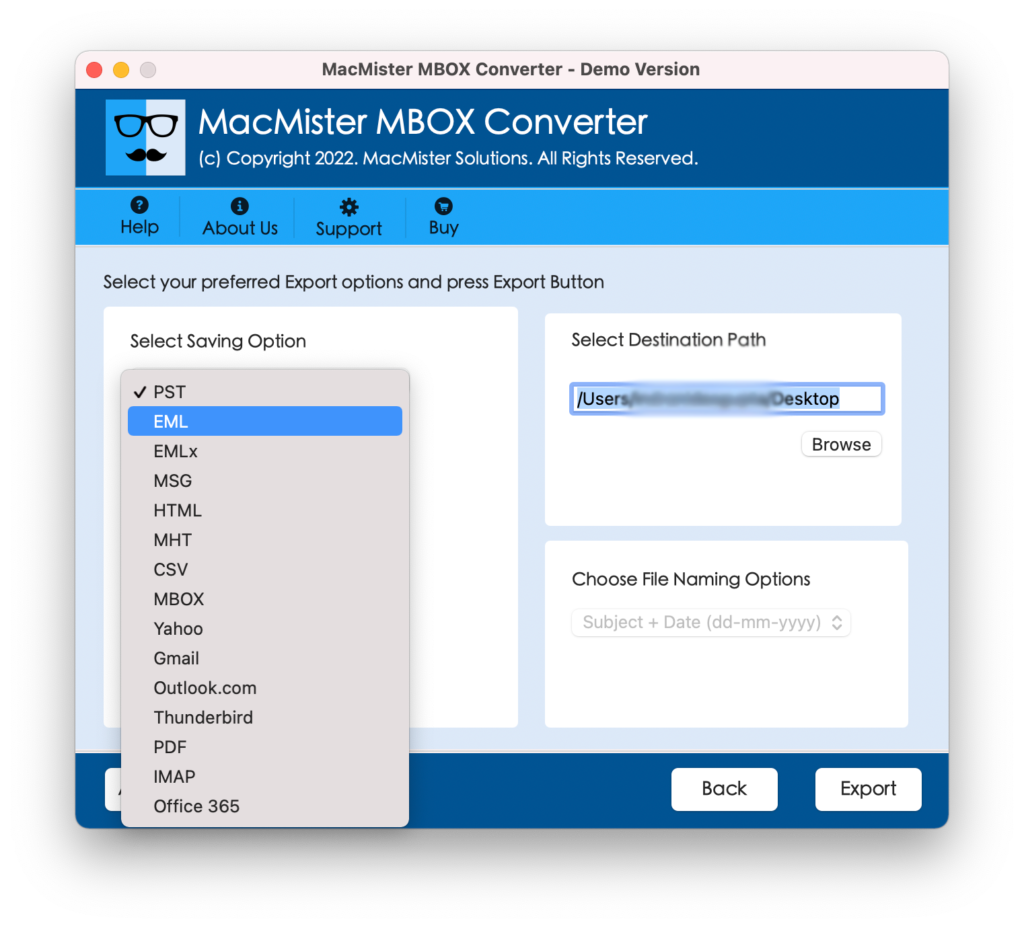
Step 4. Click on the Select Saving Options and select the Gmail option from the menu.
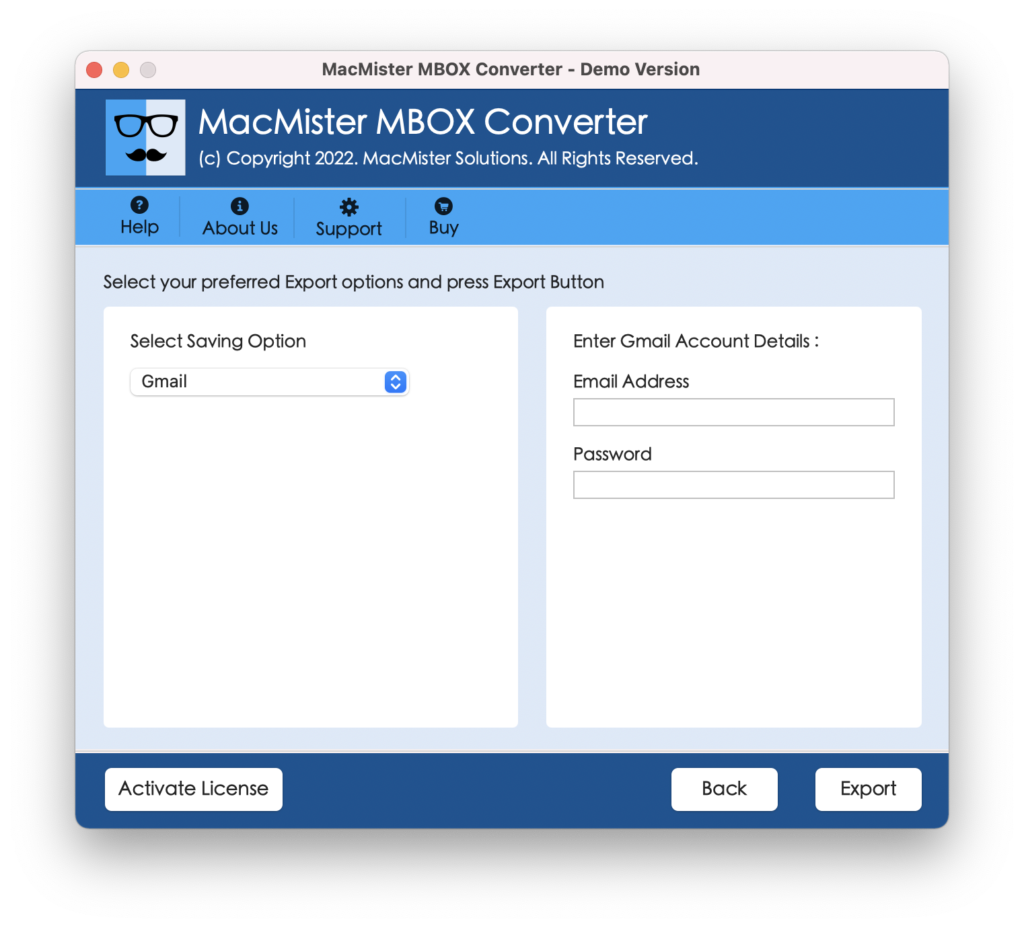
Step 5. Enter your Gmail email address and app password in the required fields and click on the Export button.
Step 6. The process will run and a Live Conversion Window will appear that will show the ongoing migration progress of MBOX files.
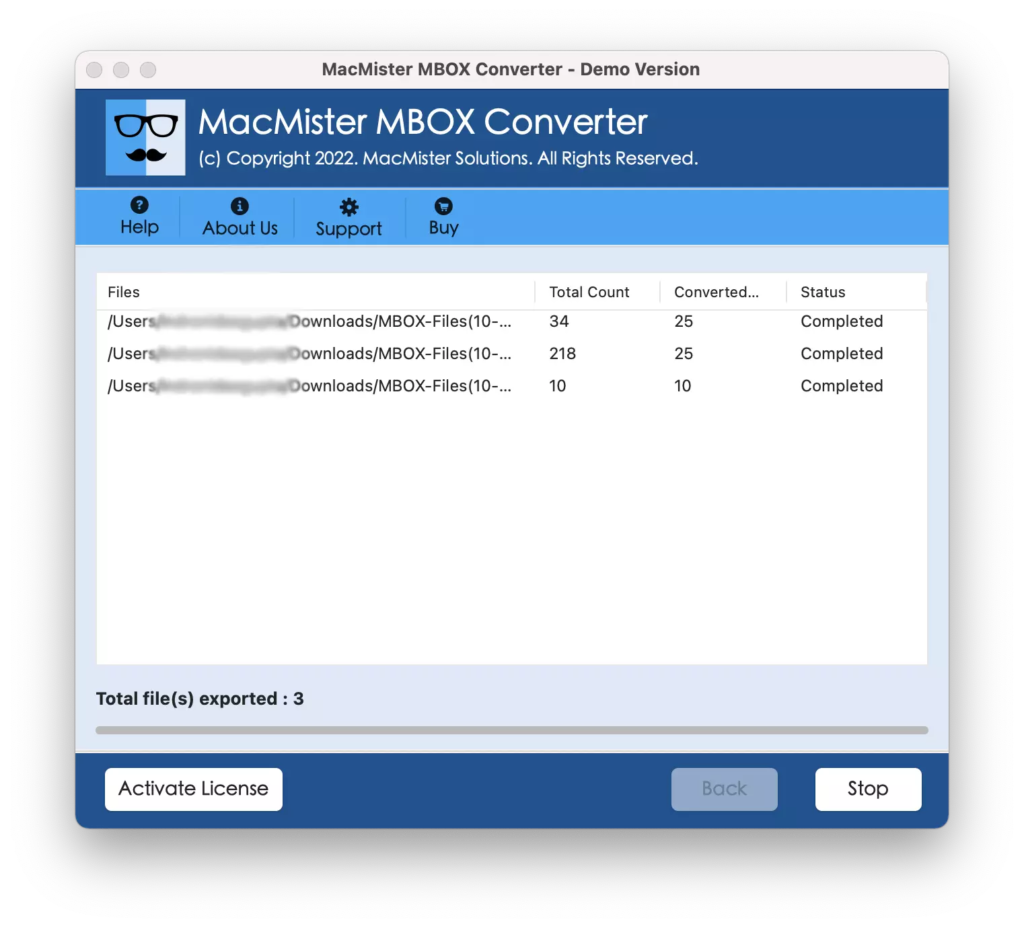
The tool will finish the process by showing the “Conversion Completed” message on the user’s screen. Click the OK button and directly go to the specified Gmail account to check the resultant files. However, you will see that the data is accurate and appears with precise formatting properties and folder structure.
Epilogue
The blog has discussed an incredible way to import Google Takeout to Gmail on Mac & Windows. In step 1, users will find the instructions to download Gmail emails through Google takeout. In step 2, one will be able to import unlimited downloaded MBOX files to Gmail at once with 100% accuracy. It is a certified and safe solution and above all that, a quick application that will instantly perform the migration process. Download the free version of the tool and import 25 Google Takeout files to Gmail free of cost.