How to Read MBOX Files Thunderbird on Mac?

If you were using the Thunderbird email client on a Mac system and now need to read the MBOX files without Thunderbird, this blog will help you find an alternative solution. Thunderbird is a platform that allows users to export their emails in an MBOX file format. However, if you have uninstalled Thunderbird and still need to access these files, this blog will guide you on how to read MBOX files Thunderbird on Mac without Thunderbird.
Overview of Mozilla Thunderbird
Mozilla Thunderbird is a personal information manager that is free, open-source, and available on multiple platforms. It includes features such as a news client, RSS reader, and chat client. The email client is operated by MZLA Technologies Corporation, a subsidiary of Mozilla’s Foundation. It is a community-driven project that is managed and overseen by the Thunderbird Council.
How Thunderbird Export Emails to MBOX File on Mac?
Know the step-by-step process to export emails from Thunderbird to MBOX file –
- Open Mozilla Thunderbird email client your Mac.
- Choose the required mailbox folder to export as .mbox file.
- Go to File menu appearing on the top-left corner of Thunderbird account. Click Save as.
- In the Save as dialogue box, go to location to save MBOX file.
- Specify the name to a file and rename it by adding .mbox extension at the end of the filename. For example – inbox.mbox.
- Press Save button to start the export process.
Thunderbird will start creating an MBOX file that is containing all the critical emails that users wants to save from the mailbox.
What is the Default Location of Thunderbird MBOX File on Mac?
The default location of Thunderbird’s MBOX file on Mac depends on the Thunderbird edition you are using and the profile setup. By default, Thunderbird stores its data in a user profile folder. Here are the paths:
Thunderbird 60 and earlier:
You will find MBOX file in the following directory –
~/Library/Thunderbird/Profiles/<profile_name>/Mail/Local Folders/
Thunderbird 60 and later:
You will find MBOX file in the following directory –
~/Library/Thunderbird/Profiles/<profile_name>/Mail/Local Folders/
In both the cases, <profile_name> refers to a folder with a random string as its name representing Thunderbird profile.
In order to access Thunderbird profile folder and locate the MBOX file:
- Go to Finder on your macOS.
- Navigate to Go menu that appears at the top of the screen and press Go to Folder…
- In the “Go to folder:” prompt, specify the appropriate path mentioned above based on the Thunderbird version.
- Click Enter and press Go button.
It will open Thunderbird profile folder directly and you can also find MBOX file within Local Folders directory.
However, one thing is clear that MBOX file is platform-dependent. One will not be able to open it without its supported application. So, make sure to have the email platform that supports MBOX file format. Otherwise, get the alternative version and know how to read Thunderbird MBOX files in a bulk on Mac without Thunderbird email client in a precise way.
How to Read MBOX Files Thunderbird on Mac without Thunderbird?
With the help of MacMister MBOX Converter for Mac, users can read MBOX files Thunderbird on Mac in bulk without Thunderbird with emails and attachments accurately. The process is achievable by converting MBOX files into 15+ saving options that software offers such as PST, PDF, MSG, EML, EMLx, MHT, HTML, DOC, TXT, IMAP, Thunderbird, Office 365, etc. The application interface is simple, friendly, and secure to use. Both professional and non-professional users can use the software effectively and read MBOX files Thunderbird on Mac without any stress.

Moreover, the application contains plenty of beneficial options and features that users can take help of to perform the process according to their requirements. However, the trial edition of the app is available with the use of users who can analyze the complete process of the tool for free.
Working Steps to Read MBOX Files Thunderbird on Mac in a Bulk
Step 1. Download and run MBOX to PDF Converter Mac Tool on the system.
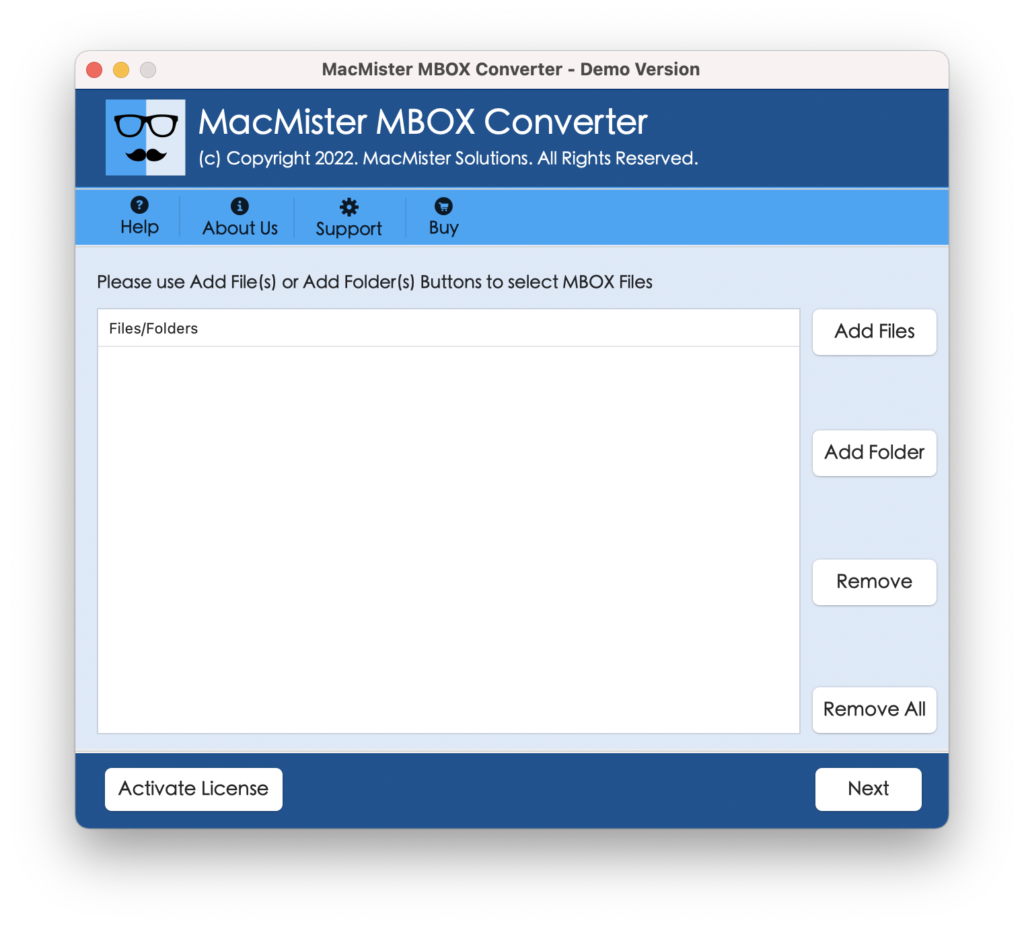
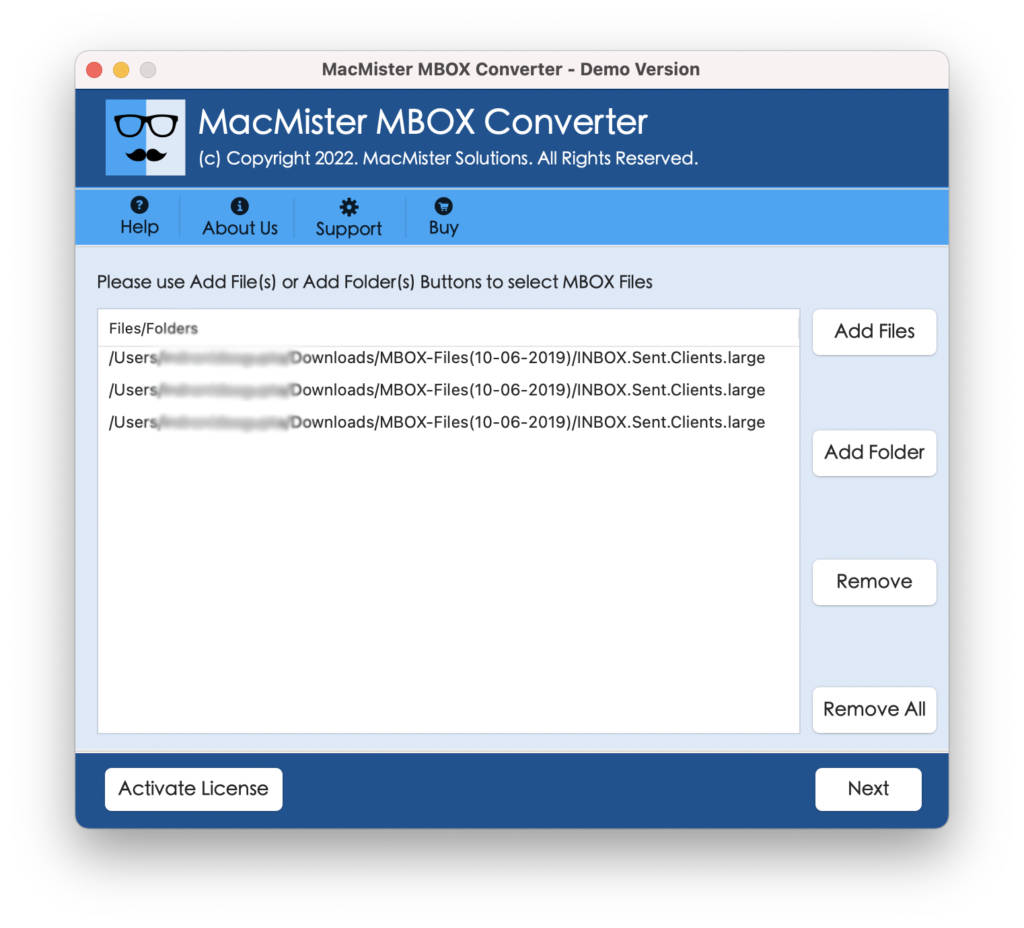
Step 2. Add important .mbox files/folders of Thunderbird on the software by using dual buttons i.e. Add File(s)/Add Folder buttons. Click Next.
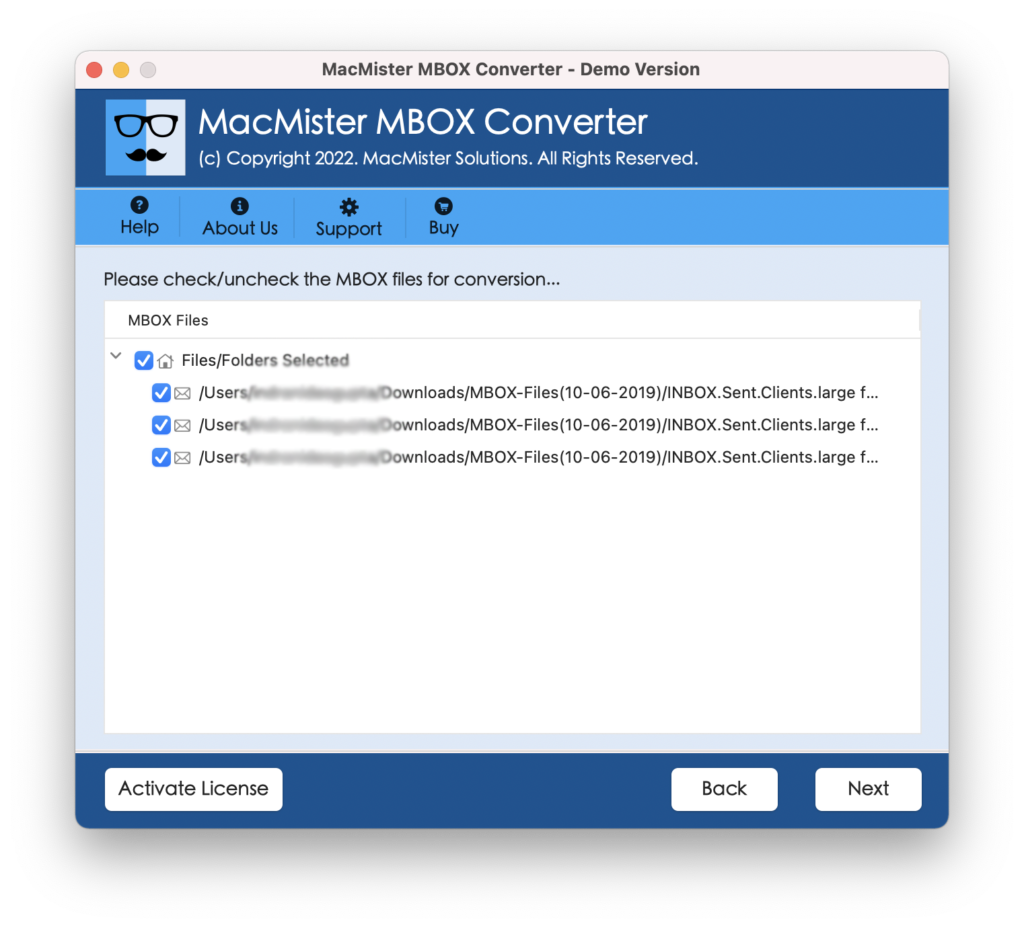
Step 3. The application will analyze the selected Thunderbird-supported .mbox files and list them one by one on the software panel with checkboxes. And, the checkbox will help you to perform the selective process, if needed. Click Next.
Step 4. Click Select Saving Options and choose the required saving option from the list.

Step 5. Set the sub-options of a selected file type as per requirements and start the procedure by tapping the Export button.

Step 6. The process will start quickly and the app will show a Live Conversion Window that will help users to track the current conversion progress of .mbox files.
After the task is completed, users will receive a message stating “Conversion Completed” with an OK button. Clicking on it will take them to the location where the resulting files are saved. Upon opening the files in the desired field, users will find that the content is accurate and the formatting properties are precise.
Epilogue
This write-up discusses Mozilla Thunderbird and the process of exporting MBOX files from Thunderbird. It also mentions a solution for reading MBOX files on Mac without the Thunderbird email application. The MacMister Thunderbird Converter for Mac is recommended as a safe and efficient tool for this process, offering instant and accurate results.
A free demo of the tool is available for users to test, allowing them to read the first 25 MBOX files on Mac without Thunderbird at no cost.