How to Retrieve Emails from Gmail when Storage is full?
Are you continuously struggling with how to retrieve emails from Gmail when storage is full? Then not to look further anymore as here, we will explore top ways that users can opt to recover emails after storage limit exceeds. Additionally, we will also understand the procedure to check available Gmail storage. So, let dive deep and discover different techniques to retrieve emails from Gmail when storage is full.
At times, whenever Gmail users send emails, they get bounced back and then there is no way left to access it. Therefore, it is wise to be little careful every time and always look out for storage space. The minute you receive “Gmail Quota Exceeded” error message, make sure to clear the storage space right away in order to save yourself from any issue.
To receive the emails, make sure to empty the storage and then ask the sender to send the mail again. This process will become complex and it will be important to go through the details of storage space to sort things otherwise users will contemplate on how to retrieve emails from Gmail when storage is full.
How to Check Storage Space in Gmail?
To check Gmail storage space, navigate to Google account and you will discover complete database of storage that will give you the idea on freeing up that space which is covering the larger part. So, the further segment will give you the stats of where the maximum data is used and what data items need to be erased in order to create more storage space in Gmail account.
Different Ways to Fix “Retrieve Emails from Gmail when Storage is full” Issue
The only single way to fix the issue is by deleting unnecessary emails from Gmail account in order to make more storage for new emails. This can be done using the following –
- By erasing emails and attached files that are not important.
- Through transferring emails from one account into another.
- With the help of Google Takeout service.
- By taking help of Expert’s Recommended Backup Tool
Fix 1. Erase Unnecessary Emails & Attached Files
The unnecessary emails can be deleted by entering the following in the search bar “Larger:10m”, “Older_than:1y” and “Has: attachment” and then remove them accordingly.
After emails are deleted manually, it is necessary to delete them from Trash folder as well. This will make room for new emails and able to fix the issue permanently.
Fix 2. Transfer Email Files from one Email Account to Another
In case all the email files are essential then simply create new Gmail profile and transfer all the emails into the same. But here the major issue is it will take a lot of time, so ensure you have a lot of time before implementing it.
Follow the steps to understand how to transfer emails from one email account to another –
- Sign-in to Gmail account.
- Click gear icon appearing in the top-right corner of the Gmail screen.
- Tap See all Settings.
- Navigate towards Accounts and Import tab.
- Select Import mail and contacts.
- Specify old email ID in a pop-up screen that appears and click “Next” or “Continue”.
- Sign-in to old account and select the items to import. However, you need to generate and specify app password in case there is two-factor authentication enabled on the old account.
- Tap Start Import to initiate the process that will take few minutes to complete, depends on the mail count.
Fix 3. Utilize Google Takeout Service to Resolve the Issue
If you need to access emails from a Gmail account after the storage is full, then Google Takeout is definitely a perfect service as it is offered by Google itself. Simply enter the URL “https://myaccount.google.com” in Chrome or any other browser to retrieve emails from Gmail account on the system.
Steps to Save Emails from Gmail Account using Google Takeou
Step 1. Go to web-browser and open Google Takeout by entering takeout.google.com.
Step 2. Sign-in using the credentials if Google account is not signed-in.
Step 3. Click Deselect all checkbox to deselect all the checkboxes.
Step 4. Scroll down until Mail option become visible, select the checkbox of the same.
Step 5. Click Next Step to continue further.
Step 6. Select the required delivery method, frequency of downloading emails, file type, and archive size as per your requirements.
Step 7. Click Create Export to start the process.
Step 8. Google will send a notification after export process is ready. You will be receiving an email with a link to download Gmail data.
The download process will start quickly and a zip file will be generated. You may extract it and retrieve Gmail files on the system without any trouble.
Quick Note. If the files appear with .mbox extension after the extraction process, then import them into Apple Mail or into any other email client that supports .mbox file. In case you do not have its supported email client, then make use of MacMister MBOX Converter for Mac & Windows Tool to save MBOX files into suitable formats and email clients.
Fix 4. Make use of Expert’s Recommended Solution
The best way to fix the issue is by utilizing MacMister Gmail Backup Tool Mac & Windows. The tool is friendly, effective, and powerful. It allows users establish a connection with Gmail account and retrieve all its emails into 15+ saving options within seconds. With the help of the tool, users can access emails from Gmail into PST, PDF, MSG, OLM, CSV, HTML, DOC, Yahoo Mail, Outlook.com, Gmail, and more. Its interface is user-friendly, thus all users can utilize the app without any problem.
Moreover, it has numerous features that help users implementing the process according to the requirements. Download its trial version to know the detailed working of the app for free.
Step-by-Step Working of the Application to Retrieve Emails from Gmail Account on Mac Directly
Step 1. Download and launch the app on a Mac-based system.
Step 2. Add Gmail credentials and click Login button.
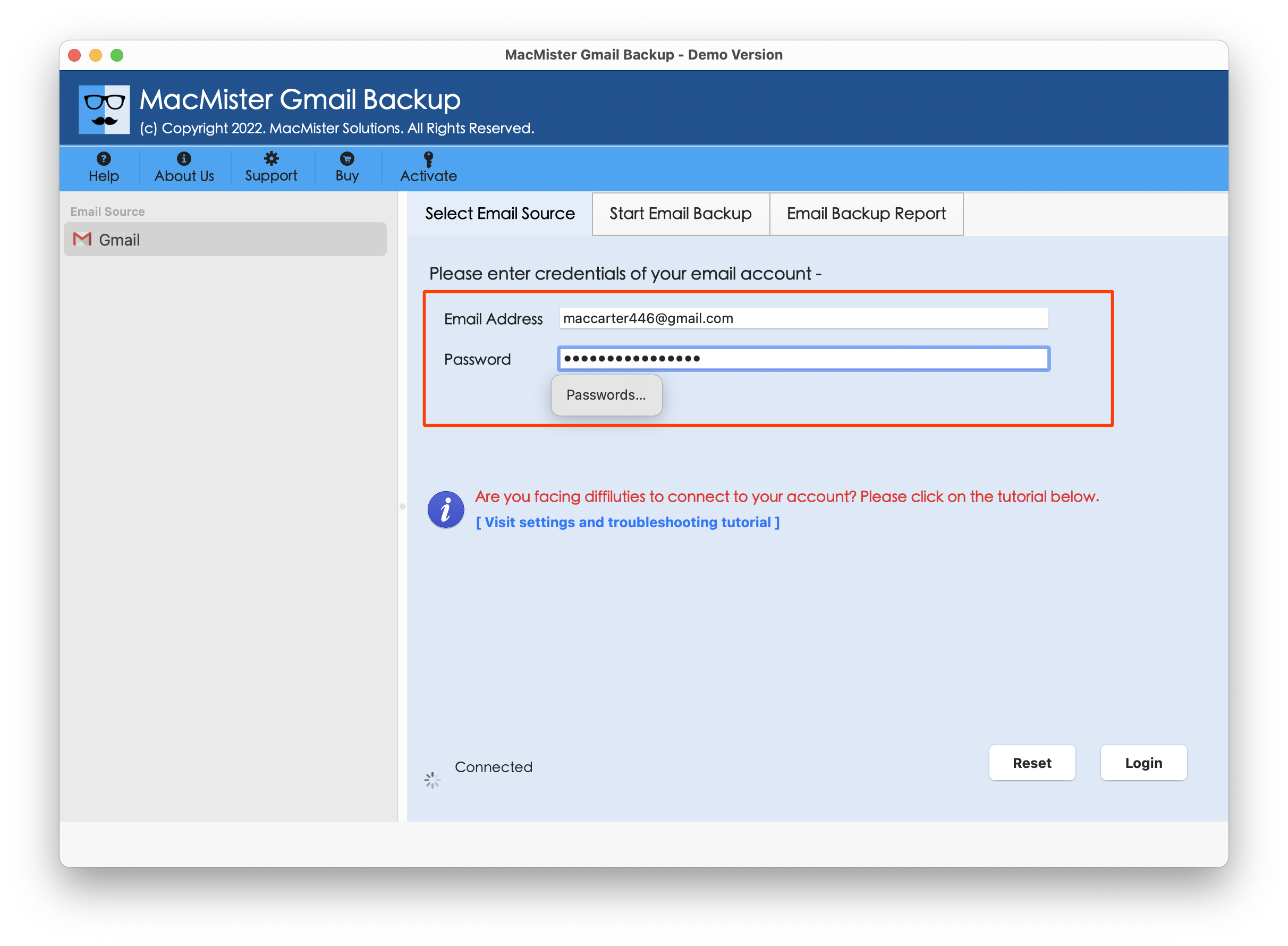
Step 3. After Gmail account is connected, the tool will start listing its folder items on the left pane of the software.
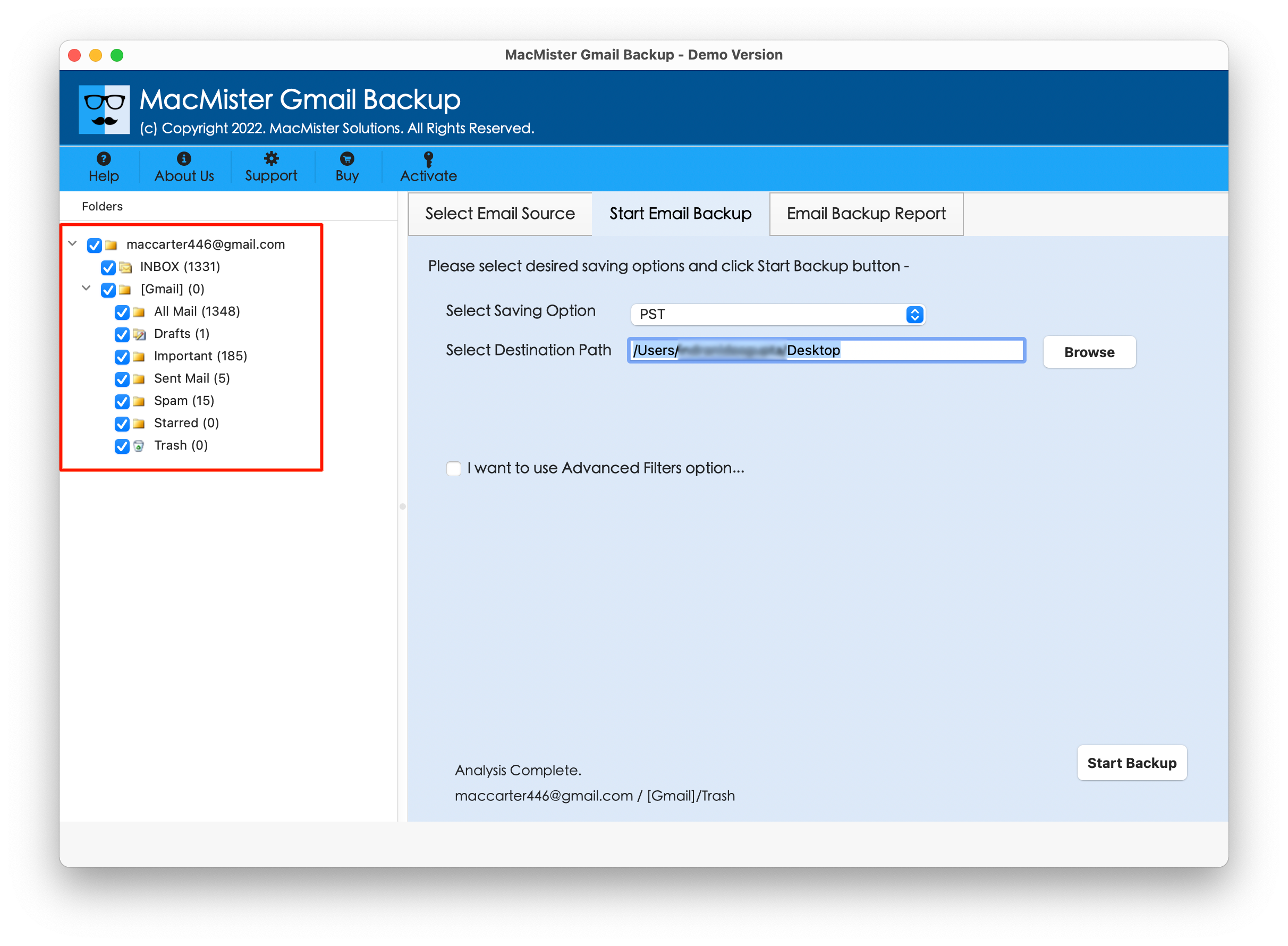
Step 3. Click Select Saving Options and choose the required saving type from the menu.

Step 5. Use the sub-options as per the requirements and click Start Backup.
Step 6. Now, check the live migration of Gmail emails using the Email Backup Report appearing.

Within seconds, the tool will complete the process and then “Process Completed” notification will display. Click OK and then go to the location to verify resultant files. However, after viewing the file, users will see that the process has been performed appropriately. The data of every email is correct and each email message will display with precise email structure and metadata properties.
Overall, it is one of the time-saving and easy approaches to retrieve emails from Gmail when storage is full.
Epilogue
In the write-up, we have gone through multiple methods to fix “how to retrieve emails from Gmail when storage is full”. Gmail is a popular online email management service. There are lot of users who are utilizing its services because it is free to use and provides 15 GB of storage for free. But after sometime when the storage limit gets exceeded, they unable to perform any operation because if they did, they will encounter “Gmail Quota Exceeded” error. So, here we have described different ways that will help users retrieving Gmail emails and allows making room for incoming emails. However, users can use the suitable method and perform the task accordingly.
Quick Note. Download MacMister Email Backup Software Mac & Windows that offers 30+ email sources including Gmail option. Users can select the necessary email service and export all of its emails into 15+ saving options with 100% accuracy.