How to Save Email from Gmail on iPad & iPhone?
If you are searching a way out to save email from Gmail on iPad, then you will find no other place like MacMister. Here, you will come across multiple approaches which you can opt to save email from Gmail on iPad. So, without more ado, let’s get started!
The Mail app contains useful tools that help in carrying out day-to-day tasks. It also saves an email as PDF on iPhone or iPad without the support of Mac. However, the process will take only few seconds but will save your time and prevent you from trouble.
There are basically two approaches to save email as PDF on iPad – One is a manual method and another is direct solution. Let’s first understand the process manually, go through its pros and cons, if it suits you, its fine, if not, then switch to the direct solution.
Manual Method to Save Email from Gmail on iPhone or iPad
While Gmail provides the option to achieve the necessary task, below are the instructions to follow to save email from Gmail on iPhone.
Steps to Save Email as PDF on iPhone
Step 1. Open Mail app and go to the required email to print.
Step 2. Click reply icon appearing at the bottom right corner (left of the edit icon).
Step 3. Now, from the control panel, select Print.
Step 4. Set the document options according to the requirements. For e.g. you can specify paper size, increase the number of copies, select the required pages in email, or change PDF orientation. However, it is optional.
Step 5. Click on Print appearing at the top right.
Step 6. Hit Save to File option.
Step 7. Choose the target directory. You can either choose iCloud Drive or Google Drive to send PDF to the cloud-based service.
Step 8. Last, click Save button appearing at the top-right to save email as PDF.
That’s all. Now, go to previously selected directory to check saved email as PDF. The easiest way to perform the process is by taking help of Files app.
Emails are not just the content that you save as PDF, you can also copy notes to PDF if needed or export photos for better safeguarding.
Steps to Save Email as PDF on iPad
Step 1. Open Gmail App on your iPad. Or you can use web browser to open Gmail email.
Step 2. Login to Gmail account by entering the required credentials.
Step 3. Click on the necessary email you want to download.
Step 4. Now, you will find a three-dot button located next to a mail icon in the upper-right corner of the Gmail window.
Step 5. Click on Print or Print All option.
Step 6. You will receive a prompt asking to select a Printer from the list of available printers.
Step 7. If there are multiple threads in a single email, then click Print all.
Step 8. Click AirPrint appearing on the printer menu. This will open a preview of an email you want to take print out of.
Step 9. Click on the Range appearing on the Preview screen. It allows to specify the range of the necessary pages to print.
Step 10. Swipe the counters up and down to enter the page numbers you want to include in a saved document.
Step 11. Click on the < Printers Options button. The back icon will confirm selected page range and take back to the print preview screen. However, pages that are not selected will appear dimmed down on a Preview page.
Step 12. Double-tap on the pages you need to download to preview the page in full-screen.
Step 13. Tap share icon appearing in the upper-right corner of the screen. A pop-up menu appears with all the document options.
Step 14. Click Save to Files from the list. It appears as a gray folder icon. This allows downloading and saving all the emails in a print preview as PDF document.
Step 15. Find and choose the folder in which you want to save PDF document
Step 16. Click Add button on the top-right corner of the screen. This will confirm the folder in which you are saving PDF files and save PDF document containing all the pages.
Pros and Cons of using Manual Approach
Pros
- Free to use.
Cons
- Non-technical users will find difficulty in using the manual approach.
- Steps are lengthy and time-consuming.
- Need to be implemented under expert’s assistance.
- The missed out of a single step can affect the entire process.
- Not suitable for large emails.
Direct Solution to Save Email from Gmail on iPad or iPhone
The quick and effective way to save email from Gmail on iPad or iPhone is MacMister Gmail Backup Tool for Mac. The software will perform the bulk conversion of Gmail emails into PDF and allow users to view their entire list of important emails easily on the necessary platform. The GUI is simple and so easily accessible by all professional and non-professional users. The steps are not as time-consuming as manual approach. The steps added in the direct solution will take only few seconds to finish the process entirely.

Moreover, users will find a lot of exceptional features in the tool which they can use to save email from Gmail on iPhone or iPad according to their requirements. One can download the freeware version of the tool to experience the complete working and options of the app for free.
Working Steps to Save Email from Gmail on iPad or iPhone
Step 1. Download, install, and launch the app on your Mac.
Step 2. Provide Gmail email address and app password and click Login button.
Step 3. The Gmail account will connect successfully with the tool and then list of Gmail mailboxes will appear on the software.
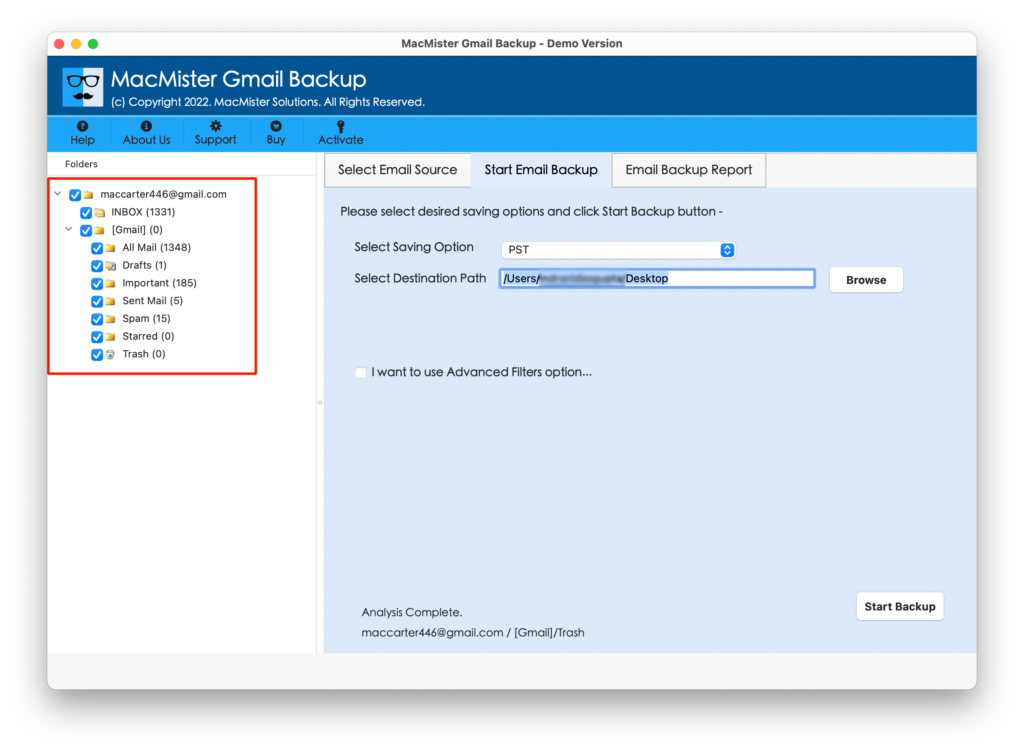
Step 4. Navigate to the right-side of the tool. Click Select Saving Options. Select PDF format.
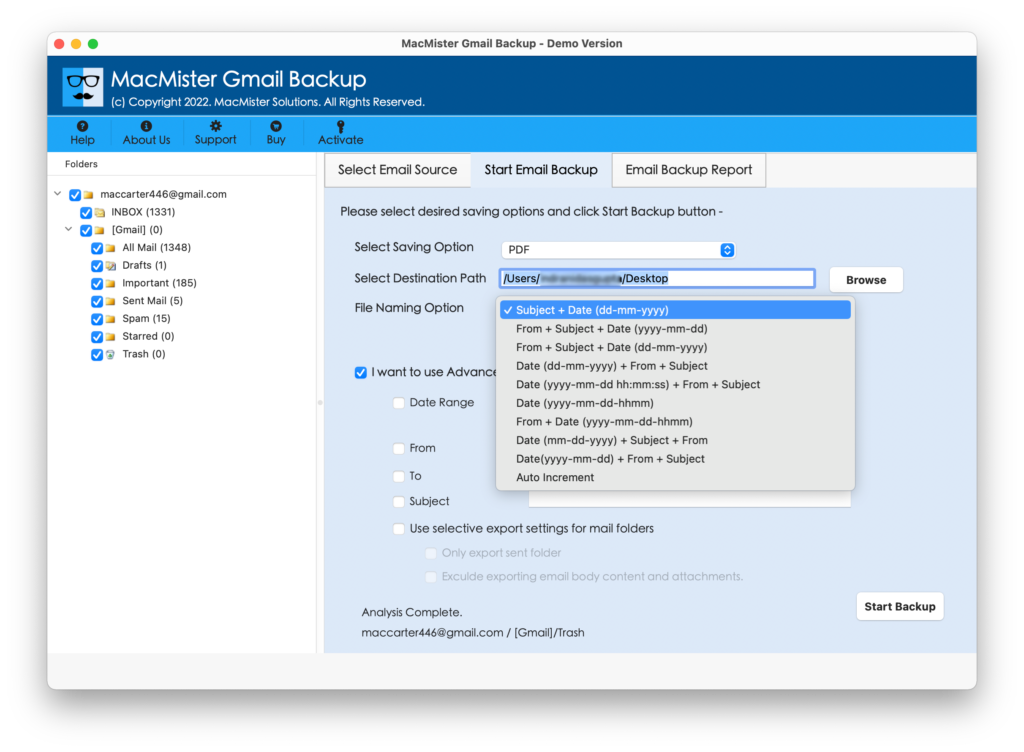
Step 5. Use the options of PDF as per your necessities. Simultaneously use Filters if you want to save specific Gmail email messages on iPad or iPhone. Finally, hit Start Backup button.
Step 6. The process starts quickly and a Live Conversion Window will appear showing the ongoing conversion status of Gmail email messages.
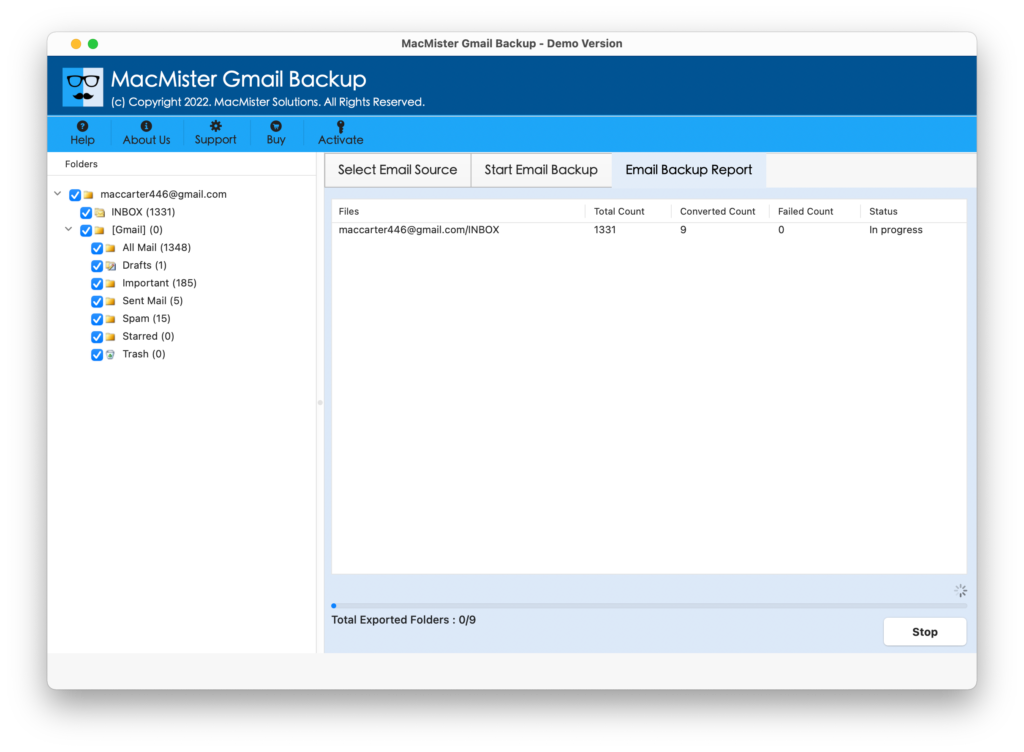
The task will take few seconds to finish successfully and then “Process Completed” message will appear. Click the OK button and go to location of resultant PDF files. You can open the required PDF file and view the results. However, you will see that the content in PDF document is accurate and the formatting properties are also precise.
Pros and Cons of using Direct Solution
Pros
- Save 25 Emails for Free.
- Supports direct conversion.
- Batch conversion at once.
- Time-saving process.
- Protects account details.
- Supports both Mac & Win OS.
Cons
- Good Internet Connectivity is Must.
Epilogue
The write-up has highlighted multiple approaches to save email from Gmail on iPad or iPhone. The first approach is manual in which technical steps are mentioned to perform the necessary task. They can prove little complex for non-technical users. Also, it is must to have the assistance of expert’s when implementing the steps. Whereas the second approach i.e. Gmail Email Backup Software for Mac is easy, secure, reliable, and certified. It smoothly performs the process and carries out accurate output. It also has a trial edition that one can use to experience the process for free. Also, one will be able to save first 25 Gmail email messages for free.