How to Save Emails from Outlook in .eml Format on Mac?
EML is a standard file type for storing the email message individually on the system. It is extensively supported and is easily viewable on variety of email applications such as Apple Mail, Thunderbird, Windows Mail, and more. At times, users require saving or exporting MS Outlook emails in EML format. So, in the blog we have described some methods that will surely help resolving “how to save emails from Outlook in .eml format on Mac”.
What is EML File?
EML (Electronic Mail) file is a standard format that stores single email file. It is equipped with email content, HTML formatting, metadata such as subject, sender, and recipient, and attachment. The EML format is supported by several email applications that makes the migration easy between different email applications.
There are plentiful reasons that tells why it is important to save emails from Outlook in .eml format, some of them are discussed below –
- Saving Outlook emails in .eml file are useful for future reference.
- Transferring Outlook email account into new email platform such as Thunderbird, Windows Mail, and Apple Mail.
- EML is a standardized format, thus storing emails in the same is helpful for legal purposes.
- Emails stored in EML file can be viewed easily.
How to Save Emails from Outlook in .eml Format on Mac?
There are different ways to save emails from Outlook in .eml format, depending on the Outlook version that is in use. Below are some effectual ways discussed that will help downloading EML file from Outlook –
Method 1. Using Save As Option (Outlook.com)
Step 1. Login to Outlook.com.
Step 2. Select required email to save in EML file.
Step 3. Tap More Options (three dots) appearing at the top-right corner of email.
Step 4. Tap Save as button and select the required location to save EML file.
Step 5. Now, go to the specified location to check saved EML files.
Method 2. Using Thunderbird Email Account
Step 1. Run Thunderbird email client on the system.
Step 2. Import Outlook emails into Thunderbird.
Step 3. In Thunderbird, navigate to Tools, click Import and tap Mail.
Step 4. Choose source as Outlook and import all the emails.
Step 5. Save emails in EML:
- Select necessary emails to export in EML format.
- Right-click on the selected emails, select Save as and tap File.
- Choose required destination folder to save exported emails in EML file.
However, the process is implementable but there are some limitations that should be consider first before carrying out the process manually –
- Users will be able to export single email file into EML format at one time which makes the process time-consuming.
- Non-technical users will face issues as the steps are technical and require in-depth knowledge of Outlook and Thunderbird.
- No guarantee of accurate output.
- Installation of Thunderbird and Outlook email client is necessary.
However, users who need to save unlimited emails from Outlook in .eml format can take the support of automated solution. It is direct, quick, and effective solution to export Outlook emails into .eml file.
Method 3. Directly Save Emails from Outlook in .eml Format on Mac
The direct technique to save emails from Outlook in .eml format on Mac is MacMister OLM Converter for Mac. With the help of the app, users can save few emails as well as unlimited emails from Outlook into .eml format at once. The software is simple & user-friendly. Anyone can operate the software without trouble and save emails within seconds. Even, the three operational steps will help users implementing the process in three clicks with 100% accuracy.
Additionally, the application contains many wonderful features which are helpful in saving emails from Outlook in .eml format according to the requirements. However, a free trial is available that users can download and use on any macOS to check the software process in detail for free.
Software Tutorial to Save Emails from Outlook in .eml Format on Mac
Step 1. Download and launch the application on a Mac system.
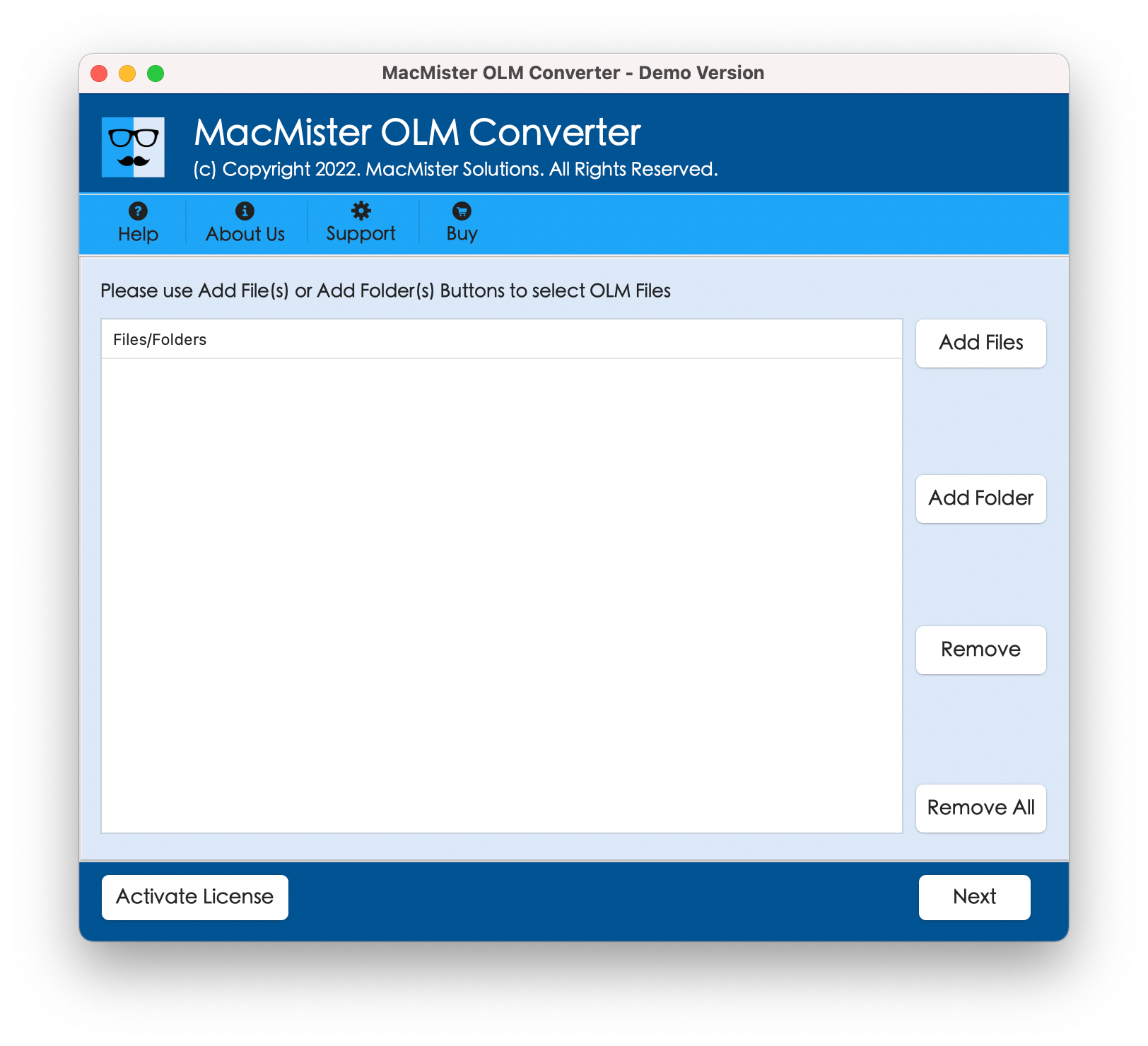
Step 2. Use Add File(s)/Add Folder options present to load OLM files on the tool.
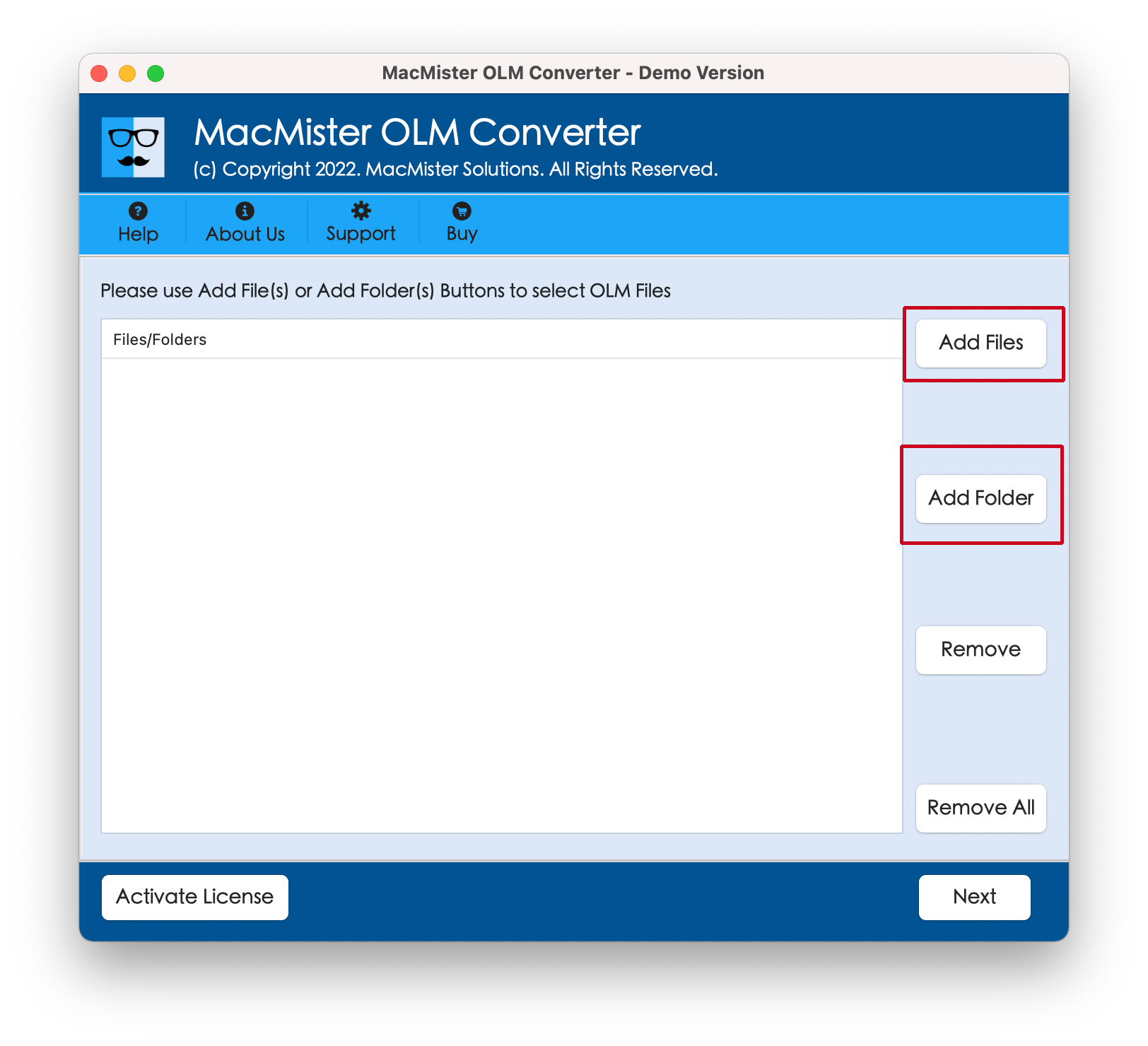
Step 3. Go through the files listed, verify them and click Next.
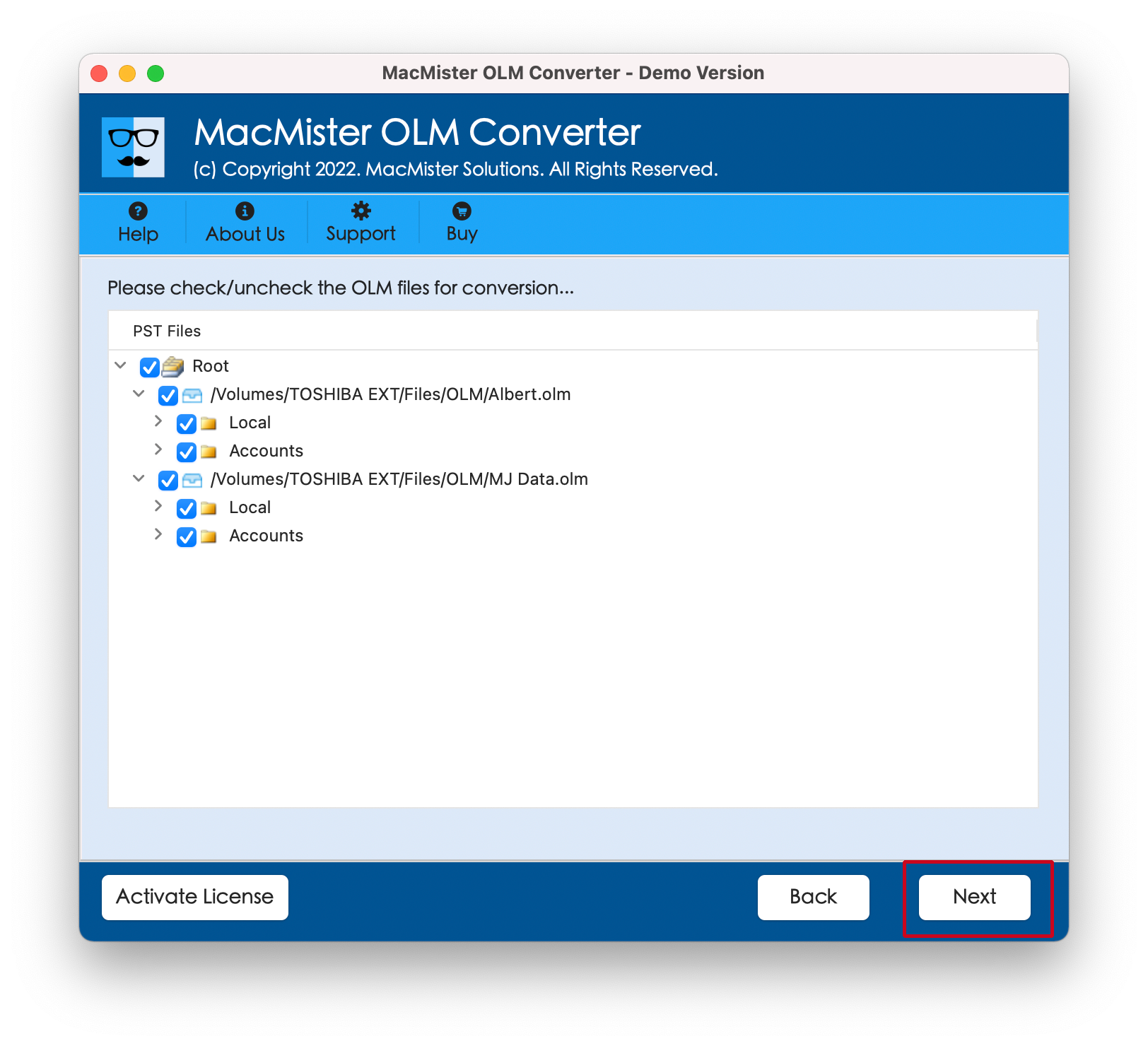
Step 4. Click Select Saving Options and choose EML saving type from the list.
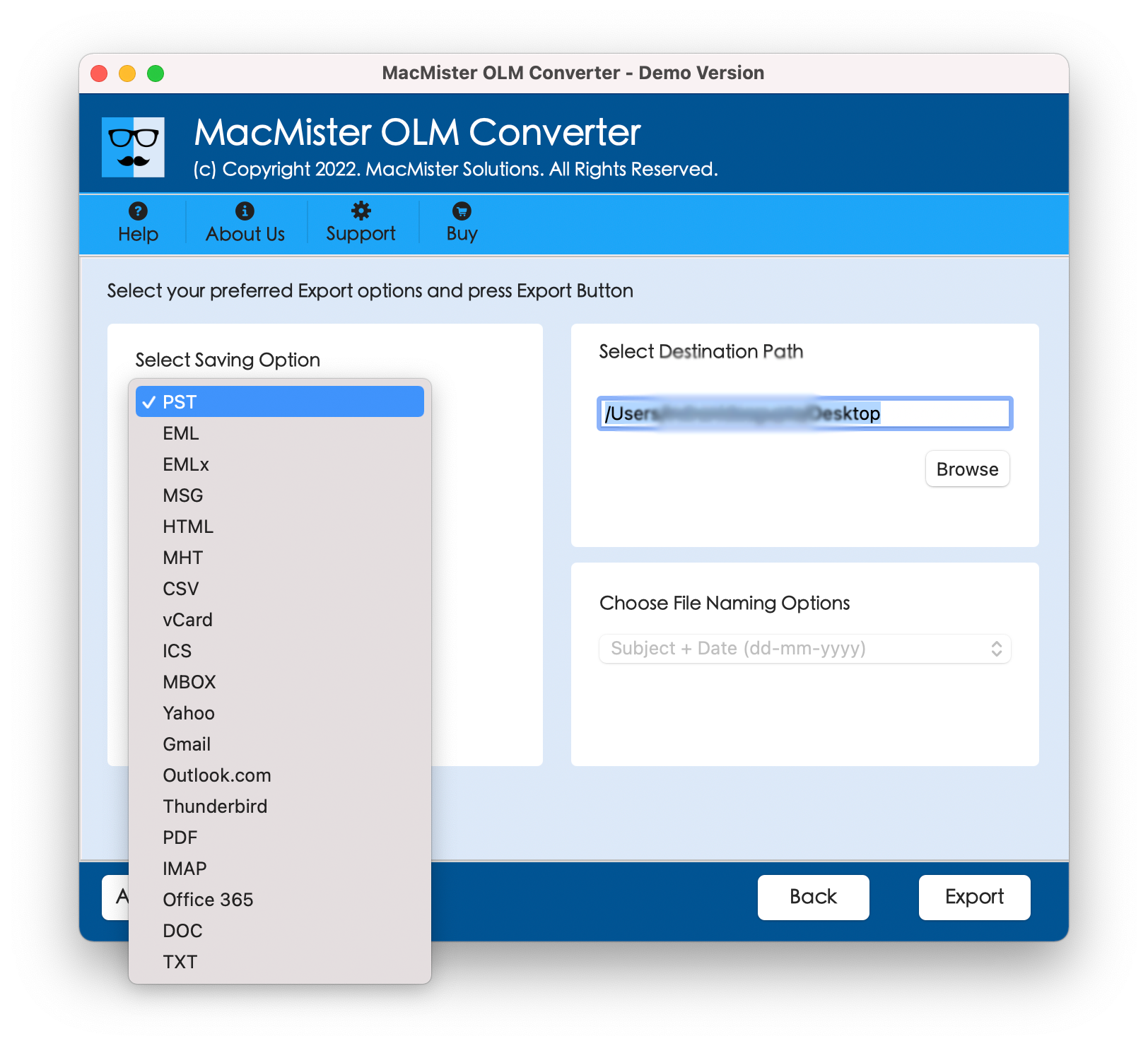
Step 5. Set EML sub-options according to the requirements and click Export.
Step 6. The Live Conversion Report will be generated which will display the live conversion progress of OLM files to users.
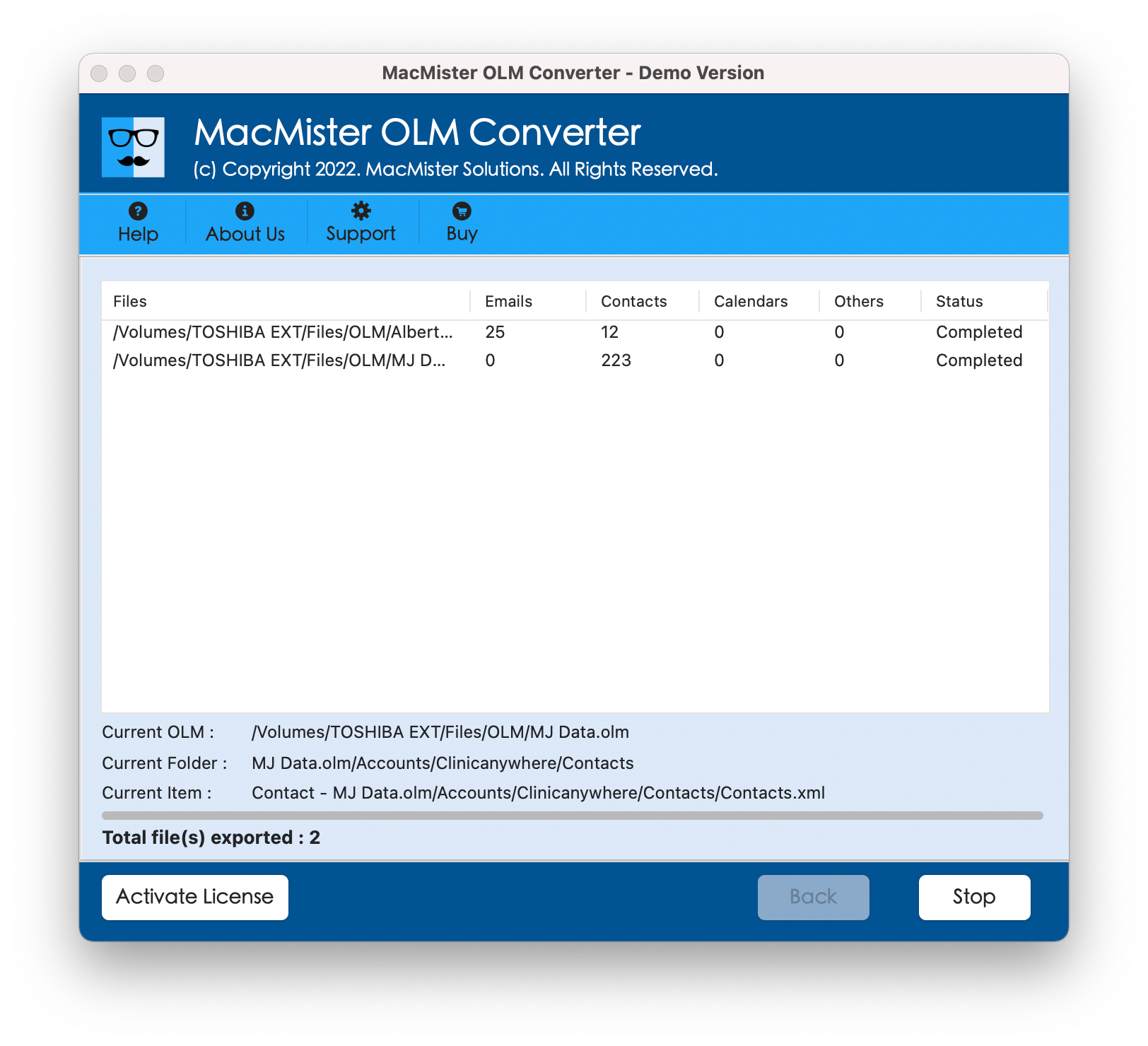
Within seconds, the whole process will finish and then “Conversion Completed” notification will be received by users. Click OK button and go to the destination path to check resultant files. After viewing them, you will see that the tool has accurately converted Outlook emails into EML file. The email content and data integrity of all Outlook emails will be shown without any alterations.
Epilogue
The write-up here provided multiple ways to resolve how to save emails from Outlook in .eml format on Mac. The manual methods are free to use but the steps are complicated and time-consuming. The direct method, on the other hand is safe and friendly. Anyone can use it and perform the process quickly. Additionally, it is available with many saving types other than EML such as MBOX, HTML, DOC, CSV, Yahoo, Office 365, and more. Users can make use of them as well to save emails from Outlook. However, it is recommended to download its free demo first on any Mac OS version to explore the detailed software working for free. It will also facilitate to save first 25 Outlook email messages into EML file for free.