How to Show Hidden Files and Folders on Mac? – Tips & Tricks

Sometimes we hide essential files on Mac for safety reasons but later we face a lot of challenges when we try to access them. Because, we are not aware of correct steps to make hidden files and folders visible. But not to worry, in the guide we have discussed the steps that will help you to access hidden files and folders on Mac effortlessly.
We hide numerous files and folders regularly on Mac. This is necessary because Mac is susceptible to data theft, thereby saving files and folders openly on the system can result in severe damage to data. But at times, users have to face the unavoidable circumstances that require them to urgently find their hidden files on Mac.
However, Mac provides few tips for extracting hidden data files on the same.
Caution: In case you modify files or somehow they are corrupted, then it can cause repercussions on your system.
Why Files & Folders are Hidden on Mac?
Encountering users snooping on your Mac is a common problem especially when you are working within an organization. Such occurrences can annoy you as well as embarrass you at the same time when storing any sensitive or personal data on a Mac.
Keeping files and folders hidden inside the operating system is beneficial for several reasons. It is performed by manufacturers, administrators, or system administrators so that they remain safe from unintentional damage and deletion. Some of the common reasons behind hiding files on Mac are listed below –
- Preventing files from accidental loss through deletion or corruption.
- Safeguarding important data from malicious attacks.
- Keeping files private containing confidential data.
Still, if you want to show hidden files and folders on Mac, then use great caution and make sure not to harm operating system.
How to Show Hidden Files & Folders on Mac?
Here, we have discussed two methods to show hidden files and folders on Mac. The first method is accessing hidden files using a Mac terminal and the second one is operable through Finder. Let’s get started with the first method followed by the second method.
Method 1. Steps to Show Hidden Files and Folders using Mac Terminal
Step 1. Open launched, then go to search bar and search for Terminal, then click Terminal.

Step 2. Choose the necessary folder where you want to make hidden files and folders visible on Mac.
Step 3. Type the command: Is -a
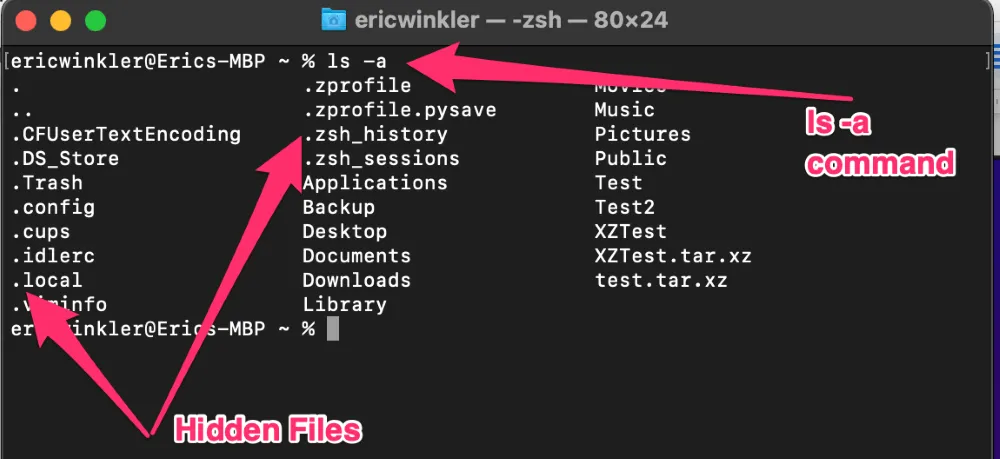
Step 4. The results will show all files and folders found in particular directory. The files starting with a comma or a dot need to be concealed (.).
Method 2. Steps to Show Hidden Files and Folders using Finder
Step 1. Again open Terminal on Mac.
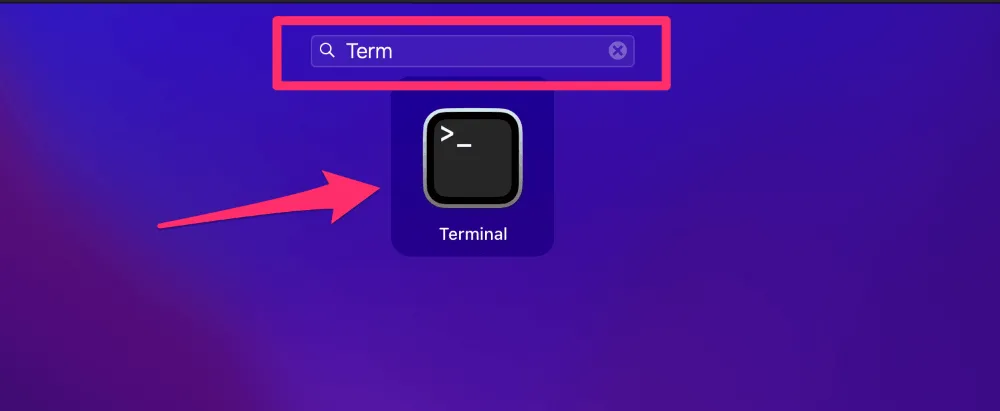
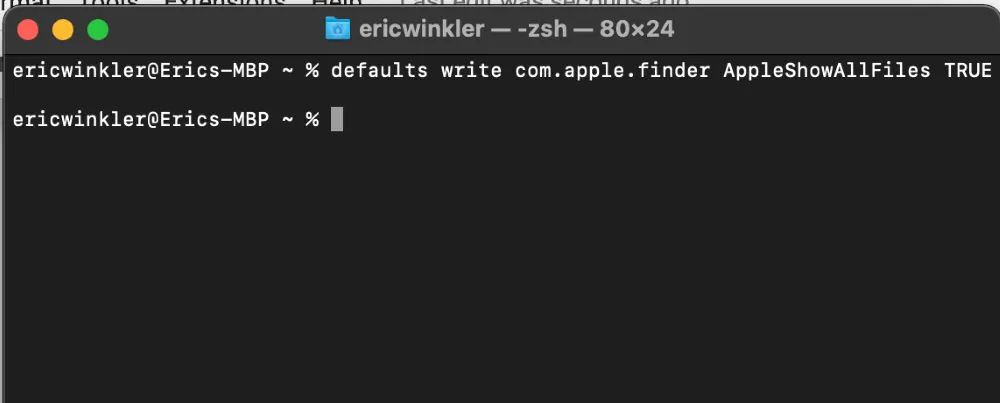
Step 2. Enter command to update AppleShowAllFiles value:
defaults write com.apple.finder AppleShowAllFiles TRUE
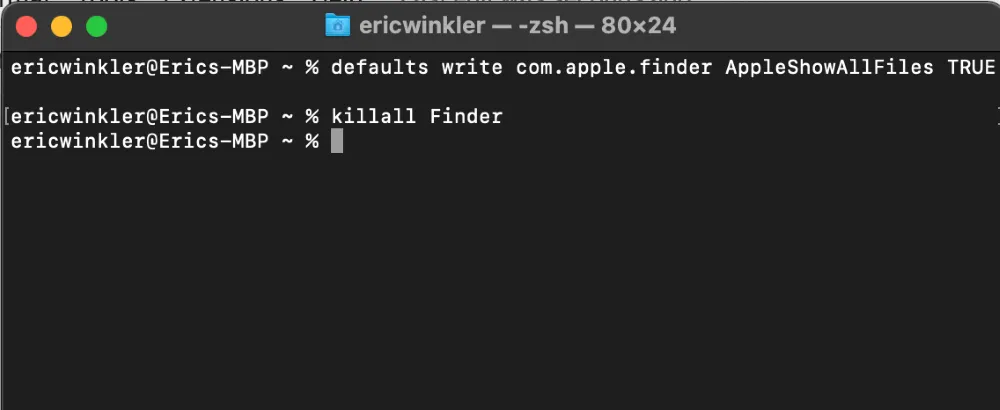
Step 3. Exit Finder before restarting it for the new setting to become active once it is applied. Now, terminate Finder by using the following command:
killall Finder
Step 4. Open Finder on your Mac to view hidden files and folders on Mac.
Step 5. Now, you can see all hidden files and folders on Mac.
Go through both methods and use the suitable technique to show hidden files and folders on Mac.
Conclusion
In the above section, we have discussed how to show hidden files and folders on a Mac. The first method requires you to input the “list all” command in Terminal. Moreover, you can use the same to run Finder to make hidden files and folders visible on Mac. Additionally, use extreme caution as files are mission-critical for operating systems.
Quick Note. For any assistance, you may contact MacMister Support.