Discover New Way to Import Apple Mail to Spark on Mac
Recently moved to Spark app from Apple Mail on Mac OS! Wondering different ways to import Apple Mail to Spark on Mac OS? Unable to discover a secure method to perform the same process? Then, release your fears because MacMister is here to help.
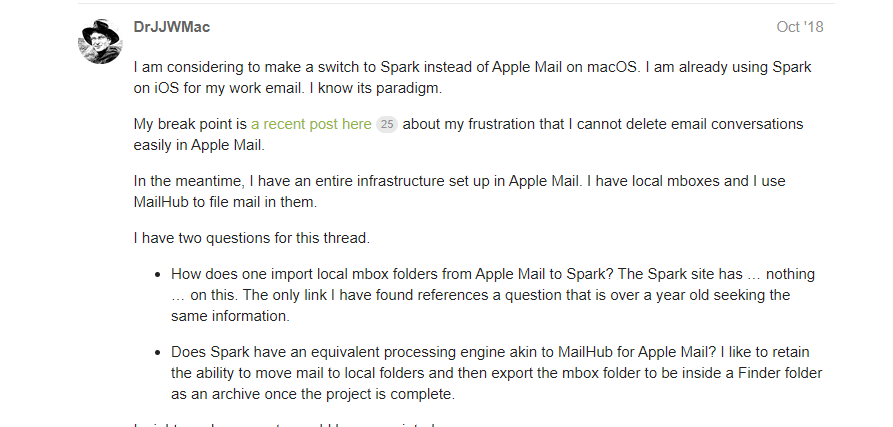
Let us understand the entire concept properly through a query that I found when collecting details about Apple Mail and Spark.
Apple Mail v/s Spark
Apple Mail is considered one of the known email client of Mac OS. Several users and organizations are using it and managing their large amount data at one place. Undoubtedly, it is an amazing email client, but it has some issues due to which users like to switch onto a different email client. In few years, the email client is updated with features like Mail Drop, mark up attachments and VIP Support. On the other side, if you want experience of a traditional Apple Mail app, you will surely love it but it is mostly lacking in lot of features that other email clients are providing. In case you want to explore more about Apple Mail, then check the plugins it offers which only runs when there is internet connectivity i.e. Mailbutler and Mail Act-On. However, these will not work in offline mode.
Spark is an amazing and a wonderful email client of Mac. It will certainly do an ultimate job by allowing you to take control of your INBOX. You can configured spark application with multiple usual accounts such as iCloud, Google, Gmail, Exchange, Yahoo, Outlook and IMAP. The smart inbox feature will help to organize emails in buckets such as pinned, newsletters, seen, new etc. It also offers different facilities as well i.e. snooze email, email follow-up reminders, send later, and integration with third party apps such as Dropbox, OneDrive, Google Drive etc., smart notifications and more.
How to Import Apple Mail to Spark Directly?
To import Mac Mail to Spark on Mac, make use of Apple Mail Converter for Mac software. The all-in-one app which allows to upload configured Apple Mail mailboxes or by adding extracted MBOX files manually using Add Files and Add Folder buttons. The software includes GUI which is easy to handle and operate. Technical and novice users can access the app and import Apple Mac Mail to Spark without distress.

Even, the wonderful features will help in exporting Apple Mail to Spark on Mac as per requirement. Download it straightaway and get the entire experience of the software and its options free of cost.
Steps to Import Mac Mail to Spark on macOS
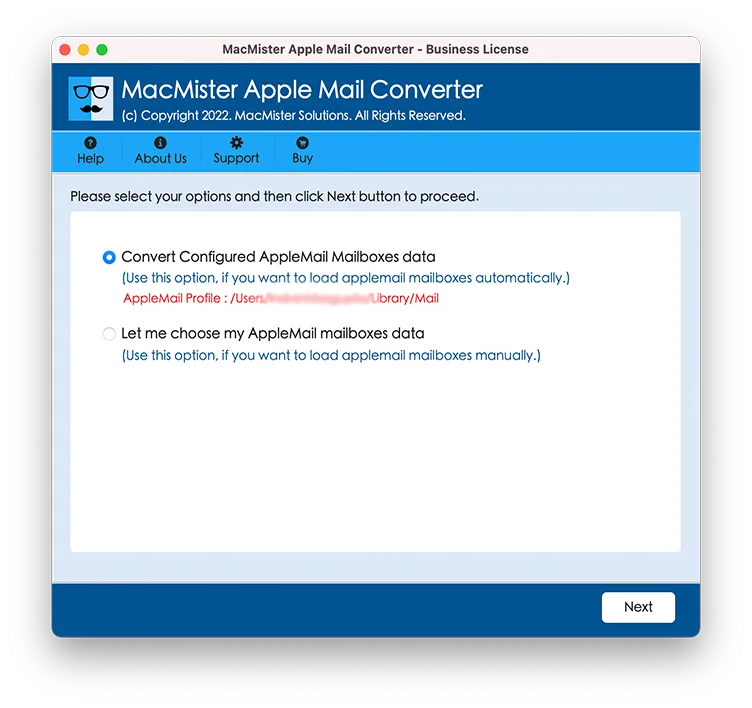
Step 1. Run Apple Mail Migrator for Mac on Mac system. Load Apple Mail mailbox folders by using the options as shown.
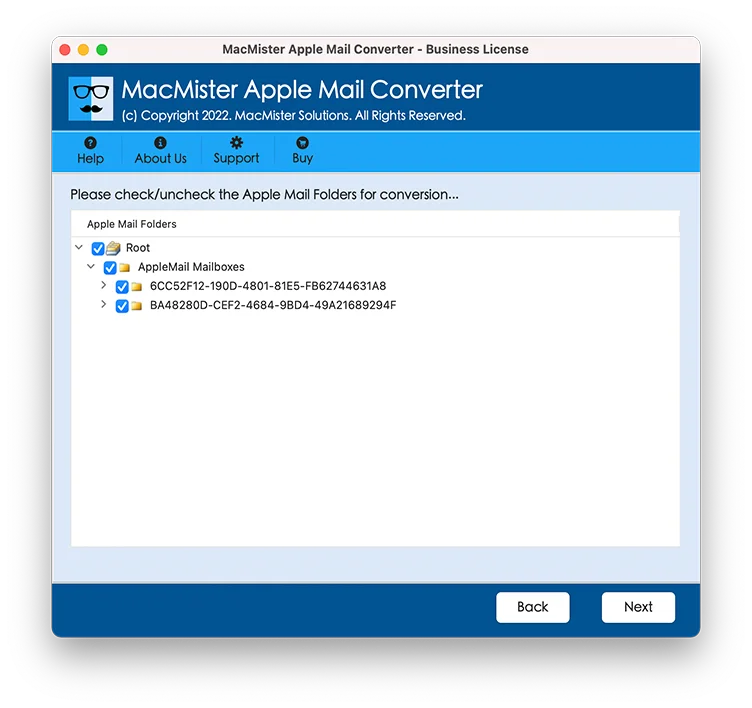
Step 2. Tool will begin listing Apple Mail files with corresponding checkboxes. MacMister added checkboxes for selective migration, if needed otherwise hit Next button and continue.
Step 3. Select IMAP Server that you will see when clicking Select Saving Option.
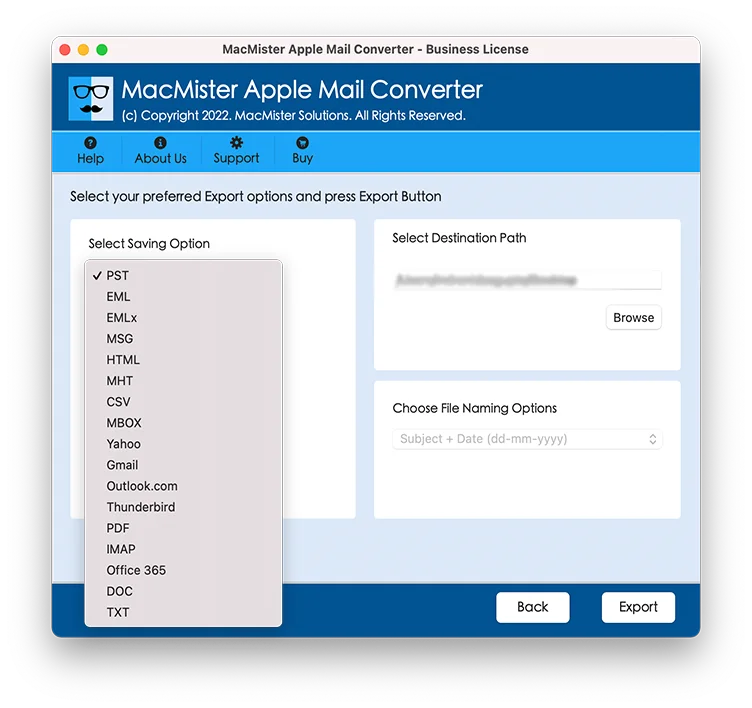
Step 4. Enter IMAP details with Email ID and Password and click Export button.
Step 5. View the migration of Apple Mail to Spark through Live Conversion window. It will show the on-going process that will give the details of total items left for conversion and status of total items converted.
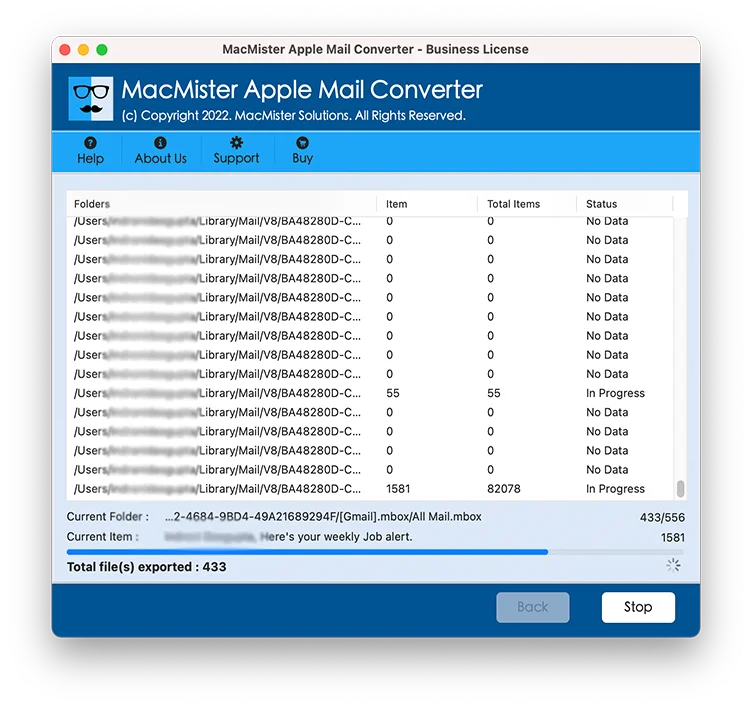
After process ends, “Conversion Completed” message will be shown with OK button. Click on it and the log report will automatically display showing the details of import process. Now, go to Spark account configured with specified IMAP account and check the migrated files. All transferred with 100% accuracy.
Note. You can use MBOX Converter for Mac as well if you have Apple Mail MBOX files on the system. The solution offers direct migration facility and help you in accessing MBOX files to Spark with precise database.
Features of Apple Mail to Spark Tool
Supports batch migration
The app has the ability to batch import Apple Mail to Spark directly on Mac. The tool provides multiple options to load Apple Mail mailboxes and one will give you the facility to upload multiple Apple Mail files. Once you did the task, then leave the rest on the application. It has the strength to transfer unlimited database into specified saving option at once.
Friendly Steps and GUI
The software is introduced with a simple GUI and steps. Technical and novice users will easily execute the process in just three steps. However, there are lot of applications which require proper technical knowledge to operate the software. But, this is not the case in Mac Mail to Spark application. No special skills needed for accessing Apple Mail data in Spark account.
Export Files Accurately
The utility not only passed in migrating bulk Apple Mail mailboxes into Spark but also specialised in getting the task done with 100% accuracy. No matter how many files you are moving from Mac Mail to Spark, you will get the result with precise email file properties and folder structure.
Mac OS Versions Supported
Mac users can use the software and implement the required task on all versions of Mac OS. Users are free to perform the migration on entire Mac OS editions that includes Mac Monterey, Big Sur, Catalina, High Sierra, Mojave and more.
Note. For more features, get the free download edition of the software. Moreover, in case you need any assistance, you can contact the MacMister support team and they will help you in transferring all Apple Mail files in Spark aptly.
Final Thoughts
In the segment, we tried to provide the best approach to import Apple Mail mailboxes into Spark account. The direct, cost-effective and secure method carries quick implementable steps and complete entire migration within fraction of seconds. Check out and verify the tool working as well its options by exporting 25 Apple Mail mails with attachments into Spark free of cost.