Tips & Tricks to Import MBOX to Zimbra on Mac & Windows
Are you having some sensitive MBOX files that you want to immediately transfer into Zimbra? Wondering how to import MBOX to Zimbra on Mac & Windows effortlessly? Looking for a powerful and effective solution for the same? Not to worry because in the article we will be discussing an approach that allows to directly import MBOX to Zimbra with emails and attachments accurately.
MBOX is a commonly used file format which stores the collection of emails in ASCII text. It is supported by several email applications and servers for storing and organizing email messages. In an MBOX file, each email message is typically separated by a special delimiter such as “From” (with a space after “From”) which conveys the beginning of a new message.
MBOX is compatible with several email applications and one of them is Apple Mail. Several Mac users make use of the same email client for digital communication because it is default and easy-to-configure and developed by Apple Inc. It provides users the convenient way for email account management, send/receive emails, organize messages into folders, and interact with contacts. The email application supports features such as unified inbox, integration with macOS and iOS, advanced search, customizable layout, advanced security & privacy, offline access, and more.
Zimbra is a collaboration and email server software suite developed by Synacor which was originally introduced by Zimbra Inc. and later took over by Yahoo! in 2007. The application delivers an integrated solution for email, calendaring, contacts, tasks, and document collaboration. It is mostly utilized by businesses, educational institutions, and service providers as an alternative to other email and collaboration platforms.
Why Users Move from Apple Mail to Zimbra?
Zimbra Mail Server is a friendly, open-source, and flexible email service providers. It is one of the oldest and powerful platforms, equipped with many benefits that are highlighted below.
- Zimbra is a cost-effective and free-to-use platform.
- Provides comprehensive collaboration suite including email, contacts, calendaring, tasks, instant messaging and more.
- Supports various operating systems and devices such as Windows, Linux, macOS, and Android.
- Allows to access emails and collaboration tools from desktops, smartphones, laptops, and tablets, assuring flexibility and accessibility on multiple platforms.
- Designed with a modern and friendly interface that allows users to access emails and collaboration tools through web-browser.
- Prioritize security and compliance by offering SSL/TLS encryption, two-factor authentication, anti-spam, data loss prevention (DLP), antivirus filtering, and email archiving. Helps in safeguarding sensitive data, assuring compliance with industry regulations and standards.
How to Import MBOX to Zimbra on Mac & Windows?
The easy and quick way to import MBOX to Zimbra is MacMister MBOX Converter for Mac & Windows. The application is user-friendly, reliable, and cost-effective. With the help of the tool, users can batch import MBOX files to Zimbra at once. It is easily operable by all technical and novice users. The tool even possesses three-simple steps which will save users lot of time and efforts.
Moreover, the software includes many features and options which are useful in obtaining the required results. However, you can download the free demo version of the application to test the working steps for free.
Working Steps to Import MBOX to Zimbra on Mac
Step 1. Download and run MBOX to IMAP Migration Tool for Mac on the system.
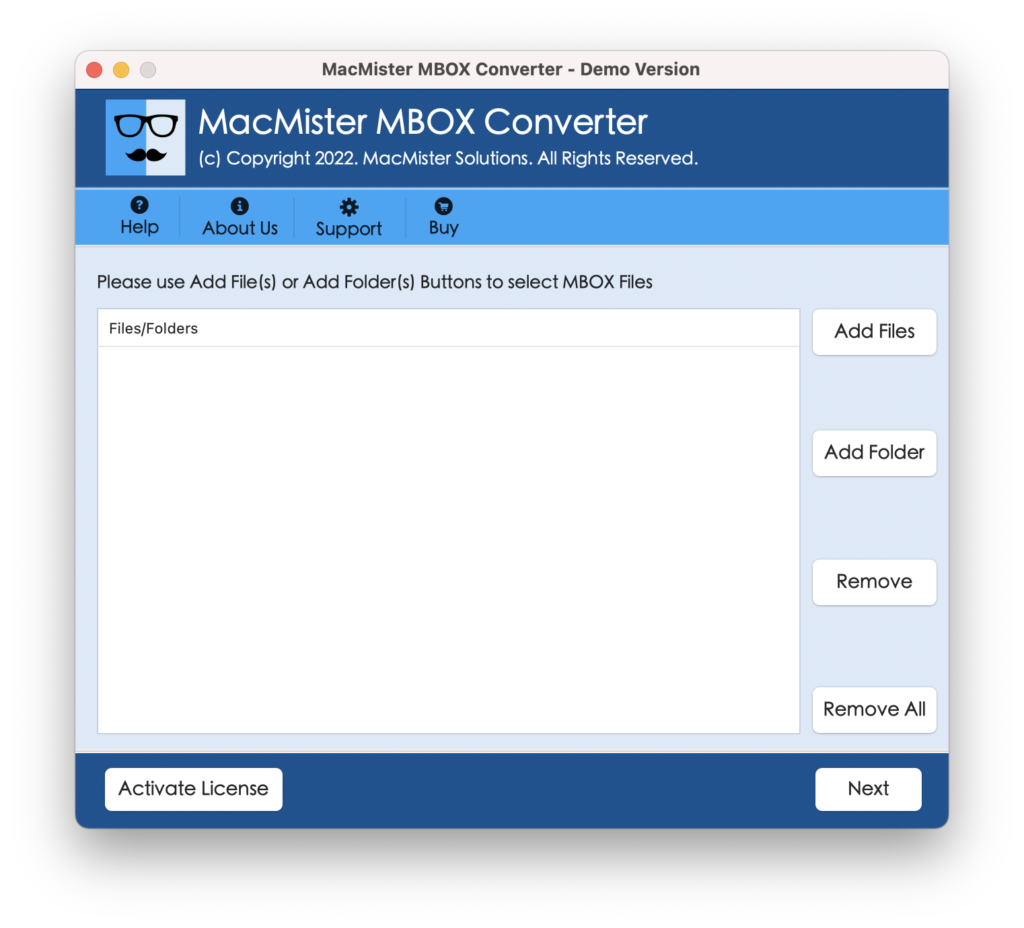
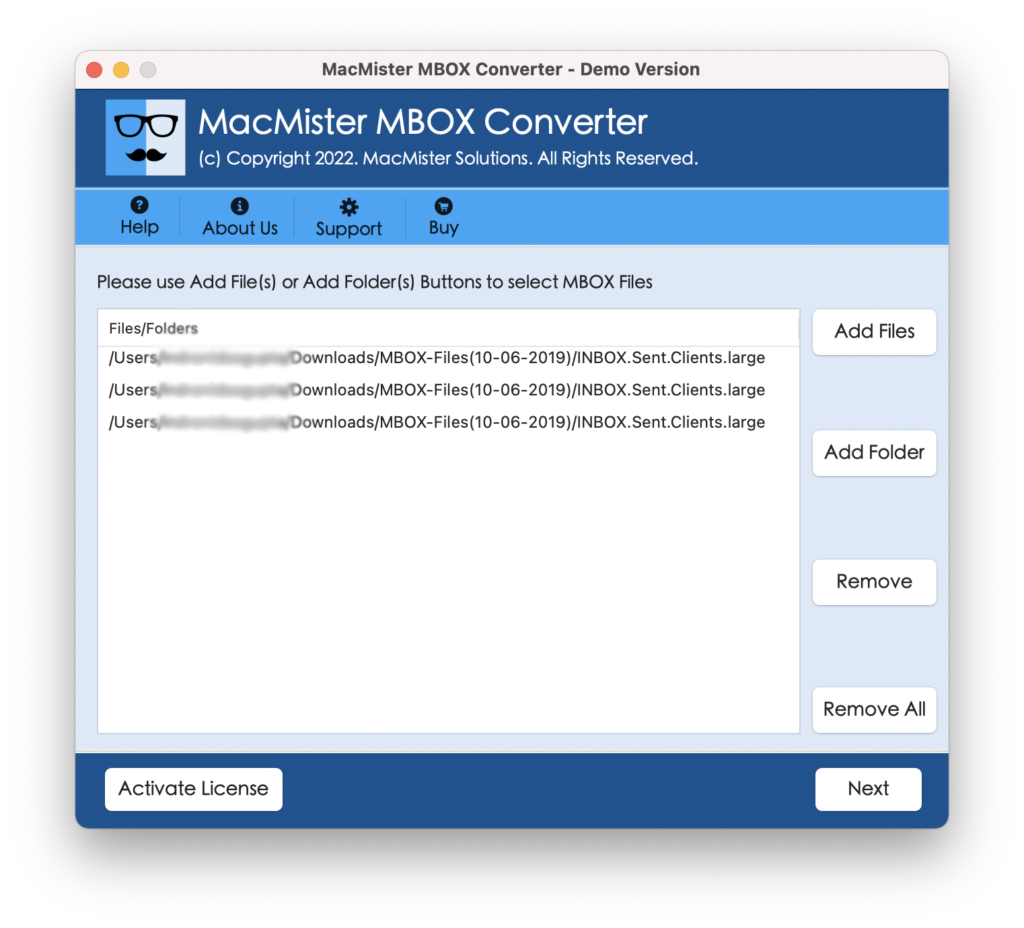
Step 2. Load MBOX files on the tool with the help of dual options i.e. Add File(s)/Add Folder buttons. By clicking Add File(s) option, users can add necessary MBOX files on the application whereas Add Folder allows users to add a folder containing unlimited MBOX files on the tool. Click Next to proceed.
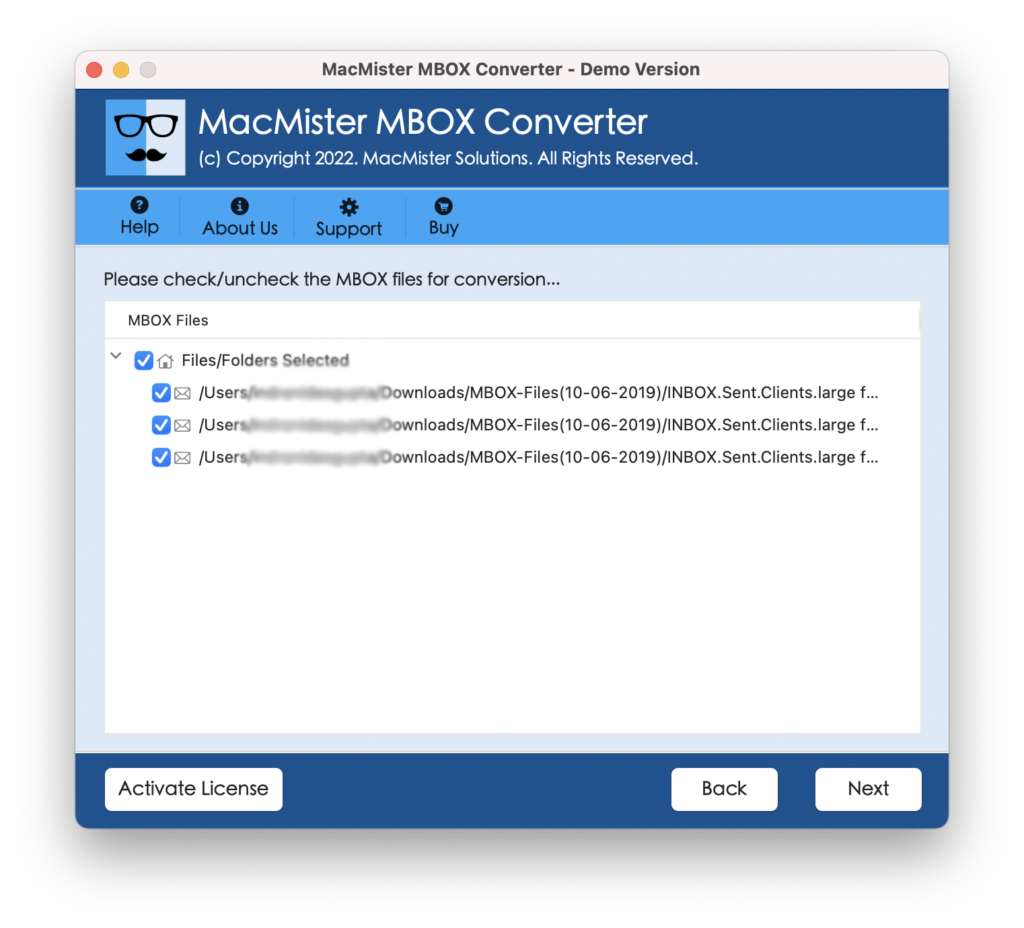
Step 3. The software start listing MBOX files with checkboxes that are all selected by default. However, you can deselect them and select them again according to your requirements for selected conversion. Click Next to proceed.
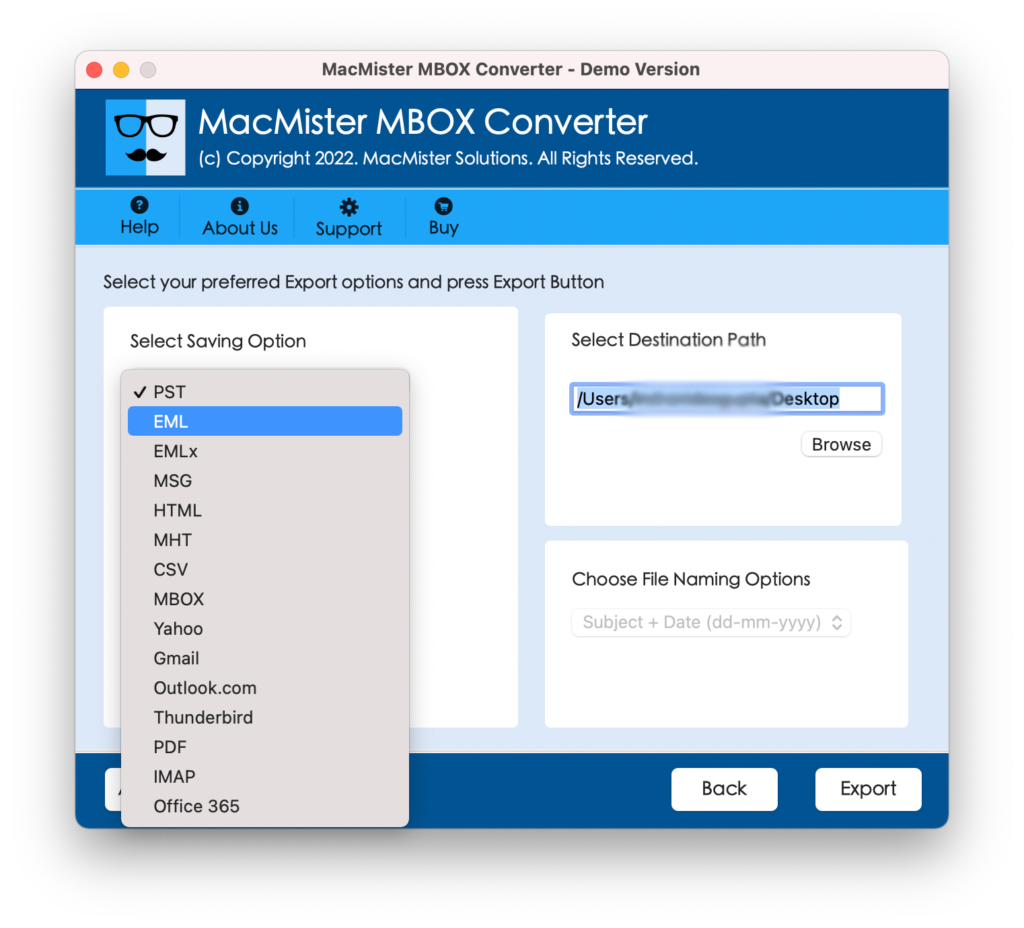
Step 4. Click on Select Saving Options and select IMAP option from the menu.
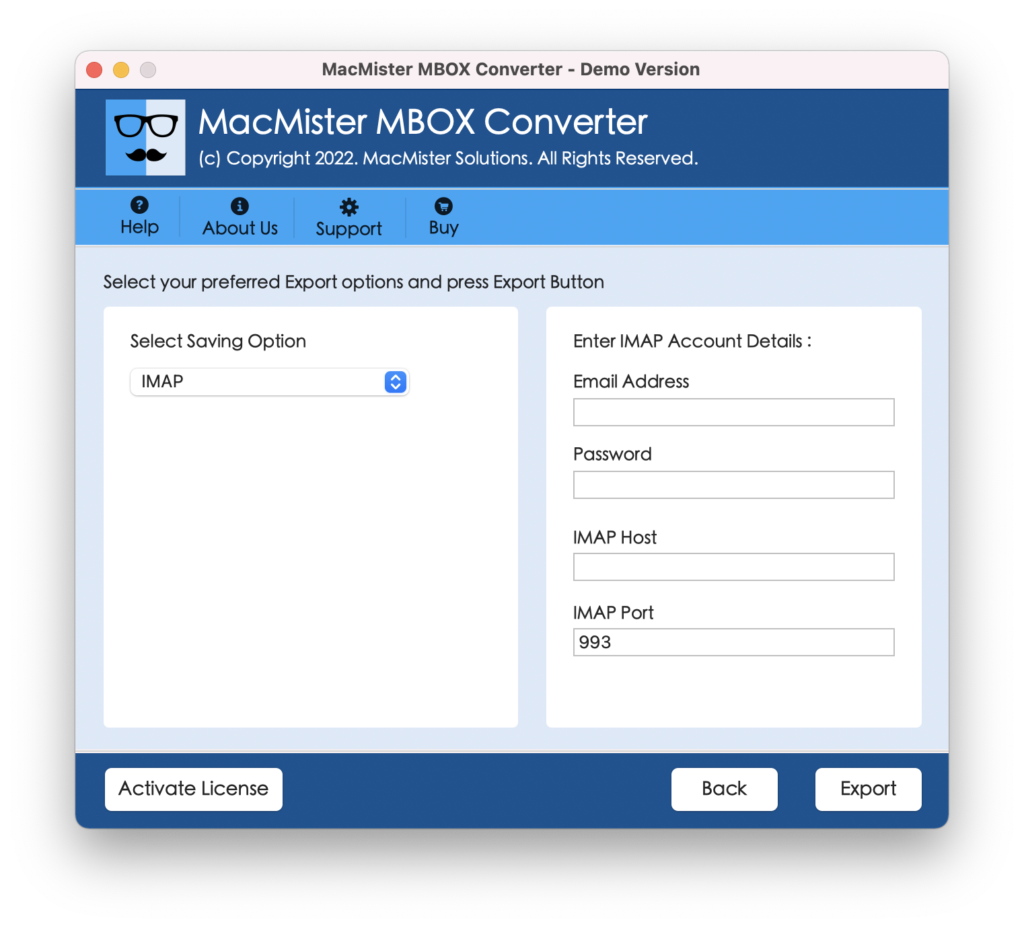
Step 5. Provide IMAP details and login credentials of Zimbra in required fields and click on Export.
Step 6. The software starts the migration and show Live Conversion Report on the screen.
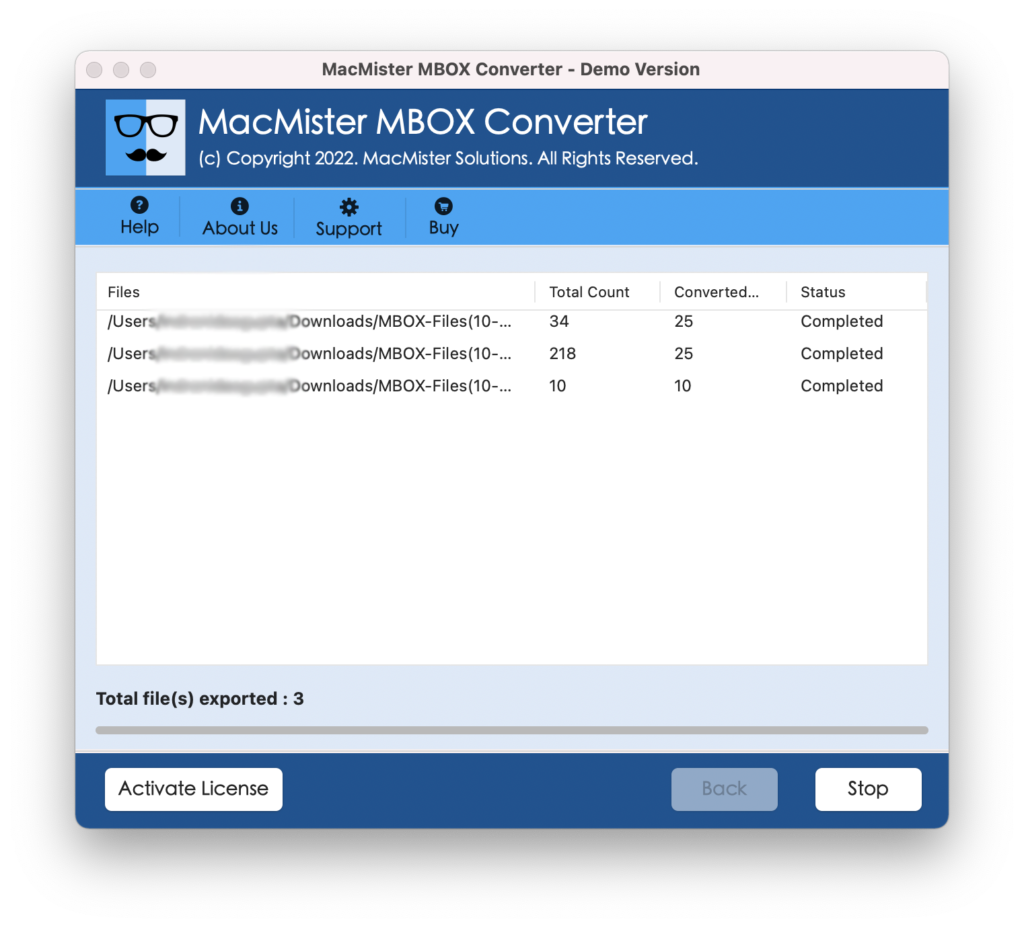
The process will end in few seconds and then the app show “Conversion Completed” notification confirming that the tool successfully imported all MBOX files to Zimbra environment. Click OK and login to Zimbra account to verify the results. However, you will see that the emails are accurately imported.
Why Users should Prefer MacMister MBOX to Zimbra?
MacMister MBOX to Zimbra is an incredible solution that precisely imports MBOX emails and attachments to Zimbra with ease. The application has many features which are useful in getting the desired results, some of them are:
- Directly import MBOX to Zimbra with emails and attachments.
- Protects Zimbra credentials during the entire process.
- Offers dual options (Add File(s)/Add Folder) options to add MBOX files for conversion.
- Besides IMAP, also supports other saving options such as MBOX to PST Mac, MSG, EML, EMLx, MHT, HTML, CSV, Office 365, G Suite, Yahoo, and more.
- Preserves the content originality of MBOX emails throughout the process.
- Allow users to import only selected MBOX emails to Zimbra.
- Supports friendly interface which is easily operable by all types of users.
- Maintains formatting properties of MBOX emails while importing MBOX files.
- Shows Live Conversion Report that displays the ongoing import status of MBOX files.
- MBOX to Zimbra is available in both Mac & Windows OS.
- Mac users can import MBOX files to Zimbra on Mac OS Sonoma and earlier versions.
- Windows users can perform the process on Windows 11, 10, 8.1, 8, etc.
Quick Note. Download TRIAL EDITION to Explore all Software Features and Options.
Epilogue
The write-up has provided an instant methodology to import MBOX to Zimbra with emails and attachments. The mentioned application is 100% safe and easy-to-use. It is a solution that securely implements the process with accurate results. You can download the free version of the tool to explore the working of the application for free. It also allows to import first 25 MBOX emails and attachments to Zimbra free of cost.