How to Import MSG Files to Apple Mail on Mac?

Are you having MSG files on Mac but using Apple Mail email client? Need to import MSG file to Apple Mail? Finding an appropriate solution for the same? No worries MSG Converter for Mac is here to help you out!
MSG file is a single email message file created by Microsoft Outlook. It is encrypted by default, so users cannot open them in any different application. Thus, Outlook is a preferable email client in most of the organizations. And, .msg extension is a file type that can only work in Windows Outlook. If Apple Mail user tries to access it, it will show an error. Because many times, Mac user receives a file from Windows user that they cannot open and due to this they utilize a method which could help them out in retrieving Windows file data on Mac.
However, Apple Mail is a default email application of Mac OS and numerous Mac users make use of the same for managing daily tasks in an organization. And, it stores all user emails in a single MBOX folder. So, if a Mac user with Apple Mail application received MSG file, then MSG to MBOX conversion needs to be performed.
But, it is a biggest challenge in front of Mac users. Because Mac is known for high security features and GUI. So, if a user wants to perform a conversion, then it is important to make use of reliable and safe conversion utility.
How to Import MSG File to Mac Mail on macOS?
In order to perform the process, one need to make use of MSG to Apple Mail Tool for Mac. The application is easy, user-friendly and equipped with simple operable clicks which is implementable effortlessly by technical and non-technical users. The MSG to MBOX Tool offers smooth functioning without damaging the data integrity and folder structure.

The MSG to Apple Mail software contains advance features that users can apply according to their needs and import MSG file to Apple Mail easily. To check the process, free demo version is available that allows to import 25 MSG file to MBOX.
Steps to Import MSG to Mac Mail Account
Step 1. Run MSG to Apple Mail Tool for Mac on macOS.
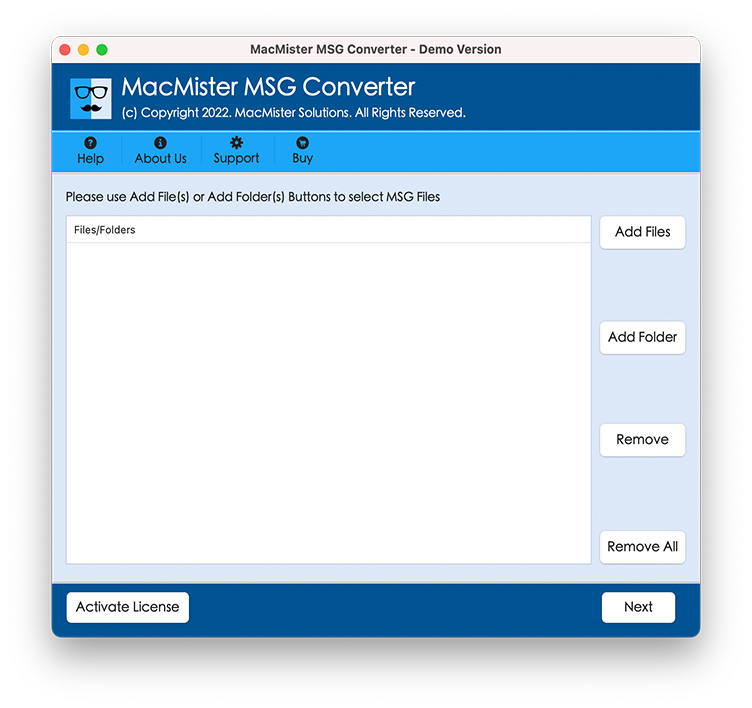
Step 2. Add MSG files on the software using Add Files and Add Folder. Click Next.
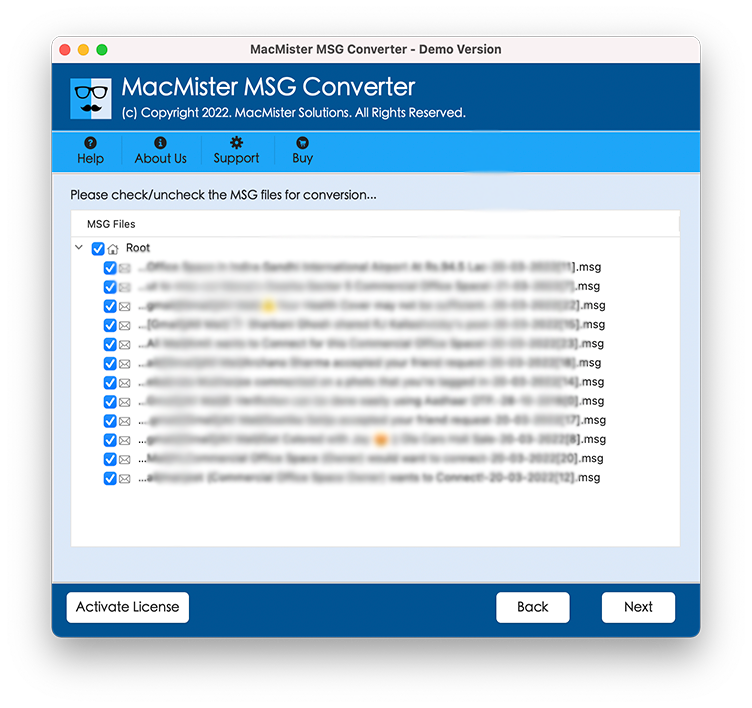
Step 3. MSG file now start listing with checkbox. The checkbox will help to import selective MSG file to Mac Mail and click Next.
Step 4. Choose IMAP Server or MBOX option from Select Saving Option.
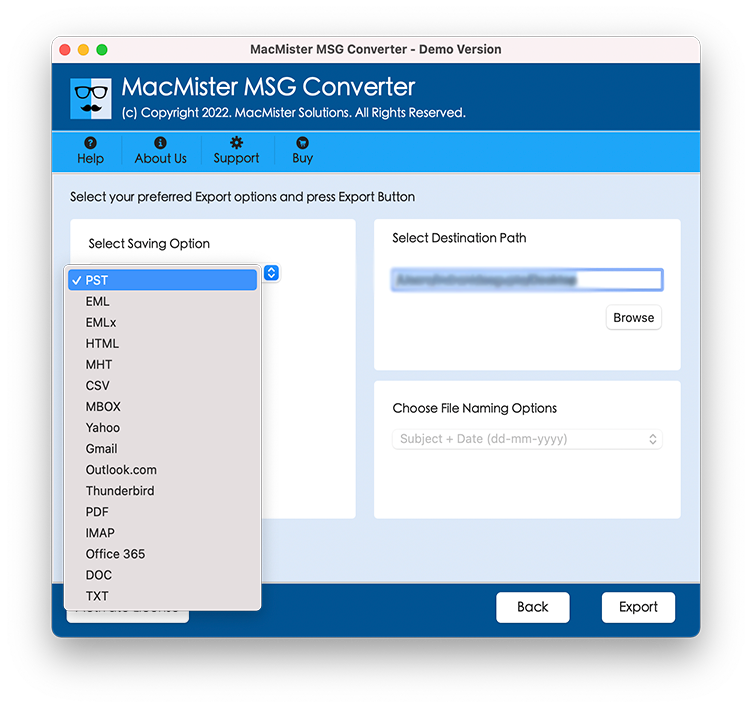
Step 5. If you have chosen IMAP Server options, then provide Apple Mail login details with IMAP Host and Port Number. If MBOX is selected, then set destination path as per need and click Export.
Step 6. The tool shows Live Conversion window displaying the progress of MSG to Apple Mail conversion.
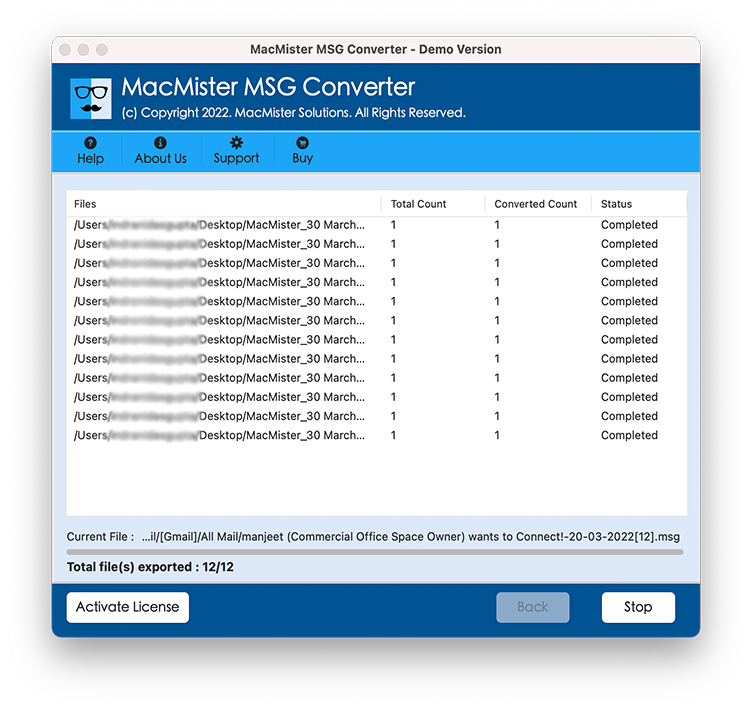
Process finally ends with a message “Conversion Completed”. Click on OK and the tool will open log report of conversion process. You can cross-check saving option, destination path, start and end time, total items converted etc. from the same.
Amazing Features of MSG to Apple Mail for Mac
Batch Export MSG File to Mac Mail
The MSG to Apple Mail software includes Add Folder option for batch conversion. User can create a folder and store all the required MSG files in the same and load it on the application by taking help of Add Folder button. Tool will import entire folder at once without data loss.
Multiple Saving Options to Save MSG
The MSG to Apple Mail Tool for Mac offers IMAP Server and MBOX as a saving option. Users can use IMAP Server to transfer MSG file directly in the desired account. Also, users can convert MSG file to MBOX format and then import the same into Apple Mail after conversion.
Easy and Effective User-friendly GUI
The MSG to Apple Mail application has been built-up with user-friendly interface. The easy clicks and options make the tool simple to use and allows technical and non-technical users to operate it effortlessly and help them in executing the required migration.
Different Options to Load MSG Files
The MSG to Mac Mail Tool for Mac includes multiple options to load MSG files on Mac for conversion process. The Add Files and Add Folder button will help users to load required MSG files/folder and perform the conversion without any interruption.
Works Smartly on all versions of Mac OS
The MSG to Apple Mail utility has the ability to work on all versions of Mac OS. The solution is downloadable and able to import MSG file to Apple Mail on Mac Monterey, Big Sur, Catalina, High Sierra, Mojave and more.
All Outlook Versions MSG Files Supported
Users can easily import all Outlook versions MSG files into Mac Mail email client or supported file format. The MSG to Apple Mail allows to transfer MSG files of Outlook 2019 and earlier versions.
Note. Users can check more features of the tool by downloading the trial edition that is offered by MacMister Solutions. It will allow you to explore the process deeply and help you to import 25 MSG files free of cost. You can contact our support team any time if you need any guidance during conversion.
Conclusion
The entire post provided strong technique to import MSG to Apple Mail. The application here gives accurate output and offers secure conversion on macOS. The software not only performs migration of MSG to Apple Mail but also allows to import MSG to MBOX, PDF, EMLx, MHT, HTML, CSV, IMAP Server and more.