How to Import PST to GoDaddy on Mac & Windows?

Are you carrying some essential PST files that you need to import into GoDaddy account immediately due to unavoidable official circumstances? Wondering how to import PST to GoDaddy with all the emails and attachments safely? Searching for a smart and effective solution for the same? No worries, simply read the entire segment and you will encounter a technique that will directly import PST to GoDaddy email account with 100% accurate results.
PST is a Microsoft Outlook for Windows supported format and most of the users are already aware of it as more than half million of Windows users are making use of Outlook email application to manage day-to-day emails. The file usually holds the essential data items of users account such as emails, contacts, calendars, notes, journals, tasks, and more. It is basically compatible with Windows Outlook and thus, many users face challenges whenever they try to access PST file into some another platform. That is why, most of the users have to figure out how to import PST to GoDaddy webmail service with ease.
GoDaddy, on the other hand is a popular domain registrar company, equipped with wide range of products and services. It offers hosting, DNS management, email hosting, website management, etc. GoDaddy email is one of those webmail services that help users to send/receive emails by using custom domain. It allows users to access its emails from anywhere anytime and on any platform.
Some of the benefits of using GoDaddy Email Service
- Provides free SSL certificate that protects your account from hackers. In other words, you do not need to worry about the emails stored in your GoDaddy account as they will remain safe and protected.
- It gives the freedom to access more than 150+ hosting solutions such as Google Cloud Platform, Rackspace Cloud Servers, Microsoft Azure, Amazon Web Services, and Digital Ocean.
- Offers free malware scanning to its clients as it helps preventing the viruses and spam from spreading throughout the network.
- GoDaddy has a secure SMTP server and so there is nothing to worry about data breaches or any type of data leaks.
- Supports easy synchronization with all types of devices such as laptop, Android, Mac, iPad, PC, etc.
However, PST and GoDaddy are completely different. PST is a desktop-based format and GoDaddy is a cloud-based platform. The migration between them is quite complicated. Therefore, a user need to take help of a secure way to import PST to GoDaddy account. But do not panic because in the next section we have discussed an approach that will quickly import the list of important PST files into GoDaddy email account.
How to Import PST to GoDaddy on Mac & Windows?
The direct and easy way to import PST to GoDaddy webmail is MacMister PST Converter for Mac & Windows. The tool is only a three-step process – first Add PST Files/Folder on the tool, choose IMAP from Select Saving Options, and click on Export. After this, the app will immediately import unlimited PST files to GoDaddy at once. Also, the software possesses a friendly and intuitive base so that any technical and non-technical users can handle the process independently and perform the migration without dealing with any issues.
Moreover, the application has features with the help of one can import PST files into GoDaddy as per their specific preferences. However, you can check the process by downloading the free demo version. It allows to import first 25 PST emails and attachments to GoDaddy for free.
Working Steps to Import PST to GoDaddy on Mac
Step 1. Download and run MacMister PST to GoDaddy Tool on your Mac platform.
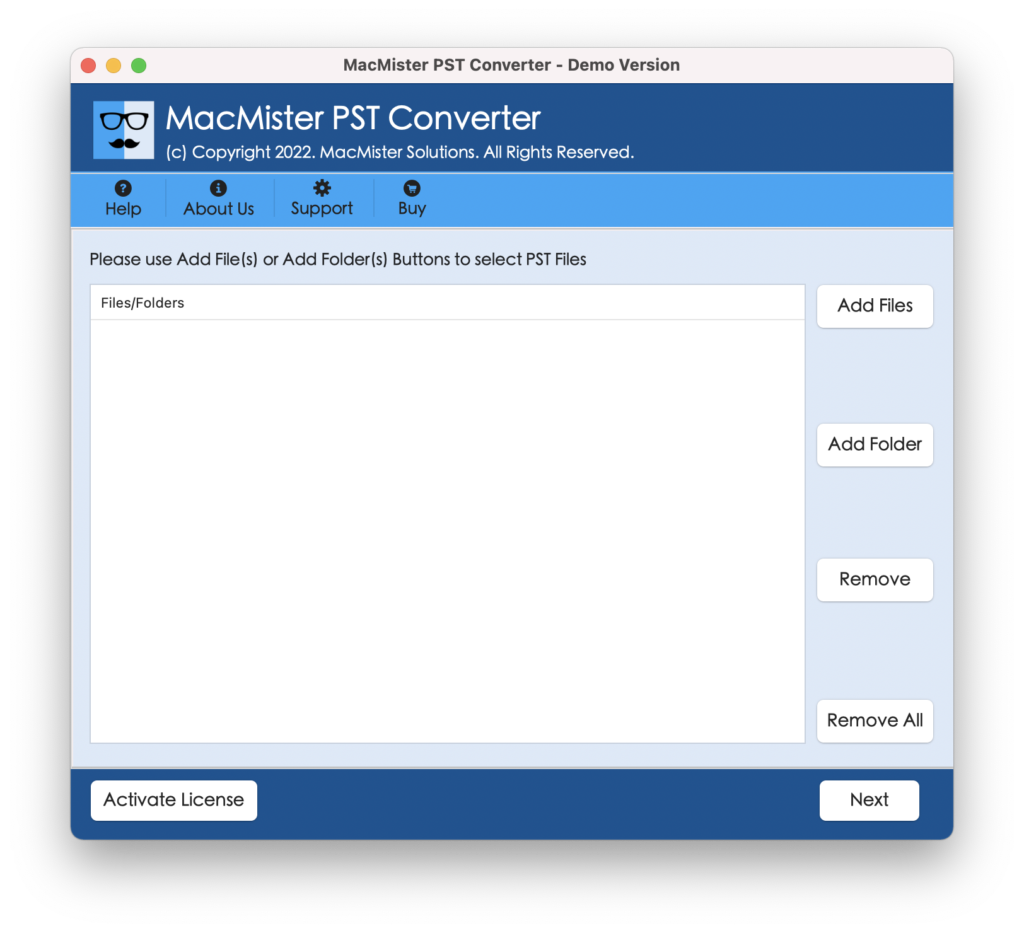
Step 2. Make use of Add File(s)/Add Folder option to add PST files folder on the tool that are required to import into GoDaddy account. Click Next to continue.
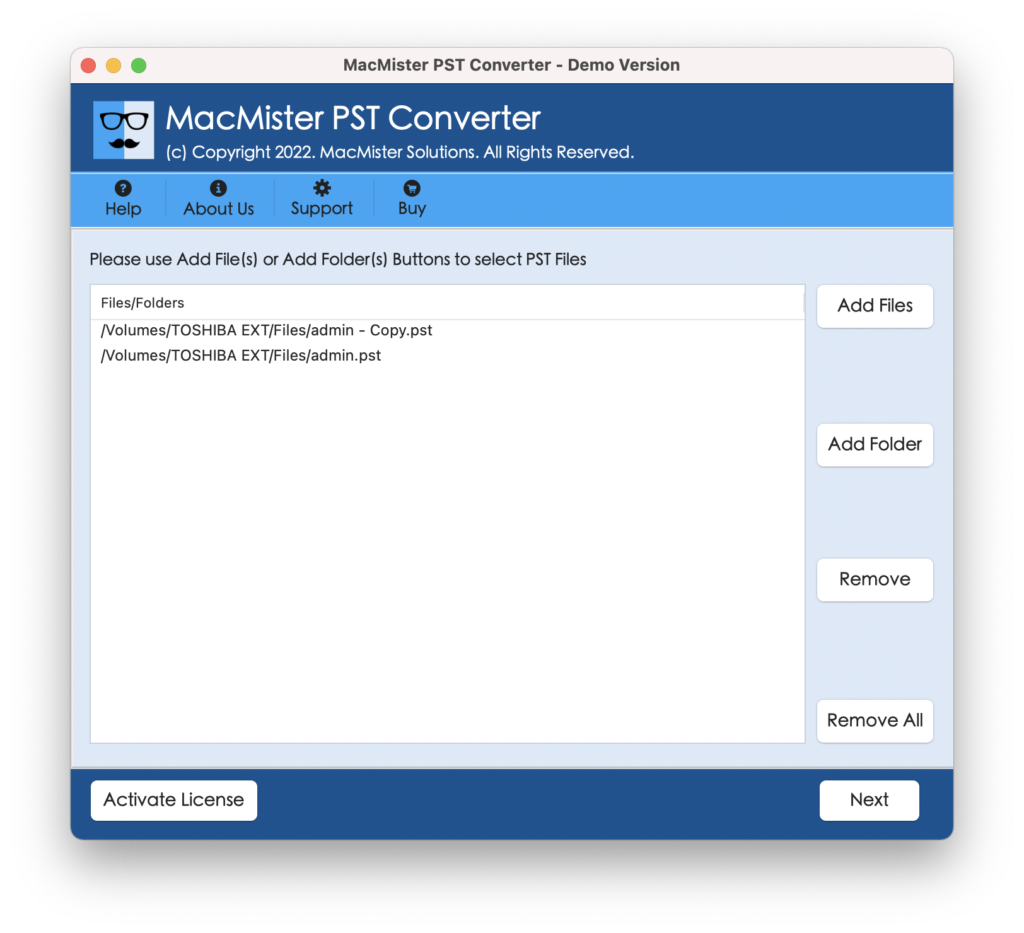
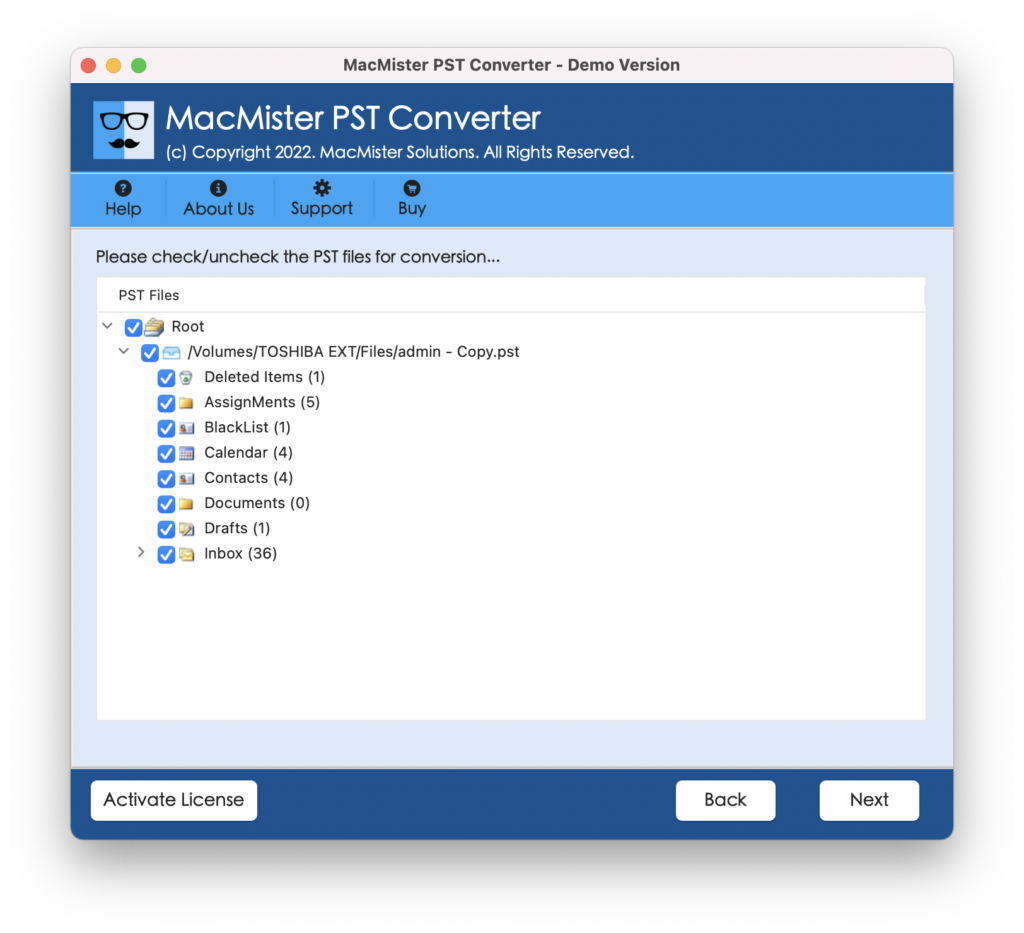
Step 3. The application start adding PST files with selected checkboxes one-by-one. However, you can deselect all the checkboxes and only select the ones that you want to import into GoDaddy account. Click Next to continue.
Step 4. Tap Select Saving Options and choose IMAP from its list.
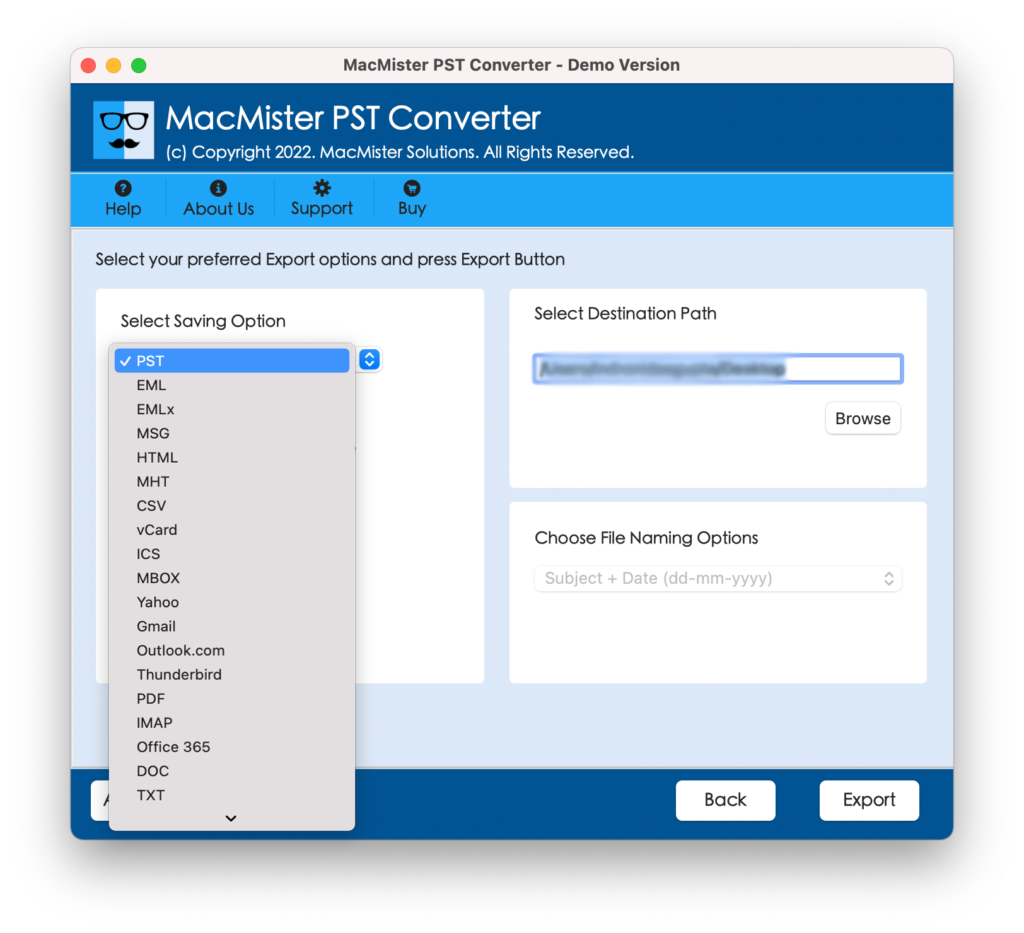
Step 5. Provide GoDaddy email credentials as well as IMAP host and port number and tap Export button.
Step 6. The application will start the process and show Live Conversion Report that allows to track the ongoing import progress of PST files.
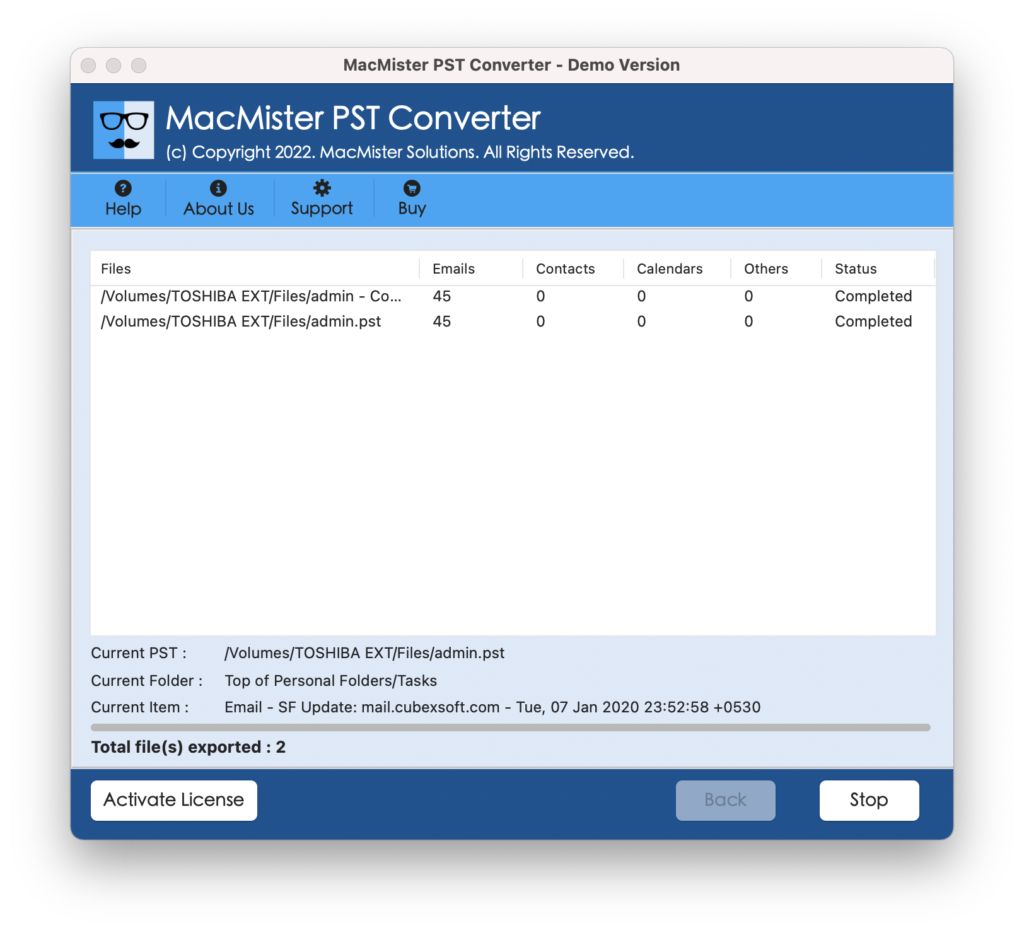
The whole process will successfully finish with a notification showing “Conversion Completed” on the screen. Click on OK and login to GoDaddy account to check all the imported emails. And you will see that all email messages are appearing with correct content, formatting properties, and layout. Even, the attachments will also get transferred automatically, if any.
What are the advantages of using MacMister PST to GoDaddy Tool?
MacMister PST to GoDaddy contains many advantages, some of them are mentioned here –
- Directly import PST emails and attachments to GoDaddy on Mac & Windows.
- Provides options to load required PST files folder on the tool i.e. Add File(s) and Add Folder.
- Built with friendly and understanding interface so that any user can easily utilize it and import all PST files to GoDaddy account in minimum time.
- Ensures the protection of GoDaddy login details during the process.
- It has the ability to batch import PST data into GoDaddy at once.
- Keeps the metadata properties and folder structure intact while importing PST files.
- Live Conversion Report will deliver the highlights of total files that are imported, files left to import, and export status.
- Compatible with the earlier and latest Mac OS versions including Mac OS Sonoma.
- Also supports Windows version and thus Windows users can utilize the software on Windows 11, 10, 8.1, 8, etc.
Epilogue
The entire write-up has offered an effective and suitable way to fix “how to import PST to GoDaddy” on Mac & Windows. The solution smoothly handles the process and delivers accurate results in few seconds.
Anyone whether professional or non-professional doesn’t matter can download the app and independently perform the operation as the interface is user-friendly and steps are easy-to-use. Also, the tool has 15+ saving options other than IMAP, which means one can utilize the app to import PST to OLM, PDF, MSG, EML, EMLx, MHT, DOC, CSV, Gmail, G Suite, MBOX, Yahoo, Office 365, Thunderbird, and more.