How to Migrate Bluehost Email to Google Workspace on Mac & Win?

Are you moving to Google Workspace platform from Bluehost? But unable to decide how to access the emails stored in Bluehost into Google Workspace? Wondering how to migrate Bluehost email to Google Workspace? Searching a trouble-free solution for the same? No worries, read the segment properly and a solution will appear in front of you that will help you to directly migrate Bluehost email to Google Workspace with emails and attachments.
Bluehost is a simple and friendly webmail containing all the essentials needed for email management. The process to setup Bluehost business email is straightforward: create an account, navigate to settings, and add an email address. After email address is generated, use Bluehost webmail to check the email online or add it to the required app.
Bluehost is basically suitable to host a small to medium project. And, if in case you are handling a project that depends on the website and you need the best performance then Bluehost is not for you. Its basic plan offers 10 GB of web space which is quite less. It has other plans as well i.e. Plus (20 GB), Choice Plus (40 GB), and Pro (100 GB) which are also not suitable for businesses that needs to deal with more than 100 GB of data.
That is why many Bluehost users start facing problems after sometime of its use. They face difficulty in storing the large amount of their database. Therefore, moving to Google Workspace is a wise choice.
Why to Choose Google Workspace to Migrate Bluehost Email?
Google Workspace offers a combination of cloud computing, collaboration, and productivity tools. In-built software and products are marketed and developed by Google. It includes Gmail, Meet, Calendar, Contacts, and Chat for real-time communication. Equipped with the Admin Panel that helps in managing users and services.
One will find many benefits when choosing Google Workspace for migration. Some of them are:
- Streamlined user interface with new add-ons.
- Chat, Meet, and Space are available under the same umbrella.
- Use the Chat tab to communicate privately with team members.
- Spaces help in managing group discussions and tasks.
- Quick file preview in Sheets, Docs, and Slides.
- Offers security measures i.e. group-based policy controls, data loss prevention (DLP), archive, vault to retain, and more.
How to Migrate Bluehost Email to Google Workspace on Mac & Win?
There are multiple approaches to migrate Bluehost email to Google Workspace:
- Manual Method
- Direct Solution
Method 1. Manually Migrate Bluehost Email to Google Workspace
Follow the steps to import Bluehost email accounts to the Google Workspace platform:
Step 1. Log in to Google Dashboard.
Step 2. Click the Data Migrations icon.
Step 3. Proceed with Set Data Migration up.
Step 4. Configure Source Connection Settings.
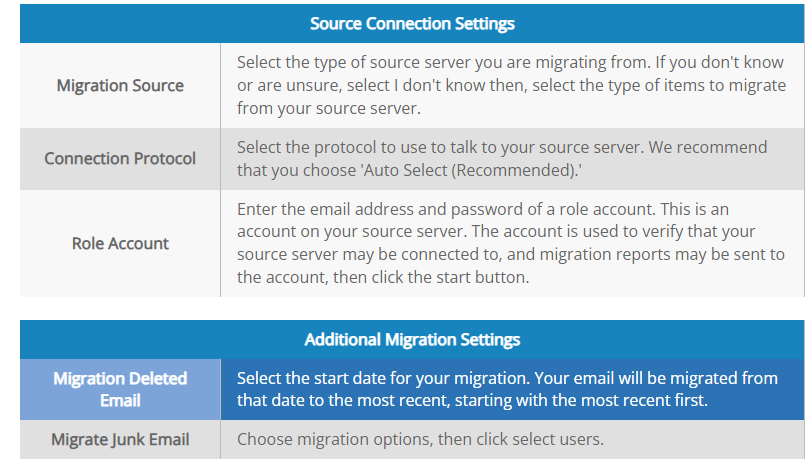
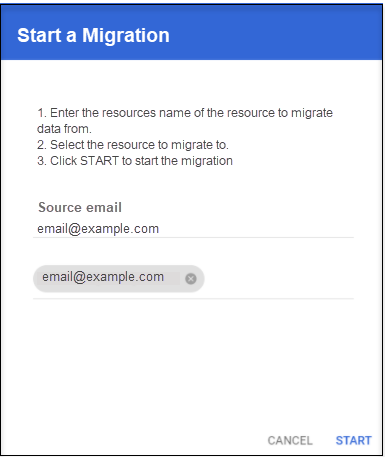
Step 5. Choose the specific user or upload the CSV of multiple users.
Step 6. Hit Start to Migration and you will receive initialization status.
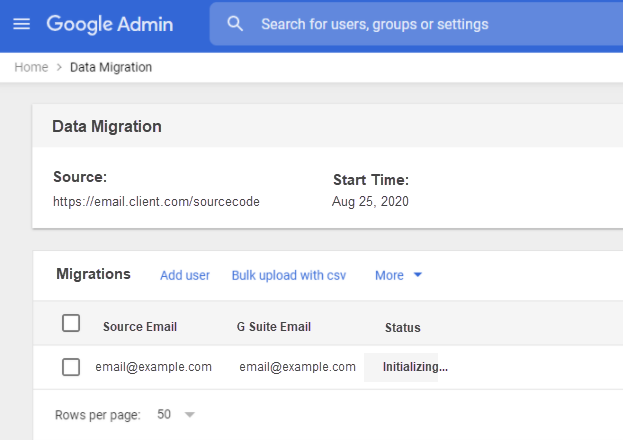
Step 7. The Data Migration dashboard will appear which shows the email status during migration.
Method 2. Direct Solution to Migrate Bluehost Email to Google Workspace
The direct and safe way to migrate Bluehost email to Google Workspace is MacMister Bluehost Email Backup Software for Mac & Windows. The application has a straightforward environment that any user can independently handle to perform the migration process. Even, the steps are simple and will take minimum time to migrate Bluehost unlimited emails to Google Workspace.
Moreover, the application contains features that can be applied as per the requirements to get the desired results. The freeware version is also available that users can use to test the working of the software for free.
Working Steps to Migrate Bluehost Email to Google Workspace on Mac
Step 1. Download and run MacMister Bluehost to Gmail Backup Tool for Mac on macOS.

Step 2. Now select the Bluehost option from the left. Enter Bluehost login details and click on the Login button.
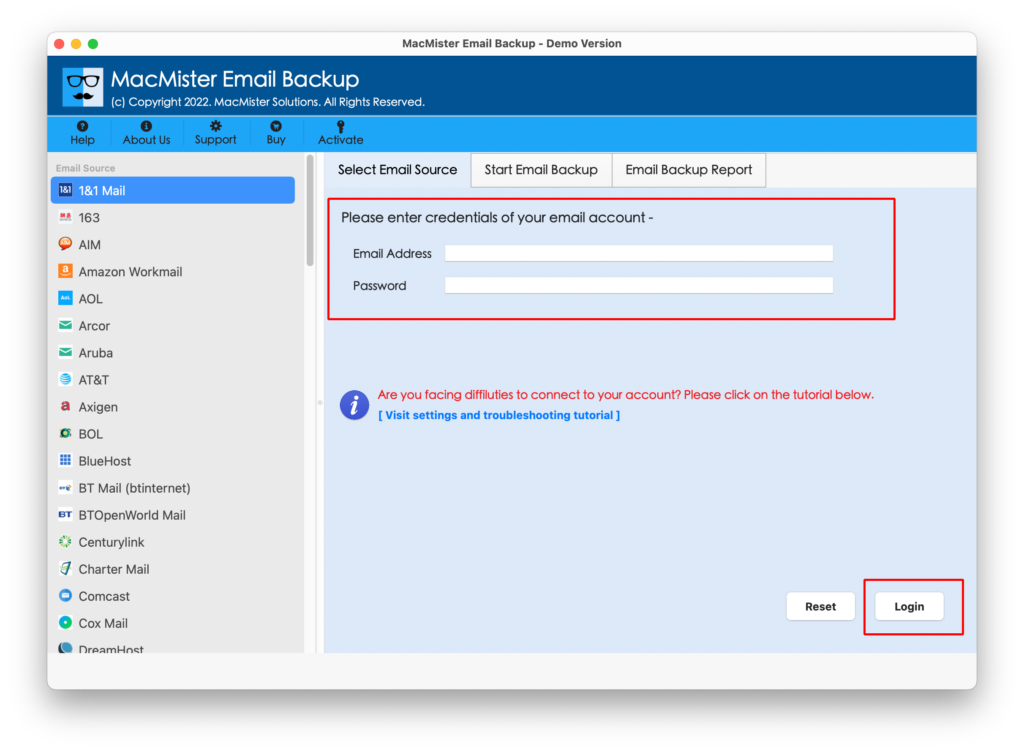
Step 3. The Bluehost email account will connect with the tool and its mailboxes will start to appear on the software one by one.
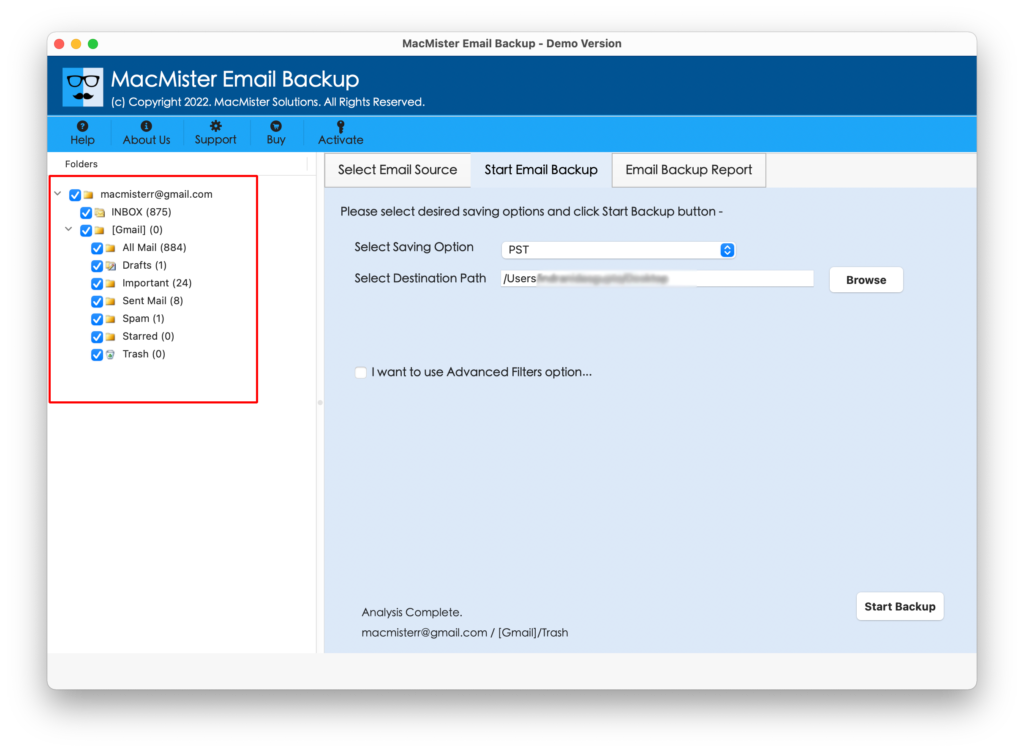
Step 4. On the right side, click Select Saving Options and choose G Suite option from the drop-down.

Step 5. Provide G Suite credentials. You can use Filters if you want to migrate specific Bluehost emails to Google Workspace on Mac. And, click on the Start Backup button.
Step 6. The migration will start and an Email Backup Report screen will appear that shows the current migration status of Bluehost emails.
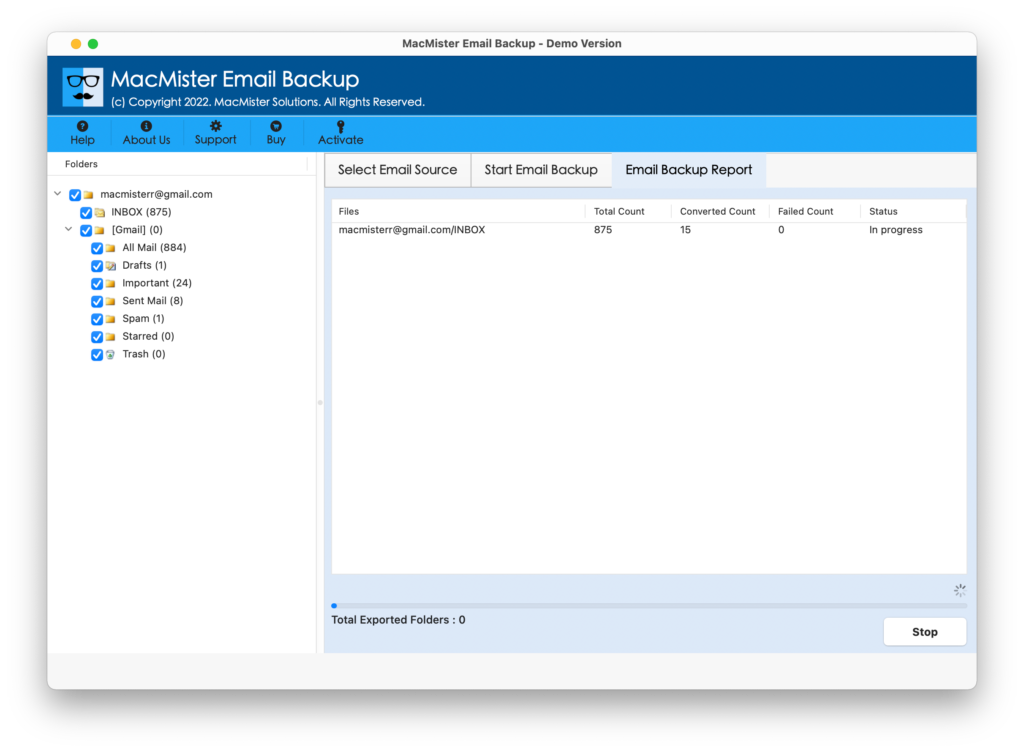
The software finishes the process with a pop-up “Process Completed”. Click on OK and then go to the Google Workspace account that you specified earlier. You can open the necessary email file to check the result. However, you will see that the content of emails is accurate and each email message is appearing with correct formatting properties.
Why Choosing Method 2 is Beneficial?
There are several reasons for choosing Method 2 and some are listed here:
- Directly migrate Bluehost email to Google Workspace on Mac with attachments.
- Offers Advanced Filters that help in migrating Bluehost emails as per date range, to, from, subject, etc.
- Designed with a friendly interface that is manageable easily by all professional and non-professional users.
- Capable of migrating unlimited Bluehost emails to Google Workspace with attachments at once.
- Keeps the originality of Bluehost email messages intact throughout the process.
- Maintains the formatting properties and folder structure during migration.
- Shows the current migration status on the Email Backup Report that will help in tracking the ongoing process.
- Allows to migrate Bluehost email to Google Workspace on macOS Sonoma, Ventura, Monterey, Big Sur, etc.
Quick Note. Download FREE DEMO to Explore More Features and Options.
Epilogue
The write-up here offered multiple approaches to migrate Bluehost email to Google Workspace on Mac & Windows. The first method is totally technical and you might need the support of a technical advisor to operate it appropriately. However, the steps are a little lengthy and can cause you trouble if the steps are not correctly implemented. And, if we talk about Method 2, then it is direct, safe, and reliable. Anyone can use it without external support and perform the migration in minimum time.
Download the trial edition and check the working of the software by migrating 25 Bluehost emails to Google Workspace with attachments for free. You can contact MacMister Support for software-related assistance.