How to migrate cPanel to iRedMail Account on Mac & Windows?

Are you moving from cPanel to iRedMail email service but worried about all the essential emails stored in your cPanel webmail account? Not sure how to migrate cPanel to iRedMail with accurate email content and attachments? Continuously searching for a fast and effective solution for the same? Not to worry at all because here we have explained a powerful procedure that will safely migrate cPanel to iRedMail account with 100% accurate results.
Overview
cPanel is a commonly used control panel used for web hosting that makes the managing of emails and web server easier. It offers variety of tools for handling databases, email profiles, and other tasks.
iRedMail, on the other hand is an open-source email server program that delivers web-based management tools with plentiful features. It provides extensive range customization possibilities and supports multiple email protocols.
Reasons to Migrate cPanel to iRedMail Email Account
- iRedMail is cheap yet powerful and effective whereas cPanel has different licenses which makes its service expensive.
- iRedMail contains many options to customize and control the email system to cater particular needs.
- iRedMail services are constantly upgraded by its developers, thereby users will get its latest updates and customer support free of cost.
How to Migrate cPanel to iRedMail Account? – Know Different Ways!
There are different procedures to migrate emails from cPanel webmail to iRedMail email account –
- Manual Method
- Automated Solution
Manual Method allows transferring data and configurations without the requirement of automated tools. The process needs appropriate knowledge of both cPanel and iRedMail environments.
Automated Tool is programmed specifically for migrating emails from one platform to another. It will ease the process and deduce the risk of errors. The tool quickly executes the process and simplifies the transition process.
Method 1. Manually Migrate cPanel Emails to iRedMail Account
Stage 1. Configure cPanel Email Server in Mozilla Thunderbird
- Open Thunderbird email client and navigate to Account Settings.
- Tap Add Mail Account and provide the credentials.
- Make use of the IMAP Settings provided by cPanel host.
- Allow the email application to sync with the specified email server account to access the emails stored on the same.
Stage 2. Configure the same Thunderbird profile with iRedMail
- Open Mozilla Thunderbird and set up iRedMail account.
- Thunderbird account will connect with the mentioned iRedMail email server and the email synchronization process will start right away.
- Go to the Thunderbird local folders where cPanel emails are downloaded. They will appear in the section labeled as Local Folders.
- Choose the required email or folder to move. Drag them from local backup folders and drop the same in the corresponding folders of iRedMail account.
- Thunderbird will upload the emails successfully to iRedMail email server.
Method 2. Directly Migrate from cPanel to iRedMail Account with Emails
The direct procedure to migrate cPanel email to iRedMail email account is by utilizing MacMister cPanel Email Backup Software for Mac & Windows. It is simple, effective, and advanced. Any professional and non-professional user can effortlessly handle the process and receive the results without losing data integrity. However, the software offers 30+ webmail sources other than cPanel email account. Users can choose the required webmail and download the emails accordingly.
Moreover, the IMAP Server saving option will help users migrating all the necessary emails from cPanel to iRedMail account. Also, the tool is equipped with numerous features that can be applied to obtain the necessary results in minimum time. Download its freeware version and explore the process to migrate cPanel to iRedMail account with emails and attachments for free.
Working Steps to Migrate cPanel Emails to iRedMail Account on Mac
Step 1. Download and launch MacMister cPanel to IMAP Migration Tool for Mac on macOS.
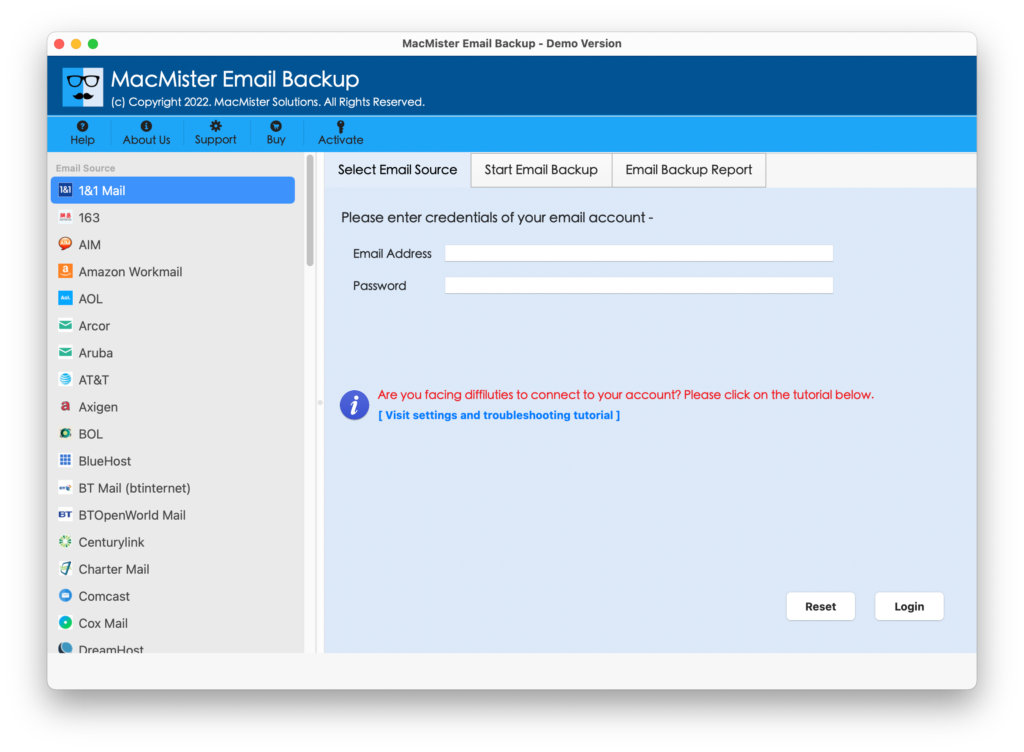
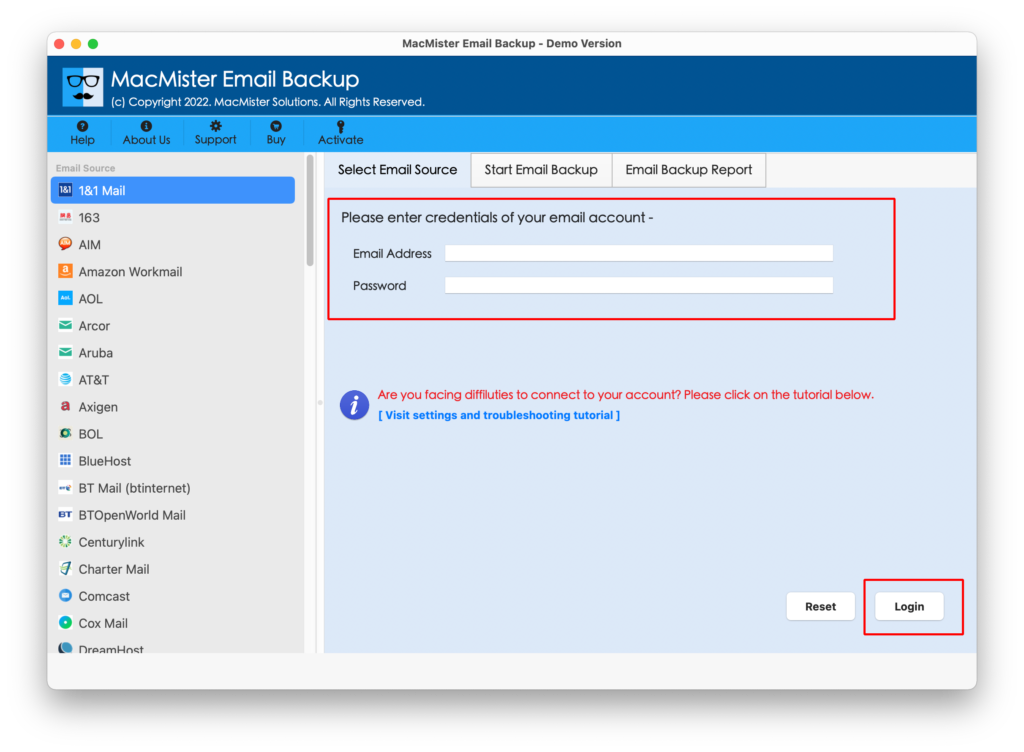
Step 2. Select cPanel as a source from the left. Add cPanel credentials. And click Login button.
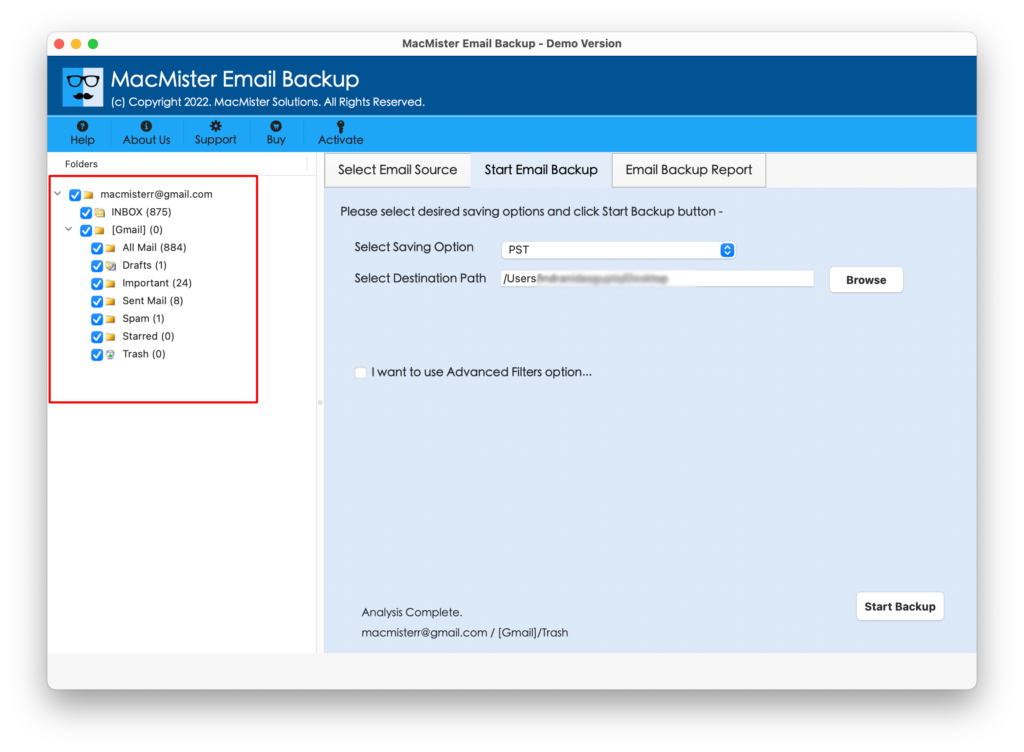
Step 3. The cPanel email account will connect with the tool and list its mailboxes on the left pane.
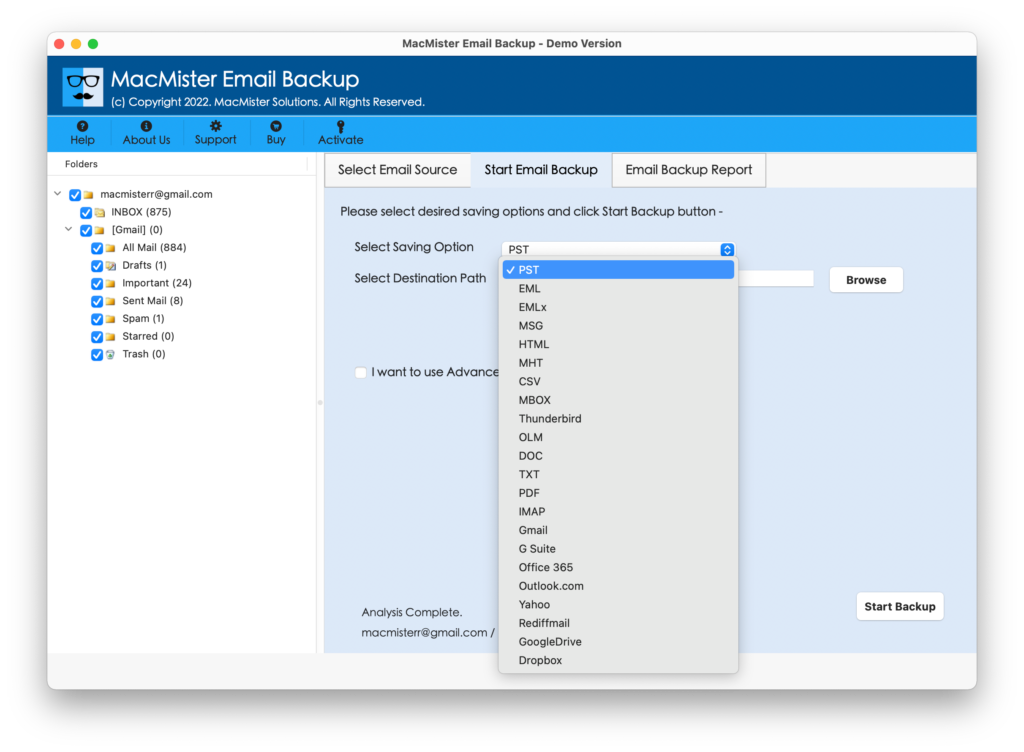
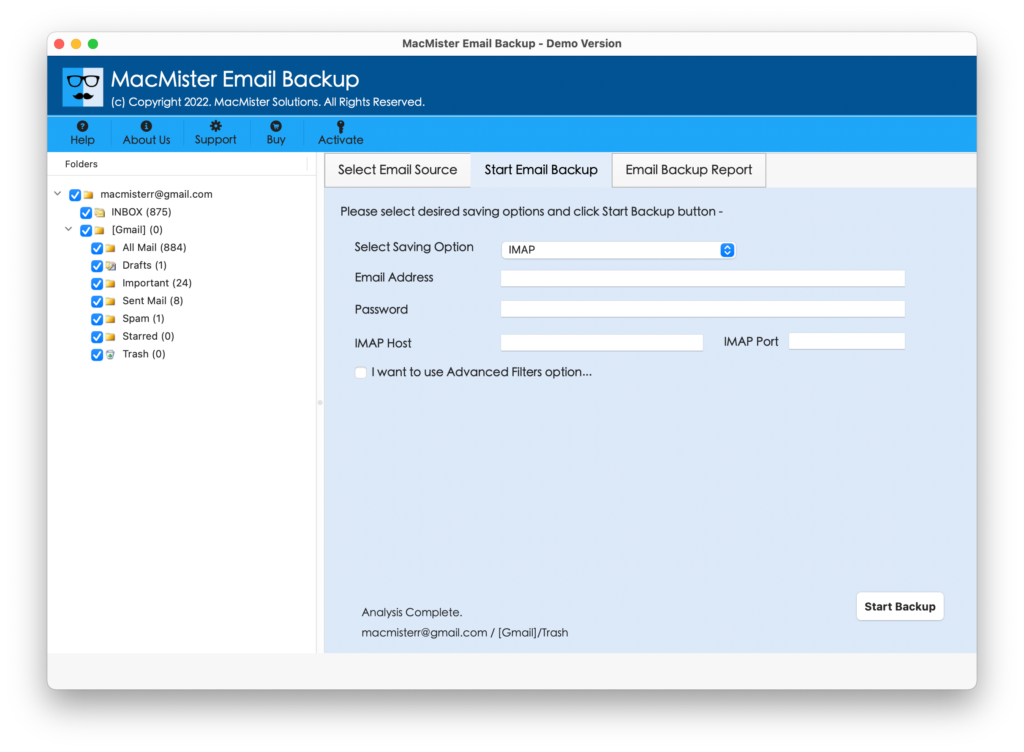
Step 4. Go towards right, click Select Saving Options, and choose IMAP Server from the drop-down list.
Step 5. Provide iRedMail email server account details with its IMAP Host & Port Number. Simultaneously, take help of Filter options if you want to migrate specific cPanel emails to iRedMail account. Last, start the process by tapping Start Backup button.
Step 6. Check the Live Migration Progress of cPanel emails appearing on the screen.
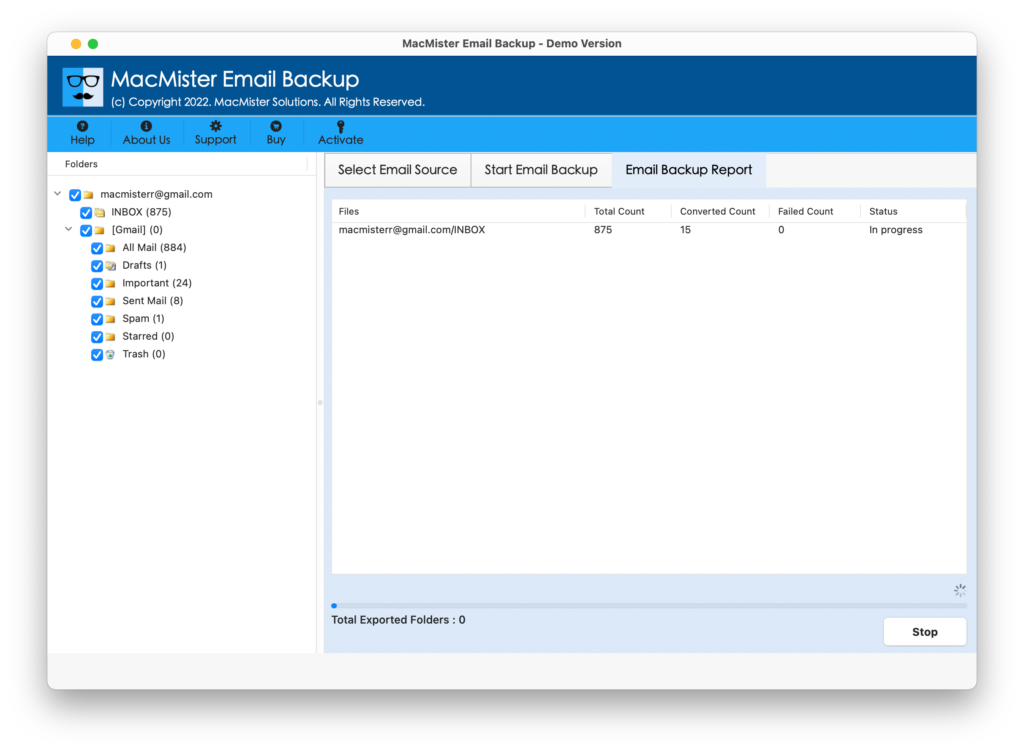
The process will end with a notification message “Conversion Completed”. Click on the OK button and login to iRedMail email account to check the results. And you will see that all the emails are successfully migrated to iRedMail email server from cPanel. Even, the email content, layout, and metadata properties will display without modifications.
Overall, the solution is safe, reliable, and time-saving. Any individual and organization can utilize it and perform the migration without putting lot of time and efforts.
Epilogue
In the article, we have provided an outstanding technique to resolve “how to migrate cPanel to iRedMail account” with emails and attachments. We have also highlighted the little overview of cPanel and iRedMail webmail service. Besides, there are two solutions discussed that help in carrying out the migration process of cPanel emails to iRedMail email server.
The manual method is implementable but it is advised to operate it under experts support. And it is important to have the technical knowledge about Thunderbird and iRedMail. The automated solution is user-friendly, highly secure, and simple to manage. Any user can utilize it with ease and independently handles the migration without wasting their time and efforts. Moreover, apart from IMAP Server, the application possesses 15+ other saving options in which they can migrate cPanel emails such as PST, OLM, MBOX, MHT, HTML, DOC, CSV, Yahoo, IMAP, Office 365, and more. It also has a free demo version that can be downloaded to understand the software procedure for free. It also allows to migrate first 25 cPanel emails free of cost.