How to Migrate Emails from any Provider to Microsoft 365?
Thinking about migrating to Microsoft 365 from a specific email server and wondering how to migrate emails from any provider to Microsoft 365 directly with precise results! Constantly searching for a smart and trouble-free approach for the same, then you are at the right place. Here, you will be guided with the exceptional technique that will help in migrating emails from any provider to Microsoft 365 with ease.
Office 365 has gained good amount of user base due to its powerful operation in the last few years. As a cloud-based SAAS, Microsoft 365 has many products to offer. By using Office 365 subscription, users get the benefit of several different applications to manage their work online such as Word, PowerPoint, OneDrive, and Skype for Business, and Teams. Due to these advantages and other specific requirements, users want to migrate emails from any provider to Microsoft 365. In the write-up, we will go through migration process and try to cover up all its important aspects.
Explore Reasons to Migrate Emails from any Provider to Microsoft 365
- Microsoft 365 provides numerous products and services in a single subscription.
- It is cloud-based, so users can operate it anytime from anywhere.
- Office 365 remains updated, thus no downtime.
- In comparison to other platforms, Office 365 is budget-friendly.
- As a Microsoft product, it is reliable and totally secure.
- Offers cost-efficient subscription plans that cater the requirement of end users.
A Powerful Way to Migrate Emails from any Provider to Microsoft 365 on Mac
Several email applications make use of IMAP (Internet Message Access Protocol) to send/receive messages from the server. Some examples are Google Mail, EarthLink Mail, Hotmail, Zoho Mail, GoDaddy, Yandex, etc. For a precise and effective email migration to Office 365, MacMister Solutions has programmed an advanced tool which can perform migration of emails from any provider to Microsoft 365 on Mac in few easy clicks. The utility is built with many exceptional features; some of them are discussed below –
- It easily migrate IMAP-based email servers to Office 365 without restriction of mailbox count and size.
- With Office 365, the tool also provides 15+ more saving options for migration.
- Support three simplified clicks, saving users lot of time and efforts.
- Friendly GUI allow all types of users to operate the tool without any trouble.
- Protects the originality of IMAP email content, layout, and formatting properties during migration.
- Built for both Windows and Mac users (supporting all versions).
- Able to handle the entire mailbox migration of IMAP email servers at once.
How to Migrate Emails from any Provider to Microsoft 365?
The direct and quick process to migrate emails from any provider to Microsoft 365 is MacMister IMAP Backup Tool Mac & Windows. By utilizing the tool, users can directly batch migrate emails from a required email provider to Microsoft Office 365 at once. The GUI of the application is user-friendly. Both professional and novice users can easily perform the operation and implement the migration process with ease.
Moreover, it offers wonderful features that will help in migrating emails from any provider to Office 365 according to the requirements. It is available with a freeware version with the help of users can experience the detailed software processing for free.
Working Steps of the Tool to directly migrate emails from any provider to Microsoft 365 on Mac –
Step 1. Download and run the application on a Mac machine.
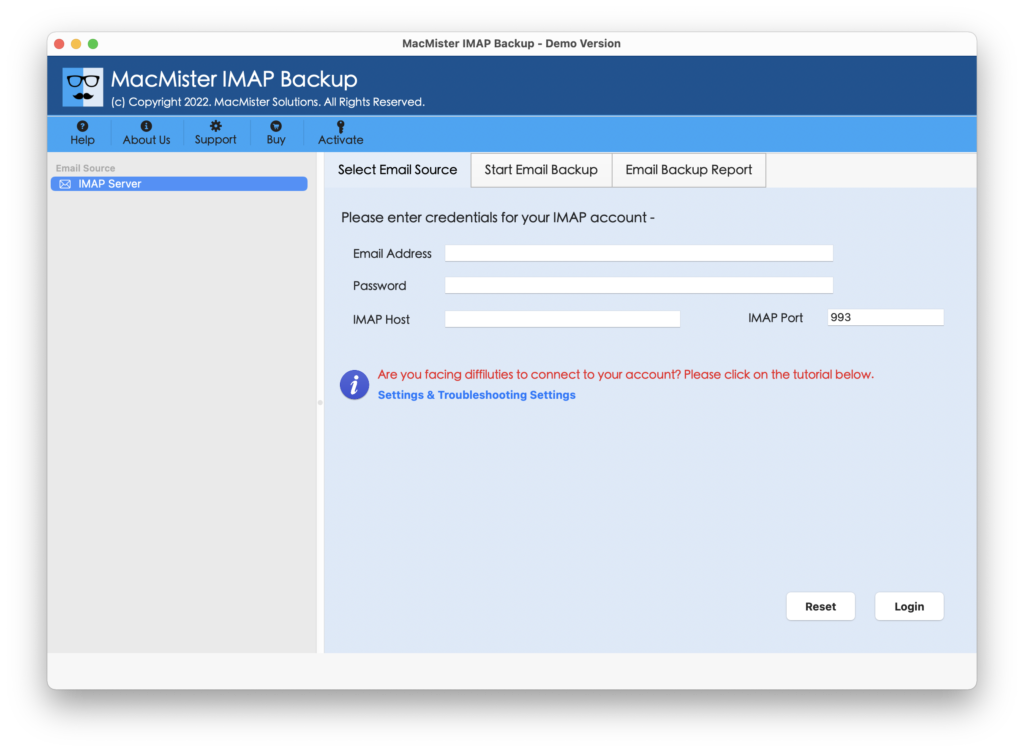
Step 2. Add the email provider details with IMAP host and Port number and tap Login button.
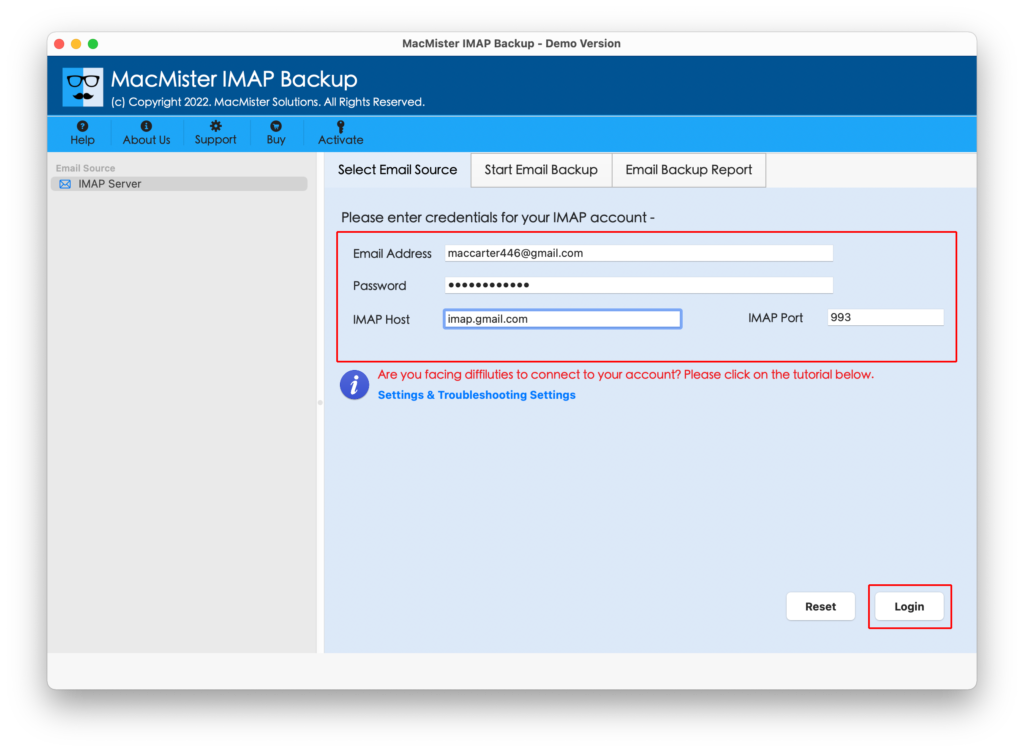
Step 3. The tool account will be authenticated and its entire folder items will display on the software panel.
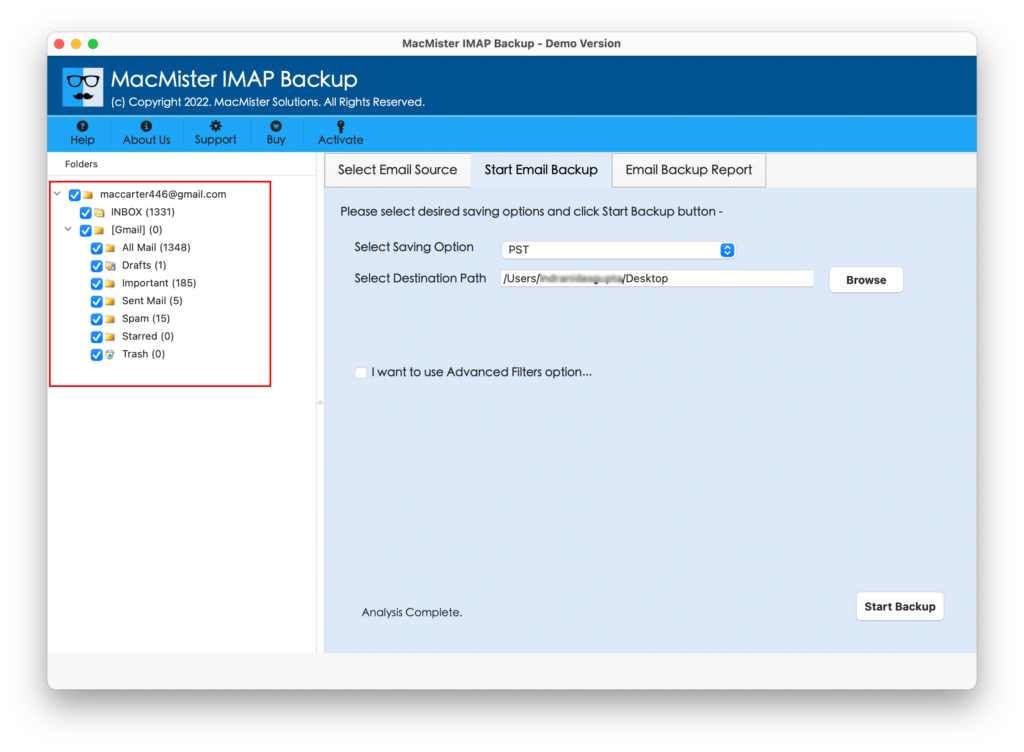
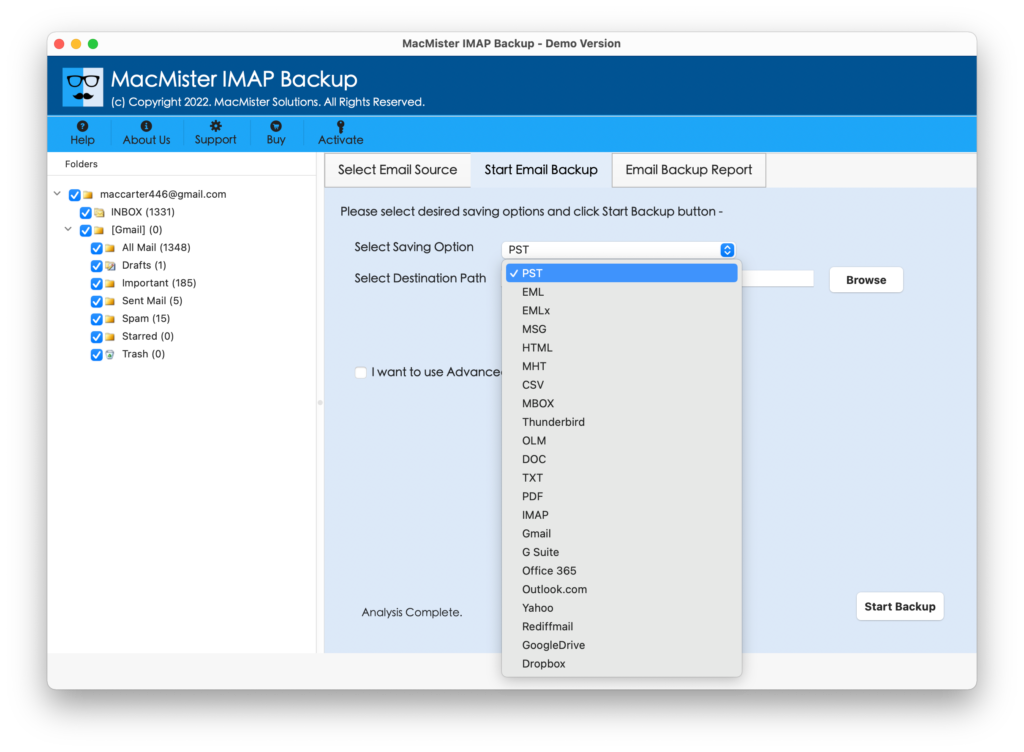
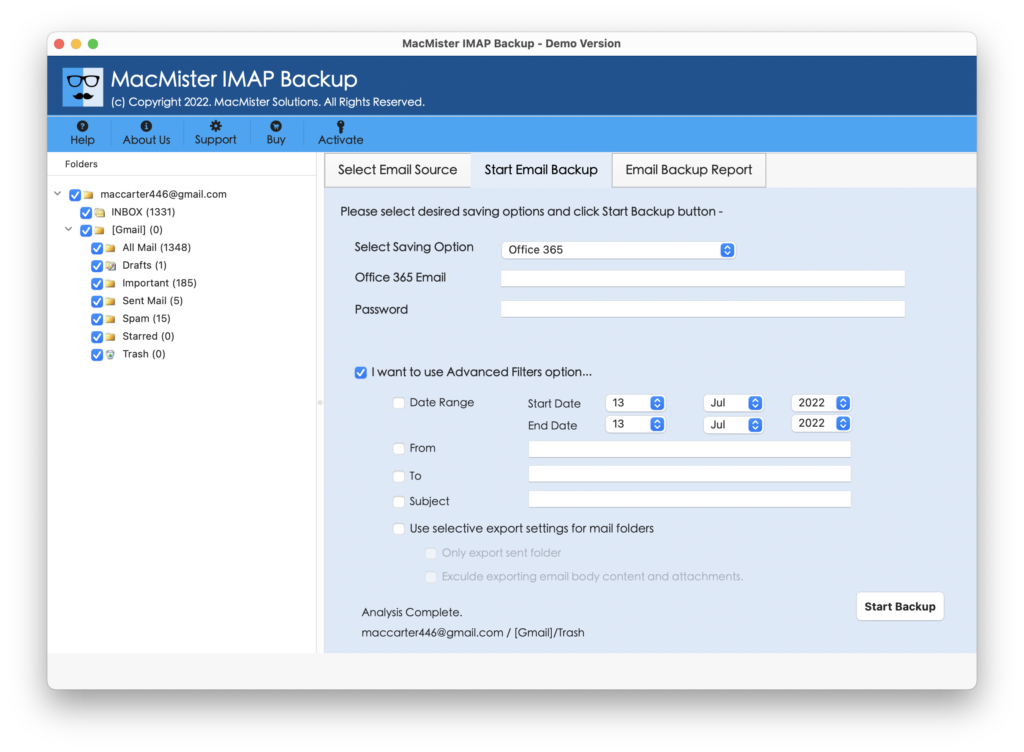
Step 4. Go to the right pane, click Select Saving Options and pick Office 365 from the menu.
Step 5. Add Office 365 credentials in required fields, set filtering and tap Start Backup button.
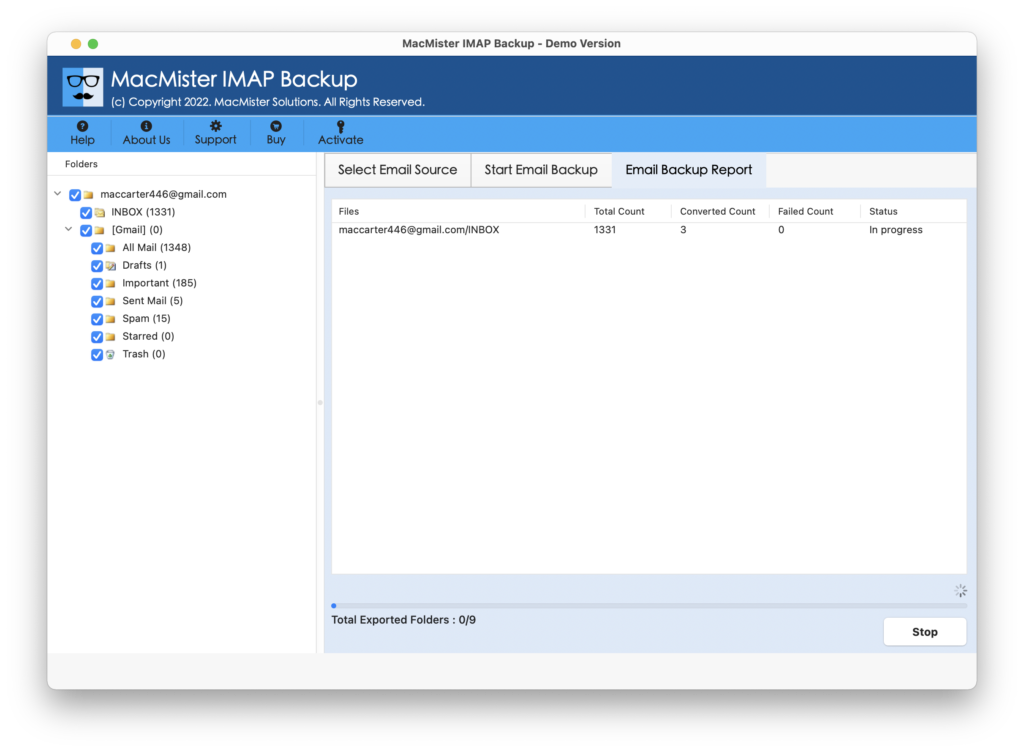
Step 6. The Live Backup Report screen appears which shows the live migration of emails from a specified email provider to Microsoft 365.
Within few minutes, the task will finish and then “Process Completed” notification will appear on the screen. Click OK button and then go to the provided Office 365 account to check migrated email files. Now, explore some of its beneficial features that make the app a remarkable utility among users.
Benefits of the Application
- Able to migrate emails from any provider to Microsoft 365 directly.
- Protects the login details of source and destination throughout process.
- With Microsoft 365, also offers 15+ more saving options for the same.
- Different Filter options are present to migrate specific emails to Microsoft 365.
- Keeps the email layout, metadata properties, and content intact during migration.
- Built with a friendly GUI, easily operable by technical and novice users.
- Programmed for Mac & Windows users (all versions are supported).
Note. To Experience in-depth features of the tool, download its FREE DEMO now.
Epilogue
In the write-up, we have provided a wonderful way to fix how to migrate emails from any provider to Microsoft 365. The solution highlighted in the above segment is simple, direct, reliable, and secure. Anyone can utilize it and perform the task with 100% accuracy. It is built with powerful features that help users performing the migration according to the requirements. And to experience the same, one can utilize its freeware version and migrate 25 emails for free.
Quick Note. Try MacMister Email Backup Software Mac & Windows. It is an application that supports 30+ email sources to migrate emails into 15+ saving options. Its GUI is simple and easy to manage. With IMAP, users will be able to migrate emails from AOL, Gmail, ProtonMail, DreamHost, Comcast, Cox Mail, Fastmail, and more.