How to Migrate from HEY to Fastmail on Mac & Windows?

Are you thinking about migrating to Fastmail from HEY account and thereby wondering how to migrate from HEY to Fastmail easily? Frequently searching for a safe and cost-effective method to achieve the desired task? Not to worry, you can go through the article where we have explained different ways to migrate from HEY to Fastmail.
Recently Fastmail has updated its email import tool so that users can easily import to Fastmail from any other email account.
Email Providers such as ProtonMail or HEY or any other email applications including Mozilla Thunderbird make use of MBOX formats while exporting emails. Fastmail already supports variety of file formats used by Yahoo Mail, Gmail, Microsoft Outlook, and now MBOX.
Easily Import Emails to Fastmail Account
Fastmail is already aware of the important of emails for users. It knows that email messages contains the replica of confidential data which cannot be easily edited by anyone whether they are emails received from friends or family, company dealing agreements, flight tickets, or any other work-related transactions.
Several people assume that switching from one email platform to another is time-consuming process. But Fastmail has made this task easier for users. It allows users to import their critical email files, contact lists, calendar events into Fastmail account without any issues. However, the option is available in 30 days free trial as well.
How to Migrate from HEY to Fastmail?– Manual Process
Fastmail provides a plan that users can purchase to import Hey emails to Fastmail account. Now, check the steps from below and try to import emails to Fastmail from HEY account.
Step 1. Configure Email Address/Domain in Fastmail Account
You can go to Fastmail and sign-up with your email address. In case you do not own any domain, then you need to choose an email address by using one of the Fastmail’s domain.
Step 2. Set other Users
In order to add new users in Fastmail account, go to Settings navigate towards Users & Sharing and tap New User. Here you need to specify Name, username, password, and plan. You can also set additional details as per your preferences such as Quota for mail storage, privacy, admin, and retention.
However, you can also go to edit users by going to Settings >> Users & Sharing and then tap Edit option.
Step 3. Transfer Emails from HEY Mail
First, export emails from HEY by operating the following steps –
- Login to HEY.
- At the top-right corner, tap Me and select Account Setup.
- Click Export your Data and then Export my emails.
- After the export process completes, tap Download Emails option.
Once the emails are downloaded, you can import them into Fastmail account with the help of MBOX import tool.
- Login to Fastmail account.
- Go to Settings >> Migration >> Import.
- Click the option Proton and Hey and select MBOX files.
- Tap Upload Files and choose the MBOX files you have exported using the above steps. Now here, you will be able to see the names as well as total size of MBOX files which need to be imported. On the right-side, you will find drop-down menu named Destination which you can choose and set the destination path of your choice to import MBOX files. However you can set the destination as INBOX by default.
- Tap Start Import.
Note. Keep the browser tab open until the import process completes. However, you can stop the import process and resume it afterwards by starting the import process again of the same MBOX file. Messages that are already exported will not export again, so do not worry about duplicates.
How to Migrate from HEY to Fastmail?– Time-Saving Process
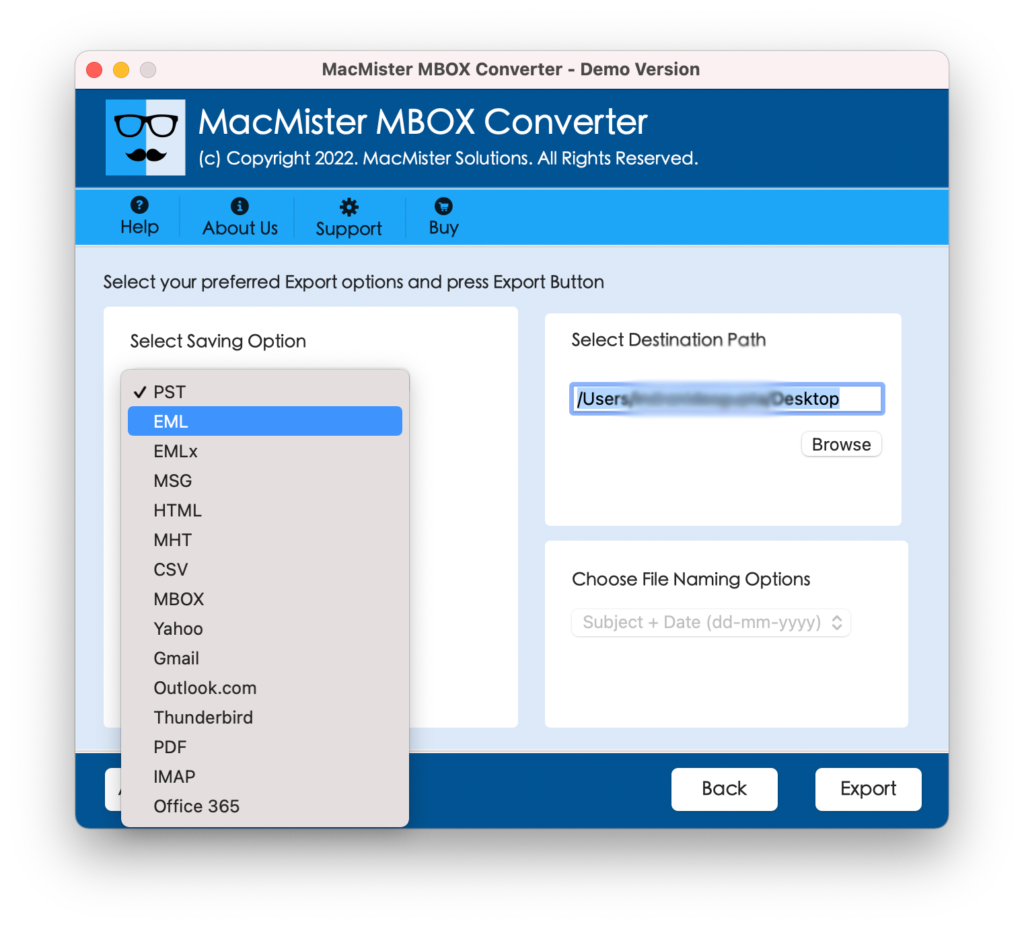
There is also another solution available to migrate from HEY to Fastmail account i.e. MacMister MBOX Converter for Mac & Windows Tool. The application includes IMAP option that one can select by clicking Select Saving Options property. After this, provide the necessary Fastmail details in the same. Now, the tool will directly migrate Hey MBOX files into Fastmail account with all emails and attachments. It also contains a user-friendly interface so that all types of users can use the solution and migrate emails to Fastmail from HEY easily.
Moreover, the tool has variety of features that one can use and apply as per their specific requirements to get the desirable results. You can download the trial edition of the software to check the migration process for free.
Working Steps to Migrate to Fastmail on Mac
Step 1. Download and open MacMister MBOX to IMAP Migration Tool for Mac on a Mac system.
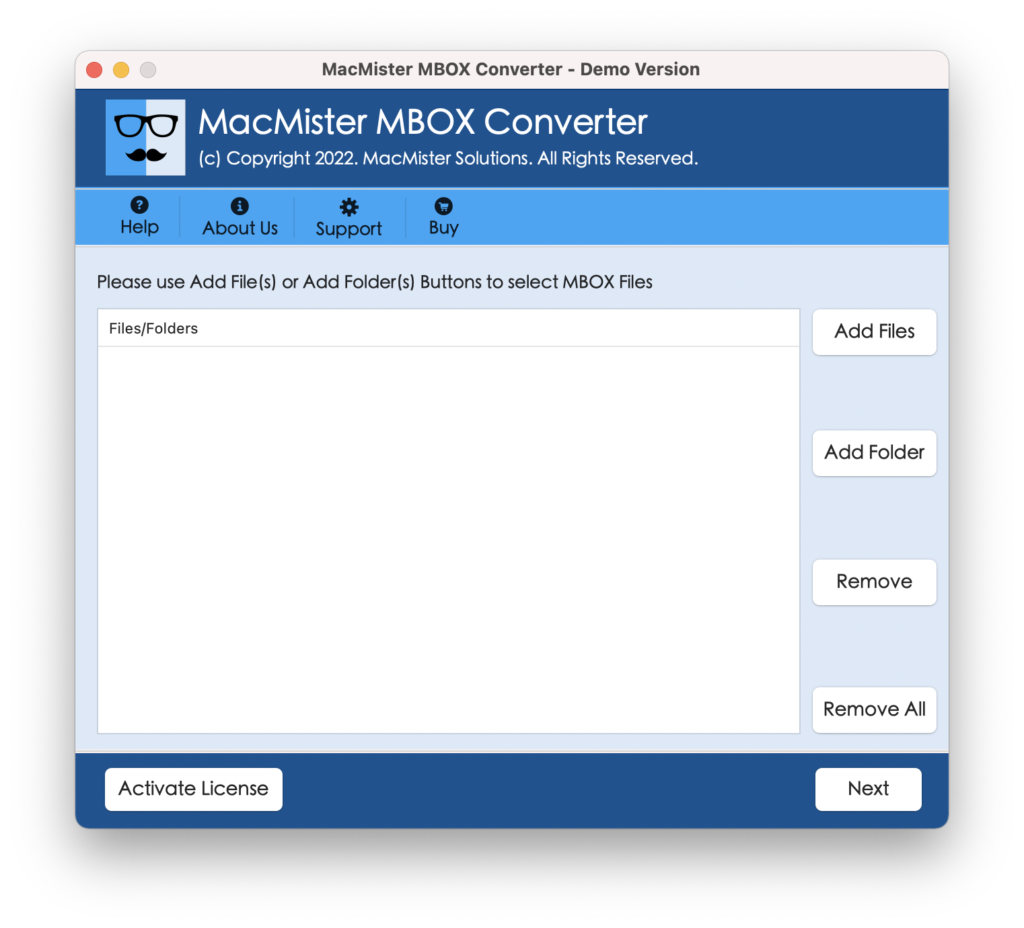
Step 2. Start adding HEY MBOX files folder with the help of Add File(s)/Add Folder options and click Next.
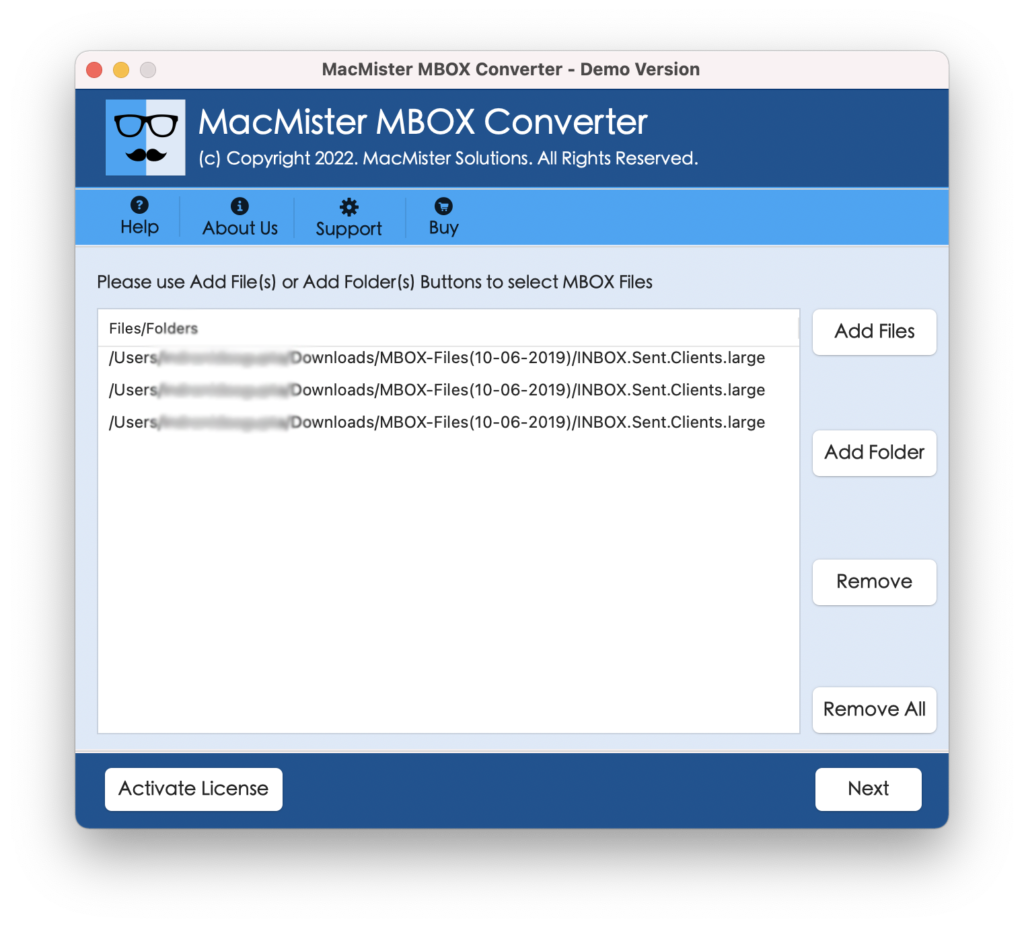
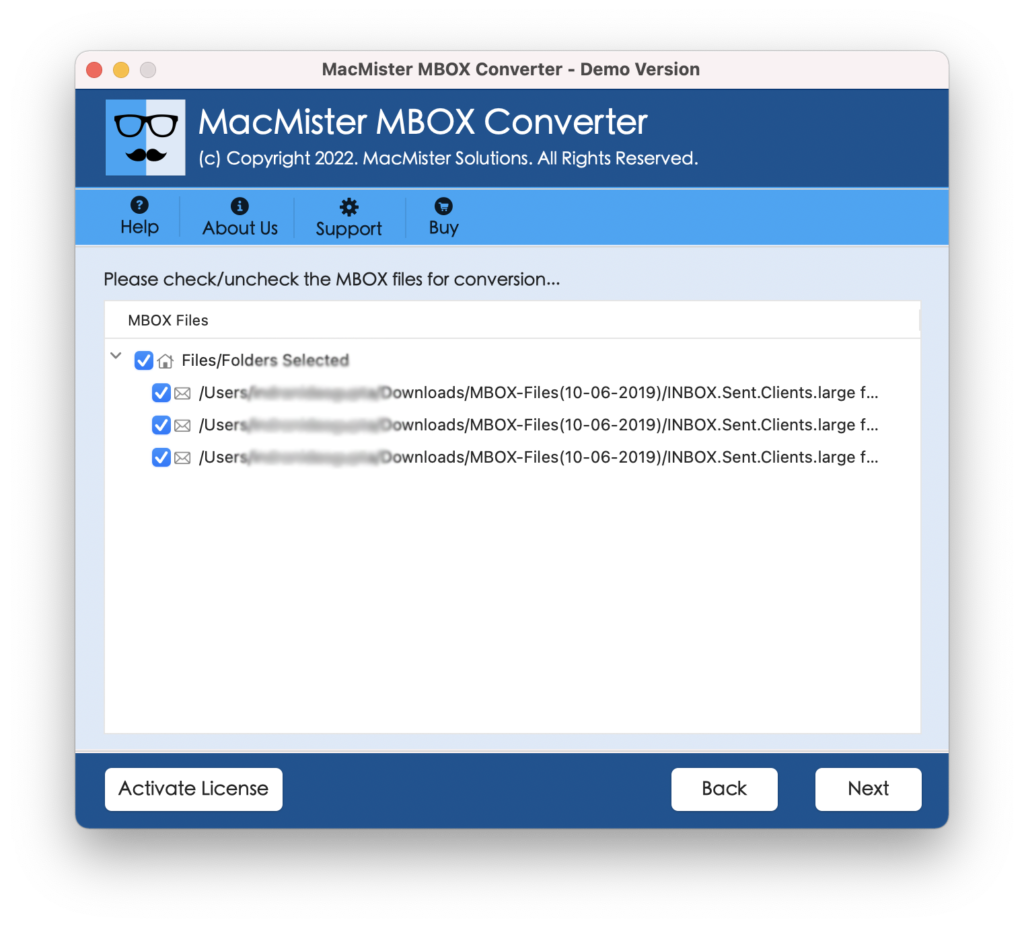
Step 3. The Hey .mbox files will appear on the screen with selected checkboxes one-by-one. However, the checkboxes can help you to deselect the unnecessary files from the list and migrate only selected Hey mailboxes to Fastmail account. Click Next to continue.
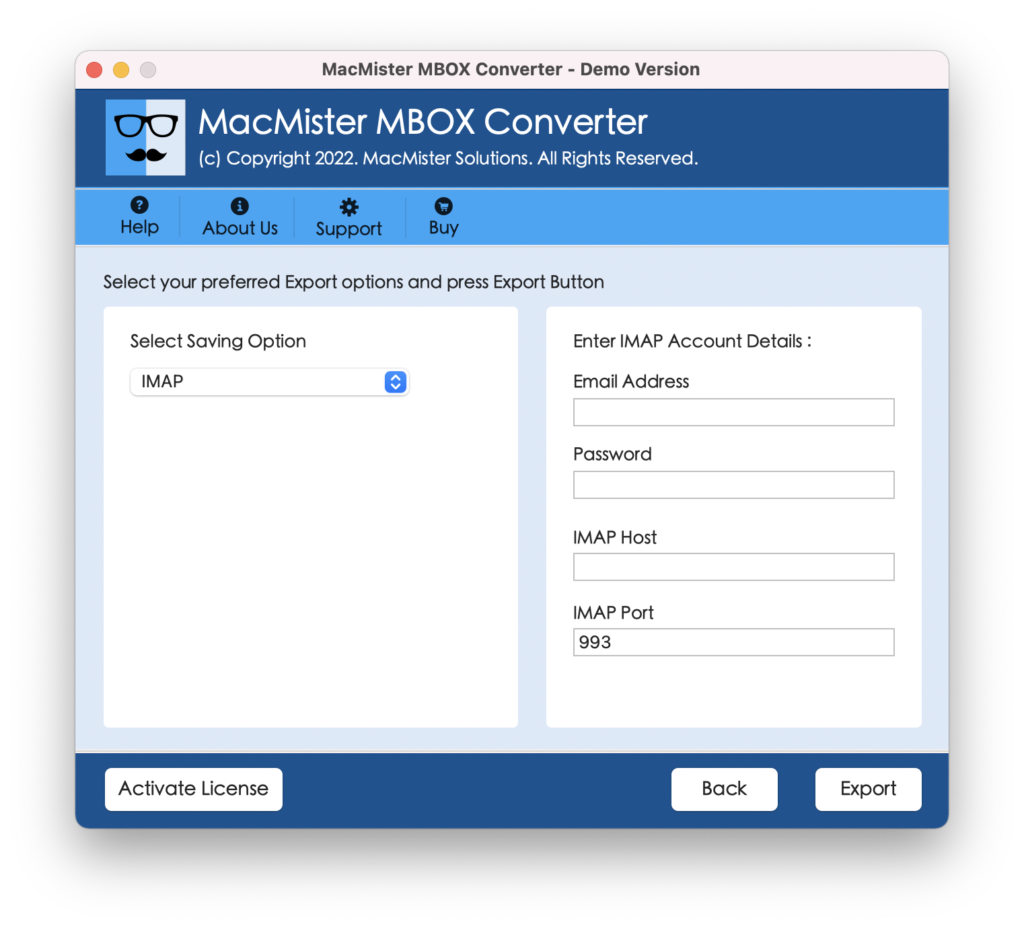
Step 4. Click on the Select Saving Options and select IMAP from the list.
Step 5. Now, mention Fastmail account details with IMAP host and port number and tap Export.
Step 6. The tool will display Live Conversion Report which will show the running export details on the screen.
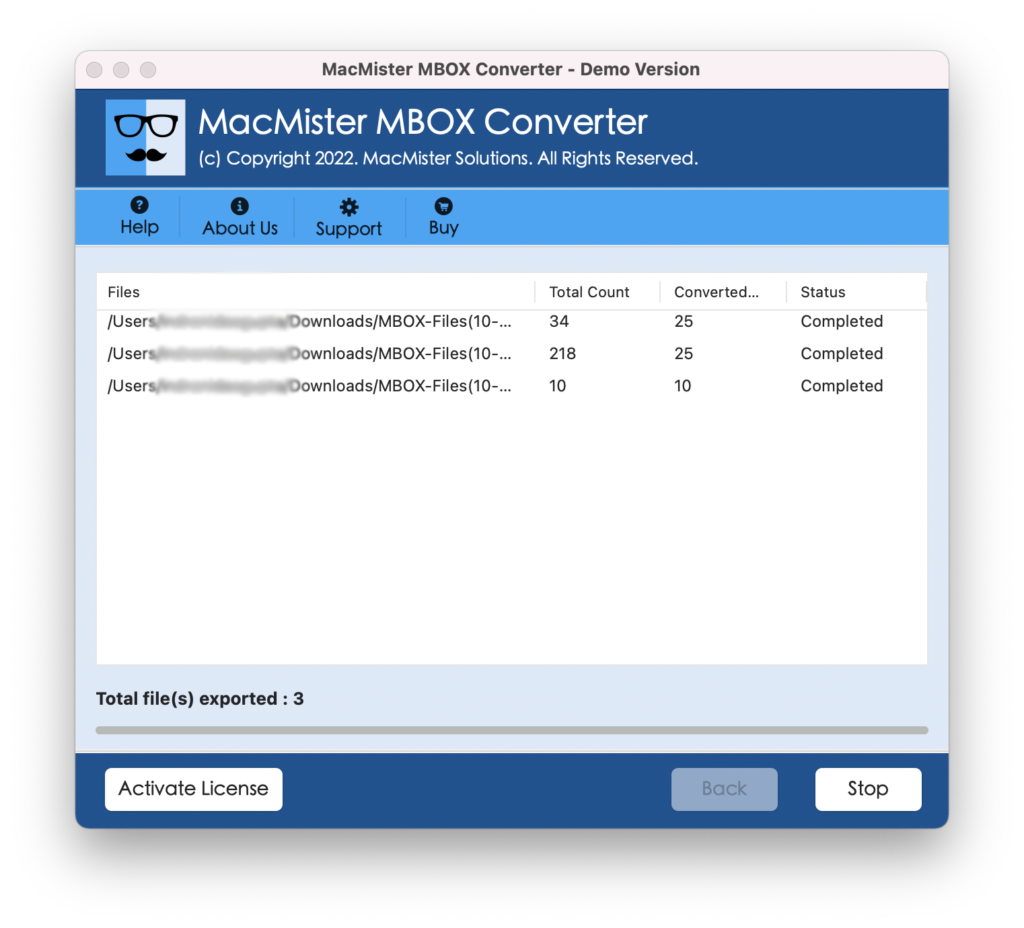
The migration will end with a pop-up notification confirming that the process is accomplished successfully. However, you can login to Fastmail account to check all the imported files. Moreover, you can open the necessary file to verify if they are transferred correctly or not. Although, the software will carry out accurate and precise migration of Hey mailboxes. Still, you may cross-check if you want.
Epilogue
In the write-up we have discussed two approaches to migrate to Fastmail from HEY account. The first method is manual which is not free and can take a lot of time as one will not be able to migrate multiple MBOX files at once. Also, it is advised to perform the steps under expert’s assistance. Whereas, the second method is direct, offers free demo that migrate first 25 Hey mailboxes to Fastmail for free at once, reliable, advanced, and highly secure.
Moreover, any user can independently use it as it has a user-friendly interface which is easily operable by anyone. And it not just limited to IMAP option, you will encounter 15+ more saving options in which you can export MBOX files. In other words, download and use the solution to migrate MBOX to PST Mac, EML, EMLx, MHT, HTML, DOC, Thunderbird, Yahoo, Outlook.com, and more.
However, you can pick the suitable method and migrate from HEY to Fastmail accordingly.