How to Migrate to Fastmail from Outlook.com on Mac & Windows?
Are you thinking about moving to Outlook.com account from Fastmail and thereby wondering how to migrate to Fastmail from Outlook.com with accurate emails and attachments? Continuously searching for a simplified and effective solution for the same? No worries, just follow the article and you will encounter a solution that will directly migrate Outlook.com to Fastmail account with precise results.
Outlook.com, previously popular as Hotmail is a free online email service provider offered by Microsoft Corp. It possesses a webmail environment featuring mail, contacts, calendaring, and tasks with the support of IMAP and POP protocol that allow users to integrate Outlook.com email service with desktop-based email applications. It is widely in use by several companies because it provides 15 GB of storage for free that is sufficient for personal users whereas business users need to upgrade to Microsoft 365 services by spending $6.99 per month or more to get the access to large storage capacity.
Why Migrate to Fastmail from Outlook.com?
Fastmail, on the other hand is another email hosting company that has a primary focus on privacy and productivity. Its basic plan is available in $3 per user per month that offers 100 GB of storage which is less expensive than Outlook.com. With Fastmail, users can easily manage their essential contacts and calendars and more than that, it keeps improving the email privacy to deliver better experience to its customers.
Benefits of using Fastmail over Outlook.com
- Easily takes care of users’ emails, calendars, and contacts.
- Able to import emails from other webmail services and export to them.
- Supports 30-day free trial without the need of credit card.
- Compatible with desktop, mobile and browsers.
- Account restore is possible when the password is lost.
- Supports custom domains.
Overall, Fastmail is suggested to all the businesses that are looking for a cost-effective email service with powerful benefits.
How to Migrate to Fastmail from Outlook.com on Mac & Windows?
The simple and easy way to migrate from Outlook.com to Fastmail is MacMister Email Backup Software for Mac & Windows. The application has the ability to directly migrate Outlook.com emails and attachments to Fastmail with ease. It contains a friendly environment which is easily manageable by all professional and non-professional users. Even, the three-step procedure will take less time of users’; help them to migrate Outlook.com inbox to Fastmail at once.
Moreover, the software is designed with many beneficial features with the help of users can migrate to Fastmail from Outlook.com according to their necessary choices. And this can be experienced by downloading the free demo version of the tool that allows to migrate first 25 Outlook.com emails to Fastmail with attachments free of cost.
Working Steps to Migrate to Fastmail from Outlook.com on Mac
Step 1. Download and run Fastmail to IMAP Migration Tool on the Mac-supported system.
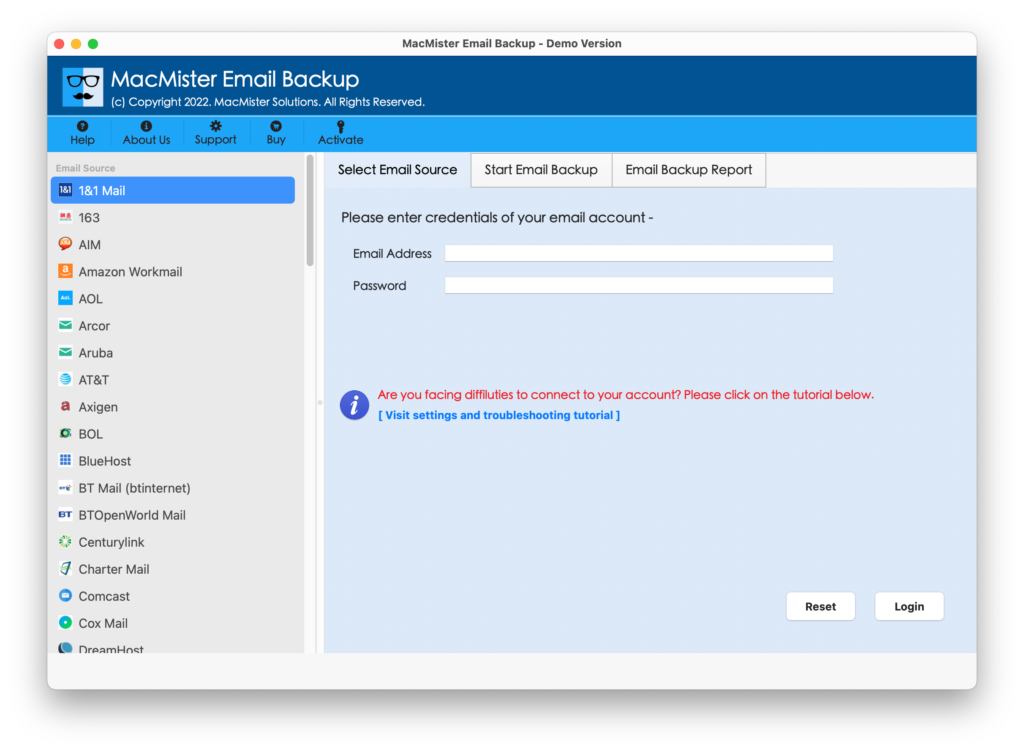
Step 2. Select Outlook.com option from the left. Add Outlook.com credentials and tap Login button.
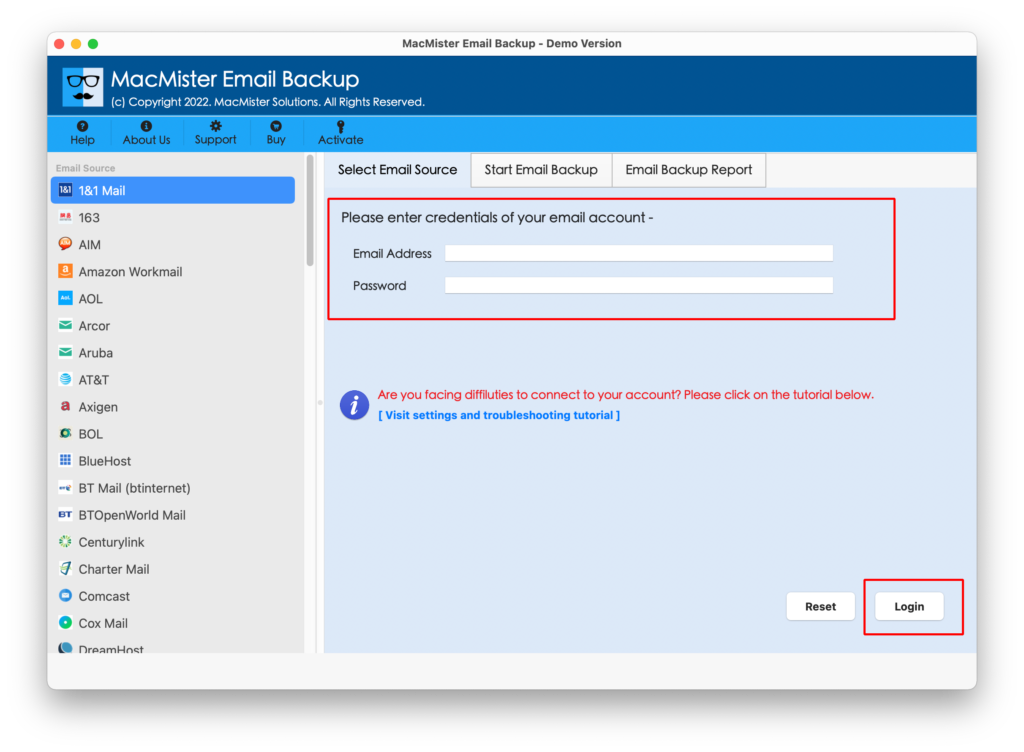
Step 3. The tool will authorize Outlook.com account and immediately display the list of Outlook.com mailboxes on the application.
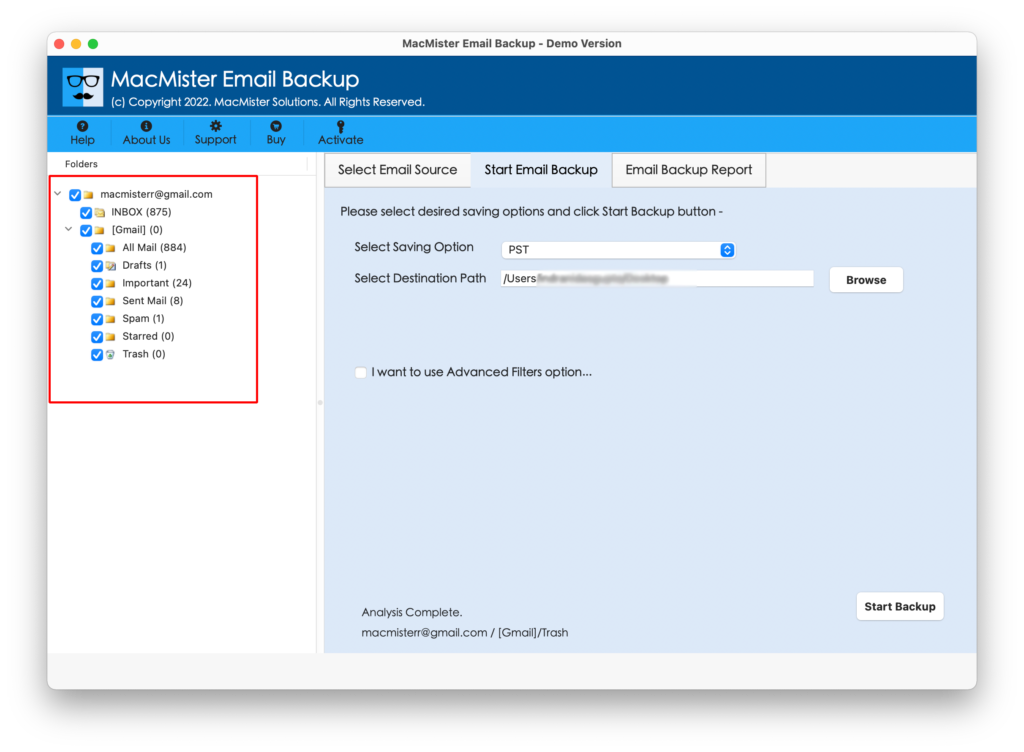
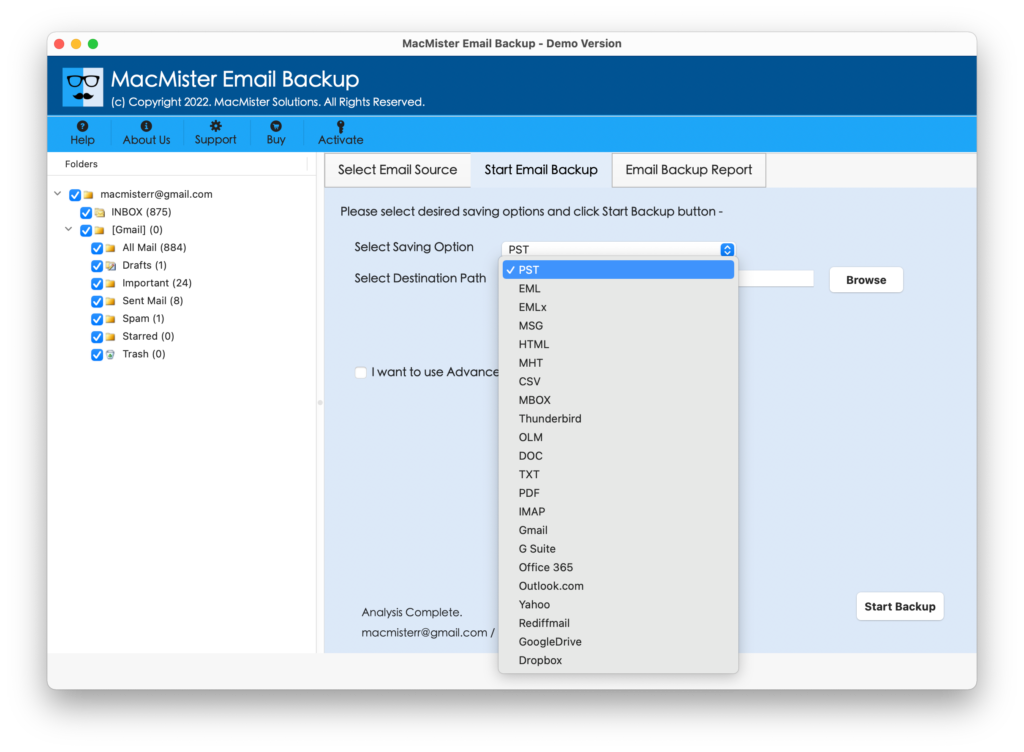
Step 4. Go towards right pane, click on the Select Saving Options, and choose IMAP option from the menu.
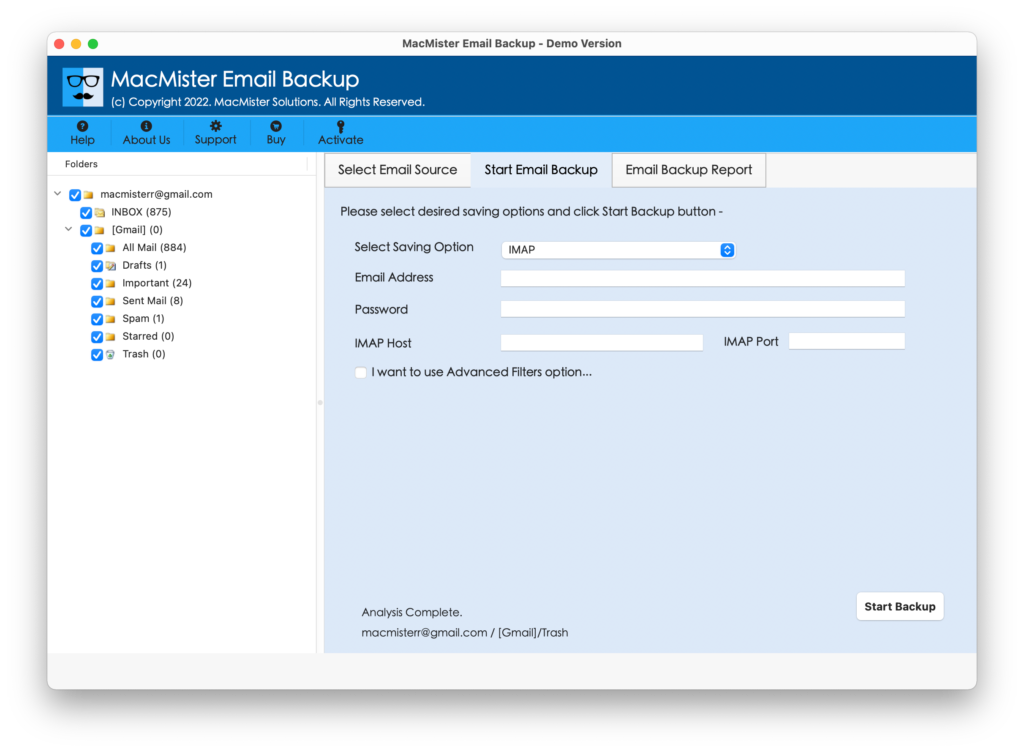
Step 5. Add Fastmail details with IMAP Host and Port Number. Simultaneously use Filters to migrate required Outlook.com emails to Fastmail account. Last, click Start Backup button.
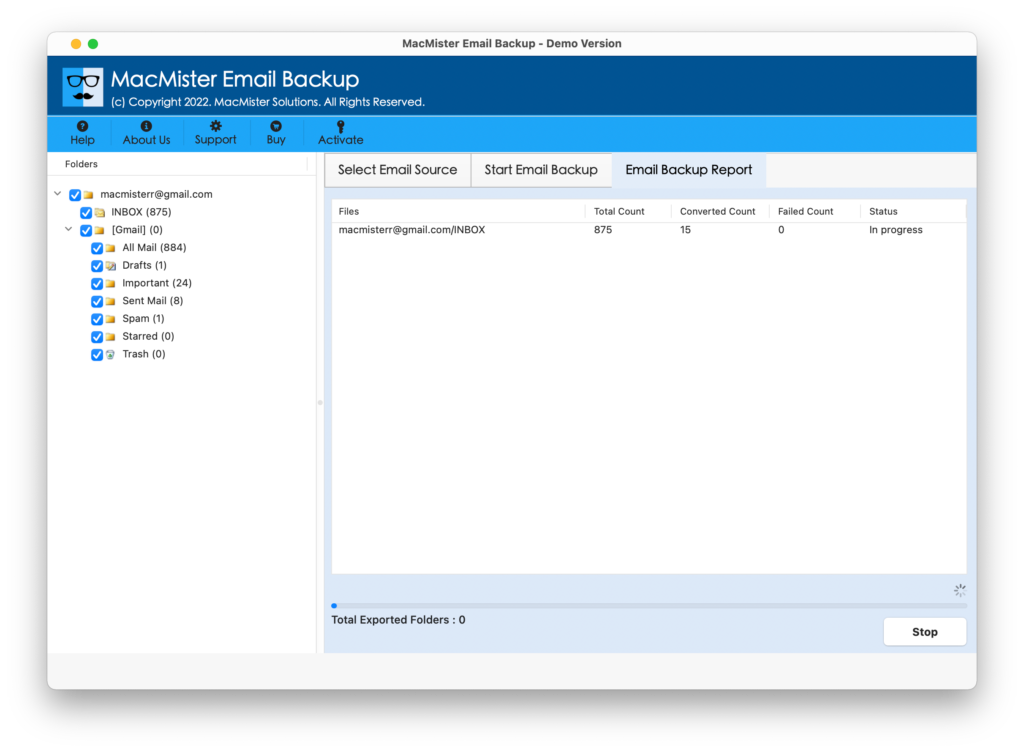
Step 6. The application will show Email Backup Report that displays the current migration details of Outlook.com emails.
The process will end in few seconds with a notification confirming that the migration is completed successfully. Click on the OK button and login to Fastmail account to check the resultant emails. You will see that the tool has precisely completed the migration of Outlook.com emails. The content, layout, and formatting properties of each and every email will appear original and accurate after the process.
Why one should choose the solution?
There are many reasons for choosing the solution, some of them are –
- Able to directly migrate to Fastmail from Outlook.com with emails and attachments.
- Offers Filters like date range, from, subject, etc. to migrate necessary emails from Outlook.com to Fastmail.
- Migrate Outlook.com to Fastmail with correct email content, layout, and formatting properties.
- Any technical and non-technical user can operate the application effortlessly as the tool is programmed with a friendly and intuitive environment.
- Besides the migration into Fastmail, one can utilize the application to migrate Outlook.com emails to PST, PDF, MSG, EML, EMLx, MBOX, MHT, DOC, OLM, CSV, Yahoo, and more.
- The tool includes three-steps in total that takes only three seconds of users to migrate to Fastmail from Outlook.com successfully.
- Shows Email Backup Report that displays the live migration progress of Outlook.com emails.
- Launched for both Mac & Windows OS users. Mac users can use the application on Mac OS Sonoma, Ventura, Monterey, Big Sur, Catalina, etc. for migration. And Windows users’ is capable to migrate Outlook.com emails to Fastmail on Windows 11 and earlier versions.
Epilogue
In the article, we have discussed an outstanding methodology to fix “how to migrate to Fastmail from Outlook.com” with emails and attachments on both Mac & Windows. The solution is definitely worth a try because it has the ability to handle the large migration of Outlook.com emails with ease. And even apart from Fastmail, users can use the same application to migrate Outlook.com emails into many more other popular saving options such as PST, PDF, MSG, EML, EMLx, MHT, HTML, DOC, CSV, OLM, G Suite, Gmail, Yahoo, Office 365, and more.
Moreover, interested users can download the free demo of the software and migrate first 25 emails from Outlook.com to Fastmail free of cost.