No Valid MBOX Files were found – [SOLVED]

Are you dealing with the error of “no valid MBOX files were found”? Looking for an appropriate approach to resolve the issue? If yes, the MacMister is here that will help you dealing with the issue without wasting your time and efforts. Let’s start by discussing a query that many users have asked on Apple Community:

Every business has different software requirements that suit their expertise and the domain they are working on. The most common software which is a necessary of every business is email software that helps them communicating with others globally. However, there are organizations that purchase a professional email client and some uses freeware. Each email client is designed with a distinct interface but possesses same functioning to some extent. Also, every email application has a storage file format that help users to store the important files on a desktop by extracting them from email account. One of the most common and widely used file types is MBOX. It is supported by 30+ email applications and makes use of a plain text file to save email messages.
Some of the popular MBOX-supported email clients are Thunderbird, Entourage, Apple Mail, Mulberry, SeaMonkey, Eudora, PocoMail, Netscape, Spicebird, GNU Mail, Opera Mail, Claws Mail, and, more. But, as everyone knows that the world is filled with lots of uncertainties and there are situations those results in MBOX files corruption. In fact, every time when a user faces corruption situation, one will get encountered with the error message.
To give you more clarity, let us consider a situation where a user is using Apple Mail and old messages are archived in MBOX files. And, an attempt has been made to copy the same to external drive. However, by using the Import option in the File menu of Mac Mail, one tried importing one of the MBOX archives into email account. But, every time, user is encountering a message that says “no valid MBOX files found”.
Common Reasons behind No Valid MBOX Files were found Error
There are several Apple Mail users who faces such issues on a daily basis. For example, let us use a situation where a user archived MBOX files from Apple Mail when working on it and tried to copy the same to external drive. And, now you have used the Import option present in the File menu in Apple Mail and you tried to open one of the MBOX archive file in a mailbox. But continuously receiving “no valid MBOX files found” error. So, here we will be discussing the root issues behind encountering the error:
- At times, users try to open MBOX files into different Mac OS versions. Therefore, due to the compatibility issues they sometimes face such type of error.
- Corrupted MBOX files is the another common reason that Mac users unable to open MBOX files on their Mac system.
- External storage device where MBOX files are stored could be corrupt or damaged.
Most Used Methods to Fix “No valid MBOX files were found” Error
Let us discuss few ways to open inaccessible MBOX files.
- Transfer MBOX files to Apple Mail email client.
- Open MBOX file in Mac using Mozilla Thunderbird.
- Export MBOX files into different accessible file type using MBOX Converter for Mac.
Method 1. Transfer MBOX Files to Apple Mail Email Account
Follow the steps and transfer MBOX files to Apple Mail email account:
- Close Apple Mail on Mac system.
- Go to Apple Mail profile location to check MBOX files.
- Now root folder is located in the folder structure for every email account that has been added to Apple Mail. Go down to one level and then navigate to the main root mailbox folder for directory hierarchy. Double-click on files appearing with .mbox extension and find the mailbox folder that you need to restore.
- After identifying .mbox file that needs to be recovered, open Apple Mail and then navigate to File and select Import Mailboxes. In few seconds, the Import wizard will appear that will help you to achieve the desired result.
- Choose Apple Mail option to successfully import MBOX files into email account and then click Continue.
- Navigate to location where MBOX files are stored. After the procedure completes, a screen will appear that confirms the successful process of MBOX import. Also, the confirmation message window will provide the location of imported files.
Method 2. Open MBOX Files on Mac using Mozilla Thunderbird
At first, download and install ImportExportTools add-on on the system. After installing it, you can proceed with the steps mentioned below.
Follow the steps to access MBOX files on Mac Thunderbird:
- Open Mac Thunderbird. Go to Tools. Select ImportExportTools option and then click Import MBOX file.
- File MBOX import window will appear. Choose the mode to import files and by default, it will be set to “Import directly one or more MBOX files” and then hit OK button.
- Go to the folder where MBOX files are stored. Choose them and hit Open button.
- Now, all mailbox items will appear on the left-hand side of the email account in Thunderbird.
Method 3. Export MBOX Files using Easiest and Secure Solution
MacMister MBOX Converter is a perfect solution for secure conversion of MBOX files into 15+ saving options on Mac. The application interface is easy, user-friendly, and remarkable. Anyone can handle the software steps independently and perform the process without data loss. Even, the processing of the tool is quick and capable to instantly batch export MBOX files to saving options such as PST, PDF, MSG, EML, MHT, HTML, DOC, TXT, Gmail, IMAP, Thunderbird, and more.
Moreover, the features of the utility are incredible and deliver accurate output in minimum time. However, the free demo is additional benefit as it will allow users to test the import process of MBOX files for free.
Working Steps to Export MBOX Files on Mac
Step 1. Launch MacMister MBOX Migrator on macOS.
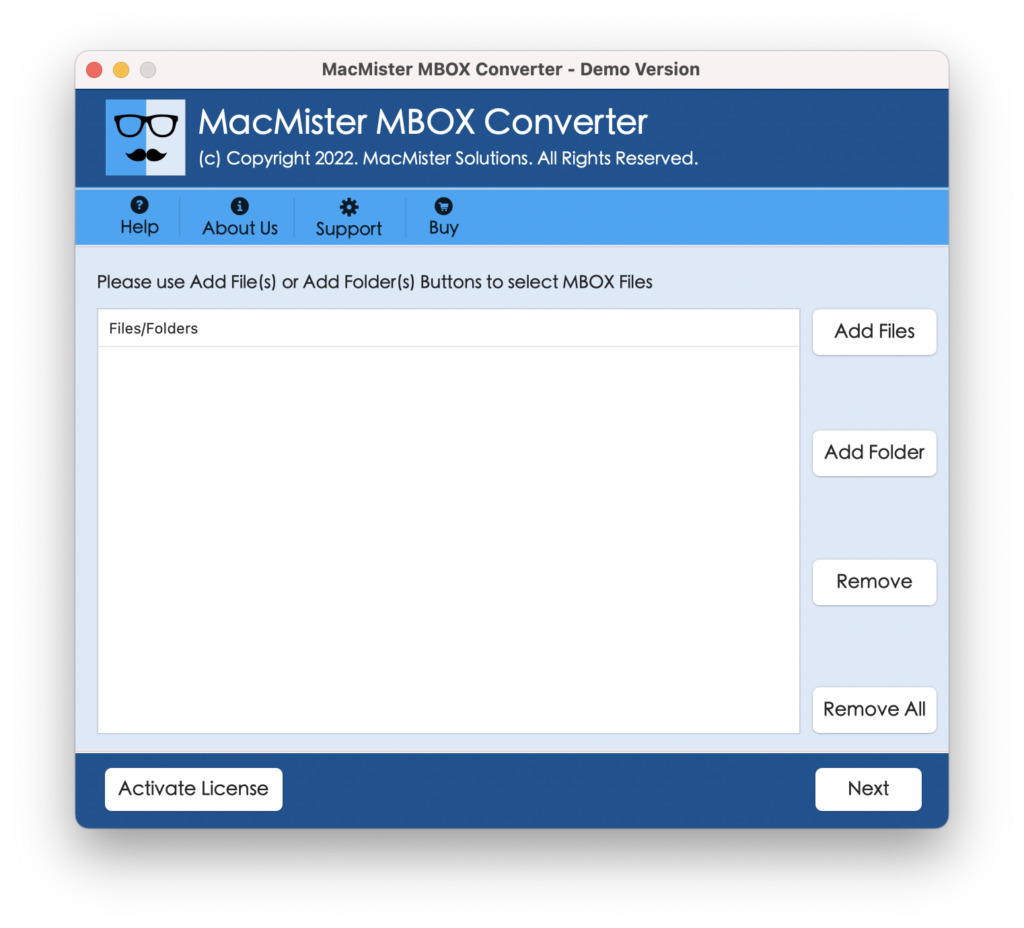
Step 2. Go to Add File(s)/Add Folders button to add inaccessible MBOX files on the software and then click Next.
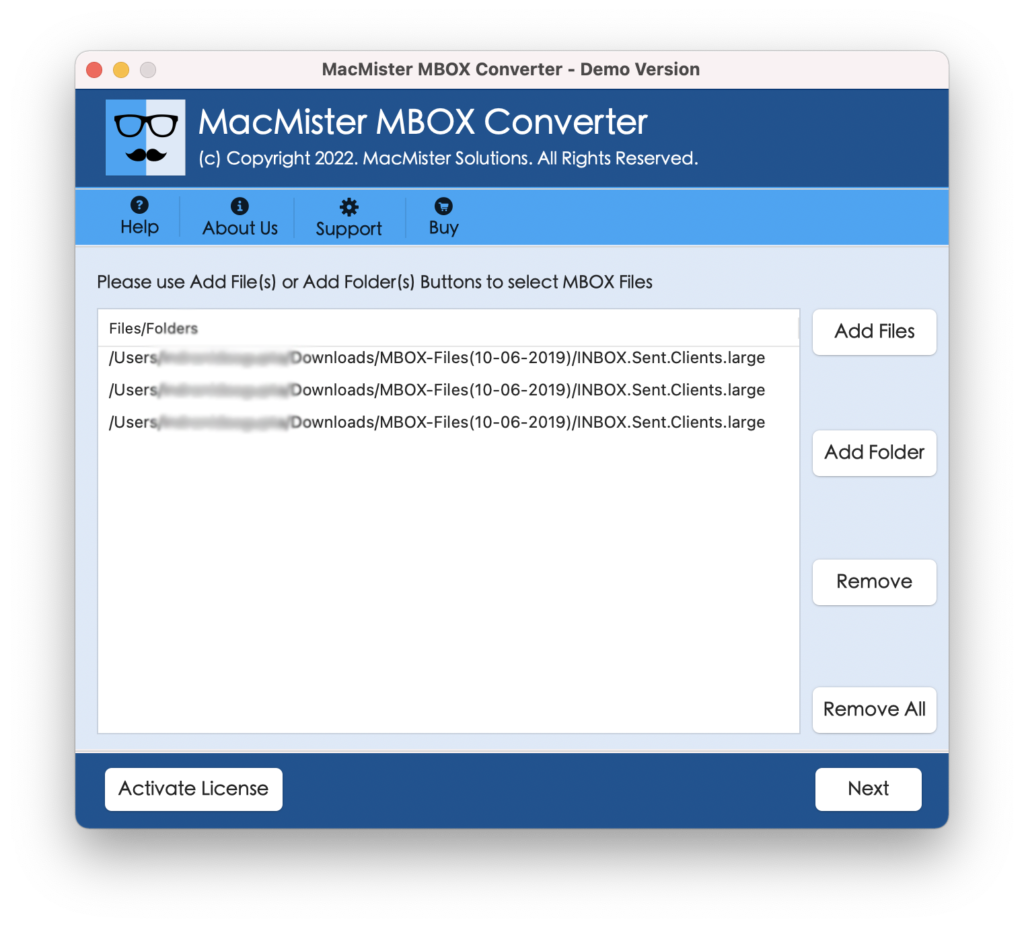
Step 3. All the files that were showing error will start to appear on the software pane with checkboxes. However, the checkbox will help you to export selective MBOX files. Click Next.

Step 4. Choose the required saving type by clicking Select Saving Options.
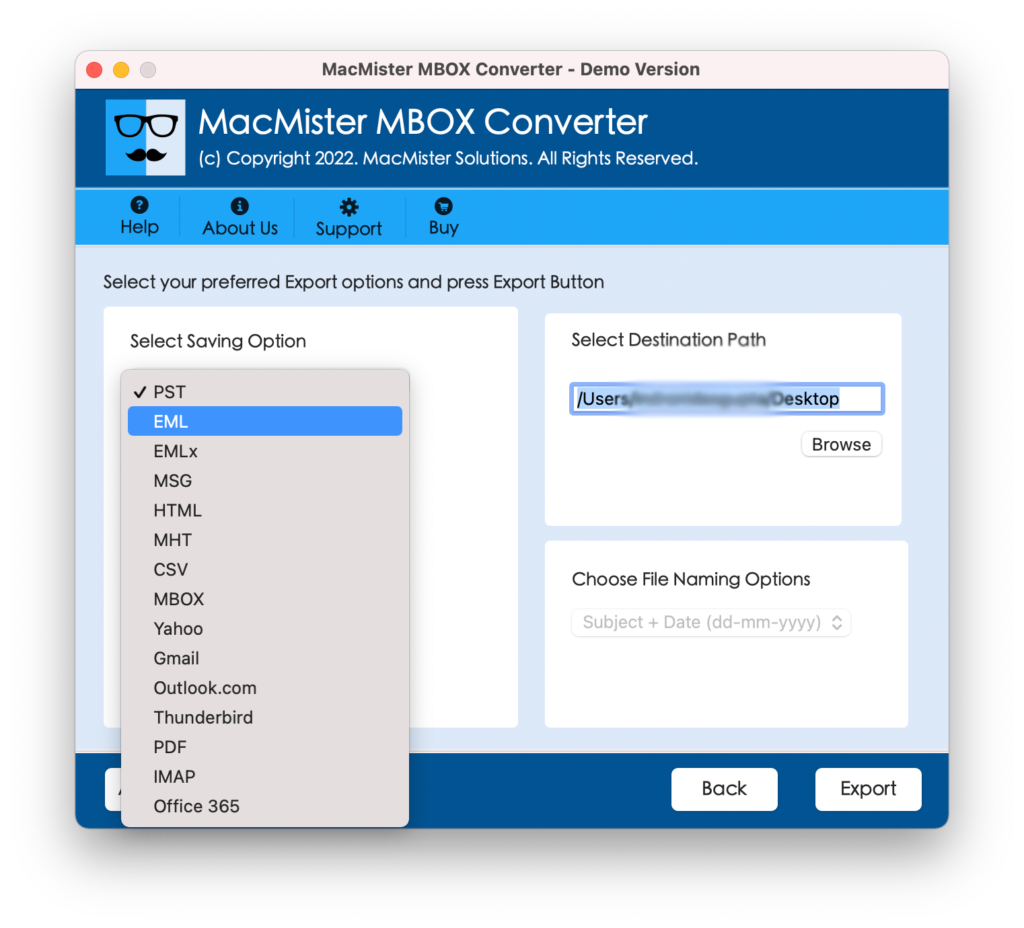
Step 5. Each saving type will possesses sub-options that users can set them according to their necessity and save resultant files accordingly. At last, tap on Export button to start the import process of MBOX files.
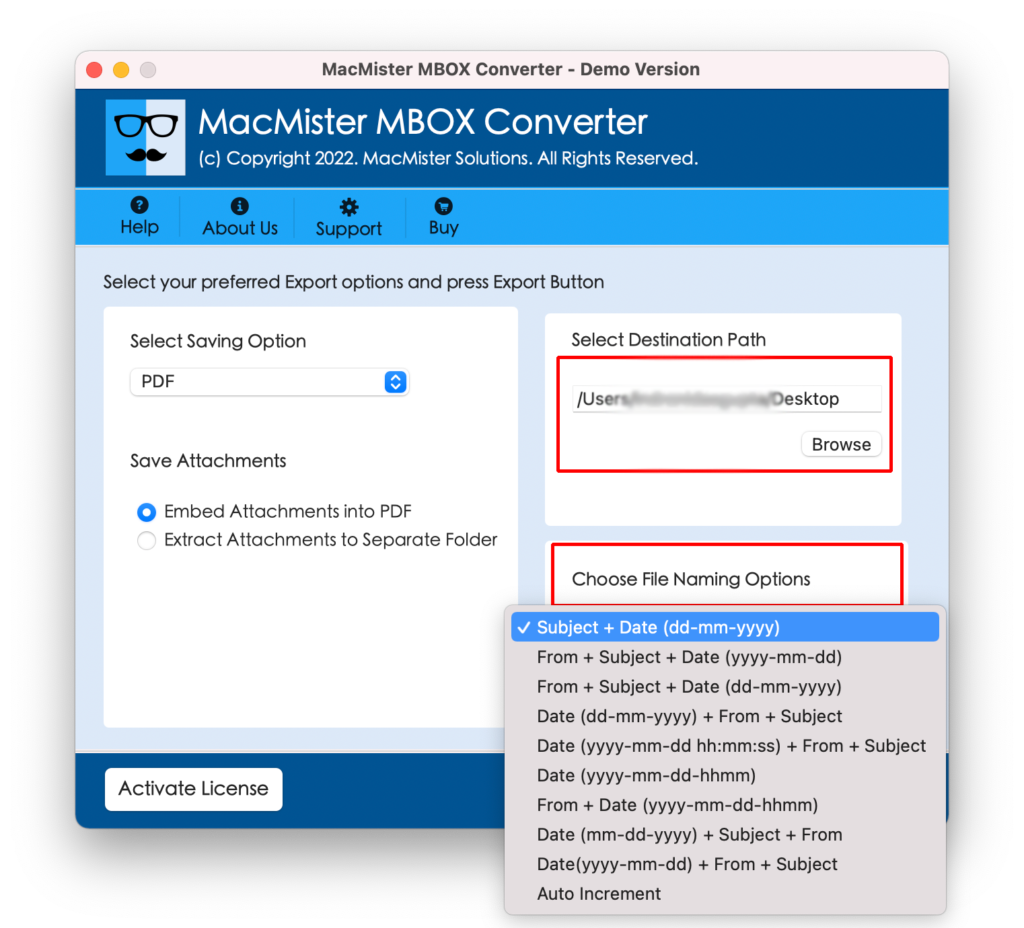
Step 5. Now, view the live import process of MBOX files using Live Conversion Window as shown-
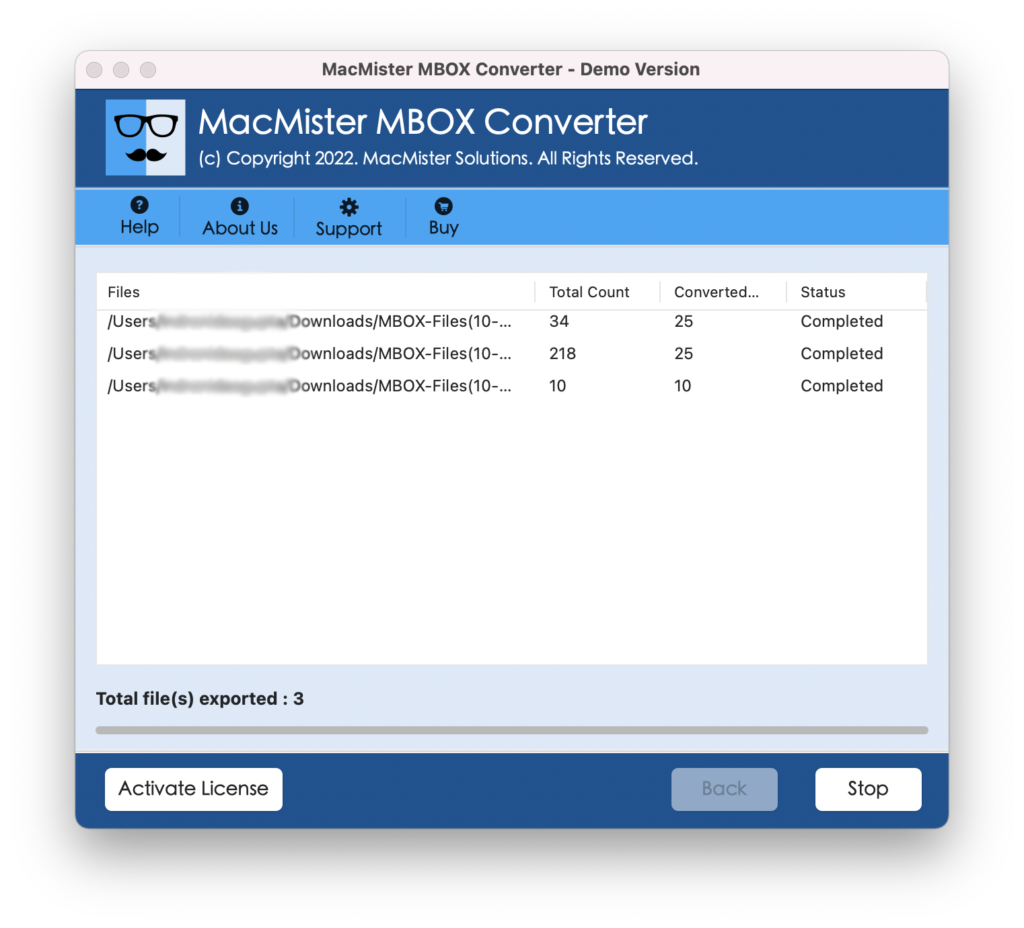
Now, the entire procedure needs few seconds and then completes the whole conversion by displaying confirmation message to users “Conversion Completed”. Click OK and go to the location that you had set earlier to save resultant files. After this, you can open the necessary file and cross-check its originality. And, you will see that the content and data integrity of emails are accurate and unaltered.
Epilogue
The write-up here mentioned different ways to resolve “no valid MBOX files were found” error. However, all the methods are workable and so users can choose the suitable one and perform the process accordingly. In case, you are technical person then you can opt 1st & 2nd methods. But, if you are non-technical, then it is recommended to go for 3rd method. It is very easy and guarantees accurate process. Also, it has a free demo with the help of which you can check the process for free. It allows to import first 25 MBOX files into required saving option free of cost.