Outlook Data Files Usage is disabled on this Computer!
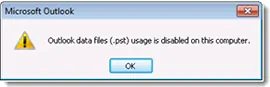
Nowadays, Microsoft Outlook has become a popular email client application which can be used by both professional and novice users. It has the ability to preserve the entire data into two file types such as OST and PST. But, at times users encounter many issues while making use of Outlook email client application. One of them, Outlook is Outlook data files usage is disabled on this computer appearing in Outlook 2016, 2013, and 2010. Thus, to overcome the issue, users should disable “Prevent User from Adding New Data to Existing PST File” option. Therefore, in the further segment, we will explain step-by-step process to do it manually in Outlook settings or Outlook registry. Before continuing, users need to understand the below scenario more properly.
Common Scenario –
“I have been operating MS Outlook 2013 since a long time. But after opening it suddenly, I received an error message “Outlook data file usage is disabled on this computer”. So, I am not able to find the reason behind this error I am receiving frequently. Please recommend me appropriate ways to resolve the same.”
Instant Guide –
When users not able to fix the error, then they can take help of the automated approach to preserve their data files. With the help of MacMister PST Converter for Mac & Windows, users can create copies of PST files into 15+ saving options with 100% accuracy. It possesses friendly environment so that all users can easily operate it and perform the whole task without any issues.
Outlook Data Files (.pst) Usage is Disabled on this Computer –Registry/Manual Steps
Explore the different methods discussed here that will help resolving “Outlook data files usage is disabled on this computer” error manually. This error occurs when adding PST files or adding a new data PST file is disabled in Outlook account. It is advised not to worry at all as this is an Outlook Setting option offered by Outlook for users. So, this can be resolved easily by disabling “Prevent User from Adding New Data to Existing PST file” in Outlook Settings. Now, let’s take a look –
Method 1. Fix Outlook Error Manually
For Outlook 2010
Step 1. Install Office Administrative 2010 Template through MS download center.
Step 2. There are two versions available – 32- bit & 64 – bit. Select suitable version as per your Office version installed on the system.
Step 3. Next, open “Policy Management Support” and choose the GPO that will be requested Custom Settings. Now, select right at Default Domain Policy and click “Edit”.
Step 4. Run Outlook 2010 Settings, and go to its options. Now, tap “Other” and click Auto-Archive. Here, you need to enable the Disable data file. Click Exit Archive Option and Disable Auto-Archive Settings.
Step 5. Open MS Outlook 2010 and navigate towards PST Settings. Here, disable “Prevent User from Adding New Data to Existing PST file or Prevent using Sharing Exclusive PSTs”.
Note. In case you need to restrict user from adding new content to existing PST file, then click enable and go to option “No PSTs can be added”.
Step 6. Then, this option “Prevent user from Adding New Data to Existing PST file” is disabled.
So, on the local machine, run gpupdate or force to quickly apply GPO and log in. Afterwards, you will come to know that the end user hasn’t been blocked from executing Outlook PST associated operations. Likewise, “Open MS Outlook Data File” option will be highlighted after tapping File in MS Outlook.
Thus, trying to Import/Export .pst in Outlook won’t result in “Outlook data file usage is disabled on this computer” error anymore.
Method 2. Fix Error using Registry
In case if there are any changes done incorrectly in the registry, then you may encounter serious problem. Before performing any alteration, backup the registry to restore if any issue arises. There are two different ways to perform this –
- Restrict users to add new data in existing .pst.
- Resrict users to add new .pst.
Restrict users to add new data in Existing PST
To restrict a user from adding a new content to existing PST, do the modifications in PSTDisableGrow registry entry, set asset value to 0. Now, follow the steps –
- Run Registry Editor.
- Search and then navigate to the following registry subkey –
HKEY_CURRENT_USER\Software\Policies\Microsoft\Office\.0\Outlook\PST
- [The .0 placeholder states the version of MS Outlook]
Step 1. From Edit menu, tap New and select DWORD Value.
Step 2. Type PSTDisableGrow and tap Enter.
Step 3. Right-click on PSTDisableGrow entry that is created and select Modify.
Step 4. Enter 0 in a Value data box and tap OK.
Note. The PSTDisableGrow registry entry will be set as per specified values.
- 0 = User may add new data to existing PST. This will be the default value.
- 1 = Users not able to add new content to existing PST.
Restrict users to add a new PST
To restrict a user from connecting single PST in Microsoft Outlook, make changes in DisablePST registry entry and set value to 0. This will help in resolving Outlook data file usage is disabled on this computer error. To do the same, follow the steps below –
Step 1. Go to Registry Editor
Step 2. Navigate and click the registry subkey highlighted below –
HKEY_CURRENT_USER\Software\Policies\Microsoft\Office\.0\Outlook
[The .0 placeholder indicates the version of MS Outlook]
Step 3. From Edit menu, navigate to New option and tap DWORD value.
Step 4. Type DisablePST and click Enter Key.
Step 5. On DisablePST registry, right-click on it and tap Modify.
Step 6. Enter 0 in Value Data box and tap OK.
Note. The DisablePST Registry Entry may be configured to the following Values –
- 0 = User may add .pst data files. This is a default value.
- 1 = User not able to add .pst. PST Functionality Completely
- 2 = User has the ability to add absolute sharing PST data such as SharePoint PST files.
Remember – To disable PST usage, follow the above methods to prevent users from using PST files.
Epilogue
Microsoft Outlook is a reliable and effectual email app that is used by several users worldwide. However, at times users encounter issues while operating Outlook app. In the blog, we have explained many solutions to fix Outlook data files usage is disabled on this computer. The user may implement the above stated methods to fix the error. Thereby, it is advisable to opt for a trustworthy solution to prevent any data loss.