Outlook PST not Syncing with OneDrive! – [Tutorial 2026]

One can resolve Outlook PST not syncing with OneDrive by applying solutions i.e. shutting Outlook, moving PST files from OneDrive, or repairing PSTs. In the article, we will go through some methods that will help in fixing the error immediately.
Why Outlook PST not Syncing with OneDrive?
Outlook preserve its entire data items in a PST (Personal Storage Table) file when you make use of POP3 for account configuration. The file is constantly read and updated when Outlook is running that means the app keep it locked and will not allow other applications to make use of it. At the same time, when OneDrive when OneDrive tries to sync same PST, then the file become unavailable that can cause sync failures.
Additionally, one may also encounter synchronization issues after installing latest Windows update or Outlook classic updates. For e.g., recently when users reported issues with PST file and Outlook after installation of Windows 11 update. In such a case, suggested by Microsoft, one can move PST from OneDrive and uninstall latest update.
Reasons why Outlook PST not syncing with OneDrive
Before diving into solutions, let’s explore some possible reasons which may cause an issue –
- PST file locked while using Outlook.
- File is modified simultaneously on multiple devices.
- Restrictions with OneDrive sync.
- File opened even after Outlook is closed.
- Some background practices are utilizing PST file.
- PST file corruption.
- OneDrive storage limits and quota issues.
What are the Solutions to Fix Outlook Not Syncing with OneDrive?
You may follow the below methods to resolve Outlook not syncing with OneDrive error –
Method 1. Close Outlook and related Processes
PST file locked while Outlook is running. When PST file is in use and locked, then OneDrive would be failed to access it, as a result in synchronization issue. So, close Outlook email client. Also, make sure that all the processes which make use of PST files are closed. To perform the same, use the below steps –
Step 1. Press Ctrl + Shift + Esc key simultaneously to open Task Manager.
Step 2. Close all the Processes tab.
Step 3. Check the processes with names including MS Outlook or Outlook.EXE.
Step 4. Select the process, right-click on the same and tap End Task.
Step 5. Confirm by tapping End Processes if prompted.
Similarly, close all the related process. If this won’t help, then go through the next methods.
Method 2. Change PST File Location by making use of Symbolic Link
After adding PST file in OneDrive, both Outlook and OneDrive try to access the same simultaneously. Outlook will lock .pst file while reading and writing emails and this won’t allow OneDrive to retrieve the file that cause failure during synchronization process. A symbolic link is used to transfer PST file to a local folder on the system while making Outlook believe that the file is still located in OneDrive. The method will create a pointer or reference within OneDrive that automatically assist Outlook to a file’s exact location on a local drive. This method reduces synchronization conflicts. Proceed further using the steps below –
- Quit Outlook email client.
- Generate new local folder i.e. C:\OutlookPST\
- Move PST file from OneDrive to a new folder.
- Now, run Command prompt as administrator.
- Run the below command –
mklink “C:\Users\username\Documents\Outlook Files\TestFile_01.pst” “D:New PST location\TestFile_01.PST”
- You will discover .symlink file in the original folder saved with the same name.
- Start Outlook and continue using it.
Method 3. Fix PST File
Corrupted PST may also result in sync issues at times as OneDrive may fail to read such a file. You may fix corrupted PST using ScanPST tool – an inbuilt utility in Outlook. Here are the below steps mentioned that fix PST using the utility –
Step 1. Search for ScanPST.exe on a system
ScanPST utility is present in the Outlook installation directory. But its correct location is different, depends on the application’s version.
Step 2. Run ScanPST.exe
- Go to location of ScanPST.exe.
- Launch ScanPST by double-clicking on its exe.
- Tap Browse button.
- Go to PST file location.
- Choose PST file and hit Open.
- Tap Start Button to initiate scanning.
Step 3. Repair PST File
- After scanning completes, and if in case errors are found, then ScanPST message will display – “Errors were found in a file”.
- Tap Repair button.
- Select the checkbox – Make a backup of scanned file before fixing.
- Tap OK to initiate repairing process.
- After the process finishes, it will show “Repair Complete” message.
ScanPST usually deals with issues associated to minor corruption in PST files. It can freeze, fail or crash to fix the issue in case PST files are majorly corrupted or quite large. If PST files remain unrepaired by ScanPST, then make use of MacMister PST Converter for Mac. A solution that cannot repair PST file but help in keeping its data safe by transforming PST file into 15+ saving options. It has PDF, MBOX, EML, OLM, HTML, CSV, DOC, TXT, Yahoo Mail, Office 365, Gmail, Office 365, and more.
It is built with a user-friendly environment so that all professional and novice users can utilize the solution with ease. Moreover, the application has remarkable features which allow users to save PST files according to the requirements.
Follow the steps to transform PST file for backup
Step 1. Download, install and run the app on any macOS.
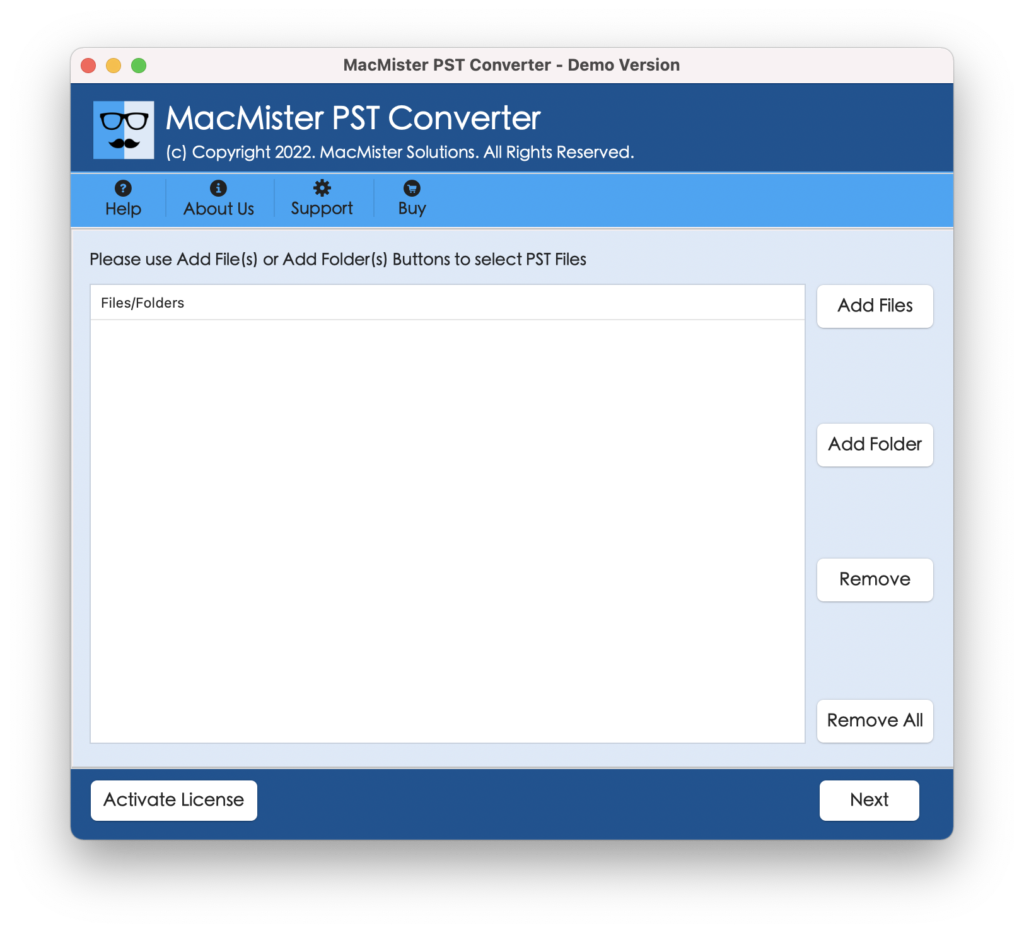
Step 2. Use Add File(s)/Add Folder buttons to upload required .pst files on the tool.
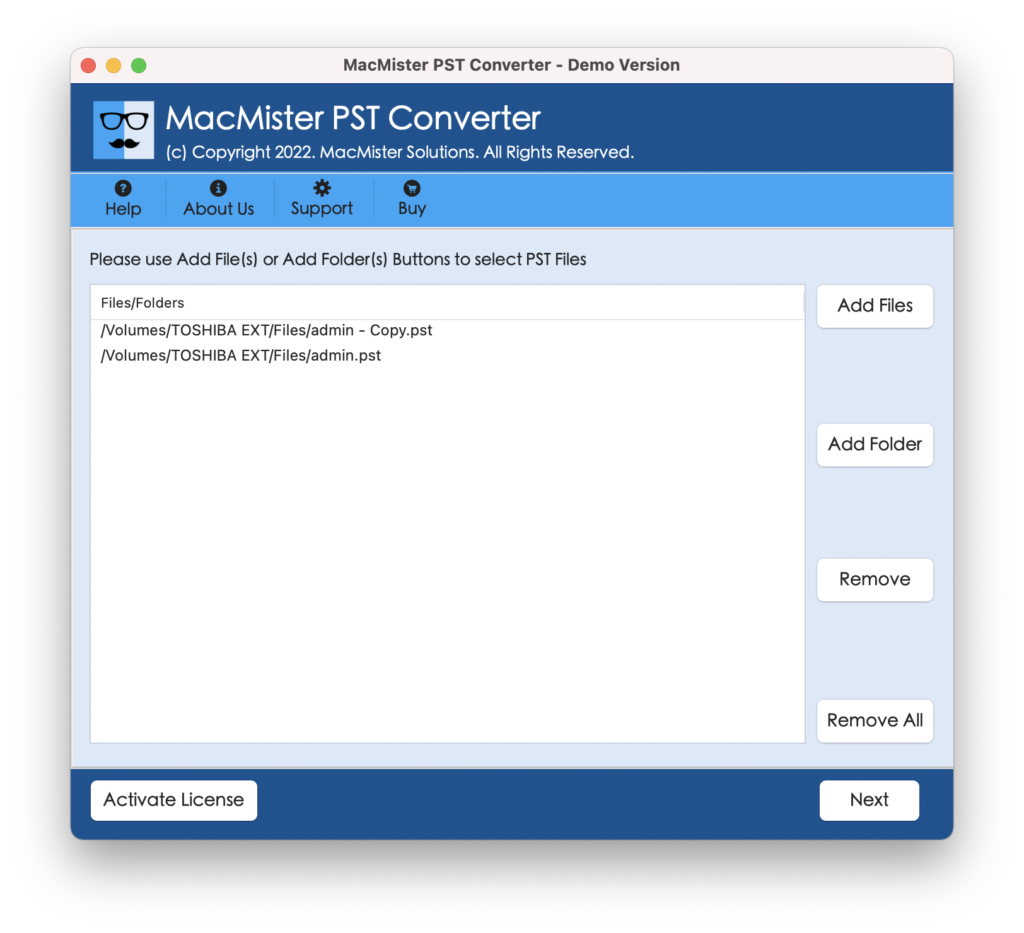
Step 3. Verify the files listed and tap Next to proceed further.
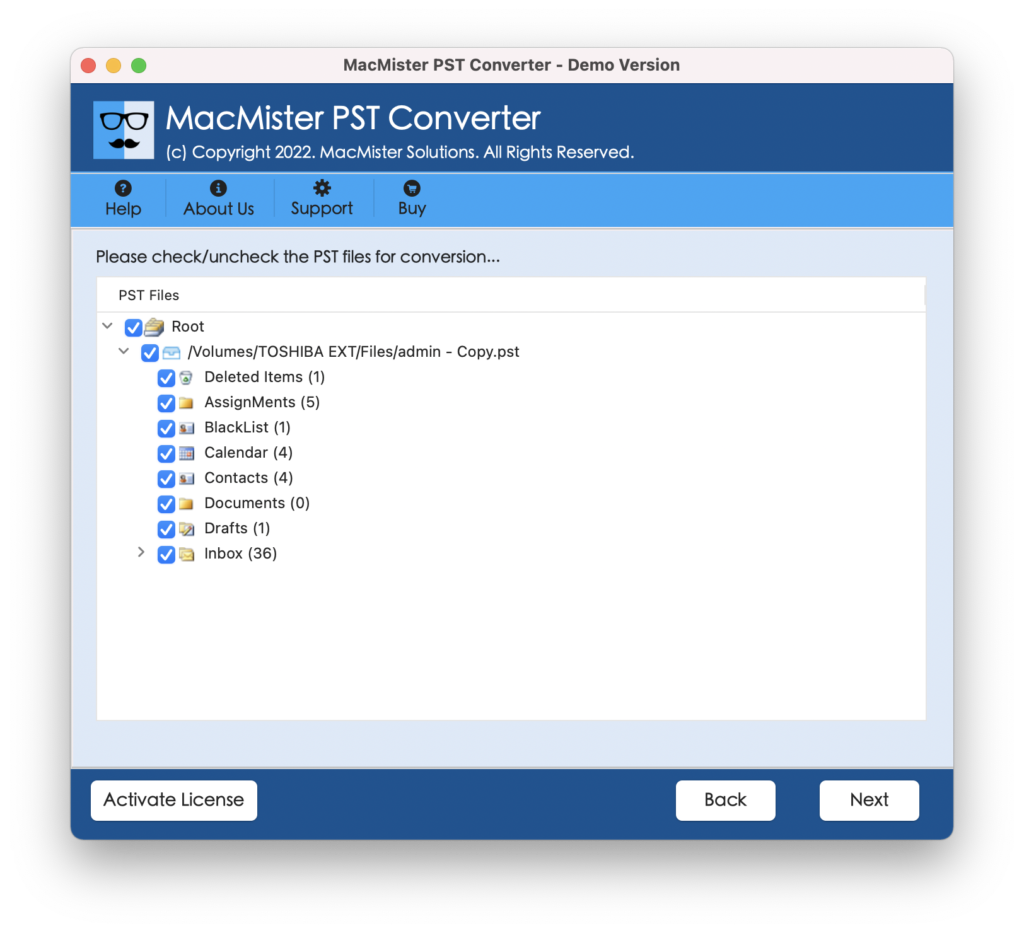
Step 4. Choose the required saving type and click Next.
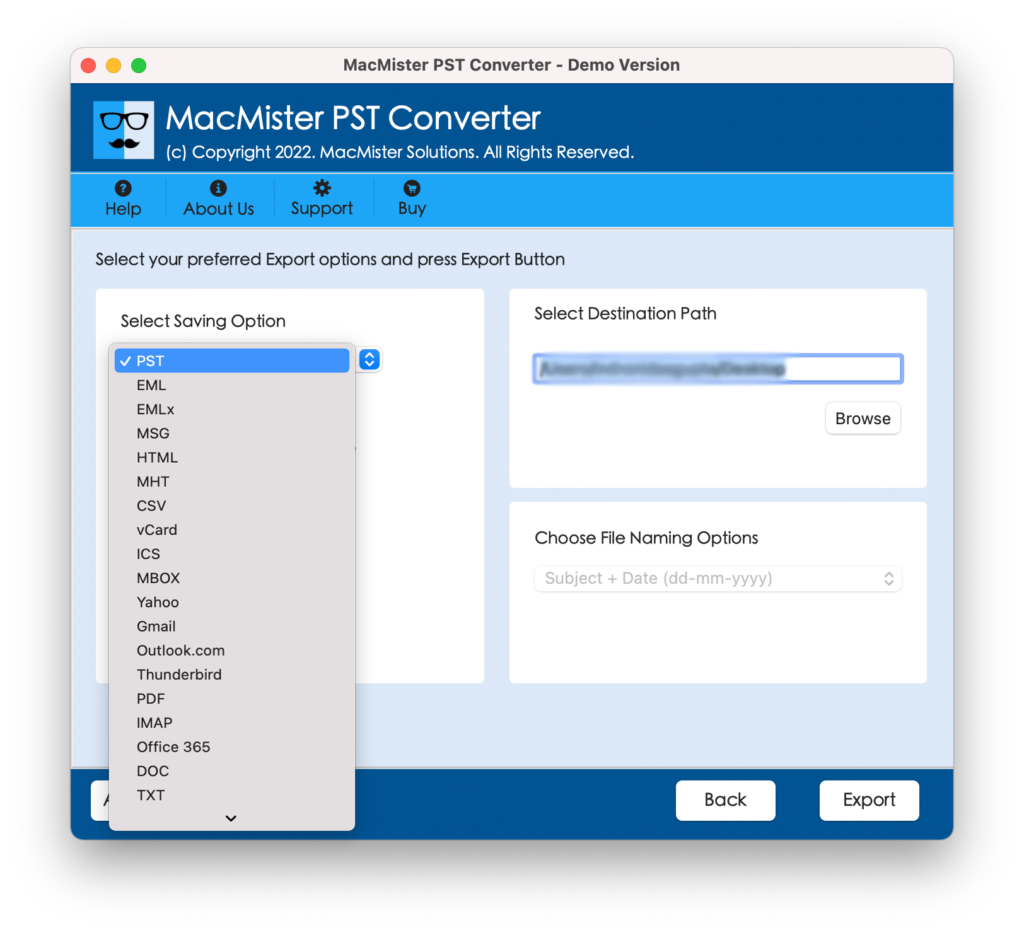
Step 5. Use the sub-options according to the requirements and hit Export.
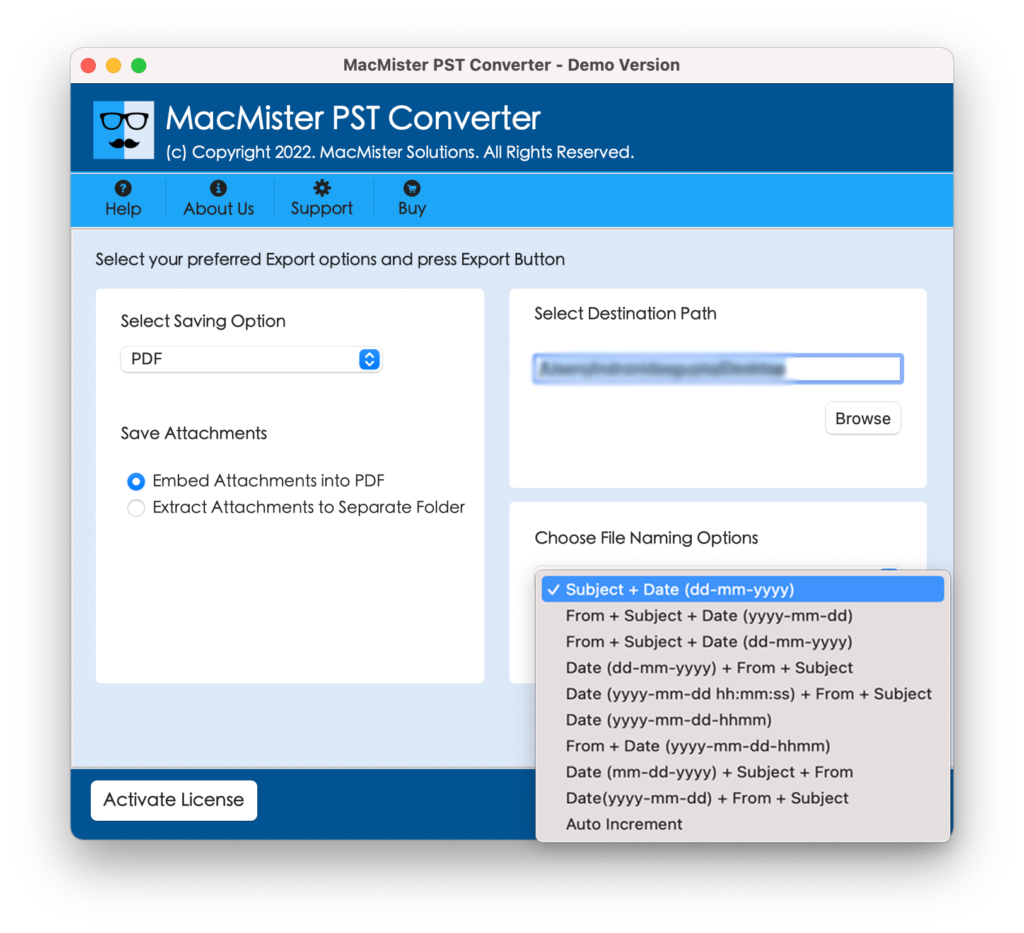
Step 6. Track the transformation status using Live Conversion Report.
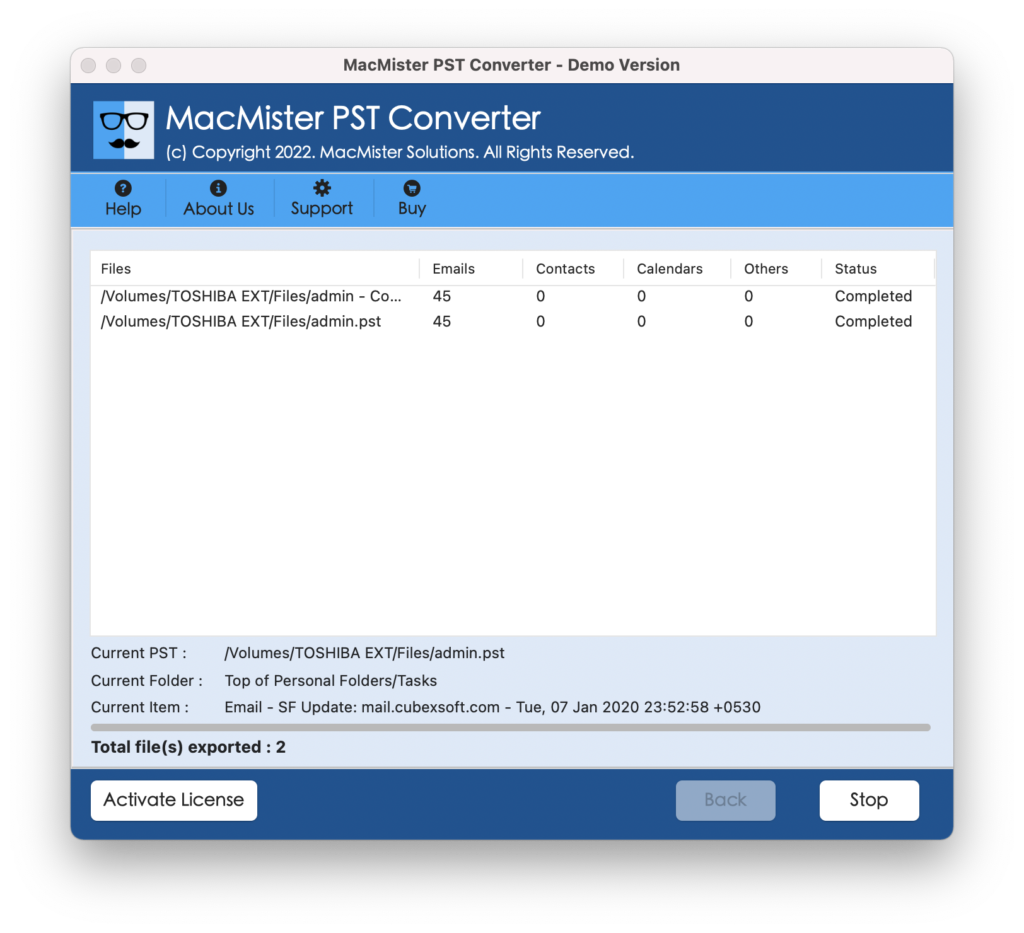
Note. To know the detailed process, download its free demo and save 25 PSTs for free.
Epilogue
In the write-up, we have provided different techniques to fix “Outlook PST not syncing with OneDrive”. You may opt for a required method and perform the task without issues. But before initiating the repair process, make sure to take PST file backup first to prevent data loss. For any queries, contact MacMister Support.