ProtonMail Not Receiving Emails from Gmail – [Solution 2023]

If you are continuously dealing with “ProtonMail not receiving emails from Gmail”? No worries, because we have discussed some approaches here which you can use to access emails in ProtonMail account from Gmail.
ProtonMail is known for offering ad-free email service that prevents the personal conversations from malicious attacks by applying the strong encryption. Due to this, several users started moving to ProtonMail from Gmail.
So, this short guide will help you transferring all the essential files from your Gmail account. You can seamlessly migrate emails, attachments, contacts, calendars, and other items stored in Gmail account to ProtonMail.
Method 1. Move Existing Emails and Contacts
Easily move all Gmail email messages and contacts to ProtonMail with the help of Easy Switch app.
Easy Switch
Launch Easy Switch by sign-in to your account at account.proton.me and then navigate to Settings >> All Settings >> Import via Easy Switch >> select Google.

Choose the files you want to Import. You can select:
- Emails
- Contacts
- Calendars
And, click Next.
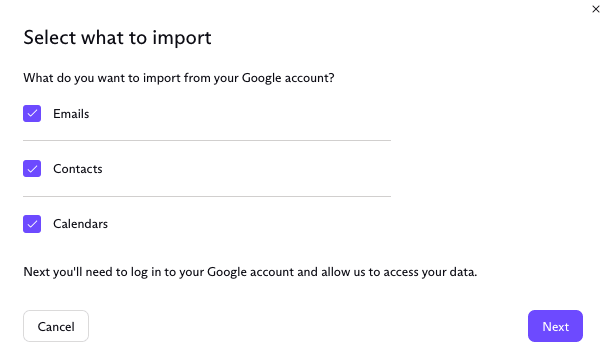
You will see the following pop-up window
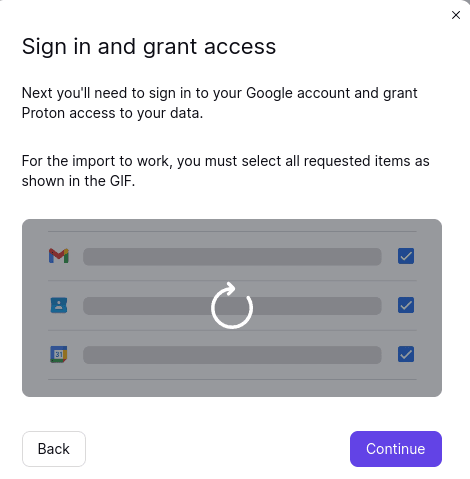
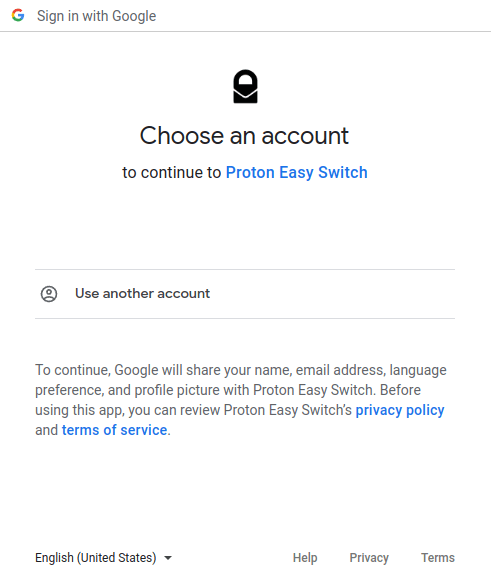
Now, login to Google Account from which you want to import files. We delete the login details after the import process completes.
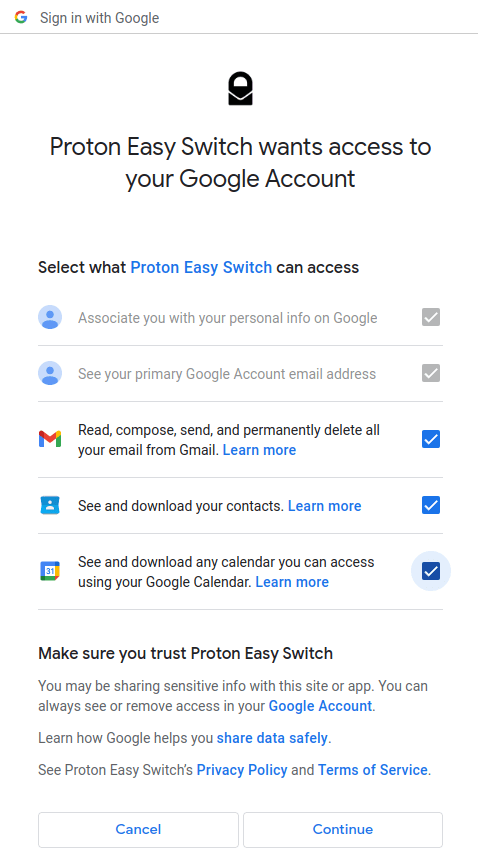
A screen will appear displaying “Proton Import Assistant wants additional access to your Google account” along with different types of the data that Easy Switch will need access to.
You need to select all the boxes to enable Easy Switch to import your files. After all boxes are checked in Google authorization screen, click Continue.
This will take you to Customize and Confirm Import window.
Import Export
The Import Export app allows importing of email files stored on your computer and export emails from ProtonMail account to hard drive as an encrypted backup.
Download Import-Export App. After installing the app on the device, click Add Account. You will then prompt to login to ProtonMail account.
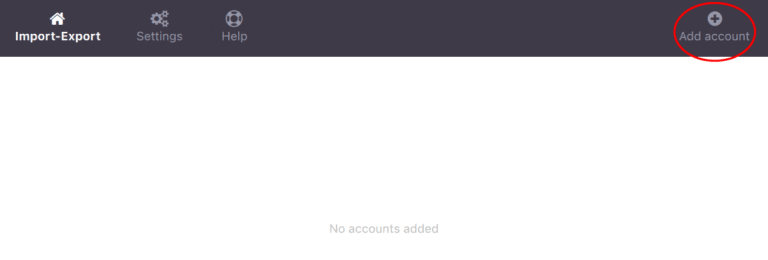
After you logged in to Import Export app with ProtonMail account, you can import files or emails into your account from the app by tapping Import.
Image
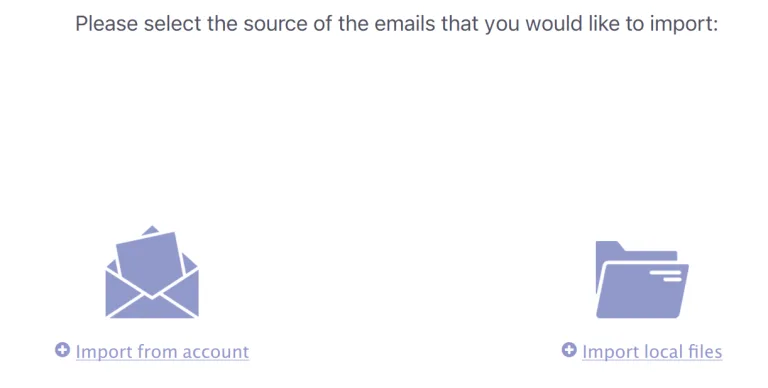
After this, continue by choosing between Import from Account or Import Local Files, depending on whether Gmail files are saved onto your device or you would like to import them directly from Gmail Account
Set up Email Forwarding
After the existing emails are imported from Gmail, continue by setting up the automatic forwarding. This ensures that all the new incoming emails will be forwarded to ProtonMail Inbox from Gmail account. After senders learn your new Proton address, they will then reach you directly using your new ProtonMail email address.
Note. The forwarded messages will first go through Google Servers from Gmail. This means they are TLS encrypted, not end-to-end encrypted. Google can access them:
Easy Steps to Forward Gmail Messages to ProtonMail
Step 1. Open Google Mail and go to Gear icon that represents Settings on the top-right corner of the Gmail window.
Step 2. Click See All Settings and go to Forwarding and POP/IMAP tab. Click Add a Forwarding address.

Step 3. Specify ProtonMail email address in a window appearing and click Next.
Step 4. Open ProtonMail to find a confirmation message from Google.

Step 5. Click the link in the email to verify ProtonMail address and confirm forwarding.
Step 6. Reload Gmail account webpage.
Step 7. In the Forwarding and POP/IMAP tab, choose Forward a copy of incoming mail and select ProtonMail address from the drop-down list.
Step 8. Tap Save Changes.
Inform your Contacts
Tell all the necessary contacts that you are now using ProtonMail email address. You can start by sending a short Hi message or order new business cards.
Also remember that ProtonMail has offers certain limit to send emails at once to prevent from spam and phishing attempts.
The limit depends on criteria including the sender behavior.
In order to make the transition simple, share the short domain email address @pm.me with the contacts. Emails received via @pm.me will be visible in the same INBOX as those who are using @proton.me address. All the ProtonMail accounts, whether free or paid, can receive emails at this address, and paid accounts can use it to send emails.
For e.g. if the email address is username@proton.me, the associated @pm.me email address is username@pm.me.
Update Online Contacts
Connect the online accounts to ProtonMail to safeguard sensitive communication, instead of using the Gmail address as a medium of contact. By migrating the messages associated with finance, health, and shopping to ProtonMail, you will avoid having the personal info used to profile you or potentially exposed or purchased by the third parties.
This has to be done on the basis of individual accounts; you can use the opportunity to review the security settings of your account and even delete the accounts that you no longer use.
You can start with the accounts carrying sensitive information such as banks, tax services, or file storage.
Continue with the accounts you use daily such as social media, entertainment, or online shopping.
Update the other accounts over time. In your ProtonMail account, create a separate folder from where you will be able to able to automatically forward emails from Google Mail account. This will help you to quickly spot which contacts are still in use by the old email address. However, to make your contacts aware about the new email address, set up an auto-reply every time the contacts contact you through old email address.
After the accounts are updated, then you can delete the Gmail account. This will give you control on the websites or organizations that are having the contact details.
Later if you decide to access any account again which is still associated with Gmail, then can use the recovery email address or the phone number you added during sign up. Alternatively, contact the support team of the service of the account you’re trying to access.
Use Gmail Backup
Last, take help of a MacMister Gmail Backup Tool for Mac & Windows to directly transfer all emails from Gmail account to ProtonMail. The software offers IMAP as a saving type in which you just need to provide the ProtonMail credentials with IMAP host and port number and then the app will automatically move all emails from Gmail account into the necessary ProtonMail profile.
It has several features which you can test by downloading the trial edition. Also, you can forward first 25 emails to ProtonMail from Gmail account free of cost.